

What Online Autotune Really Means
You have a vocal take that's 90% there. The emotion is right, the timing is solid, but a few notes drift just enough to bug you. A decade ago, fixing that meant owning a DAW, buying a plugin, and learning a workflow. Today, you open a browser tab.
Online autotune refers to browser-based pitch correction tools that detect and adjust the pitch of vocal recordings in real time or after upload, without requiring any desktop software installation.
That distinction matters more than it sounds. Online autotune is not the same thing as Antares Auto-Tune, which is a specific brand-name plugin used inside digital audio workstations. It's also not a catch-all synonym for pitch correction software, which includes everything from Melodyne's note-by-note editing to built-in DAW tools. Think of it this way: every online autotune tool performs pitch correction, but not all pitch correction software lives in a browser. The browser-based vocal tuner is its own category, built for speed and accessibility over surgical precision.
What Online Autotune Actually Is
For independent artists, bedroom producers, and content creators, these tools fill a real gap. You don't need a Pro Tools license or a studio budget. You upload a dry vocal, pick a key, adjust a few settings, and export a tuned file. Platforms like Soundation and other web-based editors have made this workflow feel as routine as editing a photo online. If you're wondering what is a vibrato or how scales like the mixolydian mode affect your tuning choices, those details start to matter once you're inside the tool. But the barrier to entry is essentially zero.
From Studio Plugin to Browser Tool
The lineage here is worth knowing. Dr. Andy Hildebrand, a geophysical scientist, created the original Antares autotune plugin in 1997 by adapting seismic data interpretation algorithms to audio pitch detection. For years it stayed behind studio doors, quietly fixing notes on records most listeners assumed were sung perfectly. Then T-Pain turned the retune speed to zero, made the robotic effect a signature sound, and autotune entered pop culture permanently. That cultural shift drove demand far beyond professional studios. Producers wanted the effect. Singers wanted the polish. And developers responded by moving the technology into the browser, making vibrato preservation, key selection, and pitch snapping available to anyone with an internet connection.
The tools have arrived. The real question is what happens between uploading a vocal and exporting a finished one, and that starts with understanding how pitch correction actually works under the hood.
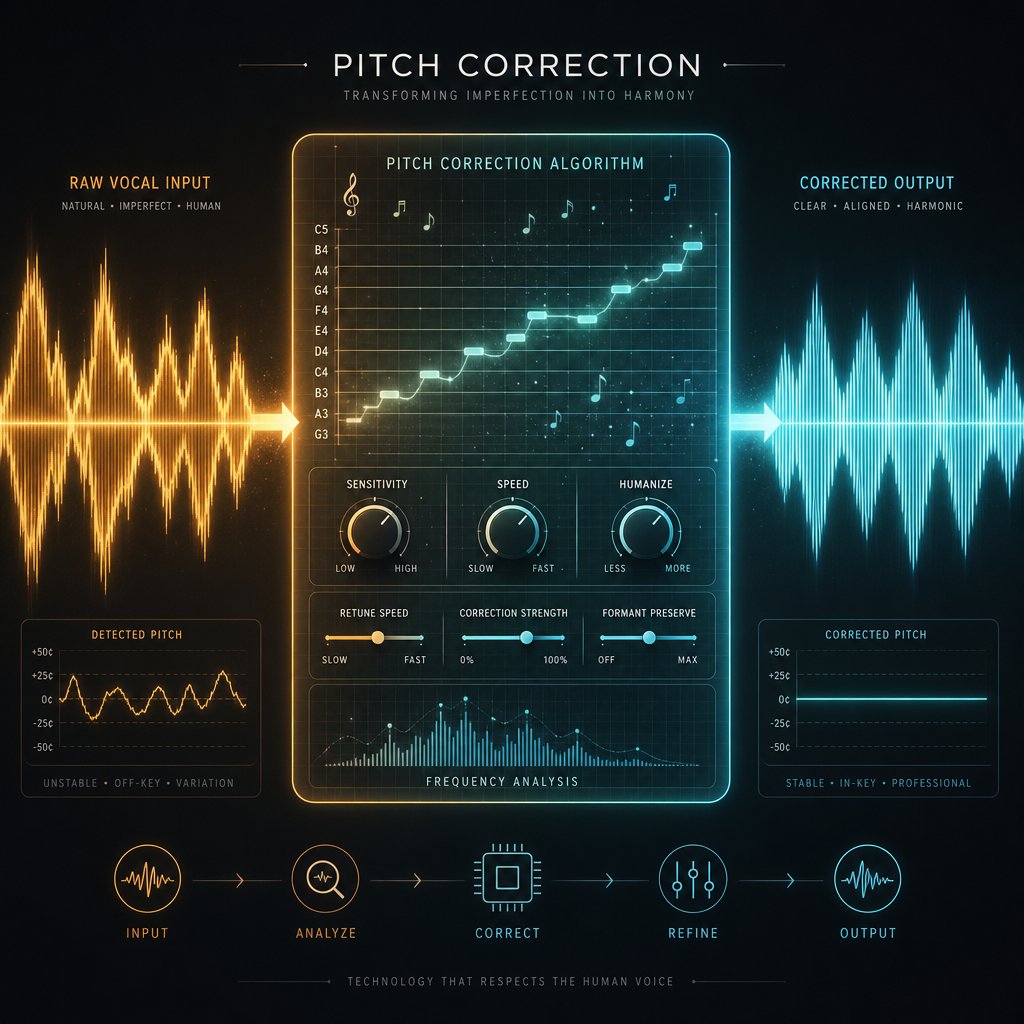
How Pitch Correction Technology Works Under the Hood
Every pitch correction tool, whether it's a browser-based autotune free app or a professional plugin like Antares AutoTune Pro, runs on the same fundamental process. Understanding that process turns you from someone blindly dragging sliders into someone making intentional creative decisions.
Pitch Detection and Correction Basics
Imagine you sing a note. The algorithm's first job is to figure out exactly what pitch you're producing. It does this by analyzing the fundamental frequency of your vocal signal in near real time, essentially measuring how many times per second your vocal cords vibrate. That measurement gets compared against a target: the nearest "correct" note in whatever musical scale you've selected.
If you sang a note that lands between a C and a C#, the software calculates the gap and shifts your pitch toward whichever target note is closest. This three-step loop — detect, compare, correct — happens continuously across your entire vocal take. The magic (and the risk) is in how aggressively and quickly that correction gets applied, which brings us to the settings that actually shape your sound.
Retune Speed, Scale Modes, and Formant Preservation
Every online autotune tool you'll encounter gives you some version of three core parameters. Here's what each one does and why it matters:
- Retune Speed — This is the single most important control you'll touch. Measured in milliseconds, it determines how fast the algorithm snaps your pitch to the target note. Set it to 0–10 ms and you get the hard-tune robotic effect — notes lock instantly with zero natural drift. Push it to 20–50 ms or higher and the correction eases in gradually, preserving the subtle slides and expression that make a vocal feel human. If you want to sing vibrato and have it survive the tuning process, a slower retune speed is essential.
- Scale Mode (Chromatic vs. Scale-Based) — Chromatic mode corrects to the nearest semitone out of all twelve notes. It's a safe fallback when you don't know the key, but it can't distinguish between notes that belong in your song and notes that don't. Scale-based mode locks correction to only the notes in a specific key and scale, like E minor or A major. This produces more musical results because the algorithm won't accidentally snap your voice to a wrong note. Think of chromatic mode as a general-purpose afinador and scale mode as a precision instrument tuned to your track.
- Formant Preservation — When you shift pitch, you're changing the frequency of the audio. Without formant correction, raising a vocal's pitch also raises the resonant characteristics of the voice, producing the infamous chipmunk effect. Formant preservation keeps the natural tonal qualities of the singer's voice intact while still moving the pitch. Any tool worth using has this enabled by default, but it's worth confirming, especially if you're working with larger pitch shifts.
Why These Settings Shape Your Sound
These three parameters interact with each other. A fast retune speed on chromatic mode with no formant correction will produce a glitchy, unnatural mess. A moderate retune speed on the correct scale with formant preservation enabled will give you a polished vocal that sounds like the singer simply nailed every note. The same tool, the same upload — completely different outcomes depending on how you set the knobs. Even what is vibrato in a performance changes character depending on retune speed: too fast and it gets flattened out entirely, too slow and off-pitch wobbles pass through uncorrected.
Knowing what these controls do is one thing. Knowing when to reach for the robotic snap versus the invisible polish is where the real creative decision lives — and that distinction deserves its own conversation.
Creative Autotune vs. Subtle Pitch Correction
Picture two tracks. One is a polished pop ballad where the singer sounds flawless but completely natural. The other is a trap hook where the voice glides between notes like a synthesizer. Both vocals ran through the exact same type of tool. The difference isn't the software — it's the intent behind the settings.
Corrective Autotune for Natural-Sounding Vocals
Corrective autotune exists to be invisible. The goal is subtle pitch nudging that tightens a performance without erasing the singer's personality. Vocal vibrato passes through. Slides between notes stay intact. Timing and breath feel untouched. You're not rebuilding the vocal — you're giving it a gentle push toward precision.
To get there, use a slower retune speed in the 20–50 ms range. This gives the algorithm enough time to ease the pitch toward the target note rather than snapping it instantly. Enable any humanize or vibrato passthrough controls your tool offers. The result? A take that sounds like the singer simply had a great day at the vocalist microphone — no processing audible, just a cleaner performance. Even when you tune vocals free with a browser-based tool, this approach delivers surprisingly professional results if the input recording is solid.
Hard-Tune and the Creative Autotune Effect
Creative autotune is the opposite philosophy. You want the listener to hear the effect. Set retune speed to zero or near-zero, lock the correction to a specific scale, and the algorithm snaps every pitch instantly. Natural drift disappears. Vocal vibrato gets flattened. The voice becomes a melodic instrument with a digital, almost robotic character.
This is the sound T-Pain built a career on and the texture you hear across modern hip-hop, pop, and electronic music. It works especially well on vocals recorded close to a singing microphone with minimal room noise, because the pitch detection algorithm tracks a clean signal more accurately and produces fewer artifacts at extreme settings. Some producers even pair an autotune microphone setup with real-time browser tools to hear the effect while recording, using it as a creative pitch shifter during the writing process itself.
Same Tool, Different Settings
The table below breaks down how the same online autotune tool produces two completely different outcomes. Whether you want to fine tune auto settings for transparent correction or push into full hard-tune territory, the parameters are the same — only the values change.
| Parameter | Corrective (Natural) | Creative (Hard-Tune) |
|---|---|---|
| Retune Speed | 20–50 ms | 0–5 ms |
| Vibrato Handling | Preserved / passthrough enabled | Flattened or disabled |
| Scale Mode | Scale-based (song key) | Scale-based (strict lock) |
| Humanize Control | Moderate (15–30) | Off or minimal (0–5) |
| Typical Genres | Pop, R&B, country, rock | Hip-hop, trap, electronic, pop |
| Intended Outcome | Listener doesn't notice correction | Effect is part of the artistic sound |
| Audio Pitch Changer Behavior | Gradual, smooth shifts | Instant, stepped snaps |
Both approaches are valid creative choices, not a quality hierarchy. A transparent correction on a folk vocal isn't "better" than a hard-tuned trap hook — they serve different artistic goals with the same underlying technology.
Of course, neither approach rescues a poorly recorded vocal. The quality of what goes into the tool matters just as much as the settings you choose inside it — and that's a preparation step most people skip entirely.
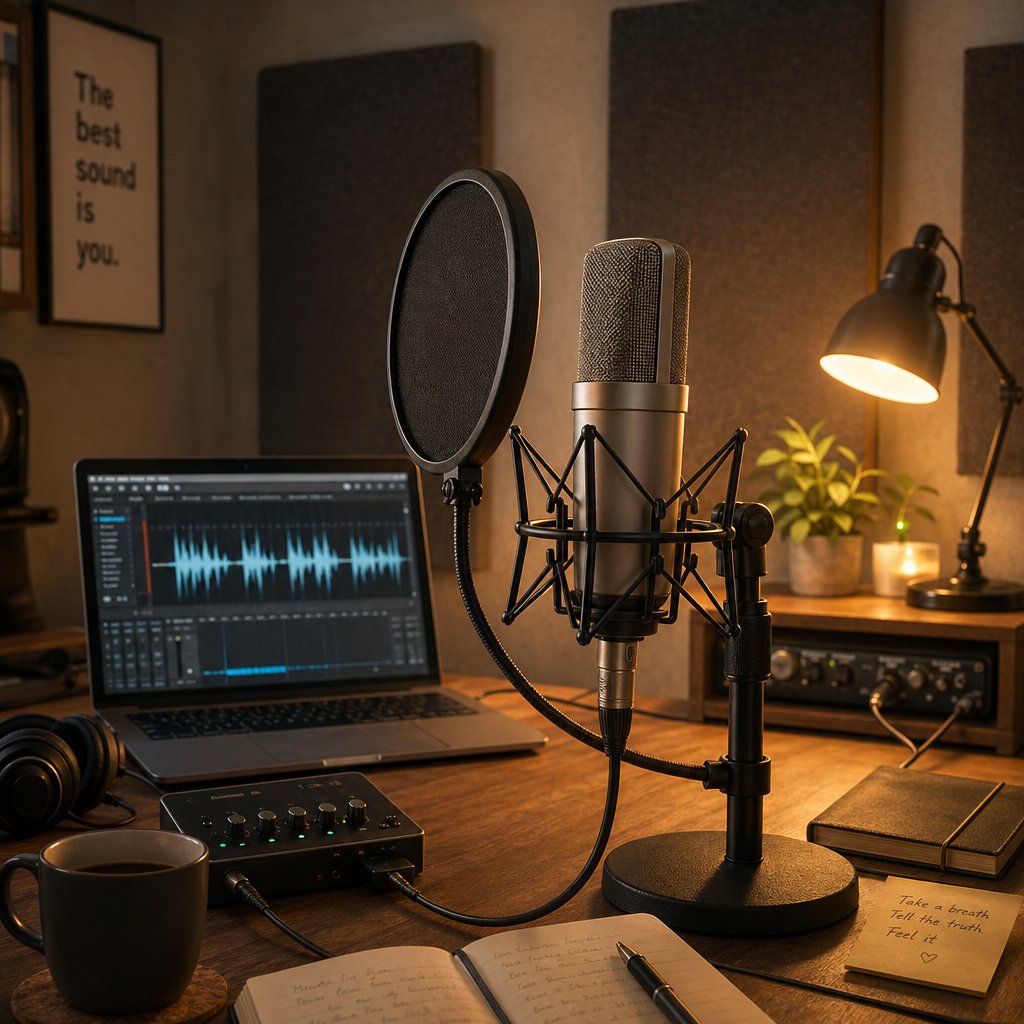
Preparing Your Vocals for Clean Autotune Results
Here's a truth that saves hours of frustration: autotune is not a magic fix. If you're wondering what is an auto tune tool actually capable of, the honest answer is that it can only work with what you give it. A clean, well-recorded vocal gets polished. A noisy, reverb-soaked one gets mangled. The algorithm needs to identify the fundamental pitch of your voice, and anything that obscures that signal — room echo, background hum, clipping — turns pitch detection into guesswork.
Why Input Quality Determines Autotune Results
Pitch correction algorithms perform best when they receive a clean, dry, and uncompressed signal. Think of it like a camera trying to autofocus: give it a clear subject and it locks on instantly. Give it fog and motion blur and it hunts endlessly. Breathy vocals introduce noise that the algorithm can misread as pitch information. Heavy reverb smears the fundamental frequency across reflections, making it nearly impossible to isolate the actual note. Even aggressive compression before tuning can flatten the dynamic cues the software relies on. The result? Glitchy artifacts, notes snapping to the wrong pitch, and a processed sound that screams "something went wrong."
Essential Pre-Processing Steps
Whether you're using a free autotune browser tool or a paid plugin, these preparation steps dramatically improve your results. Follow them in order:
- Record in a quiet environment. A closet full of clothes beats an untreated living room. Minimize air conditioning hum, computer fan noise, and any ambient sound that bleeds into the mic.
- Use a decent vocal recording microphone with proper positioning. You don't need a thousand-dollar condenser, but the best mic for recording vocals in your budget — placed 6 to 8 inches from your mouth with a pop filter — makes a real difference. Even a solid USB mic works if the positioning is right.
- Set your gain staging correctly. Record loud enough to get a healthy signal but leave headroom. Peaks should sit around -6 dB to -3 dB. Clipping is permanent damage that no auto tune free tool can undo.
- Record completely dry. No reverb, no delay, no chorus effects on the input. These can be added after tuning. The pitch detection algorithm needs the raw, unprocessed voice to do its job accurately.
- Apply basic noise reduction before tuning. Use a noise gate or a simple cleanup tool — even an editor de audio online can handle this — to remove background hiss and silence gaps between phrases.
- Correct obvious timing issues. Trim dead space, align phrases to the beat if needed, and remove any takes or breaths that don't belong. A tidy vocal file means the tuning process focuses only on actual singing.
Common Recording Mistakes That Break Pitch Correction
Three mistakes account for most bad autotune results. First, recording with built-in reverb or effects enabled — this is the single fastest way to confuse a pitch detection algorithm. Second, singing too far from the mic so the room sound dominates the signal. Third, ignoring gain staging and delivering a vocal that's either buried in noise floor or digitally clipped at the peaks.
The encouraging part? Fixing these issues costs nothing. Even completely free tools produce radio-worthy results when the input vocal is recorded with care. A five-minute investment in proper setup pays off more than any amount of tweaking settings after the fact.
A well-prepared vocal file is half the battle. The other half is telling the tool which notes are actually correct — and getting that wrong is the most common mistake in the entire process.
Finding the Right Musical Key and Scale
Every online autotune tool asks you the same question before it does anything: what key is your song in? Get it right and the algorithm knows exactly which notes to target. Get it wrong and it pulls your voice toward pitches that don't belong in the track — turning a decent performance into something that sounds actively worse than the original.
Why the Wrong Key Ruins Everything
When you select a key, you're telling the tool which notes are "legal." If your song is in G minor but you set the tool to G major, three of the seven scale notes are different. The algorithm will snap your voice to those wrong notes with total confidence. As producer Greg Wells demonstrates in his vocal tuning workflow, setting the correct key is vital because it lets the software know the correct pitches to move notes toward — and the wrong setting pulls them to the wrong destinations entirely. No amount of precision tune auto adjustments will save a vocal corrected to the wrong scale. The result isn't subtle; it sounds broken.
Practical Ways to Identify Your Song's Key
If you don't already know the key, here are reliable ways to find it:
- Check the project file or beat metadata. If you're working with a purchased instrumental or a producer's session, the key is often labeled in the filename, description, or project notes. This is the fastest and most reliable method.
- Ask the producer. Simple, but overlooked. If someone made the beat or wrote the song with recorder, guitar, or keys, they likely know the root note and scale.
- Use a key detection tool. Free apps and browser-based options act as a pitch tester for your instrumental — upload the track and they analyze the harmonic content to identify the most likely key.
- Match the root note on a keyboard. Play along with the instrumental on a piano or MIDI controller. Find the note that feels like "home" — the one the melody resolves to. That's almost always your root.
The difference between major and minor matters here more than you might expect. Major scales sound bright and resolved. Minor scales sound darker and more emotional. Many songs — especially in hip-hop and R&B — sit in minor keys. Selecting major when the track is minor (or vice versa) introduces the same wrong-note problem described above, because the third, sixth, and seventh scale degrees differ between the two.
If you genuinely can't determine the key, chromatic mode is your fallback. It corrects every note to the nearest semitone out of all twelve, so it won't force your voice to a wrong scale degree. The trade-off? It also can't prevent your voice from landing on notes that clash with the instrumental. Think of it as a safety net, not a solution. You can still change pitch of mp3 vocals effectively in chromatic mode, but scale-locked correction will always produce more musical, intentional results when you know the key.
With the right key dialed in and a clean vocal file ready, the actual tuning process becomes far more predictable — and that full workflow, step by step, is where everything comes together.
A Full Walkthrough of the Online Autotune Workflow
You've got a clean vocal file and you know your song's key. That groundwork eliminates most of the guesswork — what's left is the actual process of running your voice through a browser-based tool and coming out the other side with something that sounds finished. Most guides reduce this to three or four bullet points. The reality is more nuanced, and the details between each step are where results either click or fall apart.
Upload and Initial Setup
The workflow starts the same way in virtually every browser-based tool. Here are the first three steps, in order:
- Record or upload your dry vocal file. Most free online tools accept MP3 and WAV formats. WAV is always the better choice — it's uncompressed, so the pitch detection algorithm gets the full signal without artifacts introduced by lossy encoding. If you recorded on your phone, even a decent voice memo works, though a proper vocal mic or dedicated setup from the best audio recorder you have access to will always yield cleaner tracking. Avoid uploading vocals with reverb, delay, or backing music baked in.
- Select the correct musical key and scale. This is the setting that makes or breaks everything downstream. Choose the root note and whether the song is major or minor. If the tool offers extended scale options like Dorian or Blues, use them when they match your track. If you're unsure, start with chromatic mode as a diagnostic — listen to what the tool does, then switch to a locked scale once you've confirmed the key.
- Choose between chromatic and scale-locked correction mode. Chromatic corrects to the nearest of all twelve semitones. Scale-locked restricts correction to only the notes in your chosen key. Scale-locked mode produces more musical results and prevents the algorithm from snapping your voice to notes that clash with the instrumental. Use chromatic only as a fallback or troubleshooting step.
Dialing In Your Correction Settings
With the foundation set, the creative decisions begin. These next steps determine whether your vocal sounds invisibly polished or deliberately processed:
- Set the retune speed based on your creative goal. This is the most consequential slider in the entire tool. For subtle, natural correction, Antares recommends starting around 20–30 ms for most vocals, moving to 40–60 ms for performances that are already strong. For the hard-tune robotic effect, drop to 0–5 ms. Listen carefully after each adjustment — even a 10 ms change is audible. A common mistake is setting the speed too fast for a natural vocal and wondering why it sounds robotic. That's not a bug; it's the tool doing exactly what you told it to.
- Adjust humanize and vibrato settings to taste. If your tool offers a humanize control, it helps sustained notes breathe more naturally when you're using faster retune speeds. Start with it at zero, then increase to 10–30 if long notes sound static or lifeless. Vibrato controls determine whether the singer's natural pitch variation passes through or gets flattened. For corrective work, let vibrato through. For hard-tune, suppress it. Not every free autotune plugin or browser tool exposes these controls, but when they're available, they're worth the extra minute of tweaking.
Previewing, Tweaking, and Exporting
The final steps are where patience pays off. Resist the urge to export after one pass.
- Preview the result and compare with the dry vocal. Toggle between the processed and original versions. Listen for artifacts — glitchy jumps between notes, unnatural pitch steps, or a chipmunk-like tonal shift that suggests formant correction isn't engaged. Pay attention to transitions between phrases, where pitch detection is most likely to stumble. If something sounds off, it almost always traces back to the wrong key setting or a retune speed that's too aggressive for the material.
- Fine-tune settings iteratively. This is the step most people skip, and it's the one that separates decent results from genuinely good ones. Adjust retune speed by small increments. Try toggling between scale modes. If your tool offers different processing algorithms — some browser tools mirror the modern vs. classic mode distinction found in Antares AutoTune free trials and paid versions — test both on your vocal. The process is not linear. Expect to loop through steps four through seven at least two or three times before the vocal sits right.
- Export the processed vocal. Download in the highest quality format the tool offers. WAV is ideal for further mixing. MP3 works if you're posting directly to social media or feeding the file into a karaoke maker or content creation workflow. Label your export clearly — something like "vocal_tuned_Emin_v2.wav" saves confusion later when you're comparing versions. If you recorded through an auto tune microphone setup with real-time monitoring, you may still want to re-export a final offline render for the cleanest result.
One thing worth repeating: this process is iterative by design. Professional engineers using full DAW setups go through the same loop of adjust, listen, adjust again. The browser just compresses the environment, not the methodology. Even a fixer AI approach to vocal correction still benefits from a human ear making the final call on what sounds right.
With a tuned vocal in hand, the natural next question becomes whether the browser tool you just used is the right one for your needs — or whether a different platform, a different feature set, or a different pricing tier would serve you better.
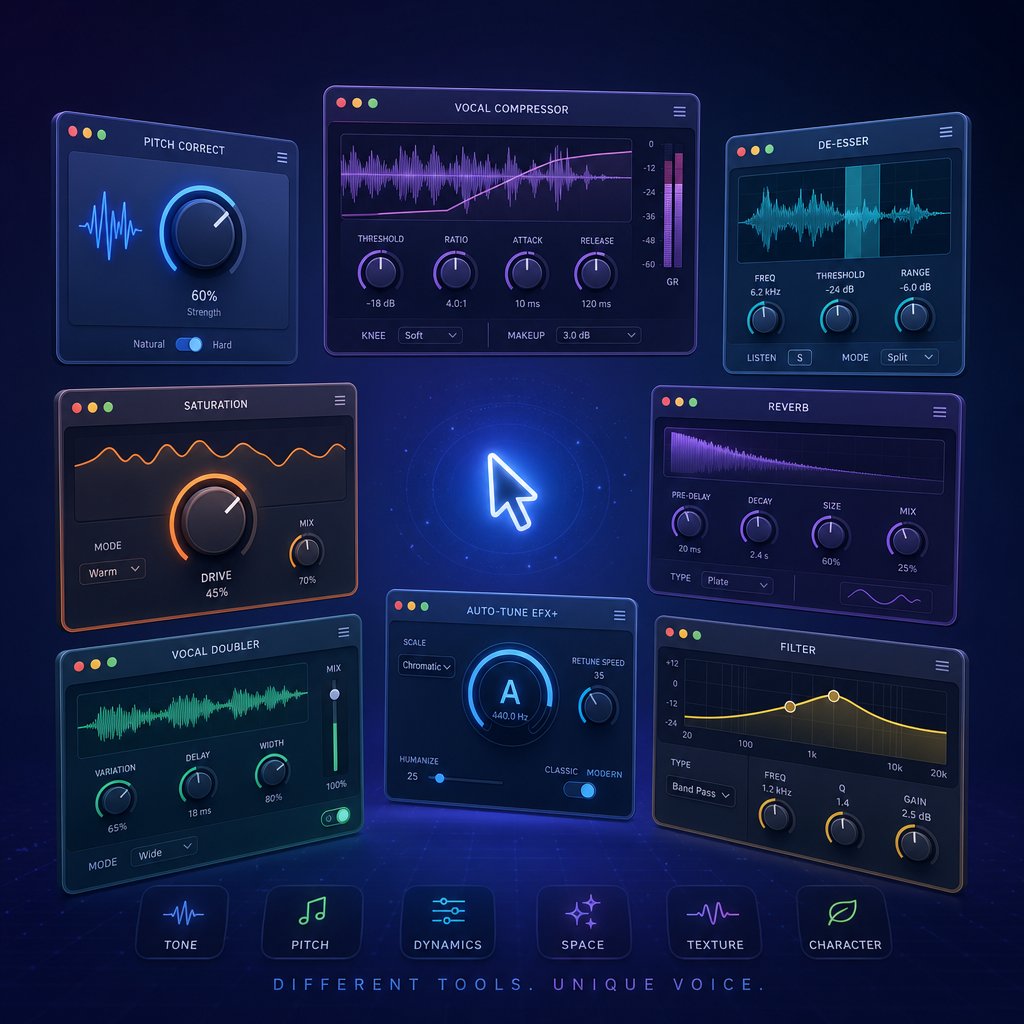
Comparing Online Autotune Platforms and Tools
Not all browser-based pitch correction tools are built the same way. Some give you granular control over retune speed and scale modes. Others prioritize speed and simplicity, letting you upload a file and get a result in seconds. A few go beyond traditional tuning entirely, using AI to reshape vocals at a deeper level. Choosing the right platform depends on what you actually need — and the differences between them are bigger than most people expect.
What to Look for in an Online Autotune Platform
Before you commit to any tool, evaluate it across the dimensions that actually affect your results:
- Audio quality and processing fidelity. Does the tool process at full resolution, or does it compress your audiofile on upload? Tools that accept and export WAV files generally preserve more detail than those limited to MP3.
- Supported file formats and size limits. Some platforms cap uploads at 10 MB or a few minutes of audio. If you need to convert a voice memo to mp3 before uploading, that extra compression step costs you signal quality before tuning even begins.
- Real-time vs. upload-and-process. Real-time tools let you hear corrections as you sing, which is useful for learning how to vibrato voice techniques interact with pitch correction. Upload-based tools process offline and often deliver cleaner results because the algorithm can analyze the full file in multiple passes.
- Available parameters. Can you set retune speed, choose a scale, and adjust formant preservation? Or is it a one-knob voice tuner with limited creative control?
- Cost structure. Free tiers often limit export quality, file length, or the number of processes per day. Paid tiers unlock higher fidelity and more features.
Platform Comparison at a Glance
The table below compares the major online autotune options you'll encounter, including AI-powered alternatives that approach vocal enhancement differently. Each tool has genuine strengths — the right pick depends on whether you want traditional pitch correction, a full browser-based studio, or AI-driven vocal transformation.
| Platform | Approach | Key Features | File Formats | Pricing | Best For |
|---|---|---|---|---|---|
| MakeBestMusic AI Singing Generator | AI vocal generation and style transformation | AI-driven singing generation, voice style transfer, vocal enhancement beyond pitch correction | MP3, WAV | Free tier available; paid plans for extended use | Users who want AI-powered vocal creation and style transformation, not just pitch fixing |
| BandLab AutoPitch | Real-time pitch correction inside a free DAW | 24 vocal effects, custom scales, formant preservation, real-time monitoring | MP3, WAV, FLAC | Free (6 effects); Membership at ~$8.25/mo for full suite | Beginners and mobile creators who want an all-in-one studio with tuning built in |
| Soundation | Browser-based DAW with vocal tuner | Scale-based correction, retune speed control, integrated mixing environment | MP3, WAV, OGG | Free tier; paid plans from ~$7.99/mo | Producers who want pitch correction inside a full browser-based production workflow |
| Voloco | Mobile-first vocal processing app | One-tap presets, basic EQ, quick vocal effects | MP3, WAV | Free basic; ~$5/mo for premium | Fast demos, content creators, and casual vocal sketches on mobile |
| Moises | AI-powered audio processing | Pitch correction, stem separation, key detection, tempo control | MP3, WAV | Free tier with limits; Premium ~$3.99/mo | Musicians who also need stem isolation and key detection alongside tuning |
A few things stand out. BandLab's AutoPitch is hard to beat for accessibility — it runs on mobile and desktop, offers real-time correction, and sits inside a full free DAW with mixing and mastering tools. Soundation appeals to producers who want a browser-based studio environment with more traditional pitch correction controls. Voloco trades depth for speed, making it ideal for quick ideas but limited when you need precise tuning. MakeBestMusic's AI Singing Generator takes a fundamentally different approach: rather than correcting pitch note by note, it uses AI to generate and transform vocal performances, which makes it a compelling option if you're exploring how to improve your singing voice through AI-assisted creation rather than manual correction alone.
Privacy and Quality Trade-Offs
Every online tool requires you to upload your vocal to a remote server — or at minimum, process it through browser-based code that interacts with external resources. That means your raw recordings leave your machine. Before uploading, check the platform's privacy policy. Does it store your files? For how long? Can your audio be used for model training? These questions matter more than most creators realize, especially if you're uploading unreleased material.
Quality trade-offs are equally real. Browser-based processing typically introduces more latency and slightly lower fidelity than a native desktop plugin. If you're running a microphone clipping test and your peaks are already borderline, a tool that compresses on upload can push those artifacts further. For rough mixes, demos, and social content, the convenience of online autotune easily outweighs these limitations. For a final master headed to streaming platforms, you may want more control — and that's where the comparison between browser tools and dedicated DAW plugins becomes worth examining closely.
Online Autotune vs. DAW Plugins
Browser-based tools and desktop plugins both correct pitch. They share the same core algorithm logic — detect, compare, shift. But the experience of using them, and the ceiling of what you can achieve, diverges quickly once you push past basic tuning.
Where Browser-Based Tools Shine
If you need a vocal tuned in five minutes with zero setup, online autotune wins every time. No installation, no license activation, no compatibility headaches. You open a tab, upload a file, and start working. For demos, social content, quick vocal sketches, and situations where you just need to hear whether a melody works in tune, browser tools deliver. Most offer a free auto tune tier that handles the basics — pick a key, set a retune speed, export. That's enough for a surprising number of use cases, especially if you're a content creator or independent artist testing ideas before committing to a full production.
When a DAW Plugin Makes More Sense
The limitations show up when precision matters. A dedicated autotune plugin like Antares Auto-Tune Pro gives you graphical note-by-note editing, advanced formant shaping, and low-latency real-time processing tight enough for live performance. Melodyne goes even further with offline surgical editing — you can reshape individual notes, adjust vibrato singing characteristics, and even correct polyphonic audio. These tools integrate directly into your DAW session, meaning pitch correction sits alongside your EQ, compression, and effects in a single workflow. You can automate parameters, A/B compare takes, and render at full resolution without any upload compression.
For professional releases headed to streaming platforms, that fidelity gap matters. Browser tools introduce latency and sometimes downsample audio during processing. An autotune plugin running natively on your machine processes at your session's sample rate with no compromise. If you need autotune pro natural vibrato control — the kind of fine-grained vibrato voice shaping that lets sustained notes breathe while still correcting drift — desktop plugins offer parameters that most browser tools simply don't expose.
| Dimension | Online Autotune (Browser) | DAW Plugin |
|---|---|---|
| Cost | Free to ~$10/mo | $0 (stock DAW tools) to $399+ for pro plugins |
| Learning Curve | Minimal — upload and adjust | Moderate to steep depending on the plugin |
| Audio Quality | Good for demos; some compression on upload | Full session resolution, no quality loss |
| Real-Time Capability | Limited; latency varies by platform | Low-latency real-time, suitable for live use |
| Editing Precision | Global settings only (retune speed, key) | Note-by-note graphical editing available |
| Vibrato and Formant Control | Basic or absent | Detailed per-note vibrato and formant shaping |
| Workflow Integration | Standalone; export and import manually | Embedded in your mix session alongside all other processing |
| Best For | Quick fixes, demos, content creation | Professional releases, live performance, detailed mixing |
The Natural Progression Path
Here's the honest reality: most producers don't pick one lane and stay there. They start with free browser tools or autotune software free options to learn how pitch correction feels, what retune speed does, and how scale selection shapes results. That hands-on experience builds intuition faster than any tutorial. Then, as projects get more serious — a single headed to Spotify, a vocal that needs surgical editing on one tricky phrase — they move to a DAW plugin where the control matches the ambition.
It's also worth noting that many DAWs already include capable pitch correction. Logic Pro's Flex Pitch, Cubase's VariAudio, and FL Studio's NewTone all handle real vocal work without any third-party purchase. If you own a DAW, you may already have more power than a browser tool offers — you just haven't opened that particular drawer yet. Even a vocoder online experiment or a creative vocal effect session can push you toward exploring what your existing software already does.
The choice isn't really browser vs. plugin. It's about where you are right now and where your music is headed. Both paths lead to better vocals — and increasingly, AI-powered tools are blurring the line between them entirely.
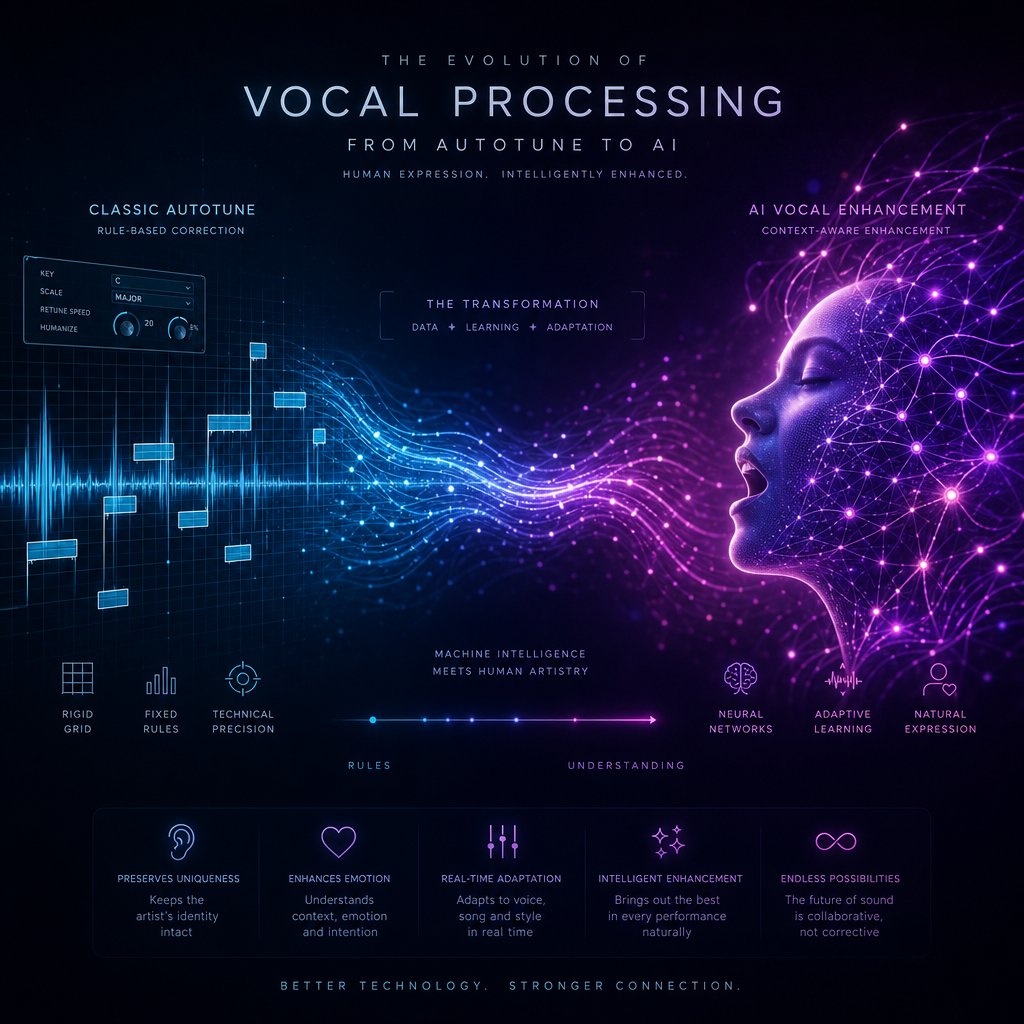
AI-Powered Vocal Enhancement and What Comes Next
Traditional autotune online tools follow rigid rules: detect a pitch, find the nearest correct note, move the signal. Every decision is mathematical. AI-powered vocal processing works differently — and the gap between the two approaches is widening fast.
How AI Changes the Pitch Correction Game
Rule-based correction treats every note the same way. AI models trained on thousands of vocal performances can make context-aware decisions. They recognize when a slight pitch bend is expressive rather than wrong. They distinguish intentional vibratto from uncontrolled wobble. They understand that a gospel run and a pop melody require fundamentally different correction logic, even at the same retune speed. Research from Sonarworks confirms that AI vocal plugins preserve emotional nuance and natural voice and tone characteristics that traditional algorithms tend to flatten — producing results that sound polished without sounding processed.
The capabilities that separate AI-driven tools from a standard autotuner go well beyond smarter pitch snapping:
- Context-aware correction — the AI decides how much to correct each note based on musical context, not just distance from the target pitch.
- Intelligent vibrato handling — rather than a simple on/off toggle, AI can enhance, reshape, or preserve vibrato patterns naturally.
- Vocal style transfer — transform the tonal character and delivery of a performance while keeping the original timing and phrasing intact.
- Singing voice generation — create entirely new vocal performances from text or melodic input, bypassing recording altogether.
- Polyphonic processing — handle harmonies and layered vocals that traditional pitch correction struggles to separate cleanly.
AI Vocal Tools Worth Exploring
This shift is already visible in the tools available right now. Platforms like MakeBestMusic's AI Singing Generator represent this next-generation approach — moving past simple auto tune online correction into AI-driven singing generation and voice transformation. Instead of fixing what you recorded, these tools can reimagine it entirely: new vocal styles, new tonal qualities, new creative directions that a traditional pitch correction algorithm can't touch. It's a different category of tool, and for creators who've hit the ceiling of what basic tuning offers, it's worth experimenting with.
Choosing the Right Approach for Your Music
None of this makes traditional pitch correction obsolete. If you need to tighten a solid vocal take, a browser-based tool or DAW plugin still does the job efficiently — the same way a best guitar tuner app still tunes a guitar perfectly well even though AI can now generate entire arrangements. The point isn't replacement. It's expansion. You have more options than ever: rule-based correction for precision, AI-powered enhancement for nuance, and generative tools for entirely new creative territory.
Start with whatever matches your current need. A quick autotune online session to polish a demo. A DAW plugin for surgical editing on a release. An AI vocal tool to explore sounds you couldn't create alone. The technology keeps moving — your creative goals are the only constant worth building around.
