

Introduction
MakeBestMusic is an Easy-to-Use AI Music Generator
In the rapidly evolving landscape of digital music production, MakeBestMusic stands out with its cutting-edge AI music generator. This innovative tool harnesses the power of artificial intelligence (AI) to fundamentally revolutionize how music is created and experienced. By employing advanced machine learning algorithms, MakeBestMusic's AI music generator is capable of composing, arranging, and producing music with remarkable creativity and precision.

Create Music
Overview: MakeBestMusic Creation Feature
Do you want to transform a text description into a complete musical piece? The "Create Music" feature on MakeBestMusic is the perfect tool for the job.
Access Here: https://makebestmusic.com/app/create-music-new
Getting Started
Once you open the "Create Music" interface, you will find that the feature supports generating both Songs and Instrumental music.
Getting Started
Let's begin with how to create a song. You have two options to choose from: Simple Mode or Custom Mode

- 1
Simple Mode
What it does: Requires only a brief musical description (e.g., "A smooth piece of jazz").
Result: MakeBestMusic will automatically generate both the lyrics and the full song for you.
- 2
Custom Mode
What it does: Gives you full control over the creative process.
Lyrics Input: You can input your own complete and structured lyrics. If you need inspiration, simply click the "AI Lyrics" button, and MakeBestMusic will generate them for you.

Style Prompt (Crucial Step): This step is essential for the quality of the generated music. You need to describe the desired style as detailed as possible. Your prompt can include:
- Musical Genre (e.g., Pop, Rock, EDM)
- Key and Tempo
- Instrumentation (e.g., acoustic guitar, analog synth pad)
- Chord Progression
- Vocal Accompaniment and Harmonies
Random Style: If you don't have a specific preference, click the "Random Style" button. These styles are curated by our team and are designed to consistently produce pleasant, high-quality music.

- 3
Advanced Options
If you wish to make more detailed adjustments to your track, please open the "Advanced Options" section.
Advanced Adjustment Parameters
- Exclude Styles: Specify music genres or instruments that you want the AI to avoid during song creation. Note on limitation: due to the underlying AI model, signature instruments or vocal methods closely associated with the main style you prompt may not be fully excluded.
- Vocal Gender: Use this to specify the gender of the generated vocals, allowing more precise control over the overall aesthetic of the music.
- Weirdness: This controls the complexity of the chord progressions. A higher value results in more complex—and potentially more experimental—chord structures. Important:setting this value too low or too high may cause the generated music to deviate from your desired outcome.
- Style Influence: Controls how closely the generated track adheres to the Style Prompt you entered. A higher value means the resulting music will be a closer match to your descriptive text. Important:setting this value too low or too high may cause the generated music to deviate from your desired outcome.

Finally, enter your Song Title and click the "Create" button to generate your music.
Generating Instrumental Music
To create instrumental music, the process is similar to creating a song, but requires one key modification.
First, after selecting either Simple Mode or Custom Mode, you must toggle the Instrumental switch to the ON position.
- Simple Mode: Simply provide a brief description of the instrumental piece you want (e.g., "A smooth piece of jazz"). MakeBestMusic will automatically generate the instrumental track for you.
- Custom Mode: You can input detailed style prompts based on your vision. These prompts can include specific musical genres, key, tempo, desired instrumentation, and chord progressions.

Should you require more refined control, you can make subtle adjustments using the previously mentioned "Advanced Options."
Finding Inspiration
If you are looking for creative inspiration, you can browse excellent tracks created by others in the Showcase areas, such as the homepage or the "For You" section.
You can listen to the tracks there. If you find a piece you particularly enjoy, simply click the "Create Similar" button on the track to instantly generate a new piece of music with a similar style and characteristics.
Extend Music
Extend Music - Creating Longer Tracks
Extending Your Music:Using the Extend Feature
The maximum length for tracks generated by MakeBestMusic is 8 minutes. If you need to create a longer piece of music, you can use the built-in Extend feature.
The primary function of Extend is to allow you to seamlessly add new musical segments to your existing track.
- What it Does:The AI analyzes the style, tempo, and structure of your current track and intelligently appends a new, coherent section to the end, effectively increasing the music's duration.
- Ideal For:Users who need longer background music, podcast intros/outros, or extended demonstration snippets.
How to Use:
After your initial track has been generated, simply click the Extend button. When utilizing the Extend feature, MakeBestMusic will automatically populate the style prompt with the original style of the track you are extending.

You are free to adjust the following parameters to customize the newly extended section:
- Extension Start Point:Adjust the exact point where the new segment will begin.
- New Lyrics/Style:Input new lyrics and a distinct style description specifically for the extended portion.
- Track Name:Rename the new extended segment.
- Best Practice Recommendation:We strongly advise against changing the extended section's style to one that is significantly different from the original track. Excessive style differences may prevent the AI from creating a smooth transition, resulting in a poor-quality extension.

After using the Extend feature to generate a longer track, you will receive two new extended songs simultaneously. These tracks will be clearly labeled with the "Extend Song" tag for easy identification.

Get Whole Song
Please note that the output generated by the "Extend" feature is not a full song; it is only the extension segment of the original track.
If you are satisfied with the generated extension, navigate to the "More Options" menu (usually indicated by the ... icon) on the extended track, locate the "Get Whole Song" action, and click it. This will instantly merge the original track and the extension into one complete song.


The final, merged track will be labeled with the "Merge Song" tag.

If your goal is to achieve an even longer song, you can reuse the "Extend" feature on this newly merged track to continue increasing its duration.
Persona
Persona - Singing Original Tracks with Your Audio
This feature allows you to use your unique voice characteristics to create one-of-a-kind, original songs (not covers), adding a highly personalized touch to your music production.
Creating a Voice Persona
Let's begin by explaining how to create and save your personal voice profile (Persona).
- Select Mode:Start by selecting Custom Mode.
- Access Feature:Click the Persona function, then choose Create Persona.

Extracting Your Voice
After creating the persona, you will need to upload an audio file to extract its vocal traits. This voice can then be used to generate the vocals for the other songs you create.
- Name and Describe:Once your audio is uploaded, create a Name for the persona and provide a detailed description of the voice.
- Tip:The more specific and detailed your descriptive terms are, the more accurately the AI will be able to extract a voice similar to your original audio.
Once the persona is created, you can simply click it to apply that specific voice to any new song you generate.

Saving a Voice from an Existing Track
If you are satisfied with a voice generated during the song creation process, you can save it as a Persona for one-click access in all future creative endeavors.
- How to:select From Library and expand the Select a Song option.
- Create Persona:Choose the song that contains the voice you like and select Create Persona.
- Access:Once saved, you can readily call up the saved persona voice whenever you produce a new track.

How To Use?-Singing Originals with Your Persona
To generate a song using your own created voice profile:
- Select a Persona (your custom voice profile) from your list of created characters.
- In the song configuration, input the complete lyric structure, detailed style description, and song title.

Reference
Reference: Multi - Dimensional Smart Music Production
Reference is an intelligent music production feature that integrates multiple creative tools. It supports multi-dimensional custom adaptation of songs to meet your diverse creative needs.
Copyright Notice:If the audio source you upload is a copyrighted commercial song, the system may prevent the upload. We recommend using your own audio sources or publicly available, licensed audio.
Five Core Capabilities
The Reference feature includes the following five core functions:
- Style Transformation:Instantly convert the original track's style into any genre you desire, easily exploring the music's potential across different musical styles.
- Instrument Replacement:Supports the free addition of various instrument sounds—such as guitar, drums, synthesizers, and more—to the arrangement, better aligning the production with your creative vision.
- Vocal Alteration:Flexibly adjust the song's vocals. This includes converting the voice to different types (e.g., child's voice, male voice, female voice) or completely removing the vocals to retain only the instrumental track.
- Lyric Adaptation:Allows you to modify the original lyrics or substitute them with entirely new ones. The new lyrics will be sung to perfectly match the original melody.
- Quick Song Generation:Simply upload a short humming or melody snippet and the system will intelligently expand it into a structurally complete song or instrumental track, significantly lowering the barrier to music creation.
How To Use?- Singing Originals with Your Persona
Accessing the Reference Feature
You can start using the Reference feature and select your reference track through one of the following two methods:
- From the Creation Menu:Navigate to the "Create Music" function menu, switch to "Custom" mode, and click the "Reference" button.
- From the Library: In the Library song list, find the track you wish to adapt, and select the "Reference" option from its "More Options" menu (...).
After accessing the feature, please select a song to serve as your reference audio source.
Tips:If you wish to use an audio file from your computer or mobile device as the source audio for your Reference creation, simply click the "Upload" button in the top right corner of the Library to submit your owned audio. For best results, clear articulation and melodic lines are advised; please be aware that copyrighted songs are strictly prohibited.
Extracting Your Voice
After creating the persona, you will need to upload an audio file to extract its vocal traits. This voice can then be used to generate the vocals for the other songs you create.
- Name and Describe:Once your audio is uploaded, create a Name for the persona and provide a detailed description of the voice.
- Tip:The more specific and detailed your descriptive terms are, the more accurately the AI will be able to extract a voice similar to your original audio.


Generating a Reference Track
After selecting your Reference song, the system will automatically populate the configuration fields with the reference song's lyrics, style, and title. You are free to adjust these settings according to your preferences, but please note that the generated song will retain the original reference song's vocal melody, regardless of the style changes.
Tip: If you need to modify the music genre, instrumentation, key, tempo, or vocal type, you can make these changes in the Styles section.
Advanced Parameter Influence
Pay close attention to two key parameters in the Advanced Options:
- Style Influence:A higher value means the generated music style will be a closer match to the style prompts you entered in the Styles field.
- Audio Influence:A higher value means the generated music will more closely resemble the characteristics of the original source audio (e.g., rhythm and structure).
- Important Warning:Setting either of these values above 90% may lead to distortion or undesirable issues in the generated music.

AI Music Video
Transform your tracks into captivating visual stories in seconds. Our AI analyzes your song's beat, rhythm, and mood to generate stunning, high-definition MVs automatically.
Supported MV Modes
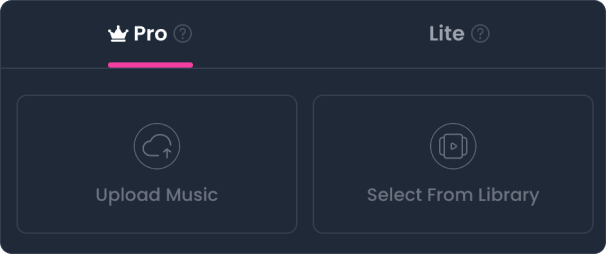
a. Pro Mode (Active Subscribers Only)
- Access: Exclusively available to users with an active subscription.
- Highlights: Powered by world-class AI video models and custom workflows to transform your tracks into vivid, breathtaking visual masterpieces.
- Key Features: Supports Story and Lip Sync creation modes, with a rich variety of curated visual styles to choose from.
b. Lite Mode (Current & Past Subscribers)
- Access: Available to anyone who has ever subscribed, even if the subscription has expired.
- Highlights: Pairs high-quality background visuals with synchronized lyrics to quickly generate clean, functional Lyric MVs - perfect for everyday sharing and listening.
AI Music Video Generation Rules:
a. Creating AI Music Videos requires Diamonds. You can acquire Diamonds in two ways:
- Purchase Diamond Packs: Available exclusively to active subscribers.
- Community Rewards: Share your tracks or MVs to the Community Hub to earn Diamonds through Tips or Remixes.
b. Conversion Policy:
Because this site offers Super Credit Subscription products, to ensure computing costs and maintain stable system operations, Diamonds can be converted into Credits at any time, but Credits cannot be converted back into Diamonds.
c. MV Storage & Expiration Rules
- Storage Period: Regardless of Pro or Lite mode, the storage duration for generated MVs follows the same rules, calculated from the time of successful generation (see Pricing & Benefits for details).
- Expiration Notice: In-site alerts will be sent 10 days prior to expiration.
- Permanent Deletion: Expired MVs will be permanently deleted and cannot be recovered. Please download and back up your videos in time.
- Manual Renewal: You can also manually extend the storage duration before expiration using our [Renewal] feature.
Getting Started - Pro mode
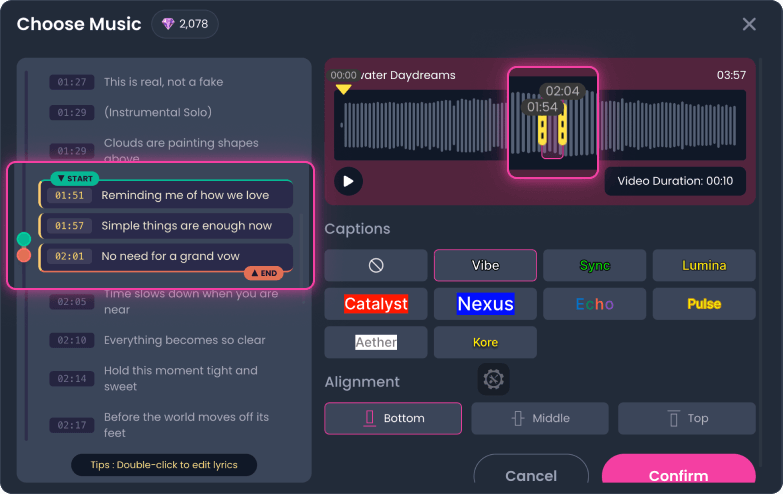
Step 1:Select Song
Once chosen, drag the lyrics on the left or the audio slider at the bottom to select your MV clip.
Review your lyrics for accuracy. Click any line to edit; changes save automatically when you click outside the box.
Optionally, choose whether to display lyrics, select a display effect, and customize the position (Top, Middle, or Bottom).
Step 2:Choose Main Character
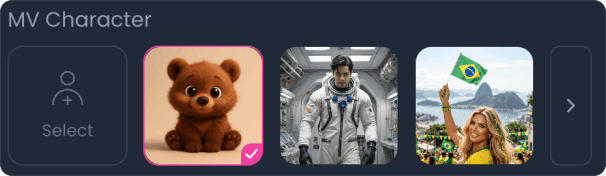
Upload a custom character or select a system default.
- Photo Tip: For best results, upload images with a single person.
- Multiple People: If your photo contains multiple individuals, please specify the main character in your Prompt; otherwise, one will be selected at random.
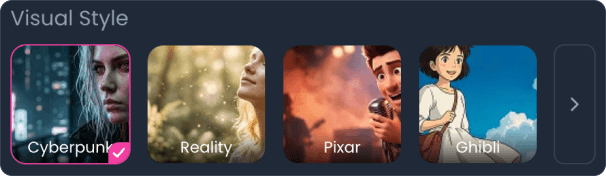
Step 3:Select Visual Background
Choose a visual style for your MV from the options provided below.
Step 4:Select MV Mode
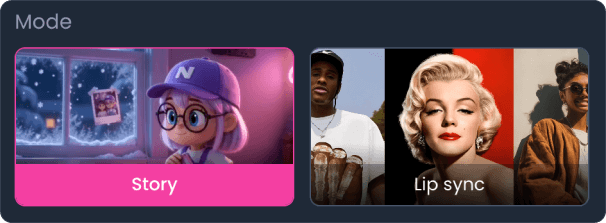
We offer two generation modes: Story and Lip Sync:
- Story Mode: AI automatically generates coherent story scenes based on your lyrics, ideal for longer MV clips.
- Lip Sync Mode: AI creates performative, lip-synced scenes using your selected character, ideal for shorter MV clips.
Step 5:Advanced Settings (Optional)
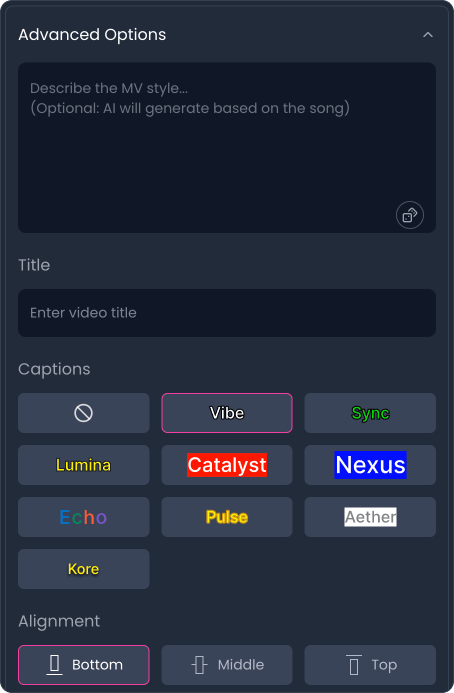
All settings are optional. Customize them as needed:
- Prompt: Leave blank to let AI automatically generate the best prompt based on your lyrics.
- Title: Set your MV title. If left blank, the original song title will be used by default.
- Captions: Customize the visual effect of the lyrics in your video.
- Alignment: Choose where the lyrics appear on screen (Top, Middle, or Bottom).
Final Step:Resolution & Aspect Ratio
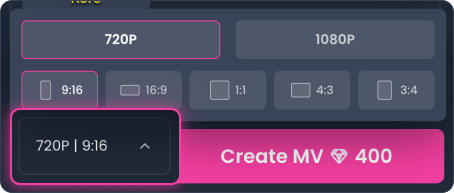
Default settings are 720p and 9:16. You can adjust them as needed:
- Aspect Ratio: Choose the aspect ratio best suited for your target platform.
- Quality & Cost: 720p: 40 Diamonds / sec, 1080p: 60 Diamonds / sec.
Getting Started - Lite mode
Lite Mode Pricing
Lite Mode is billed per generation (rather than video duration) at 40 Diamonds per generation.
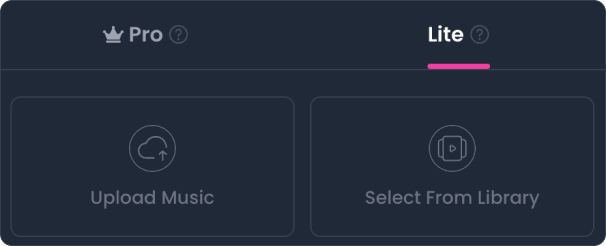
Step 1:Select Song
Same applies to Pro Mode.
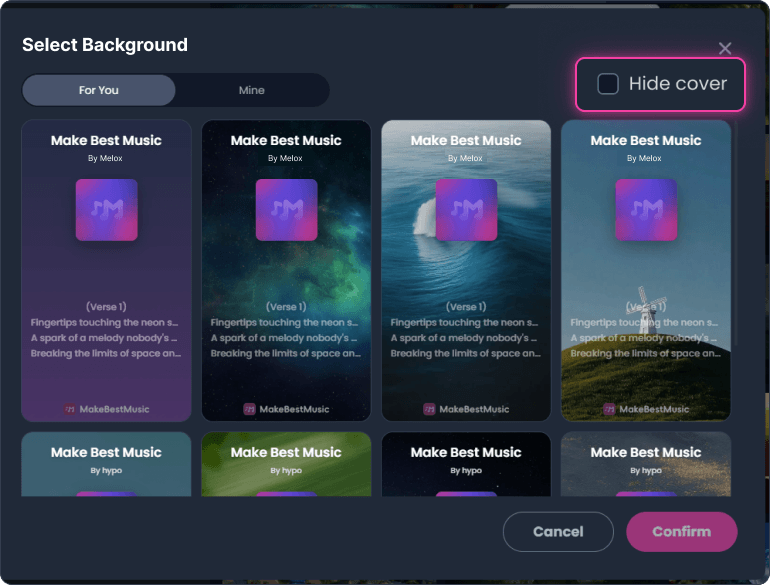
Step 2:Select Visual Background
Choose a visual background for your AI music video. You can upload your own media or select from our curated templates.
- Custom Upload: Supports images or MP4 videos (Max 50MB).
- Cover Visibility: Check "Hide cover" to remove the song cover from your video (displayed by default).
Hummed Audio
Hummed Audio - Generating a Song from Hummed Audio
If you wish to generate a song based on your hummed melody, you can achieve this using "Cover" feature.
Step-by-Step: From Hum to Song
- Record Melody:First, record an audio segment of your hummed melody.
- Upload Audio:Navigate to the "Create Music" menu, click the "Upload" icon in the top right corner of the Library, and submit your hummed audio.
- Select Cover:Switch to "Custom" mode, click the "Cover" function button, and select the audio file you just uploaded as the source.
- Finalize Configuration:Input the desired lyrics and detailed style prompts.
- Submit Task:Click the "Create" button to submit the song generation task. In approximately 30 seconds, you will receive a complete song.
- Please Note:MakeBestMusic makes minor adjustments based on the hummed melody, so the generated song's melody is not guaranteed to be exactly the same as your original hummed audio
Generating Instrumental Music from Humming
If you wish to generate Instrumental music from your hummed melody:
- Adjust Mode:Switch the mode to Instrumental. Input prompts in the Styles configuration, such as: "violin solo" (if you desire an instrument solo).
- Remove Vocal Descriptions (Crucial):You must manually delete any vocal-related prompts from the Styles configuration. This is necessary because the AI automatically adds vocal descriptions when it detects humming, which interferes with instrumental generation.
AI Voice Cover
AI Voice Cover - Your Voice, Their Songs
Harnessing our powerful AI Vocal Swap technology, you can easily replace the vocals in any song with your own voice.
Upload your song audio and use our AI Voice Swap technology for seamless vocal timbre replacement. Quickly create professional AI Covers and transform your singing voice. Our voice cloning tool ensures high-fidelity conversion, keeping the original emotion and rhythm intact. Start your effortless AI singing journey today!
Getting Started
Navigate to the "AI Voice Cover" menu to begin your creative journey!

Step 1Select the audio to be covered
Select the song you wish to cover your local device (such as your computer or mobile phone), or choose a track you have already created on our platform from the "Create Music" Library.
Song Requirements:
- Format:Mp3 / Wav
- Length:Under 7 minutes
- Size:Under 30MB

Step 2Select a Voice Model
Please select the Voice Model you wish to use for the cover song. You can either use your own cloned voice (Persona) or choose a suitable model from the Public Voice Library.

Step 3Select Key Shifting
You can choose whether and how to adjust the song's singing key to optimize the performance of your selected Voice Model.
- No Key Conversion:The song's key will not be altered.
- High Pitch:The Voice Model will sing in the vocal timbre's high range.
- Mellow / Soothing:The Voice Model will sing in the vocal timbre's mid-low range.
- Natural:The Voice Model will sing in the vocal timbre's natural mid-range.

Final StepSubmit Task
Finally, click the "Cover" button to submit the cover generation task. In just a few minutes, you will receive your vocal-swapped song.
How to clone your own voice model?
Step 1Access Voice Cloning Page
Navigate to the "AI Voice Cover" menu and click the "Clone My Voice" button to access the voice cloning configuration page.

Step 2Configure Voice Model Details
On the configuration page, you need to complete the following actions:
- Upload Voice Image:Upload an image so you can clearly identify and distinguish this voice model.
- Set Name:Assign a unique name to your voice model.
- Select Gender:Choose the vocal gender for this voice.

Step 3Select Cloning Fidelity
Please select your desired "Cloning Fidelity." The higher the cloning accuracy, the more similar the AI voice clone will be, and the better the AI audio cover effect will be.
AI Voice Cloning Features and Rules:
- Cloning Accuracy:The higher the cloning accuracy, the more similar the AI voice clone will be, and the better the AI audio cover effect will be.
- Basic Needs:The [Basic] and [Standard] modes require fewer source materials for cloning and can meet your fundamental needs.
- Advanced Modes:The [High-Fidelity] and [Premium] modes allow the AI to clone your voice with greater precision, significantly improving similarity. They also include audio refinement features like automatic auto-tune removal and noise reduction, resulting in a more accurate, clearer, and natural audio cover.

Step 4Upload Your Voice Sample
You can provide your voice sample using one of the following two methods:
- Direct Recording:Record an a cappella (unaccompanied) audio segment of your singing.
- Local Upload:Select and upload an audio file from your computer, mobile phone, or other device.

Step 5Select Training Audio
Please select the audio files you wish to use for voice model training.
Tip:Ensure the audio you select is clear, free of noise, and accurately represents the vocal characteristics you want to clone for the best possible results.

Submit Cloning Task
Finally, click the "Clone Now" button to submit the voice cloning task. After a processing period, you will receive your exclusive voice model for use in your music creation.

Final StepSubmit Cloning Task
Finally, click the "Clone Now" button to submit the voice cloning task. After a processing period, you will receive your exclusive voice model for use in your music creation.
Split Music
The "Split Music" feature intelligently separates any uploaded or previously generated song or audio track into multiple independent audio stems, such as vocals, bass, drums, and others.
Note: If the audio source you upload is a copyrighted commercial song, the system may prevent the upload. We recommend using your own audio sources or publicly available, licensed audio.
Getting Started
Navigate to the "Split Music" menu to split your music.
Step 1Select Source Music
You can select the music file you need to split from your local device (such as a computer or mobile phone).
Alternatively, if you wish to split a song already created on our platform, navigate to the "Create Music" menu, find the desired song, and click the "Split" operation button within its "More Options" menu (...).


Step 2Select Splitting Mode
Please choose the splitting mode that suits your needs:
- Normal:Get up to 5 separate instrument and vocal tracks (5 credits).
- Advanced:Get up to 12 separate instrument, vocal, and MIDI tracks (10 credits).

Final StepSubmit Task
Finally, click the "Split" button to submit the splitting task. After a few minutes, you will receive your separated audio tracks.
Lyrics and Style
How to Build Prompts for MakeBestMusic AI
Lyric Construction Template
Add a section tag before each segment of lyrics (e.g., [Verse], [Chorus]).
- You can specify the exact number of bars within instrumental section tags like intros and interludes (e.g., [Intro 16bars]).
- You can also specify the instrument to highlight or the vocal category to use within a section tag for more precise control over the generated music (e.g., [Verse 1: piano solo, female vocal]).
- To ensure specific instructions are followed, use square brackets ([]) to define song sections.
Example: Lyric Structure
[Intro 16bars]
[Verse 1: piano solo, female vocal]
Insert lyrics here
[Pre-Chorus 1]
Insert lyrics here
[Chorus 1: male vocal]
Insert lyrics here
[Interlude: 16bars]
[Verse 2]
Insert lyrics here
[Pre-Chorus 2]
Insert lyrics here
[Chorus 2]
Insert lyrics here
[Outro, Fade out]
Style Prompt Construction Template
When writing style prompts, try to be as detailed as possible. The more detailed your prompt is, the higher the quality of the generated song will be, and the better it will align with your expectations.
Your style prompt should ideally include the following points:
- Precise Music Genre: If you haven't decided on a specific genre, look for inspiration in the genre and style list below.Note: Ensure the music style is consistent with the lyrical content's tone (e.g., avoid pairing the [Heavy Metal] style with soft lyrics like "The flowers are so fragrant and beautiful").
- Tempo: e.g., 70 BPM. A higher BPM value results in faster music.
- Time Signature: 4/4 time is the default setting and is suitable for most popular song structures.
- Specified Vocal Category or Singing Style: e.g., Male/Female vocal, raspy texture, soulful R&B style, etc.
- Detailed Instrumentation: e.g., Epic orchestral score, Soaring string section, Thundering timpani, Heroic brass fanfare.
Note: Ensure the choice of instruments is consistent with the music style's tone (e.g., Electronic music focuses on digital sounds like synthesizers and drum machines; Rock focuses on electric guitars, bass, and drums). A rational combination of instruments effectively strengthens the style expression and prevents acoustic clashes.
Combining Attributes:
When you want to combine multiple attributes (such as style, key, and instrument emphasis), use commas (,) to separate them and clarify your intent.
Your style prompt should ideally include the following points:
- Example: pop ballad, C major, 4/4 time, 70 BPM, female vocal, soft drumbeats, lyrical piano, warm synthesizers...
This method helps the AI distinguish between various stylistic elements.
Universal Formula Template:
1 Precise Music Genre + 1 or More Core Instruments + 1 Clear Vocal Type (with optional singing method)
Tips and Restrictions:
- Experiment with different lyric structures and style prompts to see what works best for your writing style.
- Incorporate elements of emotion, speed, and "catchiness" to enhance the music's overall appeal.
- Remember, the more specific your instructions are, the more likely the AI is to produce the results you desire.
- Restriction: Do not enter two or more music style prompts simultaneously in the Styles field, as this may cause errors in the generated song.
- Inherent Instability: Due to the underlying training data of the AI model, the song generation process has inherent instabilities. Therefore, the system cannot guarantee 100% recognition and execution of all instructions you provide.
Genres and Styles
List of Music Genres and Styles
Avant-garde & Experimental
- Electroacoustic Music
- Industrial Music
- Noise Music
- Avant-Garde Music
- Psychedelic Music
Blues
- Chicago Blues
- Delta Blues
- Electric Blues
- Gospel Blues
- Rhythm and Blues
- Modern Blues
- Rock Blues
Country
- Country Blues
- Country Pop
- Wall Rock
- Hillbilly Music
- Western Swing
- Bluegrass Music
- Nashville Sound
- Country Folk
- Outlaw Movement
- Neotraditionalism
- New Country
Easy Listening
- Adult Contemporary Music
- Elevator Music (Background Music)
- Easy Listening Music
- Soft Rock
Electronic
- Ambient Music
- Breakbeat
- Dub
- Electro
- Electronic
- Psytrance
- chillout
- glitch hop
- techno
- Moombahton
- hardcore
- hardstyle
- Synth-pop
- trap
- Disco
- Dubstep
- Future Bass
- House Music
- Drum&Bass
Folk
- American flavor
- Celtic music
- Folk rock
- Indie folk
- Singer-songwriter
Hip Hop
- Old School Hip-Hop
- New School Hip-Hop
- East Coast Hip-Hop
- West Coast Hip-Hop
- Southern Hip-Hop
- Midwest Hip-Hop
- Conscious Hip-Hop
- Drill
- Trap
- K-Hip-Hop
- Latin Hip-Hop / Reggaeton
Jazz
- Bepop
- Big Band
- Smooth Jazz
- New Orleans Jazz
- Swing
- Cool jazz
- Avant-garde Jazz
- Free jazz
- Fushion jazz
- Nu jazz
- Funk jazz
- Soul jazz
Pop
- Dance-Pop
- Electropop
- Indie Pop
- K-Pop
- Synth-Pop
R&B
- Contemporary R&B
- Motown R&B
- Gospel-R&B
- Alternative R&B
- Neo Soul
- Quiet Storm
Rock
- Alternative Rock
- Classic Rock
- Hard Rock
- Indie Rock
- Surf Music
- Psychedelic Rock
- Jazz Rock
- Country Rock
- Glam Rock
- Heavy Metal Rock
Metal
- Black Metal
- Death Metal
- Doom Metal
- Thrash Metal
- Speed Metal
- Rap Metal
- Funk Metal
- Nu Metal
- Heavy Metal
- Industrial Metal
- Power Metal
Punk
- Anarcho-Punk
- Hardcore Punk
- Pop Punk
- Punk Rock
- Skate Punk
World Music
- Brazilian music (e.g., Samba, Bossa Nova)
- Caribbean music (e.g., Reggae, Dancehall)
- African music (e.g., African rhythmic music, Highlife)
- Asian music (e.g., J-Pop, K-Pop)
Clickable Nicknames
Curious about those clickable nicknames on Explore? Follow my lead and learn how to link your social media step-by-step.
Step 1Click your avatar in the top-right corner and select "Account" to enter your account settings.

Step 2Locate the "Edit Profile" button as shown in the screenshot below.

Step 3Find the "Social Media" section and select your preferred platform from the dropdown menu.

Step 4After selecting the platform, enter your specific Account ID in the field provided.

Tips: How to find your Account ID? Please refer to the visual examples below.

Step 5After entering your ID and submitting, click "Full Link" on the "Account" home page to verify that the redirection works correctly.

