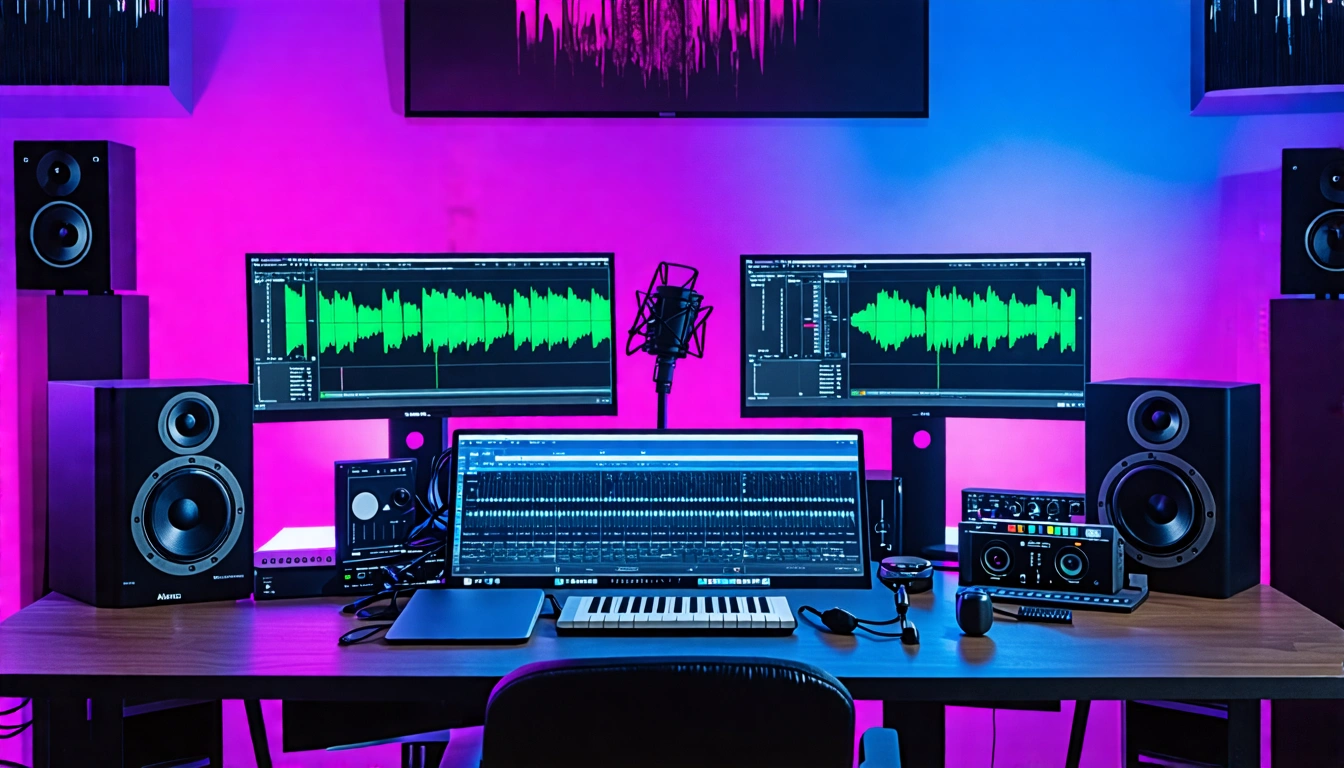
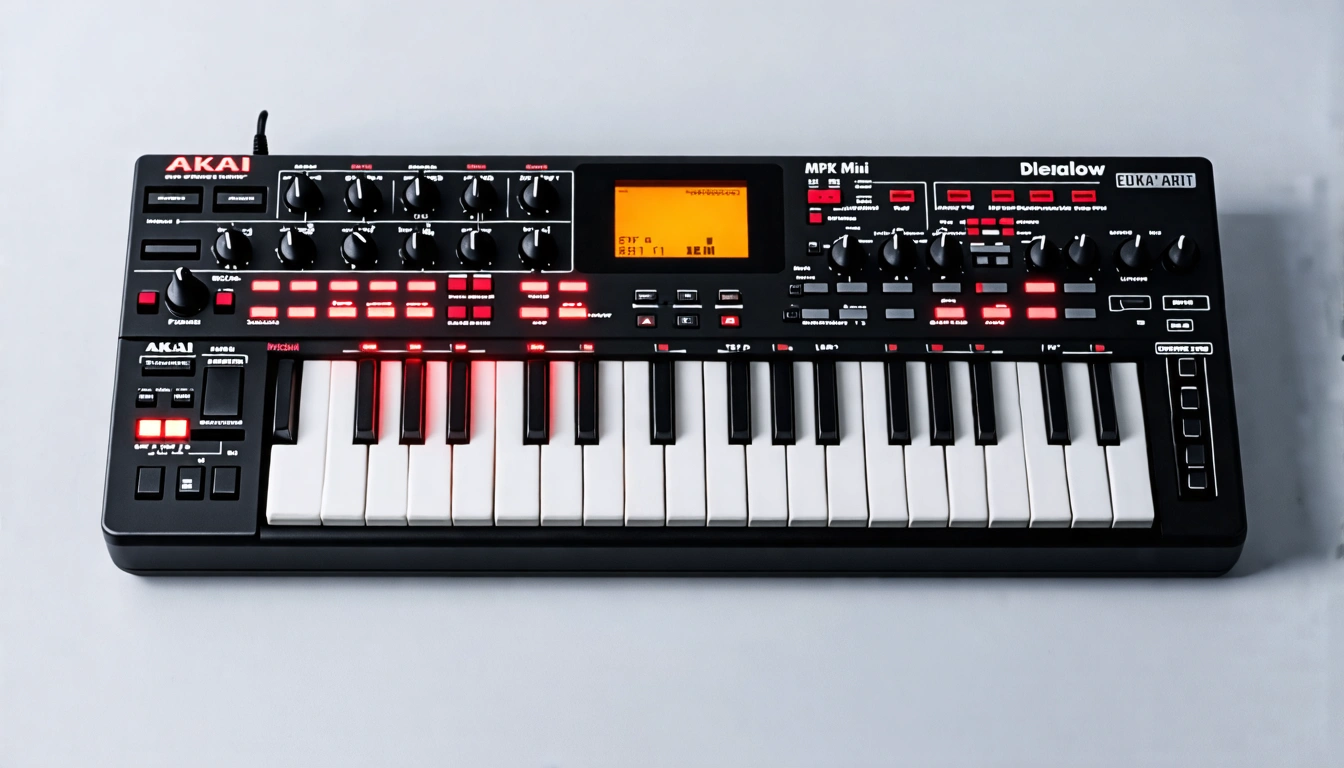
What Free Music Maker Software Actually Is and Why It Matters
You want to make music. You search for tools online. And within seconds, you're buried in results ranging from full-blown digital audio workstations to a yt mp3 converter or a youtube video to mp3 ripping site that has nothing to do with actual music creation. Maybe you stumble across Chrome Music Lab and wonder if that counts. Maybe you download something labeled "free" and hit a paywall before you finish your first beat.
That confusion is exactly why this guide exists. Free music maker software is a broad category, and it deserves a clear definition before you commit your time to anything.
What Counts as Free Music Maker Software
At its core, this means any application that lets you compose, record, arrange, or mix music without paying. The landscape is wider than most people realize. It includes full desktop DAWs like Audacity and LMMS, browser-based platforms you can run on a Chromebook, and mobile apps that turn your phone into a portable studio. Some tools focus on loop-based beat-making. Others offer MIDI sequencing, built-in virtual instruments, and even AI-assisted composition. Whether you want to record a cajon instrument in your living room or program a full electronic arrangement from scratch, there is a genuinely free tool designed for that workflow.
The catch? Not everything marketed as "free" actually is. Some products are time-limited trials. Others lock essential features like audio export or saving projects behind a paid upgrade. This article separates the truly free options from the ones with strings attached.
Why Free Tools Are Good Enough to Start With
Modern free software ships with built-in instruments, loop libraries, and effects that rival many entry-level paid products. TechRadar's review of free music-making software found that tools like Waveform Free and GarageBand offer unlimited tracks and professional-grade features at zero cost.
Most hit producers started on free or bundled software before ever spending a dollar on a paid DAW. The tool doesn't make the artist — the hours spent learning it do.
This article is not a generic list. It is a structured, honest decision-making resource that covers desktop DAWs, browser-based creators, and mobile apps so you can find the right fit based on your operating system, experience level, and the kind of music you want to make. The real question is not whether free tools are capable enough. It is which one matches the way you work.

Truly Free vs Freemium vs Free Trial
So you found a tool that says "free" on the download page. You install it, spend an hour building a beat, and then a dialog box tells you to enter your credit card to save the project. Sound familiar? This is the single biggest frustration people run into when searching for free music maker software, and it happens because the word "free" means very different things depending on the product. Before you download anything, you need to know which category a tool actually falls into.
Open-Source and Truly Free Options
Open-source software is free in the fullest sense: no cost, no expiration date, no features locked behind a paywall. The source code is publicly available, and a community of developers maintains and improves it over time. Audacity, for example, has been actively developed through its 3.x releases with meaningful updates like improved effects handling and a modernized interface. LMMS follows the same model — it ships with built-in synthesizers, a step sequencer, and a piano roll, all completely free. You will never hit a surprise upgrade prompt with these tools. What you download is what you get, permanently.
Freemium Models and What You Actually Get for Free
Freemium tools give you a genuinely usable product at no cost, but reserve certain features for paying customers. The free tier is real — not a demo — though you will bump into ceilings. Common restrictions include track count limits, export format lockouts (MP3 only, no WAV), restricted sound libraries, and locked premium instruments. BandLab, for instance, offers a full browser-based and mobile DAW with collaboration features for free, while its membership tier unlocks additional content and tools. Cakewalk Sonar's free tier provides professional-level features like the ProChannel strip and unlimited tracks on Windows, though some advanced plug-ins sit behind a membership paywall. The key question with any freemium product is whether the free tier lets you finish a complete song and export it — if it does, it earns a spot on your shortlist.
Trial Versions and Their Hidden Strings
Trial versions are the trickiest category. They look and feel like the full product, but a critical limitation waits around the corner. FL Studio's trial is a well-known example: you can produce a full track using every feature, but you cannot reopen saved projects after closing them. That means your work is essentially locked unless you buy a license. Ableton Live Lite takes a different approach — it caps you at eight total tracks and eight mono audio inputs, which is enough to learn the basics but tight for anything complex. These tools are valuable for testing a workflow before committing money, but they are not long-term free solutions. Imagine plugging in an electric drum kit, recording a killer performance, and then discovering you cannot reopen the session tomorrow. That is the kind of frustration trials can create if you go in without clear expectations.
The table below puts this all in one place so you can scan it before downloading anything. Whether you are trying to identify the tempo of a track with a bpm key finder or capture music from a website for sampling inspiration, knowing which tools are genuinely free saves you from wasted hours.
| Category | Examples | Cost | Key Limitation |
|---|---|---|---|
| Truly Free / Open-Source | Audacity, LMMS | $0, forever | Audacity lacks MIDI sequencing; LMMS has no audio recording |
| Truly Free / Open-Source | Ardour (self-compiled) | $0 (source code) | Building from source requires technical skill; pre-built binaries cost $1+ |
| Freemium | BandLab (web & mobile) | $0 core tier | Some premium content and tools locked behind membership |
| Freemium | Cakewalk Sonar (free tier) | $0 core tier | Advanced plug-ins and extra content require paid membership; Windows only |
| Freemium | Soundtrap by Spotify | $0 basic tier | Full sound library and advanced features require subscription |
| Trial / Feature-Limited | FL Studio (trial) | $0 to try | Cannot reopen saved projects without purchasing a license |
| Trial / Feature-Limited | Ableton Live Lite | $0 (bundled with hardware/software) | Capped at 8 tracks total and 8 mono audio I/O |
With these categories clear, the next step is figuring out which specific tool actually fits your setup and goals — starting with the desktop DAWs that give you the most creative control.
The Best Free Desktop DAWs Compared Side by Side
Knowing the difference between truly free, freemium, and trial software is only half the equation. The other half is understanding what each desktop DAW actually delivers once you open it. Specs matter here — not marketing copy. Below is a consistent, feature-level comparison of six tools that regularly surface when people search for free music maker software, evaluated against the same criteria so you can make a direct, apples-to-apples decision.
Feature-by-Feature Comparison Table
Instead of vague descriptions, this table lays out the details that affect your day-to-day workflow: plugin compatibility, track limits, MIDI controller support, and export options. If you have ever wasted time downloading a DAW only to discover it cannot host your favorite free VST synth, this is the reference you needed first.
| Software | OS | Plugin Support | Built-in Instruments | Max Tracks | MIDI Support | Export Formats | Best For |
|---|---|---|---|---|---|---|---|
| Audacity | Win, Mac, Linux | Some VST, LV2 | None (effects only) | Unlimited | No | WAV, MP3, FLAC, OGG | Recording and audio editing |
| LMMS | Win, Mac, Linux | VST2 (partial) | 16+ synths & samplers | Unlimited | Yes | WAV, MP3, OGG | Beat-making and electronic music |
| Cakewalk by BandLab | Windows only | VST2, VST3 | Synths, drums, loops | Unlimited | Yes | WAV, MP3, WMA, more | Full-scale production on Windows |
| GarageBand | macOS, iOS | AU | 100+ instruments & loops | 255 | Yes | WAV, AIFF, MP3, AAC | Beginners and singer-songwriters |
| Ardour | Win, Mac, Linux | VST, AU, LV2 | Minimal (relies on plugins) | Unlimited | Yes | WAV, FLAC, OGG, more | Advanced users wanting open-source flexibility |
| FL Studio (trial) | Win, Mac | VST, VST3 | 80+ synths & effects | Unlimited | Yes | WAV, MP3, FLAC | Exploring FL Studio before buying |
What a Beginner Can Expect in Their First Session
Specs tell you what a DAW can do. They do not tell you how it feels to sit down with it for the first time. That first-session experience varies wildly across these tools, and it is worth knowing what you are walking into.
GarageBand drops you straight into a selection screen of ready-to-play instruments — pick a keyboard, a drum pad interface, or a guitar amp, and you are making sound within seconds. It is the closest thing to picking up an instrument and just playing. LMMS, by contrast, opens with a beat-grid and piano roll interface that feels more like programming than performing. If you enjoy building patterns step by step, that workflow clicks fast. If you expected something more hands-on, it can feel disorienting at first.
Audacity takes a completely different approach. There are no virtual instruments, no loop browsers, and no MIDI sequencing. You hit record, capture audio from a microphone or line input, and edit the waveform directly. Think of it as a recording and editing tool rather than a composing environment. Cakewalk opens with a more traditional multi-track timeline and mixer — familiar territory if you have seen any professional DAW interface, but potentially overwhelming for a total beginner. Ardour follows a similar paradigm, leaning toward users who already understand signal routing and bus architecture. FL Studio's trial, meanwhile, feels polished and inviting, with a step sequencer and channel rack that make beat-making intuitive — just remember that you cannot reopen saved projects without a license.
GarageBand Alternatives for Windows Users
A huge number of beginners land on this search specifically because GarageBand is Mac-only and they need something equivalent on Windows. The two closest alternatives are Cakewalk and LMMS, though they solve different problems. Cakewalk mirrors the full-DAW experience: unlimited tracks, a professional mixer, VocalSync for aligning vocal takes, and broad VST support. It is the strongest free option for Windows users who want a complete production environment. LMMS is better suited for electronic producers and beat-makers who work primarily with virtual instruments and samples — especially if you plan to pull loops from community libraries like Looperman and build tracks from patterns rather than live recordings.
Both tools support MIDI controllers, so whether you are tapping out rhythms on a drum pad or playing melodies on a keyboard, the hardware you already own will likely work. If you are coming from a youtube to mp3 converter free workflow where you have only ever worked with finished audio files, either DAW will feel like a significant step up — you are moving from consuming music to actually creating it.
Desktop DAWs give you the deepest feature sets, but they are not the only option. For creators who cannot install software — or simply do not want to — browser-based tools open up an entirely different way to produce music without downloading a single file.

Browser-Based Music Makers You Can Use Without Installing Anything
Not everyone can — or wants to — install software. Maybe you are on a school Chromebook that locks out downloads. Maybe you are on a shared computer and do not have admin privileges. Or maybe you just want to sketch a melody during a break without committing to a full DAW setup. Browser-based music makers solve all of these problems. You open a tab, and you are producing.
This category rarely gets its own section in free music maker software guides, which is a mistake. For a growing number of creators, the browser is the entire studio.
Who Benefits Most from Browser-Based Tools
Three groups get the most value here. First, beginners who are still testing the waters — if you are not sure whether music production is for you, a browser tool lets you experiment without any setup friction. Second, educators running classroom projects. Both BandLab for Education and Soundtrap for Education offer walled-garden environments where teachers can assign projects, collect student work, and provide feedback directly inside the platform. Students on locked-down school devices — the same ones where they might search for spotify unblocked just to listen to a reference track — can access a full DAW through nothing more than a web browser. Third, creators who move between devices. If you start an idea on a library computer and want to continue on your laptop at home, cloud-based tools keep everything synced.
Standout Browser-Based Options Worth Trying
Each of these tools takes a slightly different approach to in-browser production. Here is what each one does well:
- BandLab (Web App) — A fully free, cloud-based DAW with a drum machine, virtual instruments, loops, effects, and real-time collaboration. Melodics calls it "remarkably versatile and powerful" for a free tool, and it syncs seamlessly between browser and mobile.
- Soundtrap by Spotify (Free Tier) — Combines multi-track recording, MIDI instruments, and built-in collaboration. The free plan is generous enough to produce complete tracks, though premium loops and advanced effects require a subscription. Its Spotify backing means active development and a large user base.
- Soundation — Offers sequencers, loops, and built-in instruments that mimic a traditional DAW workflow in the browser. The free tier is functional but limited in sound library size and track count compared to paid plans.
- Chrome Music Lab Song Maker — A simple, colorful grid where you click to place notes and beats. It is not a production tool — think of it as a musical sketchpad ideal for classrooms and absolute beginners who want to hear an idea like the melody from "I'm Blue" come to life in seconds.
- Online Sequencer — A lightweight MIDI sequencer with a piano-roll interface and a community library of user-created sequences. Great for quick melodic ideas and learning how arrangement works.
- MakeBestMusic's Music Maker — A streamlined, creation-focused platform for readers who want to jump straight into making original songs without a steep learning curve. It connects the intent behind searching for free tools with an actual workspace for producing music quickly.
Limitations of Working in a Browser
Browser-based tools have real trade-offs, and pretending otherwise would not help you make a good decision. The biggest one is latency. Ulf Hammarqvist from Soundtrap presented at a W3C workshop that browser-based audio sees roughly 30ms best-case round-trip latency — passable for casual use, but noticeable when playing a virtual instrument live or recording vocals over a backing track. Native desktop DAWs can push that figure significantly lower.
Beyond latency, you will encounter smaller sound libraries compared to installed software, limited or nonexistent third-party plugin support (no VSTs in a browser tab), and a hard dependency on a stable internet connection. If your Wi-Fi drops mid-session, your workflow stops. Export options also tend to be narrower — some browser tools only output MP3, not lossless WAV or FLAC.
None of these limitations make browser tools a bad choice. They make them a different choice. For sketching ideas, learning fundamentals, and producing complete tracks without installing anything, they deliver genuine value. The question is whether your workflow eventually demands more — and that is where mobile apps and the broader ecosystem of free tools come into play.
Free Music Making Apps for Mobile Creators
Browser-based tools remove the install barrier, but millions of creators face a different constraint entirely: they do not have regular access to a computer at all. Their studio is a phone on a bus, a tablet on a couch, or an iPad propped up on a kitchen counter. When someone searches for free music maker software, mobile apps absolutely fall within that intent — and ignoring them leaves out a massive chunk of the creative landscape.
The good news? Mobile music production has matured well past the novelty stage. You are not limited to tapping out discord soundboard sounds or messing around with a chrome music lab song maker grid. Phones and tablets now run genuinely capable apps with multi-track recording, virtual instruments, and real-time effects processing.
What You Can Realistically Produce on a Phone
Honest expectations matter here. Mobile apps excel at beat sketching, loop arrangement, and vocal recording. They are fantastic for capturing ideas the moment inspiration hits. Where they struggle is complex mixing, mastering, and managing sessions with dozens of tracks. Screen real estate alone makes detailed automation editing a chore.
A realistic workflow looks like this: you sketch a four-bar beat on your phone during a commute, layer a vocal hook over it at lunch, and then transfer the stems to a desktop free DAW that evening to refine the arrangement, mix, and export a polished track. Mobile is the sketchpad. Desktop is the canvas. Used together, they cover the full creative cycle without costing a cent.
Top Free Mobile Apps by Music Style
Different apps suit different goals. Rather than ranking them generically, here is how they map to what you actually want to create:
- Beat-making and hip-hop — BandLab Mobile gives you a drum machine, sampler, and loop library with no in-app purchases. Koala Sampler turns your phone into a portable MPC — sample anything from your microphone, chop it up, and sequence it on a drum pad interface that feels surprisingly tactile for a touchscreen.
- Vocal recording and singer-songwriter work — GarageBand for iOS remains the gold standard. It ships with touch-optimized instruments, amp simulators, built-in pedal effects, and AUv3 plugin support. MusicTech notes that many pros have made hit records using this app alone.
- Loop-based composition and experimentation — Soundtrap works on both Android and iOS with a DAW-style interface, built-in tutorials, and collaboration features. The free tier is enough for quick jams and getting ideas down, though advanced features like automation require a subscription.
- Full-track production — BandLab Mobile again stands out here, offering up to 12 instrument channels and compositions up to six minutes long. It doubles as a social platform where you can share tracks, collaborate via "forking," and connect with over 16 million users worldwide.
One app worth noting for sound design enthusiasts is AudioKit Synth One — a free, open-source iOS synth with over 300 presets, a 16-step sequencer, and Ableton Link support. It is not a full DAW, but paired with GarageBand as an AUv3 plugin, it dramatically expands your sonic palette at zero cost.
Moving Projects from Mobile to Desktop
The biggest concern with mobile production is whether your work gets trapped on your phone. Fortunately, most serious apps offer clear export paths. BandLab supports exporting individual tracks as WAV and MIDI from its web app, and M4A from iOS and Android — plus it syncs projects between mobile and browser automatically through the cloud. GarageBand for iOS integrates directly with Logic Pro on Mac, so opening a mobile project on your desktop preserves tracks, instruments, and effects settings.
For apps without built-in cloud sync, the universal bridge is exporting stems as WAV files. Record each track separately, bounce them to lossless audio, and import those files into whatever desktop DAW you prefer. MIDI export is another option when available — it preserves your note data and lets you reassign instruments on a more powerful machine.
Mobile apps fill a gap that desktop and browser tools simply cannot: they meet you wherever you are, whenever an idea strikes. The real power, though, comes from knowing which tool fits your specific goals — and that decision depends on more than just your device.
How to Pick the Right Free Music Maker for Your Goals
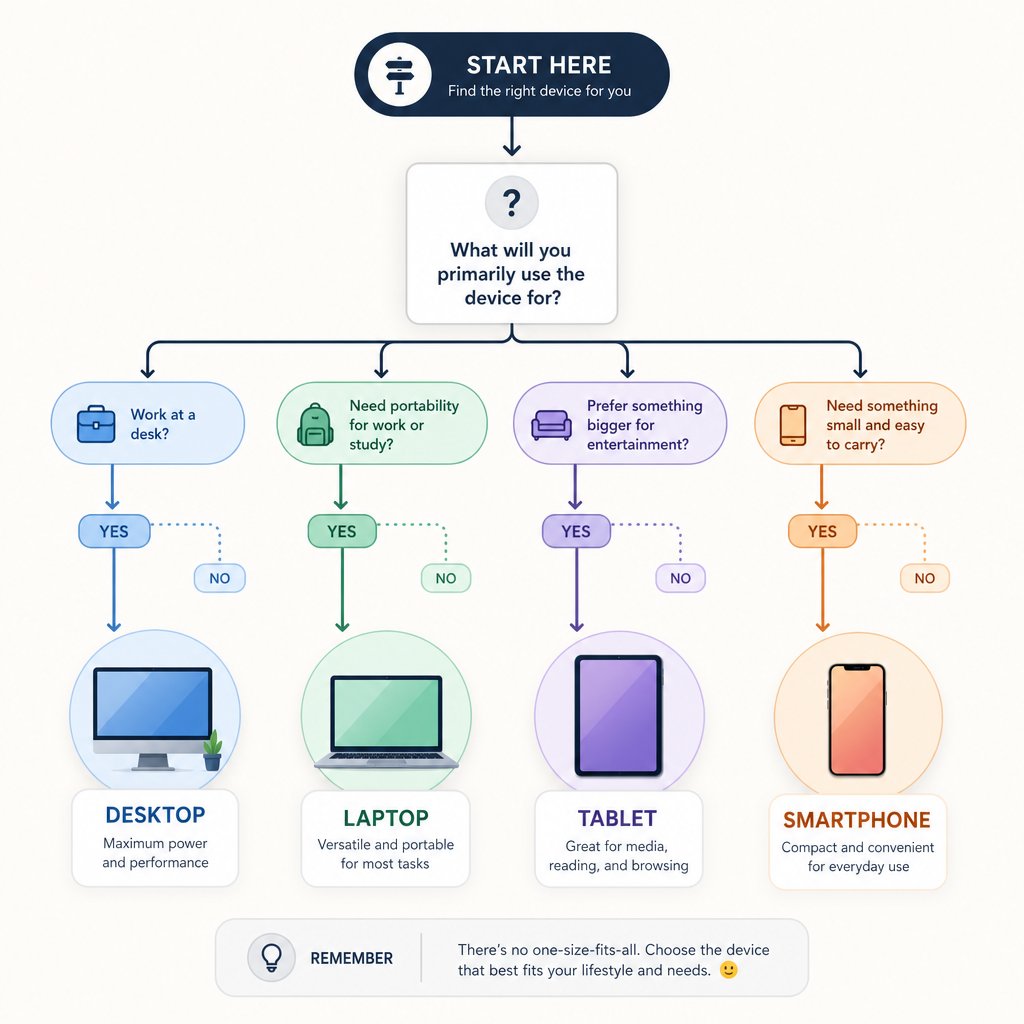
You have seen the desktop DAWs, the browser tools, and the mobile apps. That is a lot of options — and staring at a list of fifteen tools without a clear way to narrow them down is almost as frustrating as not knowing they existed. Instead of leaving you to figure it out alone, here is a practical decision framework built around four questions: what device are you on, do you want to install anything, what kind of music are you making, and how much production experience do you have?
Choose by Operating System and Setup Preference
Your operating system eliminates options immediately. Mac users should start with GarageBand — it is pre-installed, packed with instruments, and creates a seamless upgrade path to Logic Pro later. Windows users who want a full-featured DAW go straight to Cakewalk by BandLab or LMMS. If you are on Windows and plan to use an external audio interface, installing ASIO4ALL as your audio driver is a smart first move — it dramatically reduces latency and makes real-time monitoring usable in any free DAW that supports ASIO. Linux users have Ardour and LMMS as their strongest options, both open-source and actively maintained.
Chromebook or no-install users skip all of that and head to browser-based tools like BandLab's web app or Soundtrap. Mobile-first creators pick BandLab Mobile (Android and iOS) or GarageBand for iOS. The device you already own is the fastest filter you have.
Choose by the Music You Want to Make
Genre shapes workflow more than most beginners expect. A beat-maker building hip-hop loops needs a step sequencer and a solid drum engine. A singer-songwriter needs clean audio recording and simple arrangement tools. Someone producing original sound tracks for a short film needs multi-track flexibility and broad export options. The table below maps common goals to the tools that handle them best.
| Your Goal | Best Free Tool | Why It Fits |
|---|---|---|
| Beat-making and hip-hop | LMMS | Pattern-based sequencer, built-in synths, and VST support for loading free drum kits |
| Singer-songwriter recording | GarageBand (Mac) / Audacity + Cakewalk (Windows) | GarageBand offers instruments and recording in one place; Audacity handles clean vocal capture while Cakewalk adds arrangement |
| Electronic and EDM | Cakewalk or LMMS with free VST plugins | Both support third-party synths like Vital and Surge XT; Cakewalk adds professional mixing tools |
| Classroom or casual experimentation | Chrome Music Lab / Online Sequencer | Zero setup, visual interfaces, and instant feedback — ideal for a maker lab environment or music education setting |
| Sampling and sound design | Audacity + Freesound library | Audacity edits and processes audio; Freesound provides a massive Creative Commons sample library to pull from |
| Quick ideas on any device | BandLab (web and mobile) | Cloud sync between browser and phone means you never lose an idea, and collaboration is built in |
Your Experience Level Matters
Absolute beginners benefit from opinionated, simpler interfaces that make decisions for you. GarageBand and BandLab both fall into this camp — they guide you toward making music rather than configuring settings. You open them, pick a sound, and start creating. That low friction is exactly what keeps a first-timer from quitting in the first ten minutes.
Intermediate users need something different. Once you understand basic arrangement and want to load third-party plugins, route effects buses, or automate parameters across a session, tools like Cakewalk, LMMS, and Ardour give you that multi-track flexibility without asking for your credit card. If you are already pulling samples from communities like Freesound or experimenting with tools like Beatlar for AI-assisted composition, you are past the beginner stage and ready for a DAW that will not limit your creative range.
Picking the right tool is half the battle. The other half is understanding what even the best free software cannot do — and knowing exactly where those ceilings sit before you hit them mid-project.
Honest Limitations of Free Music Software and Plugin Support
Every free tool has a ceiling. Knowing where that ceiling sits before you slam into it mid-session is the difference between a productive workflow and a frustrating one. Free music maker software can take you surprisingly far, but pretending it can do everything a paid DAW does would be dishonest — and honesty is what makes the rest of this guide worth reading.
Common Limitations You Will Hit
Regardless of which free tool you choose, certain restrictions show up again and again. Some are minor inconveniences. Others will eventually force a decision about whether to upgrade or work around them.
- Limited built-in instrument libraries — Free DAWs ship with far fewer sounds than their paid counterparts. GarageBand is generous with over 100 instruments, but LMMS and Cakewalk's free tier offer smaller collections that can start to feel repetitive after a few projects.
- No professional mastering chain — You will not find multiband limiters, mid-side EQ, or loudness metering built into any free DAW. Getting a track to streaming-ready loudness requires third-party plugins or a separate mastering step.
- Restricted export formats — Some tools only export to MP3 or a single lossy format. Serato Studio's free mode, for example, limits export to MP3 only — no WAV, no FLAC. If you need lossless stems for collaboration or distribution, check export options before committing to a tool.
- Missing advanced features — Pitch correction, spectral editing, advanced automation curves, and comping (assembling the best parts of multiple takes) are typically reserved for paid software. Audacity offers basic pitch shifting, but nothing close to dedicated vocal tuning.
- Simplified mixing environments — Features like sidechain compression routing, advanced send/return buses, and surround sound mixing are either absent or heavily simplified in most free DAWs.
These gaps do not mean free tools are useless. They mean you will eventually need to expand what your DAW can do — and that is where plugins come in.
Understanding Plugin Support and Why It Matters
Plugins are add-on instruments and effects that extend your DAW's capabilities. Think of them as apps for your music software. Three main formats exist, and which ones your DAW supports determines what you can install:
- VST (Virtual Studio Technology) — The most widely supported format, available on Windows and macOS. VST2 is the older standard; VST3 is the current version with better performance and organization. Most free DAWs on Windows support at least one.
- AU (Audio Units) — Apple's plugin format, used exclusively on macOS. GarageBand and Logic Pro use AU plugins. If you are on a Mac, this is your primary format.
- LV2 — The open-source plugin standard, most common on Linux. Ardour and Audacity support LV2, making it the go-to format for Linux-based production setups.
Here is where it gets practical. LMMS supports VST2 plugins on Windows, which opens the door to thousands of free instruments and effects. Audacity handles some VST and LV2 effects, though its plugin support is more limited since it is an audio editor rather than a full DAW. GarageBand accepts AU plugins, giving Mac users access to a rich ecosystem. Cakewalk Sonar supports both VST2 and VST3, making it one of the most plugin-friendly free options on Windows. Waveform Free goes even further — it supports VST2, VST3, AU on macOS, and LV2 on Linux, which is rare for a free DAW.
Browser-based tools like BandLab and Soundtrap, on the other hand, are closed ecosystems. You cannot load third-party plugins into a browser tab. What ships with the platform is what you get.
The good news is that free plugins from respected developers can dramatically expand a free DAW's capabilities. TDR Nova is a dynamic EQ that competes with paid options costing over $150. Valhalla Supermassive delivers lush, massive reverbs and delays that no stock free DAW effect can match. Kilohearts Essentials gives you a bundle of clean, modular effects — EQ, compressor, stereo widener — all at zero cost. Pair any of these with a synth like Vital, and your fl studio free trial or LMMS setup suddenly sounds like a much more expensive rig.
When Free Software Becomes the Bottleneck
Free tools stop being enough at specific, recognizable moments. You will know you have hit the wall when one or more of these situations becomes your reality:
- You consistently max out track counts and find yourself bouncing stems just to free up space.
- You spend more time working around limitations — like the inability to reopen FL Studio trial projects — than actually creating music.
- You need professional-grade vocal processing (pitch correction, de-essing, advanced comping) that no free tool provides natively.
- You are collaborating with others who use paid DAWs and constantly running into compatibility issues with project files and plugin formats.
- You want to release commercially mastered tracks and your free DAW's export options or mixing tools are not cutting it.
None of these tipping points mean you wasted time on free software. The opposite is true. Every hour spent learning EQ, compression, arrangement, and MIDI editing inside a free DAW transfers directly to paid tools. The goal was never to stay free forever — it was to make your own kind of music without financial barriers slowing down the learning process. When the tool starts holding you back more than it helps you move forward, that is the signal to level up.
From Free to Pro
That signal — the moment your free DAW feels like it is fighting you instead of helping you — is not a failure. It is proof you have grown. The skills you built inside free music maker software do not disappear when you switch tools. They are the foundation everything else sits on. The real question is how to make the jump without losing momentum or your existing work.
Signs You Have Outgrown Your Free DAW
Some of these showed up at the end of the last section, but they are worth framing as a clear checklist. If two or more apply to you, it is time to start looking ahead:
- You are bouncing stems constantly because your track count or CPU headroom cannot keep up with your ideas.
- You have hit the export ceiling — MP3-only output when you need lossless WAV files for distribution or collaboration.
- You want to build a home recording studio workflow with advanced routing, sidechain compression, or surround mixing that your current tool simply does not support.
- You are spending hours hunting for fl loops free and workaround patches instead of actually finishing songs.
- Collaboration partners send you project files from Ableton or Logic, and you have no way to open them.
Recognizing these signs early saves you from the frustration of forcing a tool to do something it was never designed for.
How to Transition Without Losing Your Work
Project files almost never transfer cleanly between DAWs. A Cakewalk session will not open in Ableton, and an LMMS project will not load in Logic Pro. That is normal. The universal bridge is exporting stems — individual tracks rendered as WAV files. Ableton's own documentation walks through this process in detail, and the principle is identical regardless of which DAW you are leaving or entering: render each track separately, match sample rates, and import the audio into your new environment.
More importantly, the fundamentals you learned — EQ, compression, arrangement, MIDI editing, even experimenting with a musical instrument soundboard or an online sequencer — translate directly to paid tools like FL Studio, Ableton Live, or Logic Pro. You are not starting over. You are upgrading the canvas while keeping every technique you practiced. Producers across genres, from rap music uk scenes to Nashville songwriting rooms, followed this exact path.
Resources to Keep Growing as a Producer
Before spending money on a paid DAW, consider whether the bottleneck is really the software or the workflow. Sometimes the issue is not missing features — it is that the creation process itself feels scattered. Tools like MakeBestMusic's Music Maker bridge that gap by giving you a streamlined, creation-focused environment where the goal is making original songs quickly rather than configuring complex settings. It is worth exploring as a practical step between free experimentation and committing to a full paid DAW.
Platforms like Soundation also offer tiered upgrades that let you scale gradually. Free communities, YouTube production channels, and sample libraries remain valuable no matter what software you use. The path forward does not have to be expensive — it just has to match where you are right now.
The best music maker software is the one that keeps you creating, whether it costs nothing or scales with you over time.
Start free. Learn everything the tool can teach you. And when you outgrow it, carry those skills forward knowing that not a single hour was wasted.