


Why Isolating Vocals Is Easier Than You Think
Maybe you want a clean a cappella track to chop into a remix. Maybe you just need the instrumental so you can practice singing over it at karaoke night. Either way, the question is the same: how to isolate vocals from a song without ending up with a hollow, artifact-riddled mess.
Good news — the process has gotten dramatically easier. Tools that once required a studio engineering degree now run in a browser tab, and the results are closer to studio-quality stems than most people expect.
Vocal Isolation vs. Vocal Removal — Same Process, Different Goals
These two phrases sound like opposites, but they describe the same operation from different angles. Vocal isolation means extracting the singer's voice into its own file — useful for sampling, remixing, studying technique, or building a cappella arrangements. Vocal removal means stripping the voice out and keeping everything else — perfect for karaoke, instrument practice, or creating backing tracks. Modern AI-powered tools handle both simultaneously. When you run a song through a stem separator, you typically get the vocal track and the instrumental as separate downloads in one pass. Some tools go further, acting as a drum remover and bass splitter at the same time, outputting four or even six individual stems from a single upload.
What This Guide Covers and Who It Helps
This guide walks through every practical method available right now — from AI source separation and classic phase cancellation to spectral editing, desktop software, and browser-based tools that work like an ai layer extractor for your music. Whether you have experience with a key finder in your DAW or you have never edited audio before, you will find a workflow here that fits.
Here are the primary use cases this guide supports:
- Karaoke and sing-along practice
- Remixing and mashup production
- Sampling vocals for beats and new compositions
- Music practice — learning parts by isolating instruments across the bass vocal range and beyond
- Content creation for YouTube, TikTok, and podcasts
- Production work — pulling stems when you do not have access to the original multitrack
A quick reality check before we dive in: no method produces a perfectly clean result on every song. Dense mixes, heavy reverb, and low-quality source files all introduce challenges. But the right approach matched to the right source material gets remarkably close — close enough that creators regularly use AI-separated stems in released tracks, no limit lyrics or vocal style holding them back. The difference between a clean isolation and a muddy one usually comes down to understanding the tools and preparing your files correctly.
That preparation — choosing the right method for your specific goal — starts with knowing what each technique actually does under the hood.

Step 1 Understand the Four Main Isolation Methods
Four distinct techniques can pull a voice out of a finished mix, and each one works in a fundamentally different way. Picking the right one saves time and frustration, so here is what is actually happening behind the scenes with each approach.
AI Source Separation and How Neural Networks Split Audio
AI source separation is the method that changed everything. Neural networks like Demucs and Spleeter are trained on thousands of multi-track recordings where the vocals, drums, bass, and other instruments already exist as separate files. The model learns what vocal frequencies, harmonic patterns, and transient shapes look like compared to instruments — then applies that knowledge to songs it has never heard before.
Think of it like teaching someone to recognize a voice in a crowded room. After enough exposure, the brain filters out background noise almost automatically. AI stem separation works the same way, except the "brain" is a neural network and the "room" is a stereo mix. Demucs operates directly on the raw waveform, preserving phase information and producing natural-sounding stems. Spleeter works on a spectrogram — essentially a visual map of frequencies over time — and masks out the regions that belong to each instrument. Both function as a stem separator that outputs multiple tracks from a single file, and many browser-based tools you will encounter later use one of these models under the hood.
The result is remarkably accurate for most commercial recordings. A well-trained audio extractor model can isolate a lead vocal cleanly enough for remix work, even when the singer sits on top of a dense instrumental arrangement. That said, AI is not magic — heavily reverbed vocals, overlapping harmonies, and low-quality source files still cause artifacts.
Phase Cancellation, Spectral Editing, and EQ Techniques
Before AI entered the picture, producers relied on three older methods. Each still has a place, depending on what you are working with.
Phase cancellation is the classic approach. You need two things: the original mix and an identical instrumental version of the same song. When you invert the phase of the instrumental and play it against the mix, every shared element cancels out — leaving only the vocals. In DAWs like Ableton Live, this is as simple as loading both files, flipping the phase with a Utility device, and recording the result. The catch? You need a truly identical instrumental. Even slight mastering differences, random plugin states, or added reverb on the vocal will leave residue behind. When it works, though, the extraction is impressively clean because you are subtracting real audio data rather than estimating it.
Spectral editing takes a more surgical route. Tools like iZotope RX and Adobe Audition display audio as a spectrogram — a heat map where time runs horizontally, frequency runs vertically, and color intensity represents volume. You can literally see a vocal melody as a wavy line in the mid-to-high frequency range and select, cut, or extract it by hand. This method gives you pixel-level precision, which is useful for isolating a specific phrase or cleaning up a stem that an AI seperator already produced. The downside is speed — manually tracing vocals through an entire song is tedious work.
EQ-based filtering is the crudest option. Most vocals sit between roughly 300 Hz and 5 kHz, so you can boost that range and cut everything else. Some producers pair a high-pass and low-pass filter to create a narrow band around the vocal frequencies. The problem is obvious: plenty of instruments — guitars, keyboards, snare drums — live in that same range. You will not get a clean vocal this way, but it can be a quick-and-dirty solution for content creators who just need the voice to be more prominent, or a useful first pass before running a beat key finder or bpm key finder tool that needs a cleaner signal to lock onto tempo and key.
Here is how the four methods compare side by side:
| Method | Accuracy | Ease of Use | Best For | Limitations |
|---|---|---|---|---|
| AI Source Separation | High | Very easy — upload and wait | Full stem splits for remixing, karaoke, sampling, practice | Artifacts on dense mixes; quality depends on source file |
| Phase Cancellation | Very high (when conditions are met) | Moderate — requires matching instrumental | Extracting vocals when an official instrumental exists | Requires an identical instrumental; rare to find for most songs |
| Spectral Editing | High (manual precision) | Difficult — steep learning curve | Surgical cleanup, isolating short phrases, post-AI refinement | Extremely time-consuming for full songs; requires specialized software |
| EQ-Based Filtering | Low | Very easy | Quick vocal emphasis; pre-processing for other tools | Cannot truly isolate vocals; removes instruments sharing the same frequency range |
For most people, AI source separation is the clear starting point — it is fast, accessible (some tools only require a bandlab login or a browser window), and handles the widest range of source material. Phase cancellation is worth trying when you happen to have the matching instrumental. Spectral editing and EQ filtering are best kept as supporting techniques rather than primary workflows.
Knowing which method fits your situation is half the battle. The other half? Making sure the audio file you feed into that method is as clean as possible before processing even begins.
Step 2 Prepare Your Audio Files for the Cleanest Results
The tool you choose matters far less than the file you feed it. A top-tier AI stem splitter running on a 96 kbps YouTube rip will produce worse results than a basic separator processing a lossless WAV from a CD rip. Source file quality is the single biggest variable in vocal isolation — and the one most people overlook entirely.
Why Lossless Audio Produces Better Vocal Stems
Lossy compression formats like MP3 and AAC work by discarding audio data the encoder considers "less audible." The problem is that AI separation models rely on exactly those subtle spectral details to distinguish a voice from a guitar or a snare. Strip that information away, and the model has less to work with.
The numbers back this up. Benchmark testing on the MUSDB18 dataset using HTDemucs found that WAV 24-bit files scored a mean SDR (signal-to-distortion ratio) of 8.04 dB, while MP3 at 128 kbps dropped to 7.80 dB — a 0.24 dB loss that is clearly audible as increased artifacts and vocal bleed. High-bitrate MP3 at 320 kbps came much closer at 7.99 dB, losing only 0.05 dB. The takeaway: lossless is ideal, but a high-bitrate MP3 still delivers solid results. It is the low-bitrate and re-encoded files that really hurt you.
Stereo matters too. Most vocal isolation models expect a stereo signal because they use differences between the left and right channels to locate the centered vocal. Feed in a mono file and you remove one of the model's key separation cues. Similarly, heavily compressed or clipped recordings — the kind where a rapper might spit lyrics over a distorted beat — give the AI less dynamic range to parse, leading to muddier stems.
File Preparation Checklist Before You Start
Before you load anything into an acapella device or desktop tool, run through these steps. They take two minutes and make a noticeable difference in your output quality — whether you are prepping stems for bandlab mastering or just pulling a vocal for a personal project.
- Source the highest quality version of the track available — CD rips, purchased FLAC or WAV files, or official digital downloads beat streaming rips every time.
- Check the format and bitrate — right-click the file and look at its properties. Aim for WAV, FLAC, or at minimum MP3 at 256 kbps or higher.
- Convert to WAV before processing if your tool accepts it — this will not restore lost data from a lossy file, but it prevents a second round of compression artifacts on export.
- Verify the file is stereo — open it in any audio editor and confirm you see two waveform channels, not one.
- Trim unnecessary silence or long intros — shorter files process faster and reduce the chance of timeout errors in browser-based tools.
Avoid re-encoded audio whenever possible. A file that went from FLAC to MP3 to AAC and back to WAV has been through multiple lossy passes — each one quietly degrading the spectral detail that AI models need to cleanly separate vocals from instruments.
With a properly prepared file in hand, the actual isolation step becomes almost effortless — especially when you use a browser-based AI tool that handles the heavy lifting for you.
Step 3 Isolate Vocals with an AI Stem Splitter Online
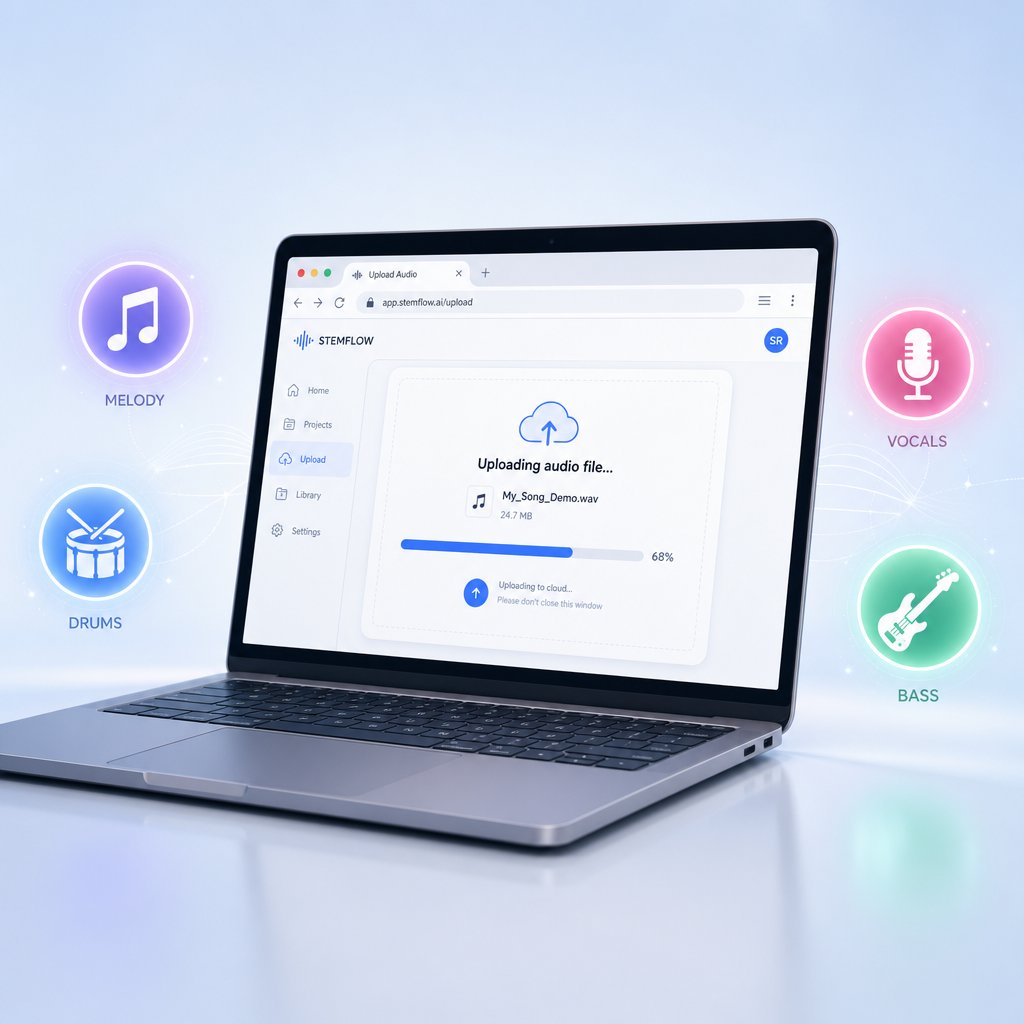
You have a clean, high-quality file ready to go. The fastest way to turn it into separate stems is a browser-based AI audio splitter — no downloads, no installation, no command-line wizardry. You open a page, upload your track, and the AI model running on the server (or sometimes directly in your browser) does the rest. Most tools return results in under a minute for a standard-length song.
How Browser-Based AI Splitters Work
Behind every online stem splitter sits a trained neural network — typically a model like HTDemucs or Mel-Roformer. When you upload a track, the tool converts it into a format the model can read, runs inference to predict which parts of the audio belong to vocals, drums, bass, and other instruments, then renders each prediction as a separate downloadable file. Think of it as a specialized audio extractor that listens to the full mix and pulls apart the layers in seconds.
The output usually includes four stems: a vocal track, an instrumental, a drum stem, and a bass stem. Some services even let you isolate SPL drums or individual percussion elements for more granular control — handy if you are building a remix and want to swap out the original drum pattern entirely. Because the AI handles the separation, you do not need to know anything about spectral analysis or frequency ranges. Upload, wait, download.
Upload, Process, and Download Your Stems
MakeBestMusic's Stem Splitter is a solid browser-based option worth trying first. It outputs separate vocal, instrumental, drum, and bass stems from a single upload — covering the most common needs for remixing, practice, sampling, and karaoke in one pass. The workflow is straightforward:
- Open the Stem Splitter page in any modern browser.
- Upload your prepared audio file — WAV or high-bitrate MP3.
- Let the AI model process the track. A typical three-to-four-minute song finishes in well under a minute.
- Preview each stem to confirm the separation quality.
- Download the stems you need — vocals for an a cappella edit, the instrumental for karaoke, or the full set for production work.
Upload WAV files whenever possible. Lossless audio gives the AI model more spectral detail to work with, which translates directly into cleaner vocal stems and fewer artifacts in the instrumental.
Other online options are worth knowing about for comparison. LALAL.AI uses a proprietary Orion model and supports up to ten stem types — including piano, guitar, and strings — though downloading requires a paid plan starting at $15 per month. AudioStrip offers a simpler two-stem split (vocals and instrumental) for free, which works fine if you just need to strip songs of their vocal layer quickly. Each tool has tradeoffs in quality, speed, and pricing, but the core workflow is nearly identical across all of them: upload, process, download.
For many users, a browser-based tool like MakeBestMusic's Stem Splitter covers everything they need — you can even use it to find song elements from audio you have on hand without installing a single piece of software. But when you need batch processing, offline access, or finer control over which AI model runs the separation, desktop software opens up a different level of flexibility.
Step 4 Use Desktop Software for Advanced Control
Browser tools are fast and convenient, but they come with guardrails — file size limits, queue times, and little say in which AI model actually processes your track. Desktop software removes those constraints. You get offline access, batch processing for entire folders of songs, and the ability to swap models or tweak separation parameters until the output sounds right. The tradeoff is installation time and a steeper learning curve, but for anyone doing this regularly, it pays off quickly.
Vocal Isolation in Audacity with the OpenVINO Plugin
Audacity is the go-to vocal remover freeware for a reason — it is free, open-source, and runs on both Windows and Linux. On its own, Audacity can only do basic phase cancellation (split stereo to mono, invert one channel, and hope for the best). The real power comes from the Intel OpenVINO Music Separation plugin, which adds AI-driven stem splitting directly inside the editor.
Once the plugin is installed and Audacity is restarted, the workflow looks like this: load your track, then navigate to Effect → OpenVINO AI Effects → OpenVINO Music Separation. You will see two separation modes — a 2-stem option that splits vocals from instrumentals, and a 4-stem option that also extracts drums and bass individually. The Inference Device setting lets you choose between CPU, GPU, or NPU processing. GPU is typically fastest on higher-end machines, while CPU always works but runs slower. Expect the first run to take a bit longer as the model warms up; subsequent separations on the same session are noticeably quicker.
The results are solid for most pop, rock, and hip-hop tracks. Where Audacity's separator struggles is with very dense mixes — think layered orchestral arrangements or heavily reverbed vocals stacked with harmonies. In those cases, you may want a tool that lets you try multiple AI models on the same file to compare outputs.
Ultimate Vocal Remover 5 and Advanced Desktop Options
That tool is Ultimate Vocal Remover 5 (UVR5). It is free, standalone, and wraps several AI architectures — including Demucs and MDX-Net — into a single GUI. Instead of being locked into one model, you can switch between algorithms and download new ones as they become available. MusicTech's testing found that with enough experimentation across models, UVR5 can match or beat paid services in vocal separation quality. There is even an Ensemble mode that runs your audio through two models and blends the results for cleaner output.
The honest downside? The interface is not intuitive. Settings like segment size, overlap, and model selection can feel overwhelming at first — a bit like trying to draw out a splinter with tweezers when you have never done it before. Checking community leaderboards at mvsep.com helps narrow down which model works best for your type of source material.
For technical users comfortable with Python, Spleeter remains a viable command-line ai stem splitter. It runs locally, processes fast, and integrates into scripted workflows — useful if you need to batch-process hundreds of files or pipe separation into a larger automation chain (think of it as the audio equivalent of using javascript splice to extract exactly the elements you need from an array). Spleeter's separation quality has been surpassed by newer models, but its speed and scriptability still make it a practical choice for bulk work.
So which approach makes more sense — desktop or browser? Here is a quick breakdown:
Pros of Desktop Tools
- No file size limits or upload queues
- Offline access — process audio without an internet connection
- Multiple AI models to choose from, with the ability to compare results
- Batch processing for large libraries
- More control over output format, sample rate, and bit depth
Pros of Browser Tools
- Zero installation — works on any device with a browser
- Faster for one-off separations
- No local computing power required (processing happens server-side)
- Simpler interface with fewer decisions to make
Neither approach is universally better. If you are isolating vocals from one or two songs for a karaoke night, a browser tool is all you need. If you are pulling stems from a full album for remix production or running separations as part of a regular workflow, desktop software like UVR5 or Audacity with OpenVINO gives you the flexibility and consistency that browser tools cannot match.
Desktop and browser tools both assume you are sitting at a computer, though. What if you are working from a phone or tablet — and what happens after the separation is done?
Step 5 Work on Mobile and Clean Up Your Results
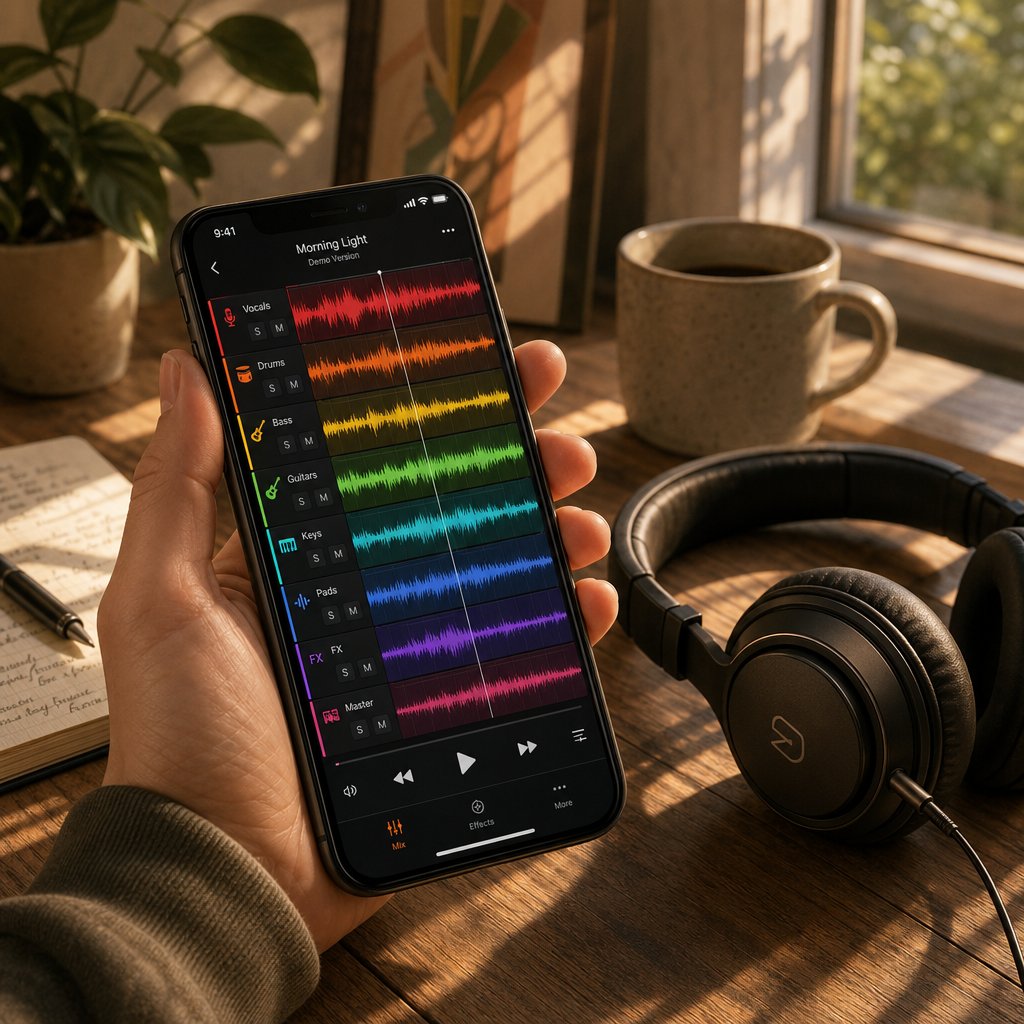
You do not need a laptop open to split a track. Several tools now run directly on phones and tablets — either through native apps or mobile browsers — making it entirely possible to isolate vocals from a song while you are on the bus, in a practice room, or sitting on the couch. The experience is not identical to desktop, but it is closer than most people expect.
Isolating Vocals on Your Phone or Tablet
The most fully featured mobile option right now is BandLab's Splitter. Available inside the free BandLab app for both iOS and Android, the bandlab splitter uses the same AI separation engine as its web counterpart. You import any audio file under 15 minutes in length — so even a full-length track or a song with extended 15 minutes lyrics will process without issue — and the tool splits it into vocals, bass, drums, and other instruments. From there, you can solo the vocal stem for a cappella use, mute it to create guitar backing tracks for practice, or adjust the volume of individual stems to build a custom mix. BandLab also includes a built-in BPM analyzer, key detector, and pitch shifter, which means you can slow a track down to learn a difficult passage or shift the key to match your vocal range — all without leaving the app.
Browser-based splitters work on mobile too. Most of the online tools covered in Step 3 load fine on a phone browser, though you will notice longer upload and processing times over cellular data, and some services cap file sizes more aggressively on mobile. If you are just pulling a quick vocal or instrumental for vox karaoke practice, a mobile browser session gets the job done. For heavier lifting — batch processing or running models like spleeter locally — you will still want a computer.
Expect a couple of tradeoffs. Processing power on mobile hardware is limited, so server-side tools are your best bet rather than anything that tries to run inference on-device. Storage can also be tight if you are downloading multiple stems per song. Keep those caveats in mind, and mobile isolation works surprisingly well for on-the-go workflows.
Post-Isolation Cleanup and Export Best Practices
Getting the stems out of a splitter is only half the job. Raw AI output almost always benefits from a quick cleanup pass — even when the separation quality is strong. Skipping this step is how people end up with stems that sound fine in isolation but fall apart the moment they sit inside a mix or play through speakers at a vox karaoke night.
Here is a reliable cleanup workflow you can follow in any audio editor, from a full DAW like software Cakewalk to a free tool like Audacity:
- Listen through the entire stem on headphones first — note any obvious artifacts, instrument bleed, or hollow-sounding passages before you touch anything.
- Apply light noise reduction to tame background hiss or faint instrumental residue. A gentle pass is better than an aggressive one; over-processing introduces its own artifacts.
- Normalize the output level so the stem peaks at around -1 dB to -3 dB. AI separation often produces quieter-than-expected files, and normalizing brings them to a usable volume without clipping.
- Trim silence from the beginning and end of the file. Most splitters pad the output with a few seconds of dead air that you do not need.
- Export in the right format for your intended use — WAV (16-bit or 24-bit) for production, remixing, or any workflow where the stem will be processed further; MP3 at 320 kbps for casual sharing, personal playlists, or practice sessions where file size matters more than fidelity.
Always do your first quality check on headphones. Subtle artifacts like faint cymbal bleed, phase warble, or thin high-frequency residue are easy to miss on phone speakers or in a noisy room, but they become painfully obvious in a final mix.
A clean, properly exported stem is the difference between a vocal that sounds like it was pulled from the original session and one that sounds like it was ripped through a wall. The cleanup takes five minutes — and it is worth every second.
Of course, knowing how to clean up a stem assumes you can tell the difference between a good isolation and a bad one. That skill — evaluating separation quality with a critical ear — is what separates casual users from people who consistently get usable results.
Step 6 Evaluate Your Isolation Quality Like a Pro
You have your vocal stem. It plays back, it sounds roughly like the singer, and there is no obvious wall of guitar drowning everything out. But is it actually good? Most people skip this step entirely — they run a track through a free stem splitter, hear a voice come out the other side, and call it done. The problem shows up later, when that stem sounds hollow inside a remix or weirdly thin over a new beat.
Training your ear to spot separation issues takes five minutes of focused listening. Here is what to pay attention to.
What Good vs. Poor Vocal Isolation Sounds Like
A well-isolated vocal sounds natural. It has body, presence, and air — like someone singing in front of you without a band behind them. A poorly isolated vocal sounds like it was pulled through a keyhole. The difference comes down to five specific problems, and once you know what each one sounds like, you will hear them instantly.
- Instrument bleed — Faint guitar strums, hi-hat ticks, or piano chords ghosting behind the voice. You will notice it most during quieter vocal passages where the singer drops to a whisper and the instruments do not. This is the most common artifact from any AI isolator, and it is especially pronounced on tracks with acoustic guitars panned near center.
- Phase artifacts — A hollow, "underwater" quality that makes the vocal sound like it is playing inside a tin can. This happens when the separation model struggles to cleanly divide overlapping frequencies, leaving behind partial cancellations. iZotope's artifact guide describes these as distortions introduced during audio manipulation — and aggressive noise removal can make them worse, not better.
- Spectral holes — Missing chunks of frequency content that make the voice sound thin or brittle, as if someone scooped out the warmth with an EQ. This typically happens in the 200-500 Hz range where the vocal's body overlaps with bass and lower midrange instruments.
- Reverb tails — The original mix's reverb clinging to the end of phrases, creating a ghostly shimmer that does not belong in a dry vocal stem. Reverb is notoriously difficult for AI models to separate because it blends the vocal signal with the room or effect return across a wide frequency range.
- Stereo image issues — The vocal sounding unnaturally narrow, lopsided, or weirdly wide compared to the original. Some models collapse the stereo field during separation, while others introduce subtle left-right imbalances that become obvious on headphones.
Here is a practical way to check: pull up the original mix and your isolated vocal side by side. Play the original at low volume — just loud enough to hear the singer clearly — then switch to the stem. If the vocal suddenly sounds like it lost weight or gained an echo, you have artifacts worth addressing. Pay extra attention to quiet passages and the tails of held notes, where bleed and phase issues hide most effectively. Listen on headphones first, then check on speakers. Problems that vanish on earbuds sometimes jump out of a monitor at full volume.
When to Try a Different Tool or Approach
Not every isolation is worth salvaging with cleanup. Sometimes the smarter move is to reprocess the track with a different method entirely.
If you used a browser-based tool and the result has heavy bleed, try a desktop option like UVR5 where you can switch AI models. Different architectures handle different genres and mix styles better — a model that nails pop vocals might struggle with a dense jazz recording. Tools marketed as a vocal remover - musiclab alternative or a general-purpose splitter may use older or lighter models that simply lack the training data for your specific track.
If AI separation across multiple models still produces artifacts, consider whether your source file is the bottleneck. A low-bitrate MP3 will produce mediocre stems no matter how advanced the model is. Sourcing a higher-quality version of the track and reprocessing it often fixes problems that no amount of post-cleanup can solve — like trying to use a splinter remover on something buried too deep to reach from the surface.
For critical professional work — a commercial remix, a film soundtrack, a sample that will anchor an entire production — be honest about the limits of automated separation. Hiring an audio engineer with access to the original multitrack session will always produce cleaner results than any AI tool working from a stereo mixdown. That is not a knock on the technology; it is just the reality that a finished mix was never designed to be taken apart.
For everything else — karaoke, practice, content creation, personal remixes — the combination of choosing the right tool, feeding it a quality file, and knowing what "good enough" sounds like for your purpose will get you there. The real question is which specific tool fits your specific goal, and that is exactly where a structured comparison helps cut through the noise.
Step 7 Pick the Right Tool for Your Specific Goal
Knowing what good isolation sounds like is one thing. Knowing which tool consistently delivers it for your particular workflow is another. The landscape includes free vocal remover options, subscription services, and open-source desktop apps — each with different strengths depending on whether you are building karaoke tracks, pulling samples, or learning an instrument part. Rather than guessing, use the comparison below to match your goal to the right tool.
Tool Comparison by Platform, Cost, and Ease of Use
This table covers the tools discussed throughout the guide, organized by method type, platform availability, and what each one handles best. If you have been wondering how to strip songs of vocals without wading through dozens of options, start here.
| Tool | Method Type | Platform | Cost | Ease of Use | Best For |
|---|---|---|---|---|---|
| MakeBestMusic Stem Splitter | AI (browser-based) | Browser / Mobile | Free tier available | Very easy | Quick vocal/instrumental splits, karaoke, remixing, sampling |
| Ultimate Vocal Remover 5 | AI (multi-model GUI) | Desktop (Win/Mac/Linux) | Free (open source) | Moderate — learning curve | Advanced users who want model flexibility and batch processing |
| Audacity + OpenVINO | AI (plugin-based) | Desktop (Win/Linux) | Free (open source) | Moderate | Users already in Audacity who want AI separation without switching apps |
| Spleeter | AI (command-line) | Desktop (Win/Mac/Linux) | Free (open source) | Difficult — requires Python | Developers and technical users running scripted batch workflows |
| LALAL.AI | AI (proprietary Orion model) | Browser / Desktop | From $15/month (credit-based) | Easy | Professional extraction with up to 10 stem types including guitar, piano, strings |
A few things stand out. Browser-based tools like MakeBestMusic's Stem Splitter and LALAL.AI require zero setup, which makes them the fastest path from a full mix to separated stems. UVR5 and Spleeter are both free and powerful, but they ask more of you upfront — installation, model selection, and in Spleeter's case, comfort with a terminal. Audacity with OpenVINO sits in the middle: familiar interface, decent results, but limited to the single model the plugin ships with.
Best Method for Karaoke, Remixing, Practice, and Production
The "best" tool depends entirely on what you plan to do with the output. Here is how the recommendations break down by real-world use case:
- Karaoke and sing-along — MakeBestMusic's Stem Splitter handles this in one pass. Upload the song, download the instrumental, and you are ready to sing. No subscription needed, no software to install. If you also want splitter pitch control or tempo adjustment for the backing track, pair the instrumental with a free tool like BandLab's player on edu.bandlab to shift key and speed on the fly.
- Sampling and remixing — UVR5 gives you the most control here. You can run the same track through multiple models — Demucs for clean vocals, MDX-Net for tighter instrumental separation — and pick the best result for each stem. For one-off samples where speed matters more than tweaking, MakeBestMusic or LALAL.AI both deliver production-ready stems without the setup overhead.
- Music practice and learning — Moises (not in the table above but covered earlier) is hard to beat for daily practice thanks to its mobile app, speed control, and chord detection. BandLab's free splitter is another strong option, especially for students already using the platform. Think of these as a layers music app for your practice sessions — peel back the vocal to hear the bass line, mute the drums to focus on rhythm guitar, or solo the vocal to study phrasing and dynamics.
- Professional production — Start with LALAL.AI if you need granular stem types like isolated piano, strings, or synth — its Orion model handles extended instrument separation better than most competitors. For vocal-only extraction at the highest quality, UVR5's MDX-Net mode produces lossless results that MusicRadar's testing ranked among the cleanest available. And if you work in Logic Pro, its built-in Stem Splitter scored highest overall in that same roundup — worth knowing if you are already in Apple's ecosystem. For truly critical work, though, always try to source the original multitrack session before relying on any AI separation.
No single tool wins every scenario, which is exactly why this comparison exists. Match the tool to the task, feed it a quality file, and you will land on a result that fits your purpose — whether that is a song finder by audio experiment, a weekend remix, or a polished production stem.
One question tends to surface right around this point, especially for creators planning to share their work publicly: what are you actually allowed to do with these separated stems?
Step 8 Know the Legal Side Before You Share
Using an acapella extractor or any AI tool to remove background music from a track you own is straightforward from a technical standpoint. The legal picture is almost as simple — as long as you understand where the line sits between personal use and public distribution.
Personal Use vs. Public Distribution
If you are pulling vocals to practice singing, study a melody, run a music key finder analysis, or host a private karaoke night, you are on solid ground. Separating a song you purchased for your own learning or enjoyment does not create a new public-facing work, so copyright concerns rarely apply.
The picture changes the moment you distribute the result. A remix, a cappella edit, or sample-based beat built from someone else's copyrighted recording is considered a derivative work under U.S. copyright law. The original song carries two separate copyrights — one for the musical composition (owned by the songwriter or publisher) and one for the sound recording (typically owned by the artist or label). Using either without permission in a publicly released track is where legal risk begins. As Ditto Music's remix licensing guide puts it plainly: you can only release or publicize a remix if the copyright holder has granted you the rights to do so.
Staying on the Right Side of Copyright
Licensing requirements vary by jurisdiction and intended use. Educational commentary, transformative works, and non-commercial sharing may receive different legal treatment than a commercial release on streaming platforms — but "fair use" is a defense argued in court, not a blanket permission slip. If you plan to publish anything built from separated stems, the safest paths are clear: get written permission from the rights holders, license the track through the appropriate publisher or collection society, or use royalty-free source material from the start.
Always verify licensing before distributing isolated stems publicly. The separation itself is not the legal issue — sharing the result commercially without permission is.
For the vast majority of people who want to remove background music for practice, study, or personal creative exploration, there is nothing to worry about. Enjoy the process, experiment freely, and save the licensing homework for the moment you decide to hit "publish."
