

Music Editing Software on Mac Explained
When you hear "music editing software for mac os x," what comes to mind? A simple app for trimming an audio clip? A full recording studio running on your laptop? The reality is that the term covers a wide spectrum, and understanding where each tool falls on that spectrum is the first step toward spending your money wisely — or not spending it at all.
What Counts as Music Editing Software on Mac
Mac music editing software generally falls into three tiers, each designed for a different level of complexity:
- Lightweight audio editors — tools built for basic tasks like trimming waveforms, applying fades, converting file formats, and exporting clean audio. Think quick fixes, not full productions.
- Mid-tier editors — these add multitrack support, built-in effects, and mixing capabilities. You can layer vocals over instrumentals, apply EQ, and produce polished results without a steep learning curve.
- Full digital audio workstations (DAWs) — the heavyweights. Recording, arranging, MIDI sequencing, virtual instruments, mastering tools, and plugin ecosystems all live here. If you're producing complete songs or scoring for film, this is the tier you're working in.
The best audio editing software for your situation depends entirely on which tier matches your actual workflow. A podcaster trimming interview clips and a beat maker building tracks from scratch have very different needs, even though both are technically doing mac music editing on the same machine.
Why This Guide Exists
Search for macbook audio editing software and you'll mostly land on individual product pages, each one telling you why that particular tool is the answer. What's missing is a single, unbiased resource that lines up pricing, system requirements, feature sets, and real use-case recommendations side by side. That's exactly what this guide delivers.
There's also a reason so many audio professionals gravitate toward Mac in the first place, and it goes deeper than brand preference:
Mac's Core Audio architecture eliminates the need for third-party audio drivers, giving it a built-in advantage for music editing out of the box — plug in an audio interface, and it just works.
That driver-level reliability is a big part of why mac os x audio software has earned its reputation in studios and home setups alike. It means less time troubleshooting and more time creating, regardless of which editor you choose.
With that foundation in place, the real question becomes: what does macOS offer under the hood that makes it such a strong platform for audio work?
Why macOS Stands Out for Audio Editing
Every mac audio editor benefits from something most users never think about: the operating system itself is doing a lot of the heavy lifting before any software even launches. Unlike Windows, where professional audio typically requires a third-party ASIO driver to achieve low-latency performance, macOS handles this natively. That distinction shapes which mac audio software you'll need — and more importantly, which headaches you won't have.
Core Audio and the Mac Advantage
Core Audio is Apple's built-in audio framework, and it sits between your applications and the hardware through what's called the Hardware Abstraction Layer (HAL). In practical terms, this means you can plug in almost any audio interface, open your DAW, and start recording — no driver downloads, no configuration screens, no compatibility guesswork.
On Windows, the ASIO driver bypasses the OS to achieve direct data transfer between hardware and software. It works well, but it introduces an extra layer of setup and limits you to one application addressing the device at a time. Core Audio, by contrast, lets multiple apps access the same audio device simultaneously while still maintaining tight, consistent latency. For anyone doing mac audio editing — whether tracking vocals or mixing a podcast — that plug-and-play reliability is a genuine time saver.
Audio MIDI Setup and Built-In Routing
Tucked inside your Utilities folder is Audio MIDI Setup, a tool that quietly solves problems other platforms need third-party software for. You might be wondering, what is MIDI in this context? MIDI (Musical Instrument Digital Interface) is the protocol that lets keyboards, drum pads, and other controllers communicate with your software. On macOS, Core MIDI handles this data natively — no manufacturer-specific drivers required for most devices.
Audio MIDI Setup also lets you create aggregate audio devices, combining multiple interfaces into a single virtual device. Imagine pairing an eight-channel interface with a two-channel USB mic to get ten discrete inputs — all recognized by your DAW as one unit. You can also configure audio output routing, including AirPlay streaming to speakers around your home, though keep in mind that AirPlay introduces latency that makes it unsuitable for real-time monitoring.
Here are the key macOS audio features that come built in:
- Core Audio driver — low-latency, multi-app audio with no third-party installation
- Audio MIDI Setup — aggregate devices, sample rate configuration, and device routing
- AirPlay audio routing — stream output to wireless speakers (playback only, not for recording)
- Audio Unit (AU) plugin format support — Apple's native plugin standard, recognized by every Mac-compatible DAW
These aren't bonus features. They're baked into the platform, and they directly influence which editing software makes sense for your setup. A tool that leverages Core Audio and AU plugins well will feel seamless on a Mac, while one that fights against the OS architecture will create friction you shouldn't have to deal with.
Of course, knowing the platform advantages only gets you halfway. The real decision comes down to what each piece of software actually costs — and whether the free options can genuinely hold their own.
Free vs Paid Options Mapped Out
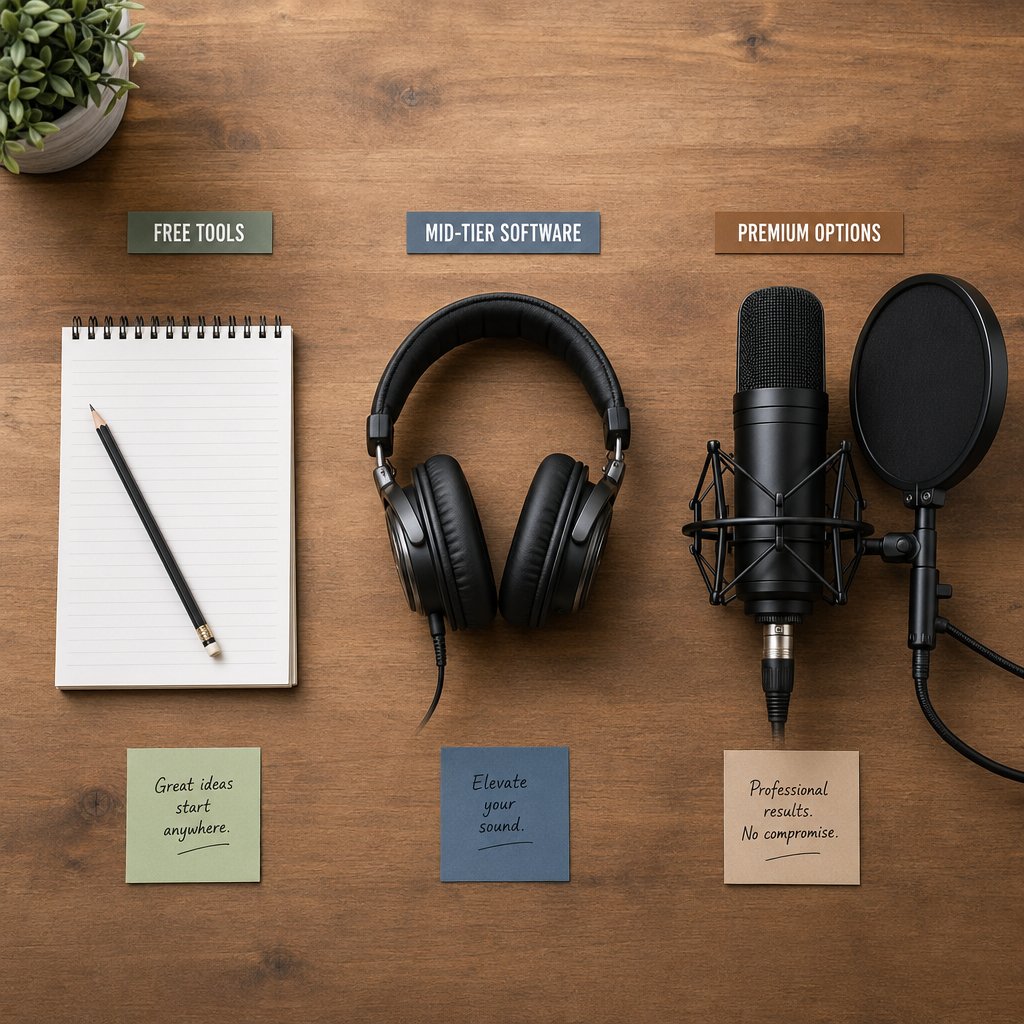
The price gap between the cheapest and most expensive audio editing software for mac is enormous — literally zero dollars to several hundred. But higher cost doesn't automatically mean a better fit. Some of the most capable free music production software ships right on your Mac, and paid tools only justify their price when your workflow genuinely demands what they offer.
Free and Open-Source Options
Two names dominate the free tier, and both are legitimate workhorses.
GarageBand comes pre-installed on every Mac. It's a full DAW — not a stripped-down demo — with multitrack recording, software instruments, drummer tracks, a solid loop library, and Audio Unit plugin support. For anyone exploring music creation for the first time, it's the most frictionless free daw available on any platform. The main limitations? No advanced MIDI editing, no Flex Time or Flex Pitch, and a ceiling on mixing tools that professionals will eventually bump into.
Audacity fills a different role. It's free, open-source, and cross-platform — ideal for trimming, cleaning up recordings, noise reduction, and batch exporting. It doesn't support MIDI or virtual instruments, so it's not built for composing. But as free audio editing software mac users can rely on for spoken-word editing, podcast production, and quick waveform work, it's hard to beat. It also runs comfortably on older machines with as little as 2 GB of RAM.
Mid-Range and One-Time Purchase Options
When free tools start feeling limiting, the mid-range tier offers remarkable value without recurring fees.
Reaper stands out with a discounted license at $60 (commercial license is $225), covering all updates through version 8.99. It supports AU, VST, and VST3 plugins, handles unlimited tracks, and offers deep routing and customization. The trade-off is a steeper learning curve and a utilitarian interface that takes time to personalize.
FL Studio ranges from $99 (Fruity) to $449 (All Plugins Bundle), and every edition includes lifetime free updates — you buy once and receive every future version at no extra cost. It's pattern-based workflow is a favorite among beat makers and electronic producers. Curious before committing? The FL Studio free trial lets you explore the full feature set, though you can't reopen saved projects until you purchase a license.
WavePad offers a free version for non-commercial use, with paid tiers unlocking batch processing and advanced restoration tools. It's a single-file editor rather than a multitrack DAW, making it best suited for quick audio cleanup and format conversion.
Professional Subscription and Premium Tiers
At the professional end, pricing models diverge significantly.
Logic Pro remains one of the strongest values in professional audio. The logic pro cost is a one-time $199.99 purchase — no subscription, no tiers — and Apple has a long track record of delivering major updates to existing owners at no additional charge. For Mac-native workflows, it's tough to argue against that price-to-feature ratio.
Pro Tools operates on a subscription model. Current US pricing starts at $9.99/month for Pro Tools Artist, $34.99/month for Studio, and $99/month for Ultimate. These costs add up over time, but Pro Tools remains the standard in commercial studios and post-production houses where session compatibility is non-negotiable.
Ableton Live is tiered from $99 (Intro) to $749 (Suite), with a rent-to-own option that spreads Suite payments over roughly 24 months. Its session view and clip-launching workflow make it the go-to for electronic production and live performance.
Full Pricing Overview
| Software | Price Model | Approximate Cost (USD) | Best For |
|---|---|---|---|
| GarageBand | Free | $0 (pre-installed) | Beginners, songwriting, learning |
| Audacity | Free / Open-Source | $0 | Audio cleanup, podcasts, voice editing |
| WavePad | Free / Paid tiers | $0 (non-commercial) | Quick edits, batch processing, restoration |
| Reaper | One-Time | $60 (discounted) / $225 (commercial) | Budget-conscious producers, advanced routing |
| FL Studio | One-Time (lifetime updates) | $99 – $449 | Beat making, electronic music, pattern workflows |
| Logic Pro | One-Time | $199.99 | Mac-native production, songwriting, mixing |
| Ableton Live | One-Time / Rent-to-Own | $99 – $749 | Electronic production, live performance |
| Pro Tools | Subscription | $9.99 – $99/month | Studio interoperability, post-production |
The takeaway here isn't that you need to spend more to get serious results. GarageBand and Audacity — both completely free audio software for mac — can carry you surprisingly far. The decision to upgrade should come from hitting a real wall in your workflow, not from assuming that paid software is inherently better.
Pricing tells you what you'll spend. But it doesn't tell you what you'll actually get feature by feature — and that's where the differences between these tools really start to separate.
Feature-by-Feature Comparison Table
A price tag only tells you what leaves your wallet. It says nothing about track limits, plugin compatibility, or whether the software will even run on your machine. When you're evaluating daw programs and audio editing tools mac users actually rely on, the details below are what separate a good fit from an expensive mistake.
Head-to-Head Feature Comparison
This table consolidates the core capabilities of the top audio editing software for mac into a single view. Whether you're shopping for the best music production software or just need a lightweight editor, you'll notice the differences that matter most tend to cluster around plugin support, MIDI capabilities, and bundled content.
| Software | Max Track Count | Built-In Instruments | Plugin Formats | MIDI Editing | Loop Library | Collaboration | Min macOS |
|---|---|---|---|---|---|---|---|
| GarageBand | 255 | Yes (solid set) | AU | Basic | Yes | iCloud sharing | Ships with macOS |
| Logic Pro | 1,000 | Extensive (~80 GB) | AU | Advanced | Yes (largest) | iPad project sharing | macOS 13.5 |
| Audacity | Unlimited* | None | AU / VST (effects only) | None | No | None | macOS 10.15 |
| Pro Tools | 8 – 2,048 (by tier) | Some (varies by tier) | AAX | Advanced | Limited | Avid Cloud Collaboration | macOS 14.7 |
| Ableton Live | Unlimited (Intro: 16) | Yes (~70 GB in Suite) | AU / VST | Advanced | Yes | Ableton Cloud (limited) | macOS 10.13 |
| FL Studio | Unlimited | Yes (~5 GB) | AU / VST | Advanced (best Piano Roll) | Some | None | macOS 10.13.6 |
| Reaper | Unlimited | Minimal | AU / VST / VST3 | Advanced | No | None | macOS 10.5 |
| WavePad | N/A (single-file editor) | None | N/A | None | No | None | macOS 10.5 |
*Audacity handles multitrack audio but is not a traditional DAW — it lacks MIDI sequencing and virtual instruments. A few things stand out here. Logic Pro and Ableton Live ship with the largest sound libraries, which matters if you want to produce without immediately buying third-party content. Reaper offers the broadest plugin format support, making it the most flexible choice if you've already invested in a mixed collection of AU, VST, and VST3 plugins. And Pro Tools' track count varies dramatically by tier — the free Intro version caps at just 8 audio tracks, while Ultimate scales to 2,048, reflecting its role as audio recording software built for large-scale studio and post-production work.
System Requirements at a Glance
Specs matter more than you might think, especially if you're pairing your software with external recording devices like audio interfaces and MIDI controllers. Here's what each option asks of your Mac:
| Software | Minimum RAM | Recommended Storage | Apple Silicon Native | Processor |
|---|---|---|---|---|
| GarageBand | 4 GB | ~2 GB (base install) | Yes | Any supported Mac |
| Logic Pro | 8 GB | 6 GB base + up to 80 GB content | Yes (first-party optimized) | Apple Silicon or Intel |
| Audacity | 2 GB | ~100 MB | Yes | Any 64-bit processor |
| Pro Tools | 16 GB (32 GB recommended) | 15 GB | Yes (M1 – M4) | M-series or Intel Dual Core i5+ |
| Ableton Live | 8 GB | 3 GB base (up to 76 GB for Suite content) | Yes | Intel Core i5 or Apple Silicon |
| FL Studio | 4 GB | 4 GB | Yes | Intel or Apple Silicon |
| Reaper | 4 GB | ~20 MB | Yes | Any 64-bit processor |
| WavePad | 2 GB | ~30 MB | Yes (via Rosetta 2) | Any supported Mac |
The storage column is where the biggest surprises hide. Reaper's entire install is roughly 20 MB — smaller than most individual audio files — while Logic Pro and Ableton Live Suite can consume over 70 GB once you download their full sound libraries. If you're working on a MacBook with limited SSD space, that difference is significant.
Apple Silicon (M-series) compatibility is now a baseline expectation. All major daw programs listed here run natively on M1 through M4 chips, and Logic Pro holds a measurable optimization edge as Apple's own software running on Apple's own hardware. That said, some older or niche third-party plugins may still require Rosetta 2 translation, which adds a small amount of CPU overhead. Before committing to any of the best music making software options above, it's worth confirming that your essential plugins have native Apple Silicon builds.
Numbers on a spec sheet tell you what each tool can do in isolation. The more useful question is which combination of features actually matches the way you work — and that depends entirely on who you are and what you're trying to create.

Picking the Right Editor for Your Workflow
Feature tables are useful, but they don't answer the question you're actually asking: which one is right for me? The best daw isn't the one with the longest spec sheet — it's the one that disappears into your creative process and lets you focus on the work. That answer changes depending on whether you're recording a guitar demo in your bedroom, editing a podcast episode, or building beats for a hip-hop project.
Here's how the major music editing programs for mac map to real workflows.
Hobbyists and Beginners
If you're just figuring out how to make music on a Mac, the best move is the one that costs nothing and requires zero setup. GarageBand is already on your machine, and it's genuinely capable — not a toy dressed up as a DAW. You get multitrack recording, software instruments, drummer tracks, a loop library, and enough mixing tools to produce something you'd actually want to share.
- Zero cost, zero installation friction — open it and start creating immediately
- Intuitive drag-and-drop interface that teaches production concepts as you use it
- Full Audio Unit plugin support, so you can expand with free or paid third-party instruments and effects as your skills grow
For users who just need to trim an audio file, clean up a recording, or convert formats — and have no interest in composing — Audacity is the better fit. It's lightweight, focused, and won't overwhelm you with features you'll never touch.
Podcasters and Voice-Over Artists
Spoken-word editing has different priorities than music production. You need clean noise reduction, precise trimming, consistent levels, and fast export — not virtual instruments or loop libraries. The tool should get out of your way.
- Audacity handles the essentials well: noise gate, noise reduction, normalization, compression, and batch export — all free
- Logic Pro steps in when you need advanced processing chains, like stacking multiple noise reduction passes with de-essing and adaptive EQ, or when you're managing dozens of episodes with complex routing
- Both support direct recording from USB microphones or audio interfaces through Core Audio, with no driver setup required
Most podcasters start with Audacity and never need to leave. The upgrade path to the Logic daw only makes sense when your production demands — multiple hosts, remote guest tracks, heavy post-processing — outgrow a simpler editor.
Singer-Songwriters and Band Recording
When you're tracking real instruments — acoustic guitar, vocals, bass, drums — the mac music editing program you choose needs solid multitrack recording, low-latency monitoring, and flexible editing tools. This is where mid-tier and professional DAWs earn their keep.
- Logic Pro is the natural choice for Mac-based singer-songwriters: Flex Time corrects timing without artifacts, Flex Pitch handles vocal tuning natively, and the Score Editor lets you notate arrangements directly from MIDI performances
- Reaper offers a comparable multitrack recording experience at a fraction of the cost ($60 discounted license), with unlimited tracks and deep routing — ideal if you're tracking a full band through a multi-channel interface
- Both support punch-in recording, comping (assembling the best take from multiple passes), and non-destructive editing that lets you experiment without losing your original performances
The deciding factor often comes down to bundled content. Logic Pro ships with a massive sound library and polished virtual instruments. Reaper ships lean and expects you to bring your own — which is fine if you already own plugins, but means extra investment if you're starting from scratch.
Electronic Producers and Beat Makers
Wondering how to make beats on a Mac? The workflow matters more than the feature count here. Electronic production is loop-driven, pattern-based, and heavily reliant on MIDI — and two DAWs have built their entire identity around that reality.
- Ableton Live is built for loop-based creation and live performance — its Session View lets you trigger clips, layer ideas, and improvise arrangements in real time before committing anything to a linear timeline
- FL Studio centers on a pattern-based step sequencer and what's widely considered the best piano roll in any DAW, making it a favorite for precise MIDI programming and beat construction
- Both offer lifetime value — FL Studio includes free updates forever, and Ableton's Suite edition ships with over 70 GB of instruments and samples that cover nearly every electronic genre
FL Studio also doubles as a capable fl studio vocal editor when paired with its built-in pitch correction and audio editing tools, though vocal production isn't its primary strength. If vocal processing is central to your workflow, pairing FL Studio with a dedicated plugin like Melodyne or using Logic Pro's native pitch tools will give you more control.
Professional and Post-Production Work
In commercial recording studios, film scoring suites, and broadcast post-production facilities, one name still dominates the conversation. Pro Tools earned its industry-standard status through decades of presence in professional environments, and that installed base creates a practical reality: if you're exchanging sessions with other studios, Pro Tools compatibility is often assumed.
- Scales to 2,048 tracks in the Ultimate tier, with advanced automation, surround mixing, and video sync capabilities purpose-built for film and broadcast post-production
- Avid Cloud Collaboration enables real-time session sharing between studios and remote contributors — a workflow requirement in many professional environments
- AAX-exclusive plugin format means your plugin library must be AAX-compatible, which most major developers support but some niche tools do not
The subscription cost is the trade-off. At $99/month for Ultimate, Pro Tools is the most expensive option on this list by a wide margin. That price makes sense when studio interoperability and client expectations demand it — less so for independent creators who don't need to exchange sessions with commercial facilities.
Matching software to your workflow is the most important decision, but it's not the last one. The plugins you run inside that software — and whether they'll actually work with your chosen DAW — introduce a compatibility layer that's easy to overlook and frustrating to discover too late.
Understanding Plugin Formats on macOS
Plugin format compatibility is one of those details that rarely comes up during the excitement of choosing new audio editing software on mac — until you buy a plugin and discover it won't load in your DAW. The format your editor supports determines which third-party instruments, effects, and processing tools you can actually use. Get this wrong, and you're either locked out of plugins you've already paid for or forced into workarounds that shouldn't be necessary.
AU vs VST vs VST3 vs AAX Explained
Four plugin formats dominate the Mac audio landscape, and each one exists for a specific reason:
- Audio Units (AU) — Apple's native plugin format. Every Mac-compatible DAW supports it, and it integrates tightly with macOS through Core Audio. If you're working exclusively on Mac, AU is the safest bet for broad compatibility across audio programs for mac.
- VST / VST3 — Steinberg's cross-platform standard. VST3 is the modern iteration, offering better CPU management and resizable interfaces. Most DAWs on both Mac and Windows support at least one version, making it the go-to format for developers who ship cross-platform.
- AAX — Avid's proprietary format, built exclusively for Pro Tools. If you're running Pro Tools, AAX is your only option. The format traces back to the platform's earlier days under the Pro Tools Digidesign era, and Avid has maintained it as a closed ecosystem ever since.
The practical takeaway? Your choice of DAW determines which plugin marketplace you can access. Pick Logic Pro, and you're in the AU-only world. Commit to Pro Tools, and every plugin must ship in AAX. Choose Reaper or Ableton Live, and you get the flexibility of multiple formats — which matters more than you'd think when you start building a plugin collection over time.
Third-Party Plugin Compatibility by DAW
Here's how the major audio editing mac options line up in terms of format support:
| DAW | AU | VST | VST3 | AAX |
|---|---|---|---|---|
| Logic Pro | Yes | No | No | No |
| Pro Tools | No | No | No | Yes |
| Ableton Live | Yes | No | Yes | No |
| FL Studio | Yes | No | Yes | No |
| Reaper | Yes | Yes | Yes | No |
| Studio One | Yes | No | Yes | No |
| GarageBand | Yes | No | No | No |
Major plugin developers plan for this fragmentation. Suites like Waves plugins and iZotope RX ship in AU, VST3, and AAX simultaneously, so you're covered regardless of which DAW you're running. But smaller or free plugins often support only one format — typically VST3 for cross-platform reach or AU for Mac-focused developers. Before buying anything, check the developer's compatibility list against your DAW.
One quirk worth knowing: Logic Pro runs an AU validation scan every time it detects a new plugin. If a plugin fails validation — due to coding issues, missing components, or compatibility problems — Logic won't load it at all. This acts as a quality gate that keeps unstable plugins from crashing your session, but it can also reject plugins that work fine in other DAWs. If you hit this wall, rescanning through Logic's Plug-in Manager or resetting the AU cache usually resolves it.
Format compatibility shapes what you can do inside your DAW. But it also shapes how you grow as a producer — because the upgrade path from one tool to the next isn't always obvious, and on Mac, one transition in particular is smoother than anything else in the industry.
The GarageBand to Logic Pro Pipeline
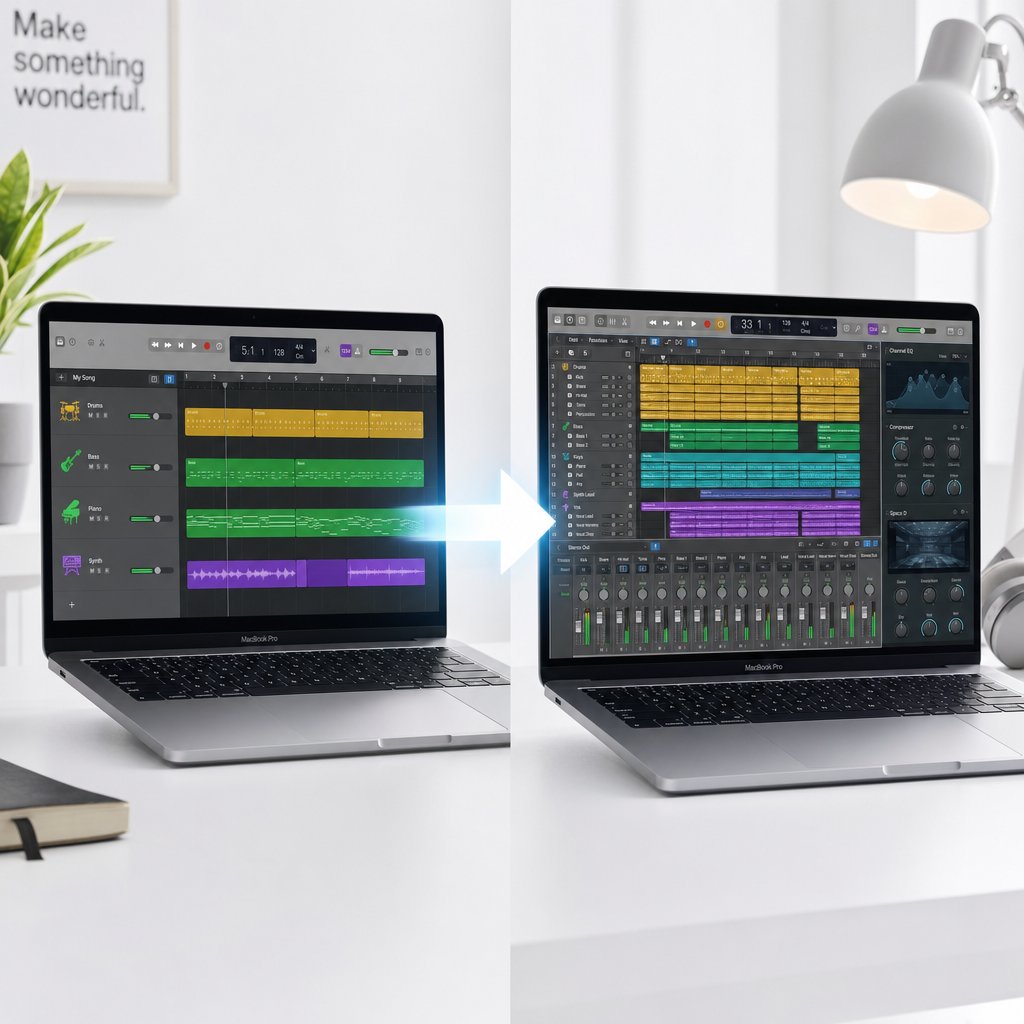
No other platform offers an upgrade path quite like this. On Mac, the jump from a free editor to a professional DAW doesn't mean starting over, losing projects, or relearning everything from scratch. GarageBand and Logic Pro share the same underlying engine, and Apple designed them so that one flows directly into the other. For anyone learning how to learn music with Logic Pro X down the road, this pipeline means every hour spent in GarageBand is an investment, not a throwaway.
Starting in GarageBand Without Limits
GarageBand is Apple's built-in apple sound editor, and it ships free on every Mac. But "free" undersells what you're actually getting. It's a multitrack DAW with real production tools:
- Software instruments covering keyboards, synths, guitars, and orchestral sounds
- Drummer tracks that generate realistic, adjustable drum performances across multiple genres
- A loop library with thousands of royalty-free Apple Loops for building arrangements quickly
- Audio recording with Core Audio integration — plug in a mic or interface and track immediately
- Basic mixing controls including volume, panning, EQ, and Audio Unit plugin support
You can edit music mac-style right out of the box — record a vocal, layer instruments, arrange sections, and export a finished track without spending a dollar. For hobbyists, singer-songwriters sketching ideas, and anyone exploring production for the first time, GarageBand handles more than enough.
Here's the part that matters most: GarageBand projects open directly in Logic Pro with all tracks, instruments, regions, and settings fully preserved. Nothing gets lost in translation. Every recording, every plugin setting, every arrangement decision carries over intact. That seamless handoff is unique to Apple's apple sound editing software ecosystem, and it eliminates the biggest risk of starting with a free tool — the fear that you'll eventually have to rebuild everything.
When and Why to Move to Logic Pro
GarageBand's ceiling is real, but it's higher than most people assume. You'll know it's time to upgrade when you hit specific friction points, not vague feelings that you need "something better." Watch for these signals:
- You need more than 255 tracks — Logic Pro supports up to 1,000
- You want advanced MIDI editing with the Piano Roll's full feature set, Step Editor, and MIDI Transform tools
- You need Flex Time and Flex Pitch — Logic Pro's built-in tools for correcting timing and tuning audio note by note, without third-party plugins
- Your mixes demand professional tools like the full Mixer, aux sends, bus routing, and advanced automation
- You want the Score Editor for notating compositions directly from MIDI performances
- You're ready for the complete sound library — over 100 GB of instruments, loops, and samples that dwarf GarageBand's included content
The logic pro price sits at a one-time $199.99 with no subscription and no tiers. For any logic music producer working exclusively on Mac, that's a remarkable deal — especially considering Apple's history of delivering major feature updates to existing owners at no extra charge. Compare that to Pro Tools at $99/month for its top tier, and the long-term math isn't even close.
GarageBand is not a demo — it is a capable editor with real production tools, and the upgrade to Logic Pro is seamless when you outgrow it. Every project, every track, every setting transfers directly. Start free, upgrade when your workflow demands it.
That seamless transition from creation to professional production is the theory. But what does the actual day-to-day work look like once you sit down to record, arrange, or make a quick edit? The practical workflows are where all of these tools prove their value — or reveal their friction.
How to Edit Audio on Mac
Knowing which software to pick is one thing. Sitting down in front of an empty project and figuring out what to actually do is another. Whether you're wondering how to edit songs in mac for the first time or just need a refresher on the basics, these step-by-step workflows cover the tasks most people reach for first.
Recording and Editing Vocals on Mac
A clean vocal recording doesn't require a studio. It requires a decent signal chain, a quiet room, and a few deliberate steps. The best audio interface for this job doesn't need to be expensive — units like the Steinberg UR22C or Focusrite Scarlett Solo connect over USB and work immediately through Core Audio with no driver installation.
- Connect your audio interface to your Mac via USB and plug in a condenser microphone using an XLR cable. Wear headphones to avoid feedback from speakers.
- Open Audio MIDI Setup (in Applications > Utilities) and confirm your interface appears as the active input device. Set the sample rate to 44.1 kHz or 48 kHz.
- Launch your editor — GarageBand, Logic Pro, Audacity, or whichever you chose — and create a new audio track set to mono input.
- Set your input gain on the interface so peaks land around -6 dB. Sing or speak at your loudest expected level and watch the meter — you want headroom, not clipping.
- Record your take. If you're working in a DAW like GarageBand or Logic Pro, use a click track or backing loop to stay in time.
- After recording, apply noise reduction to remove background hum or room tone. In Audacity, select a silent section, go to Effect > Noise Reduction, click "Get Noise Profile," then apply it to the full track. In Logic Pro, use the Denoiser plugin on the channel strip.
- Trim silence from the beginning and end of the clip, apply a short fade-in and fade-out to avoid clicks, and normalize the audio to a consistent level.
- Export as WAV or AIFF for further production, or as MP3 if you need a smaller file for sharing.
That's the core vocal workflow. An mp3 editor mac users often reach for — like Audacity — handles steps 6 through 8 particularly well for spoken-word content where you just need a clean, polished file without any musical arrangement around it.
Arranging and Mixing a Simple Track
Imagine you've got a vocal recording, a guitar loop, a drum pattern, and a bass line. Turning those pieces into a finished track is really about organization, balance, and a few basic processing moves.
- Import your audio files (stems or loops) into a new project. Drag each one onto its own track in the timeline.
- Arrange the sections — intro, verse, chorus, bridge, outro — by cutting and positioning regions along the timeline. Most DAWs let you color-code and label regions, which keeps things manageable as the arrangement grows.
- Set relative levels so nothing overwhelms the mix. Start with the drums or the element you want as the foundation, then bring each track in one at a time, adjusting volume faders until everything sits together.
- Pan instruments to create width. Vocals and bass typically stay centered. Guitars, keys, and backing vocals can shift left or right to open up space in the stereo field.
- Apply basic EQ to each track. A common starting move: cut low frequencies below 80 Hz on everything except bass and kick drum to reduce muddiness. Frequencies piling up in the 250-500 Hz range are the most common source of a "boxy" mix — carve out space there for clarity.
- Add light compression to vocals and dynamic instruments to even out volume differences between quiet and loud passages.
- Export your final mix as a stereo WAV or AIFF file at the same sample rate you recorded in. Avoid exporting directly to MP3 if you plan to master the track later — lossy compression removes detail that can't be recovered.
This workflow applies whether you're in GarageBand, Logic Pro, Reaper, or Ableton Live. The interface changes, but the sequence stays the same: arrange, balance, process, export. Learning how to edit sound on a mac is less about memorizing menus and more about internalizing this process until it becomes second nature.
Quick Edits Without Installing Software
Sometimes you don't need a full DAW. You need to trim a clip, normalize a file, or experiment with a quick sequence — and you'd rather not install anything to do it. Browser-based audio tools have matured to the point where they handle these tasks cleanly, running entirely in your web browser through HTML5 and the Web Audio API.
Open-source projects like Simple Audio Editor and AudioMass offer waveform visualization, trimming, gain adjustment, normalization, fades, and export in WAV or AIFF — all without a single install. Simple Audio Editor even supports LUFS metering and 32-bit float export from a single HTML file. For sequencing ideas, an online music sequencer can let you sketch out melodic or rhythmic patterns directly in your browser before committing to a desktop project.
MakeBestMusic's Online Tools collects browser-based music utilities in one place — useful for discovering lightweight editors, sequencers, and audio experiments that run directly on your Mac without installation. It's a practical starting point for quick tasks or for exploring ideas before you decide which desktop editor deserves a permanent spot on your machine.
These browser tools won't replace a full DAW for serious production. But for the nine-out-of-ten moments when you just need to edit audio mac-style — trim, fade, normalize, export — they get the job done with zero friction and zero cost.
With the practical workflows covered, the only question left is the one you came here to answer: given your budget and your needs, which tool should you actually choose?

Final Recommendations for Every Budget
You've seen the features, the pricing, the workflows, and the compatibility details. Here's the short version — the best audio editing software for mac at each price point, with no hedging.
The Short Answer by Budget
- Zero friction, zero install: MakeBestMusic's Online Tools — start here if you want to explore browser-based music utilities before committing to any desktop software. Trim audio, experiment with sequencers, and test ideas directly in your browser on any Mac.
- Free pick (music creation): GarageBand — already on your Mac, genuinely capable, and every project transfers to Logic Pro when you're ready.
- Free pick (audio-only editing): Audacity — the best audio software for mac when you need to trim, clean, and export without any compositional tools getting in the way.
- Mid-range value: Reaper ($60) — unlimited tracks, broadest plugin support, and a footprint smaller than a single audio file. The best mac sound editing software for budget-conscious producers who want professional flexibility.
- Mid-range beat-making: FL Studio ($99–$449) — pattern-based workflow, the best piano roll available, and lifetime free updates that make the one-time cost even easier to justify.
- Professional Mac-native: Logic Pro ($199.99) — the best audio editing software mac power users reach for. One-time purchase, deep Apple Silicon optimization, and a 100+ GB sound library that rivals tools costing three times as much.
- Professional studio interoperability: Pro Tools ($9.99–$99/month) — the industry standard when session exchange with commercial studios is a requirement, not a preference.
- Professional electronic production: Ableton Live ($99–$749) — Session View and clip-launching workflows that no other music editing software on mac can replicate.
What to Do Next
Start with a free option. Use it until you hit a wall — a real wall, not a perceived one. Maybe you need third-party plugins GarageBand can't load. Maybe your sessions are too complex for Audacity's single-file workflow. Maybe you need Flex Pitch or advanced automation. Those are concrete reasons to upgrade. "Feeling like you should own something more professional" is not.
The best macbook music editing software is the one that matches how you actually work today, not the one that covers every hypothetical scenario you might encounter someday. Every music editing app for mac on this list — from a browser tool to a $749 DAW — produces the same quality audio at export. The difference is workflow, not output.
Pick the tool that fits your current workflow and budget. Upgrade only when a specific limitation blocks your progress. The software should serve the music, not the other way around.
