

What AI Audio-to-Sheet-Music Transcription Actually Delivers
Can AI create sheet music from audio? The short answer is yes. The honest answer is: it depends on what you feed it and how much cleanup you're willing to do afterward. AI transcription tools have improved dramatically, but the gap between a raw AI output and a polished, performance-ready score remains wider than most marketing pages admit.
Here's the reality. On a clean solo piano recording with steady tempo, AI pitch detection can reach up to 96% accuracy. Feed it a guitar recording and that drops to around 78%. Vocals sit closer to 52%. Dense polyphonic mixes with multiple instruments? As low as 38%. And those numbers only measure whether the AI found the right pitches. They say nothing about rhythm, dynamics, expression markings, or whether the resulting sheet music is actually playable.
What AI Transcription Realistically Delivers Today
Think of current music to sheet music AI tools as fast first-draft machines rather than finished-product generators. They excel at extracting pitches from clean, isolated recordings. They struggle with everything that makes sheet music useful to a performer: correct rhythmic notation, proper voice separation, dynamics, articulations, and readable layout.
A 2025 study in the EURASIP Journal found that AI transcription accuracy drops by 20 percentage points when the recording comes from a different piano than the training data, and another 14 points for genre shifts. At the NeurIPS 2025 AMT Challenge, only 2 of 8 competing teams outperformed the baseline on multi-instrument excerpts, with a consistent 25+ point F1 drop when just two or three instruments were present.
AI transcription is a starting point, not a finished product. Plan to spend time editing the output rather than trusting it as-is. The tools that make checking and correcting easy are more valuable in practice than the ones claiming slightly higher raw accuracy.
Who Benefits Most From AI Sheet Music Tools
Not everyone needs the same thing from an ai sheet music generator. Your mileage varies based on what you're trying to accomplish and how complex your source material is.
- Hobbyist musicians - You want a rough transcription of a favorite song to learn from. AI gets you 70-80% of the way there on simpler material, and you can fix the rest by ear. This guide walks you through getting the cleanest possible output and editing it efficiently.
- Music teachers - You need lead sheets or simplified arrangements at scale. AI saves real time here, especially for monophonic melodies and basic piano parts. You'll learn how to prepare audio for the best results and which tools handle educational use cases well.
- Professional transcribers - You already transcribe by ear and want to know if AI can speed up your workflow. The answer is sometimes, but correcting AI output can take longer than starting from scratch on complex material. This guide helps you identify when AI helps and when it doesn't.
- Composers and producers - You want to capture audio ideas as notation or MIDI for further development. AI handles this well as a creative starting point, and you'll find workflow tips for extending transcribed material into new arrangements.
The Full Workflow at a Glance
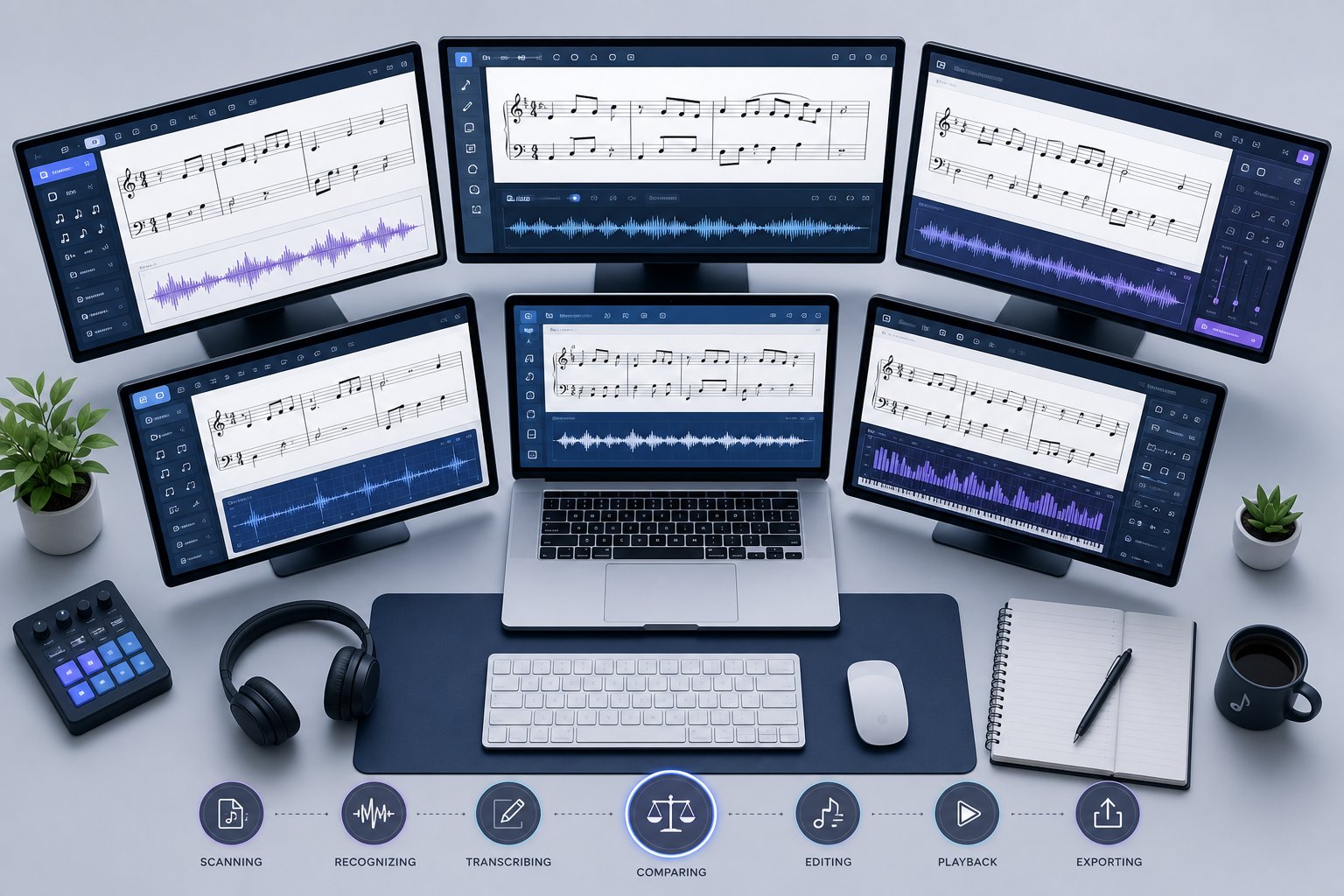
Converting audio to sheet music with AI isn't a single-click process. It's a pipeline with distinct stages, and understanding each one helps you get dramatically better results. This guide covers the complete workflow: understanding how the technology works, preparing your audio file for optimal detection, choosing the right tool for your instrument and use case, running the transcription, refining the output in notation software, and extending your results with AI-assisted composition tools.
Is there AI that can transcribe music perfectly? Not yet. But with the right preparation and realistic expectations, these tools can save significant time, especially on cleaner source material. The key is knowing where AI excels, where it falls short, and how to bridge that gap with efficient human editing. That bridge starts with understanding what's actually happening under the hood when an AI processes your audio file.
Step 1 - Understand How AI Turns Audio Into Notation
What actually happens between the moment you upload an audio file and the moment a score appears on screen? The process isn't magic, and knowing how it works explains why some recordings transcribe cleanly while others produce a mess of wrong notes and garbled rhythms. Every tool that can transcribe audio to sheet music follows roughly the same pipeline, regardless of the brand name on the box.
From Sound Waves to Spectrograms
Your audio file starts as a waveform: a stream of amplitude values over time. Useful for playback, but nearly useless for identifying individual notes. The first step in any audio to music notation system is transforming that waveform into a spectrogram using a Fast Fourier Transform (FFT). A spectrogram maps frequency content across time, essentially creating a visual fingerprint of which pitches are present at each moment.
Imagine a heatmap where the horizontal axis is time, the vertical axis is frequency, and brightness indicates how loud each frequency is at any given instant. A single piano note shows up as a stack of bright horizontal lines: the fundamental frequency plus its harmonics. A chord produces multiple overlapping stacks. A full band mix? A dense, tangled web of energy that's far harder to untangle.
Most modern systems use mel-scaled spectrograms with logarithmic amplitude, typically computed with 229 frequency bins, a 2048-sample FFT window, and hop sizes around 512 samples. These parameters balance frequency resolution against time resolution, a tradeoff that directly affects how well the system distinguishes closely spaced notes versus fast passages.
How Neural Networks Detect Pitch and Rhythm
The spectrogram feeds into a neural network trained to identify which pitches are active in each time frame. Here's where the pipeline gets interesting, and where most accuracy problems originate. The full transcription process follows these stages:
- Time-frequency representation - The raw audio waveform is converted into a mel-scaled log spectrogram, creating a 2D image-like input for the neural network.
- Multi-pitch estimation - A convolutional neural network (CNN) scans the spectrogram frame by frame, estimating which pitches are present at each ~10ms time slice.
- Onset detection - A separate detection head identifies exactly when each note begins. Models like Google's Onsets and Frames use dual objectives: one network predicts onsets, another predicts sustained frames, and they cross-reference each other.
- Note tracking - The system groups frame-level pitch activations into discrete notes with start times, end times, and velocity (loudness) values.
- Time quantization - Raw timing data gets snapped to a rhythmic grid (eighth notes, sixteenths, triplets) to produce readable notation.
- Notation output - Quantized note data is formatted into MIDI, MusicXML, or rendered as a visual score.
Why does polyphonic audio cause so many problems? When you play a C major chord on piano, each note produces not just its fundamental frequency but a series of harmonics. The third harmonic of C4 overlaps with the fundamental of G5. The fifth harmonic of C4 sits near E6. These overlapping spectral structures make it genuinely difficult for any system to determine whether a frequency peak represents a played note or a harmonic of a lower note. This is why transcribing a single melody line achieves 90%+ accuracy while a dense chord progression might drop below 70%.
Timbre adds another layer of difficulty. A flute and a clarinet playing the same pitch produce different harmonic profiles. Neural networks trained primarily on piano data (most are, thanks to the MAESTRO dataset of 172+ hours of piano recordings) perform noticeably worse on instruments with different timbral characteristics and onset envelopes.
Tempo fluctuations create quantization headaches too. When a performer plays with rubato or natural timing variation, the system must decide: is that note a dotted eighth or a triplet played slightly late? Adaptive quantization helps, but no algorithm perfectly resolves every ambiguous rhythm.
Why MIDI Output Is Not the Same as Sheet Music
Here's a distinction that trips up many users trying to transcribe music from audio. Most AI transcription tools produce MIDI data as their primary output. MIDI captures pitch, duration, velocity, and timing. That's useful, but it's not sheet music.
MIDI tells you what notes were played and when. Sheet music tells you how to read, interpret, and perform those notes. The gap between these two representations is where most of the human editing time goes.
Consider what MIDI lacks compared to proper music notation ai systems need to produce:
- Enharmonic spelling - MIDI note 63 is just a number. Is it D-sharp or E-flat? The answer depends on key signature and harmonic context, something MIDI doesn't encode.
- Voice separation - A piano staff often contains multiple independent voices. MIDI stores all notes on a single track with no distinction between soprano and alto lines.
- Dynamics and articulations - MIDI velocity is a rough proxy for loudness, but it doesn't map cleanly to piano, forte, staccato, legato, or accent markings.
- Beaming and grouping - How notes are visually grouped communicates rhythmic structure. MIDI has no concept of beaming, bar lines, or metric hierarchy.
- Key and time signatures - MIDI files can include these as metadata, but AI transcription tools often guess incorrectly or omit them entirely.
As PlayScore explains, MusicXML was specifically designed to capture actual notation and layout rather than just note events. A MIDI file describes what happened sonically. A MusicXML file describes how the music should appear on the page. When you transcribe audio to sheet music, the jump from raw MIDI to readable notation is where tools diverge most in quality.
This distinction matters practically. If your goal is importing into a DAW for production, MIDI output works fine. If you need a printable score that musicians can sight-read, you'll need either a tool that outputs proper notation directly or a workflow that converts MIDI into a notation editor for manual cleanup. Understanding this pipeline, and where each stage introduces errors, puts you in a much stronger position to prepare your audio for the best possible results.
Step 2 - Prepare Your Audio File for Best Results
The accuracy of any audio to sheet music converter is fundamentally tethered to what you feed it. A pristine solo piano recording at full resolution will produce a usable first draft. That same performance captured as a 96kbps MP3 from a phone across the room? You'll spend more time fixing errors than you saved by using AI in the first place. The principle is simple: garbage in, garbage out. A few minutes of preparation can mean the difference between a 90% accurate transcription and a 60% mess.
Optimal File Formats and Audio Quality Settings
When you convert audio to sheet music, the format of your source file directly affects how much pitch and timing information the AI has to work with. Lossy compression permanently removes acoustic detail that neural networks rely on to distinguish overlapping harmonics and detect note onsets. You can't recover that data by converting an MP3 back to WAV afterward, as AssemblyAI's research confirms that such conversion doesn't restore lost audio data and can even introduce unwanted artifacts.
For music transcription specifically, aim for a 44.1kHz sample rate at minimum (the CD standard), 16-bit depth or higher, and mono or stereo depending on your source. Higher sample rates like 48kHz or 96kHz won't hurt, but they won't dramatically improve pitch detection for most instruments since the fundamental frequencies of musical notes fall well within the 22kHz ceiling of 44.1kHz audio.
| Format | Compression | Quality | File Size (per minute, stereo) | Transcription Suitability |
|---|---|---|---|---|
| WAV | Uncompressed | Excellent - preserves all audio detail | ~10 MB | Best choice. Zero data loss means maximum pitch detection accuracy. |
| FLAC | Lossless | Excellent - identical to WAV when decoded | ~5-6 MB | Excellent. Same quality as WAV with 50-60% smaller files. |
| MP3 (320kbps) | Lossy | Good - minor high-frequency loss | ~2.4 MB | Acceptable. Slight accuracy reduction on complex harmonic content. |
| MP3 (128kbps) | Lossy | Fair - audible compression artifacts | ~1 MB | Poor. Compression artifacts can be misread as note onsets or ghost pitches. |
| OGG Vorbis | Lossy | Good - slightly better than MP3 at same bitrate | ~2 MB | Acceptable. Similar to high-bitrate MP3 for transcription purposes. |
If you only have an MP3 or other lossy file, use it as-is rather than upconverting. Work with the highest-quality original recording available. Many audio to sheet music free tools accept MP3 input directly, and the AI will handle whatever format you provide. Just know that lossless sources give it more to work with.
Isolating Instruments With Source Separation
Here's where preparation makes the biggest difference. Trying to transcribe a specific instrument from a full mix is like asking someone to write down the words of one conversation in a crowded restaurant. Source separation tools let you isolate that instrument before the transcription AI ever sees it, dramatically improving accuracy.
Imagine you want the piano part from a band recording. Rather than hoping the sound to sheet music converter can untangle piano from drums, bass, and guitar simultaneously, you separate the piano stem first and then transcribe the isolated track. The accuracy jump can be 20-30 percentage points.
A recent comparison of 11 stem separation tools found that Apple Logic Pro's Stem Splitter currently leads the pack, extracting vocals, drums, bass, guitar, and piano with the cleanest results. Other strong options include:
- Demucs (Meta/Facebook Research) - Free, open-source, runs locally. Available through Ultimate Vocal Remover's GUI or as a Python library. Separates into vocals, drums, bass, and other stems.
- iZotope RX 11 - Professional-grade spectral editor ($299+) with surgical separation tools. Excellent instrument recognition, though extraction quality shows its age compared to newer AI-based tools.
- LALAL.AI - Browser-based service that can extract ten different instrument types including piano, guitar, and synth individually. Pay-per-minute model, but extraction quality is consistently strong.
- Steinberg SpectraLayers Pro 12 - The most versatile option with lossless processing, custom instrument learning, and the ability to separate drums into individual kit pieces.
For a free workflow, Demucs through the Ultimate Vocal Remover app gives surprisingly good results. For professional work where you need piano or guitar isolated cleanly from a dense mix, LALAL.AI or Logic Pro's built-in Stem Splitter deliver the most reliable separation.
Reducing Noise and Reverb for Cleaner Detection
Beyond format and isolation, the recording conditions themselves shape transcription quality. Two factors cause the most problems for AI pitch detection: background noise and reverberation.
Noise introduces phantom energy across the spectrogram. A constant hiss or hum can trigger false note detections, especially in quiet passages. Reverb smears note boundaries in time, making onset detection unreliable and causing the AI to read sustained notes as longer than they actually are, or to detect "ghost" repetitions of decaying notes.
If you're recording specifically for transcription, capture in a dry, quiet space. Solo instrument recordings with minimal reverb produce the best results by far. A close-miked instrument in a treated room gives the AI a clean spectrogram with sharp note onsets and clear harmonic separation.
For existing recordings that already have noise or reverb, apply corrections cautiously. Light noise reduction with a tool like Audacity's noise print method or iZotope RX can help, but aggressive processing distorts the signal and can actually worsen transcription accuracy. A gentle noise gate that silences passages below a threshold works better than heavy-handed spectral subtraction.
Consistent tempo is another preparation factor that's easy to overlook. When you convert an audio file to sheet music, the AI must quantize raw timing data onto a rhythmic grid. Performances recorded to a click track quantize cleanly because note onsets align predictably with beat divisions. Rubato performances force the algorithm to guess whether a note is a dotted eighth played on time or a straight eighth played late, and it guesses wrong often enough to create significant editing work.
If you're recording new material specifically to transcribe, use a click track. If you're working with existing recordings that have tempo fluctuations, look for transcription tools with adaptive quantization or manual tempo mapping features. Some tools let you tap along to set a tempo map before transcription, which dramatically improves rhythmic accuracy on freely-timed performances.
Here's a preparation checklist to run through before feeding any audio file to sheet music transcription software:
- Use lossless format - WAV or FLAC at 44.1kHz/16-bit minimum. Avoid transcoding lossy files to lossless (it doesn't help).
- Isolate the target instrument - If transcribing from a mix, run source separation first. Even imperfect isolation beats feeding a full mix to the transcriber.
- Apply light noise reduction - Remove constant hiss or hum with a noise gate or gentle spectral subtraction. Don't over-process.
- Check for clipping - Distorted peaks confuse pitch detection. Normalize audio to peak around -3dB if levels are inconsistent.
- Minimize reverb - Use a dry recording when possible. For wet recordings, a de-reverb pass in iZotope RX can help, but results vary.
- Confirm steady tempo - If the performance has significant rubato, consider whether manual tempo mapping is available in your chosen tool.
- Trim silence and non-musical content - Remove long silences, count-ins, or talking at the beginning and end to avoid confusing the AI.
- Use mono for single instruments - Stereo files double the data without adding useful information for a solo instrument transcription.
Each of these steps takes only a minute or two, but together they can push transcription accuracy from frustrating to genuinely useful. The difference between a well-prepared audio file to sheet music workflow and a careless one is often the difference between 15 minutes of light editing and an hour of rebuilding the score from scratch. With your audio optimized, the next question becomes which tool to actually run it through.
Step 3 - Pick the Right AI Transcription Tool
The tool you choose shapes everything downstream: how accurate your first draft is, what format you can export, and how much manual cleanup you'll face. The market for AI sheet music generator software has fragmented into browser-based services, desktop applications, and open-source libraries, each with distinct tradeoffs. No single tool wins across every scenario, so the real question is which one fits the recordings you actually work with.
Browser-Based Tools for Quick Transcription
If you want to generate sheet music from audio without installing anything, browser-based tools offer the lowest friction. You upload a file or paste a YouTube link, wait a minute, and get a result. The tradeoff is that you're relying on server-side processing and internet connectivity, and free tiers tend to be limited.
Klangio (Piano2Notes / Guitar2Tabs / Drum2Notes) uses instrument-specific models, meaning you select the target instrument before transcription begins. Their per-instrument approach covers a wider range than most competitors, and they offer both an API and DAW plugins for integration into production workflows. The free demo caps at 20 seconds, which is enough to test accuracy on a short passage but not enough for real work. Paid plans unlock full-length transcription with export to PDF, MIDI, MusicXML, and Guitar Pro. If you need to ai transcribe piano parts specifically, Klangio's piano model is solid, though not the strongest available. Their drum2notes model is a standout for percussionists wanting drum notation from audio, a niche few other tools address.
Melody Scanner is another browser-based option that works well as an online sheet music generator for simpler material. It accepts YouTube links and audio uploads, transcribes primarily piano and melody lines, and offers a free tier of about 40 bars (roughly two minutes of music). PDF export is free, but MIDI and MusicXML downloads require a paid plan. It's a reasonable choice for pulling a basic piano transcription from a YouTube video, though it lacks the depth of editing tools you'd find in desktop software.
ScoreCloud takes a different approach: it accepts real-time audio input (singing or playing into a microphone) alongside file uploads, making it useful for singer-songwriters capturing ideas on the fly. You get a few free transcriptions plus a 10-day trial of their Songwriter tier, after which continued use requires payment. The output leans toward lead sheets and simple arrangements rather than complex multi-voice scores.
Songscription runs in the browser with no installation required and focuses on a curated set of instruments where model quality is highest. Piano is the strongest model, with additional support for acoustic guitar, drums, violin, flute, saxophone, trumpet, and bass. What sets it apart is the workflow depth: beyond transcription, it handles arrangement and difficulty leveling, turning a transcription into a playable score adjusted for a specific skill level. The free tier offers unlimited 30-second previews plus a trial for longer transcriptions, with paid plans adding full exports to MIDI, MusicXML, PDF, and Guitar Pro. For creating piano arrangement from audio ai free previews, it's one of the more generous options available.
Desktop Software for Professional Results
Serious transcription work, especially on longer pieces or polyphonic material, often benefits from desktop processing power. Local computation means no upload wait times, no file size limits imposed by servers, and no dependency on internet speed.
AnthemScore is the most established desktop option. It's a one-time purchase (no subscription), runs entirely offline, and handles polyphonic audio with exports to MusicXML, MIDI, and PDF. The interface shows its age and the underlying model isn't the newest generation, which means you'll spend more time on cleanup compared to cloud-based tools using more recent neural networks. The tradeoff is clear: you own the software outright, your audio never leaves your machine, and there are no monthly limits. For users who transcribe frequently and prefer privacy-conscious workflows, the upfront cost amortizes quickly.
MuseScore 4 is a free, open-source notation editor rather than a transcription tool. It doesn't convert audio to notation on its own. However, it's the most common destination for transcription output: you run your mp3 to sheet music ai tool of choice, export MusicXML or MIDI, and import into MuseScore for editing and layout. Think of it as the second half of the workflow rather than a standalone sheet music generator from audio. Its strength is in the editing, playback, and engraving stage, not the initial transcription.
Free and Open-Source Options
If budget is the primary constraint, a few genuinely free tools exist, though each comes with limitations.
Basic Pitch (Spotify/Spotify Research) is a free, open-source neural network for polyphonic pitch detection. It runs in the browser or locally via Python, accepts any audio file, and outputs MIDI. The catch: MIDI only. No sheet music rendering, no MusicXML, no notation formatting. You'll need to import the MIDI into MuseScore or another editor to get anything resembling a readable score. For developers and technically comfortable users, it's a powerful building block. For musicians who just want a printable page, it's only the first step.
For those searching for the best ai music transcription option that's completely free, the honest answer is that no single free tool delivers professional-quality notation end to end. The realistic free workflow combines Basic Pitch (for MIDI extraction) with MuseScore (for notation editing), accepting that you'll do more manual correction than you would with a paid tool.
| Tool | Best Use Case | Supported Instruments | Output Formats | Pricing | Offline Capable |
|---|---|---|---|---|---|
| Songscription | Complete transcription-to-arrangement workflow | Piano, guitar, drums, violin, flute, sax, trumpet, bass | PDF, MIDI, MusicXML, Guitar Pro | Free tier + paid plans | No (browser-based) |
| Klangio (Piano2Notes, Guitar2Tabs, Drum2Notes) | Instrument-specific transcription, DAW/API integration | Piano, guitar, drums, bass, ukulele, and more | PDF, MIDI, MusicXML, Guitar Pro | Free 20-sec demo + paid plans | No (browser-based, DAW plugin available) |
| Melody Scanner | Quick piano/melody transcription from YouTube | Piano, melody lines | PDF (free), MIDI/MusicXML (paid) | Free 40-bar tier + paid plans | No (browser-based) |
| ScoreCloud | Real-time input, singer-songwriter lead sheets | Voice, piano, guitar | PDF, MIDI, MusicXML | 3 free songs + 10-day trial, then paid | No (cloud-based) |
| AnthemScore | Offline polyphonic transcription, privacy-first workflows | Any (instrument-agnostic) | MusicXML, MIDI, PDF | One-time purchase (~$50) | Yes (fully offline) |
| Basic Pitch (Spotify) | Free MIDI extraction for developers and technical users | Any (instrument-agnostic) | MIDI only | Free / open-source | Yes (runs locally via Python) |
| MuseScore 4 | Notation editing and layout (not transcription) | N/A (manual input or MIDI import) | MusicXML, MIDI, PDF, MuseScore format | Free / open-source | Yes (desktop application) |
A few patterns emerge from this comparison. Browser-based tools offer convenience and newer AI models but lock exports behind paid tiers. Desktop tools give you ownership and offline access but may use older technology. Open-source options are genuinely free but require technical comfort and more manual work.
The practical advice from experienced users is worth repeating: once you're past a baseline of usable output, the differences between leading tools on a given song are smaller than the difference between an easy song and a hard song on the same tool. Your time is better spent on source separation, audio quality, and learning to clean up output efficiently than on switching tools to chase the last few percent of accuracy.
Pick the tool that matches your workflow, budget, and instrument. Try a real song from your own library on the free tier before committing. Five minutes of testing on your actual material tells you more than any comparison post. With your tool selected and your audio prepared, the next step is running the transcription itself and choosing the right export format for whatever comes after.
Step 4 - Run the Transcription and Export Your Score
You've prepared your audio and chosen your tool. The actual transcription process is where theory meets reality, and a few configuration choices here can mean the difference between a usable draft and a frustrating pile of wrong notes. Whether you're converting an mp3 to sheet music through a browser tool or running a desktop application on a lossless file, the workflow follows a predictable pattern. Let's walk through it.
Uploading and Configuring Your Transcription
Every tool starts the same way: you give it audio and tell it what to listen for. The specifics vary by platform, but the core decisions are consistent. Here's the typical sequence from upload to output:
- Import your audio file - Upload your prepared WAV, FLAC, or MP3 file. Some tools also accept YouTube links or direct recording input. If you're working with a browser-based service to convert mp3 to sheet music online free, you'll typically drag and drop or click an upload button. Desktop tools like AnthemScore use a standard file dialog.
- Select the target instrument or transcription mode - This is critical. Tools with instrument-specific models (Klangio, Songscription) perform noticeably better when you tell them what they're listening to. If you're transcribing piano, select piano. Guitar, select guitar. "Auto-detect" modes exist but tend to produce messier results on polyphonic material.
- Set the key signature and time signature - Some tools let you specify these upfront rather than relying on auto-detection. If you know the key and meter of your piece, always set them manually. Auto-detected key signatures are wrong roughly 20-30% of the time, especially on pieces with accidentals or modal harmony.
- Adjust quantization settings - This determines the smallest rhythmic value the AI will output. Setting it to sixteenth notes works for most pop and classical material. If your piece contains triplets, make sure triplet quantization is enabled. If it's a slow ballad with mostly quarter and eighth notes, a coarser grid reduces false subdivisions.
- Set sensitivity or threshold - Some tools expose a note detection threshold. Higher sensitivity catches quieter notes but also picks up more noise and ghost notes. Lower sensitivity misses soft passages but produces a cleaner output. Start at the default and adjust if you see too many phantom notes or too many gaps.
- Run the transcription - Click the button and wait. Processing time varies from a few seconds (browser tools on short clips) to several minutes (desktop tools on full-length polyphonic recordings). Longer files and denser audio take more time.
One setting that's easy to overlook: tempo. If your tool allows you to input a known BPM or tap a tempo map before transcription, use it. Feeding the AI accurate tempo information eliminates an entire category of quantization errors. When the system doesn't have to guess where beats fall, it can focus entirely on pitch detection.
Previewing Results Before Export
Don't export blindly. Every decent transcription tool offers some form of preview, and spending two minutes here saves twenty minutes of editing later. You're looking for three things: pitch accuracy, rhythmic correctness, and structural sanity.
Most tools let you play back the transcription alongside the original audio. Listen for notes that sound wrong against the source, rhythms that feel off, and passages where the AI clearly lost track. Some tools display a piano-roll or spectrogram view where you can visually compare detected notes against the frequency content of the original. AnthemScore's spectrogram overlay is particularly useful here since you can literally see whether a detected note aligns with actual energy in the audio.
If the preview reveals systematic problems, don't just export and fix later. Go back and adjust settings first. Common fixes at this stage include:
- Lowering sensitivity if you see clusters of ghost notes in quiet passages
- Changing quantization grid if triplets are being rendered as dotted notes (or vice versa)
- Switching to a different instrument model if the tool misidentified your source
- Trimming a problematic section and re-running just that portion with different settings
Think of this preview step as quality control on the factory floor. Catching errors before export is always faster than fixing them downstream in a notation editor. When you're satisfied that the transcription is as good as the tool can deliver, it's time to choose your export format.
Choosing the Right Export Format
This decision shapes your entire downstream workflow. The format you export determines what software can open it, what musical information survives the transfer, and how much re-editing you'll face. Many users searching for mp3 to sheetmusic solutions don't realize that the export format matters as much as the transcription quality itself.
| Format | Best Use Case | Editable In | Preserves Dynamics/Articulations |
|---|---|---|---|
| MusicXML (.musicxml / .mxl) | Importing into any notation editor for further refinement | MuseScore, Sibelius, Dorico, Finale, Notion, and virtually all notation software | Yes - preserves dynamics, articulations, slurs, key/time signatures, and layout information |
| MIDI (.mid) | DAW import, production work, further MIDI processing | Any DAW (Ableton, Logic, FL Studio, Cubase), plus notation editors with MIDI import | No - stores velocity (rough loudness) but not dynamics markings, articulations, or notation-specific details |
| PDF (.pdf) | Printing and sharing a finished score as-is | Not editable (read-only image of the score) | Visually yes, but not as editable data. What you see is what you get, permanently. |
| MuseScore (.mscz) | Direct editing in MuseScore without conversion | MuseScore only | Yes - full notation detail within MuseScore's feature set |
| Sibelius (.sib) | Direct editing in Sibelius | Sibelius only | Yes - full notation detail within Sibelius |
For most users, MusicXML is the right default export. As PlayScore's comparison explains, MusicXML captures actual notation and layout rather than just note events. It's the universal interchange format that every major notation editor reads, so you're never locked into a single piece of software. A MusicXML file preserves pitches, rhythms, key signatures, time signatures, dynamics, articulations, and even stem directions. When you import it into MuseScore, Dorico, or Sibelius, you get a score that looks like a score rather than a raw data dump.
Choose MIDI when your goal is production rather than notation. If you're pulling a melody from a recording to use as a starting point in your DAW, MIDI integrates directly into Ableton, Logic, FL Studio, or any other production environment. You can reassign instruments, quantize further, transpose, and layer without ever opening a notation editor. MIDI is also the better choice if you plan to feed the transcription into AI composition tools for further development.
Choose PDF only when you need a quick printout and don't plan to edit. PDF is a dead end for further work since it's an image of notation, not editable notation data. If there's any chance you'll want to fix notes, change layout, or transpose later, export MusicXML instead and generate a PDF from your notation editor after editing.
A practical tip: if your tool supports it, export both MusicXML and MIDI simultaneously. MusicXML goes into your notation editor for score cleanup. MIDI goes into your DAW if you want to use the transcription as a production starting point. This dual-export approach costs nothing and keeps your options open.
For users who started this process looking for mp3 to sheet music free solutions, the export step is often where free tiers end and paywalls begin. Many browser tools let you preview transcriptions for free but charge for MusicXML or MIDI downloads. If budget is tight, Basic Pitch gives you free MIDI output that you can import into the free MuseScore editor, a fully functional pipeline that costs nothing but requires more manual cleanup than paid alternatives.
Whatever format you choose, the exported file is still a first draft. Even the best transcription with perfect settings and clean audio will contain errors that only a human ear and eye can catch. The real work of turning AI output into a polished, readable score happens in the next stage: importing into a notation editor and making it right.
Step 5 - Refine and Polish Your Score in Notation Software
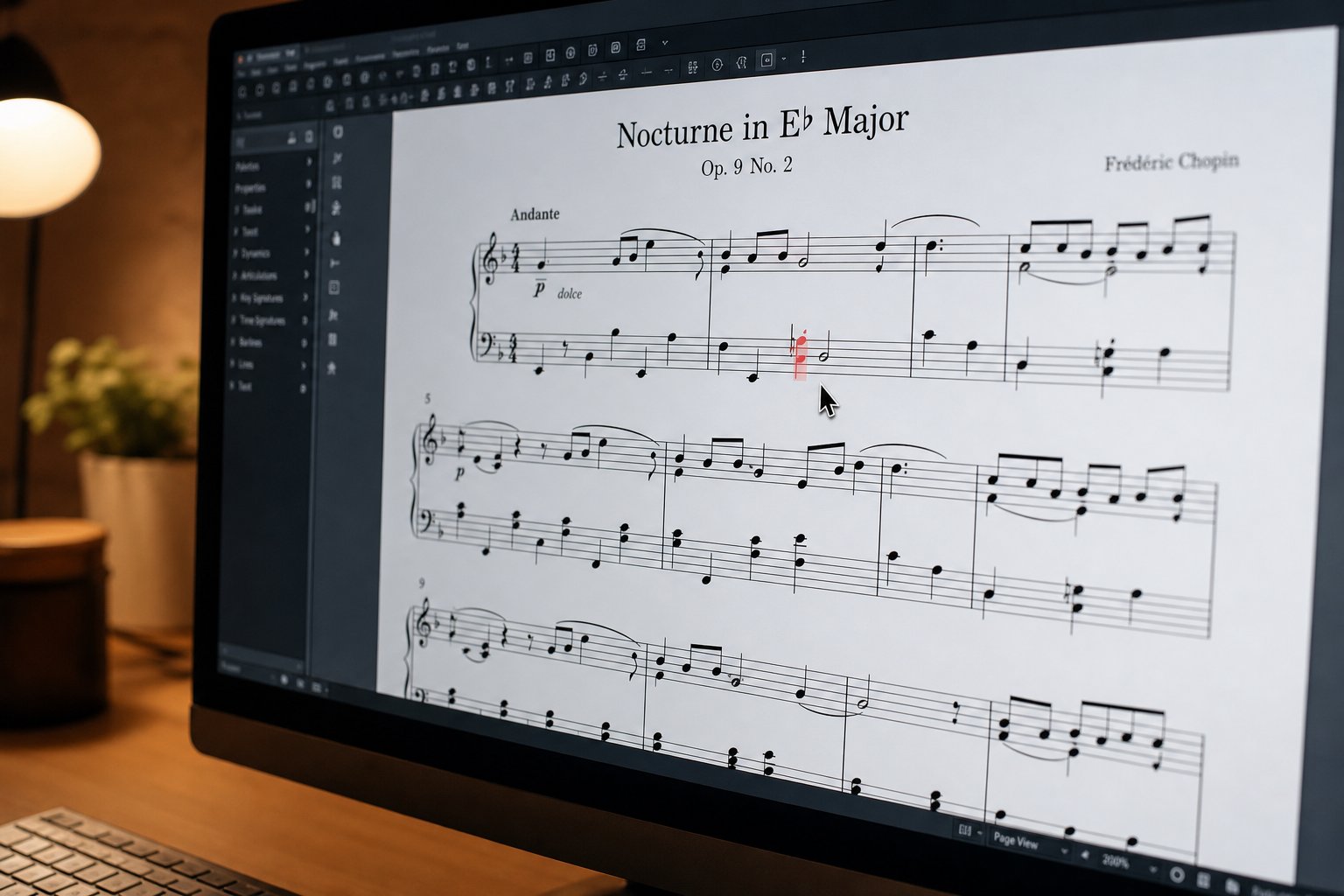
Here's the step that most AI transcription marketing conveniently skips: the editing. You've exported your MusicXML or MIDI file, and it contains real note data. But between that raw output and a score someone can actually perform from, there's a gap that only human judgment can close. When you convert music into sheet music using AI, the tool handles extraction. You handle interpretation. And that interpretation phase is where the score becomes music rather than data.
Importing Into Your Notation Editor
Open your exported file in MuseScore, Sibelius, or Dorico. MusicXML imports cleanly into all three with File > Open or File > Import. MIDI imports work too, but expect a rougher starting point since MIDI carries less structural information about measures, voices, and notation choices.
Before you start fixing individual notes, run a quick structural audit. Melogen's MuseScore workflow guide recommends checking five things first: Does the first downbeat land in the right place? Are phrase lengths recognizable? Are pitches in the correct register? Did the import create readable staves or a dense cluster of tiny notes? Are bar lines and rests musically plausible?
If the structure is fundamentally broken, meaning wrong time signature, displaced downbeats throughout, or voices collapsed into an unreadable mess, you may be better off re-running the transcription with different settings rather than spending an hour untangling bad data. A Music Notation Hub internal test found that correcting AI output on a short piano piece took 45 minutes versus 20 minutes to transcribe from scratch. The AI generated its draft in under a minute, but the cleanup took more than double the time of just doing the work by ear.
Expect 15 to 45 minutes of human editing per minute of music for professional-quality results. Simpler solo lines sit at the low end. Polyphonic piano or multi-voice material pushes toward the high end. If you pass the 45-minute mark on a single minute of music, starting over from the audio is almost certainly faster.
Common Corrections Every AI Transcription Needs
Regardless of which tool you used to convert audio to music score, certain errors appear in virtually every AI-generated transcription. Knowing what to look for lets you work systematically rather than hunting randomly for problems.
- Enharmonic spelling errors - The AI writes D# where the key context demands Eb, or uses F## instead of G natural. Fix these by selecting the note and using your editor's respell function (in MuseScore: press J to toggle enharmonic equivalent). Work through the piece in key-signature context rather than note by note.
- Quantization mistakes - Triplets misread as dotted notes, swing eighths written as dotted-eighth-sixteenth pairs, or rubato passages rendered as bizarre alternating note values. Select the passage, re-quantize with the correct subdivision, or rewrite manually using your ear and the original audio as reference.
- Collapsed voices - Piano scores where melody and accompaniment are jammed into a single voice with stems all pointing one direction. Use your editor's voice separation tools to split notes into Voice 1 (stems up, melody) and Voice 2 (stems down, accompaniment). This is often the most time-consuming fix.
- Missing dynamics and articulations - AI output contains zero expression markings. No piano, no forte, no staccato dots, no slurs, no pedal markings. You'll add all of these by ear while listening to the original recording. There's no shortcut here.
- Wrong key signature - The AI guesses C major when the piece is in A minor, or picks a key that's close but creates unnecessary accidentals throughout. Change the key signature at the beginning and watch accidentals resolve. Some passages may need manual respelling afterward.
- Tied note errors - Notes that should sustain across bar lines appear as separate attacks, or short notes get incorrectly tied into longer durations. Check tied notes against the audio to confirm they match the actual sustain.
- Pickup bar (anacrusis) problems - AI almost never correctly identifies pieces that start before beat one. The first measure will have the wrong number of beats, throwing off every subsequent bar line. Insert a proper pickup measure and shift the content accordingly.
- Incorrect clef or octave - Vocal parts written in alto clef, bass lines placed an octave too high, or guitar parts not accounting for the instrument's octave transposition. Verify register against the source audio early to avoid cascading errors.
Efficient Editing Workflow Tips
Working through these corrections randomly wastes time. A structured approach when you turn music into sheet music through AI gets you to a finished score faster.
Start with the big structural fixes: correct the time signature, key signature, and pickup bar first. These affect everything downstream. Next, separate voices if they're collapsed. Then work through pitch corrections measure by measure with the original audio playing alongside your notation editor's playback. Save rhythmic corrections for a dedicated pass since switching between pitch-fixing and rhythm-fixing modes slows you down. Add dynamics and articulations last, once the notes and rhythms are locked in.
A few practical shortcuts that speed things up when you convert song into sheet music from AI output:
- Use your editor's playback to audition each measure against the original recording. MuseScore's loop playback on a selected region is ideal for this.
- Fix repeating patterns once, then copy. If the AI got verse one's accompaniment right but mangled verse two identically, correct it once and paste.
- Learn your editor's keyboard shortcuts for voice assignment, note input, and enharmonic respelling. Mouse-clicking through menus triples your editing time.
- Don't chase perfection on the first pass. Get the notes and rhythms correct first, then do a separate polish pass for layout, spacing, and page turns.
The editing phase is where the real skill lives. AI handles the mechanical extraction. You bring the musical intelligence: knowing that this passage should breathe, that chord needs a softer voicing on the page, and those eighth notes are swung even though the AI wrote them straight. It's collaborative work, and accepting that collaboration rather than expecting a finished product from the AI alone is what separates productive workflows from frustrated ones. With a polished score in hand, the natural next question becomes: what else can you do with this material?
Step 6 - Extend Your Results With AI MIDI Generation
A polished transcription gives you an accurate record of what was played. But what if you want to go further, using that transcribed material as a launching pad for new arrangements, harmonizations, or production ideas? This is where AI shifts from transcription assistant to creative collaborator. Instead of just capturing existing music, you can use ai generated sheet music and MIDI data as seed material for entirely new compositions.
From Transcription to Composition With AI
Think about what you actually have after completing the transcription workflow: a clean MIDI file or MusicXML score containing the melodic and harmonic DNA of a piece. That data is structured, editable, and ready to feed into AI composition tools that can generate variations, counter-melodies, chord reharmonizations, and arrangement ideas you might never have considered on your own.
This is the creative leap that separates a transcription workflow from a production workflow. Transcription answers "what was played?" AI MIDI generation answers "what else could work with this?" For producers and composers who want to ai generate sheet music from audio and then develop it into something new, the combination is powerful. You're no longer limited to reproducing what exists. You're using existing material as a creative springboard.
The same MIDI export that feeds your notation editor can also serve as input for AI tools that function as an ai music transposer, melody generator, or arrangement assistant, transforming a single transcribed line into a full production sketch.
Generating MIDI Ideas for Melodies and Arrangements
Several tools specialize in taking MIDI input and generating new musical ideas from it. Here's how the workflow connects transcription to composition:
- Export MIDI from your transcription - Take the cleaned-up MIDI file from your notation editor or directly from your transcription tool. This becomes your seed material.
- Feed the MIDI into an AI MIDI generator - MakeBestMusic's AI MIDI Generator accepts MIDI input and produces new melodic ideas, harmonizations, and arrangement variations based on your source material. It's designed for producers who want production-ready MIDI output they can drag directly into a DAW.
- Generate variations and complementary parts - Use the AI output to explore counter-melodies, bass lines, chord voicings, or rhythmic variations that complement your original transcription. Tools like Lemonaide and Hookpad Aria also offer AI-driven melody and harmony suggestions that work well at this stage.
- Import generated MIDI back into your DAW or notation editor - Audition the AI suggestions against your original transcription. Keep what works, discard what doesn't, and layer the best ideas into a fuller arrangement.
This iterative loop, transcribe then generate then refine, is where AI music notation tools become genuinely useful for composition rather than just documentation. You're not asking the AI to write your song. You're asking it to show you possibilities you can react to as a musician.
Building a Complete AI-Assisted Production Workflow
Imagine you've transcribed a vocal melody from a rough demo recording. You now have that melody as MIDI. From here, an ai sheet music maker workflow might stop at printing the lead sheet. But a production workflow keeps going: feed that melody MIDI into an AI generator to get chord progression suggestions, bass line ideas, or rhythmic accompaniment patterns. Each generated element becomes another layer in your arrangement.
The current generation of AI composition tools works best as rapid sketch partners rather than autonomous songwriters. They excel at proposing options quickly, giving you ten variations of a harmony in the time it would take to try two manually. The human role is curation and taste: deciding which suggestions serve the song and which don't.
For users wondering whether AI can transpose sheet music or generate transposed variations automatically, the answer is yes. Most AI MIDI generators and notation editors handle transposition natively, and some AI tools can generate the same melodic idea recontextualized in different keys or modes as part of their variation output. This makes them useful not just for arrangement but for exploring how a transcribed phrase behaves in different harmonic contexts.
The complete pipeline looks like this: raw audio becomes a transcription, the transcription becomes editable MIDI, and that MIDI becomes the seed for new creative material. Each stage builds on the last. But not every stage goes smoothly, and the transcription step in particular can produce results that need troubleshooting before they're useful for anything downstream.
Step 7 - Troubleshoot Common Issues and Improve Accuracy
Even with clean audio and the right tool, AI transcription rarely delivers a perfect result on the first pass. Certain problems show up so consistently that you can anticipate them before they happen and either prevent them with better preparation or fix them with targeted adjustments. If your audio to sheet music AI output looks like a mess, chances are the cause falls into one of a handful of predictable categories.
The table below maps the most frequent issues to their root causes and practical fixes. Bookmark this as a diagnostic reference for any time your ai song transcription results fall short of expectations.
| Problem | Likely Cause | Solution |
|---|---|---|
| Garbled output with many wrong notes on multi-instrument recordings | Overlapping harmonics from multiple instruments confuse pitch detection. MIREX 2024 benchmarks show accuracy dropping to ~38% on dense polyphonic mixes. | Run source separation (Demucs, LALAL.AI, or Logic Pro Stem Splitter) to isolate the target instrument before transcribing. Even imperfect isolation improves results by 20-30 percentage points. |
| Triplets written as dotted notes, or swing eighths notated as dotted-eighth-sixteenth pairs | Quantization grid doesn't match the music's rhythmic feel. The AI snaps notes to the nearest available subdivision, and if triplets aren't enabled, it forces everything into straight divisions. | Enable triplet quantization in your tool's settings before running the transcription. If the tool doesn't offer this, export MIDI and re-quantize in your DAW or notation editor with the correct grid. |
| Wrong key signature (excessive accidentals throughout) | Auto-detection algorithms guess based on pitch frequency distribution, which fails on modal music, pieces with many accidentals, or recordings that modulate early. | Manually set the key signature before transcription in tools that allow it (Songscription, AnthemScore). If your tool doesn't offer this, change the key signature in your notation editor after import and respell accidentals. |
| Missing notes in fast passages (sixteenth-note runs, arpeggios) | Note onsets in rapid passages overlap or lack clear transients, causing the detection threshold to miss quieter or closely spaced notes. | Slow the audio to 50-75% speed before transcribing. Most tools accept time-stretched audio, and slower playback gives the neural network clearer onset separation. Alternatively, increase detection sensitivity if the tool exposes that setting. |
| Ghost notes and phantom pitches in quiet passages | Background noise, room tone, or compression artifacts create low-level spectral energy that the AI misreads as note onsets. | Apply a noise gate before transcription to silence passages below a threshold. A gentle gate (-40dB to -50dB threshold) removes hiss without affecting real musical content. Avoid aggressive noise reduction, which distorts the signal. |
| Downbeats consistently shifted (everything offset by an eighth note or a beat) | The AI fails to identify the pickup bar (anacrusis) or mislocates beat one. MusicRadar's Songscription review found this issue across multiple test pieces. | Trim any silence or non-musical sound before the first note. If the piece starts with a pickup, manually set the anacrusis length in tools that support it, or fix the bar structure in your notation editor after export. |
| Bizarre time signatures (7/8, 11/8) on music that's clearly in 4/4 | Expressive timing, rubato, or inconsistent tempo causes the meter detection algorithm to fragment bars into irregular groupings. | Manually specify the time signature before transcription. If the tool doesn't allow this, tap a tempo map or provide a BPM value. For rubato recordings, consider using a tool with adaptive quantization rather than a fixed grid. |
Fixing Rhythmic and Quantization Errors
Rhythm is where AI transcription fails most consistently. Pitch detection has reached impressive levels on clean material, but rhythmic interpretation remains, as one MusicRadar reviewer put it, the area where "computers are notoriously bad at being able to deduce meter from a series of note onsets, to distinguish ordinary human timing variation from tempo changes or complex microrhythms." The AI can hear the notes. It just can't figure out how to write them down in a way that makes rhythmic sense.
When you encounter quantization problems in your audio to sheet music transcriber output, work through this diagnostic sequence:
- Check the grid resolution first. If triplets appear as dotted notes, the quantization grid is set to straight subdivisions only. Switch to a grid that includes triplet divisions (or 12/8 feel) and re-run.
- Verify the tempo is correct. If the AI detected the wrong BPM (half or double the actual tempo), every note value will be systematically wrong. A piece at 120 BPM misread as 60 BPM will show quarter notes where eighth notes belong.
- Look for systematic offset. If every note is shifted by the same amount (one eighth note late, for example), the AI misidentified beat one. This is fixable in your notation editor by selecting all and shifting left by the offset amount.
- Identify rubato passages. Freely-timed sections will always produce messy quantization. Rather than fighting the AI, consider notating these passages manually using your ear and marking them with "freely" or "rubato" in the score.
A 2025 study from the EURASIP Journal found that AI transcription accuracy drops by up to 50 percentage points under extreme distribution shifts, including tempo and genre changes. Rhythmic complexity is the single biggest contributor to that degradation. If your source material has swing feel, mixed meter, or significant rubato, budget extra editing time for rhythm correction specifically.
Dealing With Polyphonic and Multi-Instrument Audio
Polyphonic audio is the hardest challenge for any song to sheet music ai tool. When multiple notes sound simultaneously, their harmonics overlap and interfere with each other in the spectrogram. The AI must decide whether a frequency peak represents a played note or a harmonic of a different note, and it gets this wrong often enough to produce unreliable results on dense material.
The NeurIPS 2025 AMT Challenge confirmed this: even the best competing systems showed a consistent 25+ point F1 drop when just two or three instruments were present. On full band recordings, can ai transcribe music reliably? Not without help. The practical solution is always the same: reduce the problem's complexity before asking the AI to solve it.
Source separation is your primary weapon here. Isolate each instrument into its own stem, then transcribe each stem individually. You'll get dramatically better results transcribing a separated piano track than asking the AI to extract piano from a full mix. After transcribing each part separately, combine them in your notation editor as individual staves in a single score.
For piano specifically, where left and right hands create internal polyphony on a single instrument, the challenge is different. Source separation can't help because both hands come from the same source. Here, look for tools that offer voice separation features or export to MIDI with multiple channels. Even then, expect to manually separate voices in your notation editor. This is one of the most time-consuming corrections in the entire workflow, but it's essential for a readable piano score.
When AI Transcription Is Not the Right Tool
Sometimes the honest answer to "can AI handle this?" is no. Recognizing when to abandon the AI approach and switch to manual transcription (or a hybrid method) saves hours of frustration. AI song transcription works within specific boundaries, and pushing past those boundaries produces diminishing returns fast.
Consider manual transcription or hiring a professional when you're dealing with:
- Dense orchestral recordings - Full orchestra with 20+ simultaneous parts produces spectrograms so complex that no current AI can reliably separate individual lines. Even with source separation, orchestral instruments bleed into each other's frequency ranges extensively.
- Heavily processed electronic music - Synthesizers with extreme modulation, heavy distortion, pitch-bent sounds, and layered effects create timbres that don't match any training data. The AI has no reference point for what "note" a heavily processed synth pad represents.
- Live recordings with significant bleed - Concert recordings where every microphone picks up every instrument, audience noise fills the gaps, and room acoustics smear note boundaries. Source separation helps somewhat, but live bleed is harder to untangle than studio separation.
- Music with complex meter or frequent time signature changes - Progressive rock, contemporary classical, or jazz with shifting meters defeats quantization algorithms that assume consistent pulse. The AI will force irregular groupings into the nearest standard meter, producing unreadable results.
- Highly expressive performances with extensive rubato - Romantic piano, free jazz, or any performance where tempo is fluid rather than metronomic. The AI cannot distinguish intentional timing variation from rhythmic content, producing notation that's technically "accurate" to the performed timing but musically nonsensical.
- Pieces requiring specific notation conventions - Guitar tablature with precise fingering positions, drum notation with ghost notes and specific sticking patterns, or vocal scores requiring lyrics alignment. These require domain knowledge that transcription AI doesn't possess.
The hybrid approach works well for borderline cases. Use AI to get the pitches (which it handles reasonably well even on complex material), then rebuild the rhythmic notation manually. This gives you a head start on note identification while avoiding the frustration of fighting incorrect rhythms. Export MIDI, import into your notation editor, and rewrite the rhythms by ear while keeping the AI's pitch suggestions as a reference.
A useful rule of thumb from Music Notation Hub's testing: if you've spent more than 30 minutes correcting an AI-generated draft of a short piece, starting over from scratch is almost certainly faster. The AI's value proposition breaks down when correction time exceeds transcription time. For simple, clean source material, AI saves real time. For complex material, it often costs more time than it saves. Knowing which category your audio falls into before you start is the most important troubleshooting skill of all.
