

Why Anyone Can Make AI Music for Free Right Now
Imagine creating a fully produced music track for your next YouTube video, podcast episode, or indie game, all without touching an instrument, booking a studio, or reading a single page of music theory. That scenario is not hypothetical anymore. AI music generation has removed the traditional barriers that kept songwriting locked behind years of practice and expensive equipment. All you need is an internet connection and a clear idea of what you want your track to sound like.
If you have been searching for how to make AI music for free, you have probably noticed that most results are product landing pages pushing you toward a sign-up button. This guide takes a different approach. It is a tool-agnostic, educational walkthrough designed to take you from zero experience to a finished, usable track you can actually publish. No sales pitch, just practical steps.
What AI Music Generation Actually Does
So how do you make a song with AI? At its core, an AI music generator is a machine learning model trained on large datasets of recorded music. During training, the model analyzes statistical patterns in rhythm, harmony, instrumentation, genre features, and song structure. When you type a text description, like "upbeat acoustic folk with hand claps," the model predicts what audio would typically follow based on those learned patterns and generates an original composition from scratch.
These systems do not copy existing songs. They produce new audio guided by the relationships they have internalized across thousands of musical examples. The technology continues to advance rapidly, and will AI get better at helping with making music? Absolutely. Models are already producing tracks with clear intros, builds, and endings that rival basic stock music libraries in quality.
Who This Guide Is For
You do not need to know a C major chord from a diminished seventh to follow these steps. This guide is built for people who need music but lack the production skills or budget to create it traditionally. If you fall into any of these categories, you are in the right place:
- YouTube creators who need background music or intro tracks
- Podcasters looking for custom theme music or segment transitions
- Indie game developers who need soundtracks without licensing headaches
- Social media managers creating short-form video content
- Small business owners producing ads or brand content
- Hobbyists curious about how to make a song without learning an instrument
Whether you have explored some of the best music making apps on your phone or never opened an audio tool in your life, the steps ahead will work for you. Each section builds on the last, walking you through choosing your approach, writing effective prompts, generating tracks, refining output, and understanding the licensing that lets you actually use what you create.
The real creative skill here is not musical performance. It is knowing what you want and describing it clearly enough for the AI to deliver. That is a learnable process, and it starts with understanding your options.
Step 1 Understand the Different Approaches to AI Music Creation
Knowing what you want is only half the equation. The other half is understanding how different AI tools expect you to communicate that vision. Unlike traditional music production, where you pick up a guitar or open a DAW, AI song writing works through various input methods, and each one shapes the kind of output you get. Picking the wrong approach wastes your free credits and leaves you with a track that does not fit your project.
There are four primary methods for generating AI music. Each suits different skill levels, creative goals, and project types. Here is what they look like in practice.
Text-to-Music Prompting
This is the most common and beginner-friendly approach. You type a natural language description covering details like genre, mood, tempo, and instruments, then the AI generates a complete audio track based on that prompt. Think of it as giving creative direction to a virtual composer who responds in seconds rather than days.
A prompt might look like: "relaxed lo-fi hip hop, jazzy piano chords, vinyl crackle, 85 BPM, late night study vibe." The model interprets those cues and produces an original piece that matches the described characteristics. You do not need to understand time signatures or chord progressions. You just need descriptive language, which is a skill most content creators already have.
Text-to-music generators work best when you need instrumental background tracks, atmospheric soundscapes, or genre-specific beats without vocals. Most free-tier tools on the market use this method as their default generation mode.
Lyrics-Based Generation
What if you already know the words you want sung? Lyrics-based generators accept written text, verses, choruses, bridges, and produce a full vocal track with melody and instrumentation built around those words. This is the method to choose when you are creating a custom song with actual singing rather than just background audio.
If you have ever wondered how to write song lyrics that an AI can actually perform convincingly, the process is more forgiving than traditional songwriting. You write or paste your lyrics, select a genre and vocal style, and the AI handles melody creation, arrangement, and vocal delivery. The top AI for lyrics for songs can interpret structure cues like labeling sections as [Verse], [Chorus], or [Bridge] to shape the composition.
Many creators curious about whether tools like Google AI Studio are good at lyrics for songs find that dedicated music generators handle the full lyrics-to-audio pipeline more effectively than general-purpose AI assistants. Purpose-built platforms understand musical phrasing, syllable stress, and how words sit rhythmically within a melody.
Melody and Reference-Based Input
Some tools go beyond text entirely. Reference-based generation lets you upload a song or audio clip to guide the AI's output, creating piano arrangements from audio or transforming a rough idea into a polished track. You might hum a melody into your phone, upload that recording, and receive a fully produced version with instrumentation matching your chosen genre.
Other platforms accept MIDI files, letting you provide exact note data that the AI arranges and orchestrates. Imagine you have a simple four-bar loop. You upload it, and the AI extends it into a full composition, adding drums, bass, and harmonies. Some users even upload a song and let the AI make a drum beat around the existing melodic content.
This method requires slightly more musical intent than text prompting, but it does not require production expertise. If you can whistle a tune or tap a rhythm, you have enough input to work with reference-based tools.
Instrumental vs Vocal Tracks
Beyond input method, you also need to decide whether your project calls for instrumental audio or a full vocal track. The distinction matters because the tools that excel at one often handle the other differently, or not at all.
Instrumental generators, sometimes called AI music generators, focus on producing beats, background scores, ambient textures, and soundscapes without lyrics or lead vocals. These are ideal for YouTube background music, podcast beds, game audio, and advertising content where the music supports rather than leads.
Vocal-capable generators, often called AI song generators, create complete songs with singing, lyrics, verse-chorus structure, and sometimes even harmonized backing vocals. These fit projects like TikTok content, original song demos, personalized gifts, or any situation where the track needs to carry the narrative through words.
Choosing the wrong category is one of the fastest ways to burn through free generation credits on output you cannot use. A podcast intro does not need vocals competing with your host's voice, and a personalized birthday song absolutely does.
| Method | Best For | Skill Level | Output Type |
|---|---|---|---|
| Text-to-Music Prompting | Background music, beats, atmospheric tracks | Beginner | Instrumental audio |
| Lyrics-Based Generation | Custom songs with singing, personalized tracks | Beginner to Intermediate | Full vocal song with instrumentation |
| Melody/Reference-Based Input | Arranging existing ideas, expanding loops or hums | Intermediate | Instrumental or vocal (varies by tool) |
| Instrumental Generation | Video scores, podcast beds, game soundtracks | Beginner | Instrumental only |
| Vocal Song Generation | Original songs, demos, social media content | Beginner to Intermediate | Vocals with lyrics and full arrangement |
The method you choose directly determines which tools will serve you best. With that clarity in hand, the next decision becomes practical: which specific platform matches your project's needs, your licensing requirements, and the limits of a free plan?
Step 2 Choose the Right Free AI Music Generator for Your Needs
Every platform promises incredible output, but the real differentiator for creators on a budget is what happens after you hit "generate." Can you actually use that track in a monetized video? Does the free plan give you enough credits to iterate? Will a watermark ruin your podcast intro? These practical details separate a useful free tool from one that wastes your time.
The landscape of free AI music generators is broader than most people realize. Some focus on vocal tracks, others on instrumentals. Some grant commercial rights at no cost, others lock those behind a paywall. The table below breaks down what each platform actually offers on its free tier so you can make an informed decision before spending a single credit.
| Platform | Free Tier Limits | Output Quality | Vocals Supported | Commercial Use Rights | Export Format |
|---|---|---|---|---|---|
| MakeBestMusic | Daily free generations | High | Yes | Yes, royalty-free | MP3 |
| Suno AI | Limited daily credits, v4.5 on free tier | High | Yes | No (paid plans only) | MP3, WAV (paid) |
| Udio | Limited credits, shorter clips | Very High (48kHz on paid) | Yes | No (paid plans only) | MP3 |
| AIVA | 3 downloads/month, personal use only | High (orchestral focus) | No | No (Pro plan required) | MP3, MIDI |
| Soundraw | Limited previews, no downloads | High | No | Yes (on paid subscriptions) | MP3, WAV |
| BandLab | Unlimited (no paywall) | Moderate | Yes | Yes (BandLab terms) | MP3, WAV |
| Mubert | Limited tracks, personal use | Moderate-High | No | No (Creator plan required) | MP3 |
| Boomy | Limited generations | Moderate | Yes | Limited (revenue share) | MP3 |
Comparing Free Tiers Across Platforms
The differences between free plans are significant enough to change your workflow entirely. The Suno AI music maker gives daily credits on its free tier but restricts commercial use to paid subscribers starting at $10/month. That means any track you generate for free cannot legally appear in a monetized YouTube video or paid client project.
The AIVA AI music generator limits free users to three downloads per month with personal-use-only licensing. Its strength is orchestral and cinematic composition, but that three-download cap means you cannot iterate enough to get great results without upgrading. Soundraw AI takes a different approach: you can preview unlimited generated tracks, but downloading anything requires a paid subscription starting at $19.99/month.
Platforms like BandLab offer completely free generation with no credit cap, though the AI output quality sits below dedicated tools like Suno or Udio. Meanwhile, tools in the emerging space like producer.ai and remusic.ai are expanding free access with varying quality levels.
MakeBestMusic's free music generator stands out for a specific reason: it provides royalty-free output with commercial use rights included on the free tier. For creators who need tracks they can immediately publish without worrying about copyright claims or licensing upgrades, that distinction eliminates a major friction point that other platforms introduce.
Canva's AI music generator offers background tracks within the Canva ecosystem, but the selection is template-based rather than truly generative, and its output works best for short social clips rather than full-length compositions. For serious music creation, dedicated best music composition software and AI generators deliver far more control and quality.
Matching Your Project to the Right Tool
Your project type should drive your platform choice. Picking a vocal-heavy generator when you need subtle background music burns credits on features you do not need. Here is a scenario-based breakdown:
- YouTube background music: MakeBestMusic or Mubert. Both focus on royalty-free instrumentals suitable for content creators who publish frequently.
- Podcast intros and transitions: Beatoven or MakeBestMusic. These produce emotionally consistent, non-distracting audio beds that sit cleanly behind speech.
- Full vocal tracks and original songs: Suno AI or Udio. Their vocal generation leads the market for realism and expressiveness.
- Game soundtracks and cinematic scores: AIVA or Stable Audio. Both handle orchestral complexity and atmospheric layering well.
- Quick social media clips: BandLab or Boomy. Fast generation with minimal setup for disposable short-form content.
What Reddit Communities Recommend
Threads asking about a music AI creator without copyright restrictions on Reddit consistently surface the same concern: creators assume "free" means "free to use commercially," only to discover after publishing that their track violated platform terms. Community discussions emphasize checking licensing before generating, not after.
Frequent recommendations in these threads prioritize platforms with transparent, upfront commercial licensing on free tiers. Users report that output quality matters less than usability. A slightly lower-fidelity track you can legally monetize beats a stunning generation locked behind a paywall or unclear rights language.
The consensus across r/WeAreTheMusicMakers and similar communities is practical: match the tool to your use case, verify commercial rights before you invest time iterating, and do not assume every free generator grants the same permissions. A platform that clearly states royalty-free commercial use on its free plan saves you from unpleasant surprises months after publishing.
With the right platform selected, the quality gap between a forgettable AI track and a genuinely good one comes down to a single skill: how you communicate with the model through your prompt.

Step 3 Write Effective Prompts That Produce Great Results
The difference between a generic-sounding AI track and one that actually fits your project almost always comes down to what you type into the prompt field. Most people write something vague like "cool background music" and wonder why the output sounds like elevator audio. AI music generators respond to specificity the same way a session musician responds to a detailed creative brief: the clearer your direction, the closer the result lands to what you hear in your head.
What you need is a repeatable framework, a formula you can apply every time you generate a track. Think of it as a song idea generator built into your own vocabulary rather than a button you click.
The Genre-Mood-Tempo-Instruments Framework
Every effective AI music prompt contains the same core building blocks. When you define the genre of the song explicitly, you give the model a foundation to build on. Stack additional descriptors on top and you narrow the output from "anything goes" to "exactly this."
Here is the formula: Genre + Subgenre + Mood + Tempo (BPM) + Instruments + Era or Influence. Each element does specific work:
- Genre and subgenre: Establishes the sonic territory. "Electronic" is broad. "Melodic dubstep" or "lo-fi hip hop" tells the AI exactly which conventions to follow.
- Mood: Defines the emotional character. This is where words to describe music become your most powerful tool. Instead of "sad," try "wistful" or "aching nostalgia."
- Tempo (BPM): Controls pacing and energy. A specific number like 128 BPM produces more consistent results than vague terms like "medium speed." Even a rough range such as "around 90 BPM" helps the model lock in a groove.
- Instruments: Steers arrangement and texture. Naming two to three instruments outperforms naming one or none. "Soft piano and muted trumpet" creates a more defined sonic identity than "piano" alone.
- Era or influence: Shapes production style. Decade cues like "1980s" trigger gated reverb and synth pads, while "1990s" leans toward grunge guitars and boom-bap percussion.
You do not need all six elements in every prompt, but including at least four consistently produces usable output on the first or second generation. Think of each element as a constraint that eliminates thousands of possible outputs the AI might otherwise choose randomly.
Concrete Prompt Examples That Show the Difference
Theory only goes so far. The real proof is in paired comparisons. Below, you will see how transforming a vague prompt into a structured one changes what the AI delivers. These examples work as a song topic generator: swap in your own genre and mood combinations using the same structure.
| Vague Prompt | Improved Prompt | Expected Difference |
|---|---|---|
| Happy music | Upbeat indie folk, acoustic guitar and ukulele, 120 BPM, sunny afternoon feel, light hand claps | Output shifts from generic pop to a specific acoustic texture with consistent energy and identifiable character |
| Scary background | Dark cinematic ambient, low drone with dissonant strings, 60 BPM, creeping dread atmosphere, no percussion | Result moves from cartoonish "spooky" sounds to genuinely tense film-score quality with controlled pacing |
| Cool beat | Melodic trap, 808 sub-bass and ambient synth pads, 135 BPM, reflective late-night mood, influenced by 2020s Atlanta production | Generic drum loop becomes a layered beat with specific sub-genre characteristics and emotional direction |
| Relaxing piano | Minimalist solo piano, slow arpeggios at 70 BPM, warm reverb, introspective and peaceful, modern classical influence | Output gains intentional pacing, room ambience, and emotional specificity rather than random chord noodling |
Notice the pattern: every improved prompt names a genre of the song, specifies at least two tonal or textural details, and anchors the energy with a BPM value. The top prompts for music videos follow this same structure because video editors need tracks that match specific visual pacing and emotional arcs.
Describing Mood and Energy Effectively
The mood descriptor is where most people default to basic adjectives and leave creative value on the table. AI generators respond well to layered emotional language because their training data associates rich descriptions with more distinctive musical patterns. Build your vocabulary across these categories:
- Emotional tone: Wistful, bittersweet, triumphant, yearning, euphoric, contemplative, defiant, tender, ominous, hopeful, melancholic, playful, solemn
- Energy level: Explosive, simmering, building, restrained, relentless, floating, pulsing, subdued, driving, laid-back
- Spatial quality: Intimate, expansive, cavernous, claustrophobic, airy, vast, close-mic'd, distant, reverb-drenched, dry and tight
- Texture words: Gritty, polished, lo-fi, crystalline, warm, brittle, lush, sparse, analog, glitchy, smooth, raw, dusty, shimmering
Combining words across categories produces the most targeted results. "Warm and expansive" tells the AI something different from "warm and intimate," even though both use the same temperature descriptor. Try pairing a texture word with a spatial quality and an emotional tone: "gritty, intimate, defiant" immediately points toward a specific sonic world.
You can also use scene-based descriptions when adjectives feel limiting. Phrases like "music that feels like watching a sunset alone on a rooftop" or "the energy of a crowded late-night diner" give the model a reference frame that influences progression, instrumentation choices, and arrangement density. This approach works especially well as a song genre finder when you know the vibe but cannot name the style.
One last thing worth internalizing: prompt iteration is expected. First outputs rarely match your vision perfectly, and that is not a failure of your prompt. It is how probabilistic generation works. Treat the first result as a direction indicator. If the tempo feels right but the instruments are off, adjust only the instrument line and regenerate. Changing everything at once makes it harder to isolate what was working. The creators who get consistently great results are the ones who refine one variable at a time rather than rewriting from scratch after every generation.
Step 4 Generate Your First AI Music Track
A well-crafted prompt sitting in your notes is not a song yet. The gap between writing a great description and hearing actual audio is surprisingly small, often under two minutes from start to finish. If you have been wondering how do I make a song with these tools in practice, this is where the abstract becomes concrete.
Your First Generation in Under Two Minutes
Regardless of which platform you chose in Step 2, the generation workflow follows the same fundamental sequence. Here is how to create songs from the moment you open a browser tab:
- Navigate to your chosen generator. For this walkthrough, MakeBestMusic's free music generator works well because it requires no credit card and outputs royalty-free tracks you can use immediately in commercial projects.
- Select your generation mode. Most platforms offer at least two options: text-to-music prompting for instrumentals or lyrics-based input for vocal tracks. Pick the one that matches your project from Step 1.
- Enter your prompt using the Genre-Mood-Tempo-Instruments framework from Step 3. Paste or type your structured description into the text field.
- Set any available parameters. Depending on the tool, you may be able to adjust track duration (30 seconds to 3+ minutes), select a specific style preset, or toggle between instrumental and vocal output. If you are building an ai rap track, select hip-hop as the genre and specify vocal delivery style in your prompt.
- Hit generate and wait. Most platforms return results within 10 to 60 seconds. Longer tracks or vocal generations tend toward the higher end of that range.
That is the entire mechanical process. Five steps, no technical knowledge required. The real skill is what happens next.
Generating Multiple Variations
Here is the most important habit to build early: never settle for your first output. AI generation is probabilistic, meaning the same prompt produces different results each time you run it. The model samples from a distribution of possible musical outcomes, and the first sample is rarely the best one.
Generate at least three to five variations from the same prompt before evaluating. This is how can you make a song that actually sounds good rather than just acceptable. Listen to each variation with your project context in mind. A track destined for a YouTube intro needs a strong opening hook within the first three seconds. A podcast bed needs to sit quietly without competing for attention. A custom song for a brand video needs emotional consistency throughout.
When comparing variations, pay attention to these elements: Does the energy level stay consistent or shift unexpectedly? Do the instruments match what you described? Does the track feel like the right length for your use case? Does the groove lock in or drift? You will often find that one variation nails the vibe while another has a better intro. Note those strengths because you can combine sections later during editing.
Even tools functioning as a rap maker will produce noticeably different flows, cadences, and beat patterns across multiple generations from identical lyrics. This variability is a feature, not a bug. It gives you options.
Adjusting Parameters Between Generations
After listening to your first batch of variations, you will likely notice patterns in what the AI gets right and what misses the mark. This is where targeted prompt refinement turns decent output into something genuinely usable for a personalized song or professional project.
The key principle: change one variable at a time. If the tempo feels too fast but the instruments sound perfect, adjust only the BPM value and regenerate. If the mood is right but the arrangement sounds too dense, add a descriptor like "sparse" or "minimal" without changing the emotional language. Changing everything at once makes it impossible to identify which edit actually improved the output.
Common adjustments after a first round of generations include:
- Too energetic: Lower the BPM by 10-20 and add calming descriptors like "gentle" or "restrained"
- Wrong instruments: Name the specific instruments you want removed or added. "No drums" or "replace synths with acoustic guitar" works on most platforms.
- Too short or underdeveloped: Increase the duration setting if available, or add structural cues like "with a building chorus" to encourage development
- Generic or bland: Add more texture and spatial descriptors from your mood vocabulary. "Warm analog production" or "lo-fi dusty feel" pushes the AI away from polished defaults.
Each generation teaches you something about how your chosen platform interprets language. After two or three rounds of adjustments, most creators land on a track that genuinely fits their project. The iterative approach is what separates a forgettable AI clip from a finished piece of music that sounds intentional and composed for its purpose.
Once you have a variation you are happy with, the temptation is to call it done. But raw AI output, even a great generation, almost always benefits from basic trimming, fading, and arrangement adjustments that turn a promising clip into a polished, project-ready track.
Step 5 Refine and Edit Your AI-Generated Music
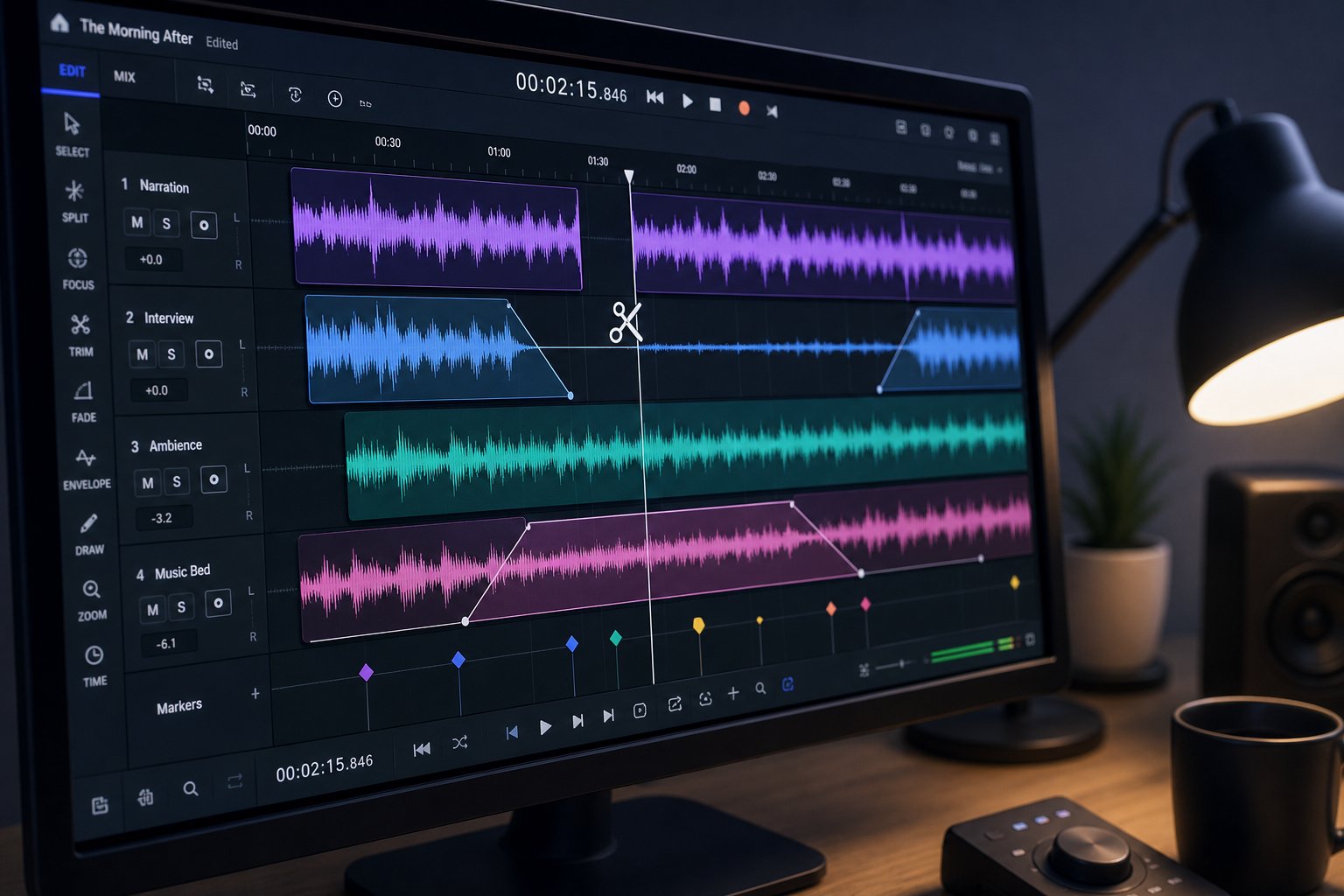
A raw AI generation is a starting point, not a finished product. Even the best variation from your batch likely has a slightly abrupt intro, trails off awkwardly at the end, or runs ten seconds too long for your video timeline. This refinement phase is where basic song production from a scratch track transforms a promising clip into something polished enough for professional use, and it requires zero traditional music production experience.
Think of it this way: the AI wrote and performed the song. Your job now is to act as the editor and arranger who shapes that raw performance into the exact format your project needs.
Extending and Combining Sections
Most free AI generators produce tracks between 30 seconds and two minutes. That is fine for a social media clip, but a YouTube video background might need four minutes, and a game soundtrack loop needs seamless repetition. Two strategies solve this.
The first is using built-in extension features. Several platforms let you extend a generated track by feeding the ending back into the AI, which then generates a continuation matching the style, key, and tempo of the original. This approach works like a music mashup maker that blends new material with your existing clip automatically. The AI analyzes the rhythm and harmonic structure at the end of your track and generates compatible audio that picks up where it left off. You can repeat this process multiple times to build a 30-second idea into a three-minute composition.
Features like Suno Canvas give you a visual timeline where you can arrange, extend, and restructure sections within the platform itself. This type of musical canvas approach lets you drag sections around, regenerate specific parts you dislike, and build full song structures without leaving the generator. If your chosen tool offers something similar, it is worth exploring before jumping to external editors.
The second strategy is manual combination. When you generated multiple variations in the previous step, you likely noticed that one had a strong opening while another had a better middle section. You can splice those together using a free editor, taking the intro from variation A, the body from variation C, and the outro from variation B. The key to smooth transitions between spliced sections is crossfading at natural musical boundaries like the start of a new bar or where a phrase naturally resolves.
Basic Editing with Free Tools
You do not need expensive software for this. Audacity, a free and open-source audio editor available on Windows, Mac, and Linux, handles everything a creator needs for post-generation refinement. Browser-based alternatives like AudioMass or TwistedWave Online work if you prefer not to install anything.
Here is the core editing workflow that turns a raw generation into a project-ready file:
- Import your AI-generated audio file into Audacity (File > Import > Audio)
- Trim the track to your needed length by selecting unwanted sections at the beginning or end and pressing Delete
- Add a fade-in to the first 1-2 seconds (select the region, then Effect > Fade In) to eliminate any abrupt starts
- Add a fade-out to the final 2-3 seconds (select the region, then Effect > Fade Out) for a clean ending
- Normalize the volume (Effect > Normalize, set to -1.0 dB) so the track plays at a consistent level across devices without clipping
- Export the finished file in your desired format (File > Export Audio, choose MP3 or WAV)
That six-step process takes under five minutes and solves the most common issues with raw AI output: awkward beginnings, abrupt endings, and inconsistent volume levels. The normalization step is especially important because AI generators often produce audio at varying loudness levels, and a track that is too quiet or too loud relative to your voiceover or video will sound amateur regardless of its musical quality.
For more advanced trimming, you can cut out weak sections in the middle of a track using the same select-and-delete approach, then crossfade the remaining sections together. Select a small overlap region between two clips and apply Effect > Crossfade Clips to create a smooth musical transition rather than an audible jump cut.
Layering and Mixing Multiple Outputs
Here is where free AI music creation gets genuinely powerful. Instead of relying on a single generation for everything, you can layer multiple AI outputs to create richer, more complex compositions. Imagine generating a mellow piano instrumental as your base layer, then creating a separate ambient texture track and combining the two. The result sounds more produced and intentional than either track alone.
A practical approach for layering in Audacity:
- Import your primary instrumental track on one audio channel
- Import a secondary texture, percussion, or ambient track on a separate channel
- Adjust the volume balance between layers using the gain slider on each track so neither one overwhelms the other
- Use the Time Shift tool to align sections if the two tracks have slightly different structures
- Export the combined result as a single mixed file
This same technique works for combining an instrumental generation with a separately created vocal track. If you generated lyrics-based audio on one platform and a cleaner instrumental on another, layering gives you the best of both. Free vocal mixing AI tools can help balance vocal clarity against the instrumental bed, handling basic tasks like de-essing harsh consonants or applying gentle compression to even out vocal dynamics. These tools function as a free AI music finalizer for creators who want polished output without learning a full DAW.
The layering approach also works as a song mashup maker workflow. Generate two complementary tracks in compatible keys and tempos, then blend them in Audacity for a composition that sounds far more complex than what any single AI generation produces. The trick is keeping your prompts consistent on tempo and key across generations so the layers sit together musically rather than clashing.
With your track trimmed, normalized, and potentially layered with additional elements, you have a genuinely finished piece of audio. The remaining questions are practical: what format should you export in, and how do you actually get this music into your video, podcast, or game project?
Step 6 Export and Use Your AI Music in Real Projects
A polished track sitting on your desktop is not content yet. The final step is getting that audio into the project where it actually does its job, whether that is a YouTube video, a podcast feed, a social media post, or a game build. The format you choose and how you integrate the file determine whether your music sounds professional or introduces quality issues that undermine the work you put into generating and editing it.
Export Formats and Quality Settings
When you export from an audio editor or download from an AI generator, you typically choose between two main formats: MP3 and WAV. Each serves a different purpose, and picking the wrong one creates either unnecessary file bloat or avoidable quality loss.
WAV is uncompressed audio. It preserves every detail of your track without discarding any data, which makes it ideal for editing workflows, podcast production, and video editing timelines where your file may get re-encoded by the platform during upload. A WAV file of a two-minute track runs roughly 20MB. That size is fine for local editing but impractical for direct web uploads or social sharing.
MP3 is compressed audio that discards inaudible frequencies to reduce file size dramatically. At 192 kbps or higher, the quality difference from WAV is negligible for most listeners. MP3 works best for final delivery to the web: social media posts, embedded website audio, and any situation where file size matters more than studio-grade fidelity.
The practical rule: export WAV when your file will be processed again (video editors, podcast DAWs, game engines), and export MP3 at 192-320 kbps when the file goes directly to an audience. If a platform like YouTube re-encodes your upload, starting from a higher-quality WAV source means the final compressed result retains more clarity than if you uploaded an already-compressed MP3.
Adding AI Music to Your Projects
How do you add music to a video, podcast, or game once you have the right file format? Each use case has a slightly different integration path, but none require advanced technical skills.
For YouTube videos, you can drag your audio file directly into your video editor's timeline (Premiere Pro, DaVinci Resolve, CapCut, or even YouTube Studio's built-in audio editor). Lower the music volume to around -15 to -20 dB beneath dialogue so it supports without competing. YouTube Studio also lets you add audio to already-uploaded videos through its Editor tab.
For podcasts, import your royalty free podcast intro music into your editing tool (Audacity, Descript, GarageBand) as a separate track. Position it at the beginning of your episode, fade it under your voice within the first few seconds, and bring it back briefly during transitions or at the outro.
For social media content, platforms like Canva let you add audio directly to video projects. Canva music features allow you to upload custom tracks and sync them to your visual timeline, which is useful when you want to pair AI-generated audio with designed templates. You can also add audio to video with free AI tools like CapCut, which accepts custom audio imports alongside its built-in library.
For game projects, import WAV files into your engine (Unity, Godot, Unreal) as audio assets. Set them to loop for ambient tracks or trigger on events for stingers and effects. Game engines handle WAV natively and compress internally during build.
Creators looking to create music video with AI can pair their generated track with a free AI music video generator to produce visual content synced to the audio, turning a single generated song into a complete multimedia piece ready for YouTube or social platforms.
| Use Case | Recommended Format | Typical Length | Integration Tool |
|---|---|---|---|
| YouTube background music | WAV (for editing) or MP3 320 kbps (direct upload) | 2-5 minutes | DaVinci Resolve, Premiere Pro, CapCut, YouTube Studio |
| Podcast intro/outro | WAV | 15-30 seconds | Audacity, Descript, GarageBand, Hindenburg |
| Social media content | MP3 192+ kbps | 15-60 seconds | Canva, CapCut, InShot |
| Game soundtrack | WAV | 1-3 minutes (loopable) | Unity, Godot, Unreal Engine, FMOD |
| AI music video | WAV or MP3 320 kbps | 2-4 minutes | Free AI video generators, RunwayML, CapCut |
Organizing Your AI Music Library
After a few sessions of generating, iterating, and editing, you will accumulate dozens of audio files with names like "track_final_v3.mp3" and "output(7).wav." Without a system, finding the right track for a future project becomes a frustrating scroll through identically named files.
A simple naming convention solves this permanently. Use a structure like: Project-Mood-Genre-BPM-Version.format. For example: YTIntro-Upbeat-IndieRock-120-v2.wav or PodcastBed-Calm-Ambient-80-final.mp3. This format lets you identify any track's purpose and character from the filename alone.
For folder structure, keep it flat and functional:
- AI-Music/YouTube/ for video background tracks and intros
- AI-Music/Podcast/ for intros, outros, and transition beds
- AI-Music/Social/ for short-form clips
- AI-Music/Games/ for loops, stingers, and ambient scores
- AI-Music/Unused/ for decent generations you might repurpose later
Consistency matters more than complexity here. A simple system you actually maintain beats an elaborate one you abandon after the first week. As your library grows, you will thank yourself for building these habits early, especially when a client asks for "something like that track you used three months ago" and you can locate it in seconds rather than regenerating from scratch.
Your tracks are exported, integrated, and organized. The one question that remains, and the one most creators skip until it causes a real problem, is whether you actually have the legal right to use what you generated.

Step 7 Understand Licensing and Commercial Use Rights
Generating a great track and integrating it into your project feels like crossing the finish line, but there is one more step most creators skip entirely: confirming you actually have permission to use that audio the way you intend. Licensing terms vary so dramatically between platforms that two tracks generated five minutes apart on different tools can carry completely different legal permissions. One might be cleared for a monetized YouTube channel. The other might restrict you to personal listening only.
Getting this wrong does not produce a vague slap on the wrist. It produces copyright strikes, content takedowns, demonetization, or worse. Five minutes of reading platform terms now saves months of headaches later.
Commercial Use Rights on Free Plans
Not every free tier is created equal. Some platforms grant full commercial rights on their free plan, meaning you can use generated tracks in monetized videos, paid client work, business background music for ads, and product launches without upgrading. Others restrict free-tier output to personal or non-commercial use only, requiring a paid subscription before you can legally publish anything that earns revenue.
A third category requires attribution: you can use the track commercially, but you must credit the platform in your video description, podcast notes, or project credits. Skip that attribution and you violate the terms even though the track was technically free to use.
The problem is that these distinctions are rarely surfaced clearly during the generation process. You have to dig into the terms of service or licensing FAQ before you generate, not after you have already built a video around the track. Platforms like Suno and AIVA restrict commercial use entirely on free tiers. Others like MakeBestMusic include royalty-free commercial licensing at no cost. Always verify before you publish.
What Royalty-Free Actually Means
The term "royalty-free" causes more confusion than almost any other phrase in music licensing. Many creators assume it means "free to use with zero restrictions," but that is not accurate. Royalty-free means you pay no recurring fees each time the track is used. You do not owe per-play royalties or per-project payments after the initial access, whether that access was free or paid.
It does not mean the music cost nothing to obtain, and it does not mean there are no rules attached. A royalty free jazz music track from a song stock library might still require attribution, prohibit redistribution, or limit the number of projects you can use it in. The "royalty-free" label describes the payment structure, not the breadth of permissions.
Understanding the differences between common license types prevents costly mistakes when you download song for YouTube use or any commercial project:
| License Type | What It Means | Commercial Use | Attribution Required |
|---|---|---|---|
| Royalty-Free | No per-use fees after initial access; use repeatedly without additional payment | Usually yes, but check specific terms | Varies by platform |
| Copyright-Free | No copyright restrictions apply; the work has no owner asserting rights | Yes | No |
| Creative Commons (CC BY) | Free to use with proper credit to the creator | Yes | Yes |
| Creative Commons (CC BY-NC) | Free for non-commercial use only with credit | No | Yes |
| Personal Use Only | Licensed for private listening or non-public projects only | No | N/A |
| Platform Commercial License | Commercial rights granted through platform terms of service on paid or specific free plans | Yes (per terms) | Varies by plan tier |
The critical takeaway: "royalty-free" and "copyright-free" are not interchangeable. A royalty-free track still has an owner and terms attached. A copyright-free track has no ownership claims at all. Most AI-generated music falls into the platform commercial license category, where your rights come from the terms of service rather than traditional copyright law.
Protecting Yourself from Copyright Claims
Even when you are using a platform that grants commercial rights, you need a paper trail. Content ID systems on YouTube and other platforms cannot tell the difference between a legitimately generated track and an unauthorized upload just by scanning the audio. If a dispute arises, your documentation is what resolves it in your favor.
Build these habits into your workflow from the start:
- Download directly from the platform. Never use third-party download tools or screen recorders. The official download confirms your account generated the track under the platform's terms.
- Screenshot the licensing terms at time of download. Terms of service change. If a platform updates its policy six months from now, your screenshot proves what terms applied when you created and downloaded the track.
- Save your generation details. Keep records of the prompt you used, the date and time of generation, your account email, and your subscription tier at the time. This metadata proves provenance if anyone challenges your rights.
- Avoid platforms with unclear licensing language. If a tool's terms page does not explicitly address commercial use, treat that silence as a restriction. Ambiguous terms leave you unprotected in a dispute.
- Use a music identifier online tool to check your output. Before publishing, run your generated track through an audio recognition service to confirm it does not trigger matches against existing copyrighted works. While rare with legitimate AI generators, this extra step eliminates surprises.
Creators who treat licensing as an afterthought often discover the problem only when a video gets flagged or an ad gets pulled. The fix is simple: verify rights before generating, document everything during the process, and keep those records organized alongside the audio files in your library. That thirty seconds of documentation protects months of creative work.
Common Mistakes That Waste Your Free Credits
Knowing the right steps is half the battle. The other half is recognizing the patterns that silently sabotage your results. Whether you are figuring out how to make your own song for the first time or experimenting with the best music creation apps available, these four mistakes account for the vast majority of wasted credits and disappointing output.
Vague Prompts Produce Generic Music
Typing "happy song" or "cool beat" into a generator is like telling a chef to "make food." You will get something, but it will not be memorable. Data from community analysis of Suno AI users shows that roughly 70% of initial tracks require three or more regenerations simply because the prompt lacked specificity. That is credits burned on output you will never use.
The fix is the Genre-Mood-Tempo-Instruments framework from Step 3. Specificity is free. A detailed prompt costs the same credits as a lazy one but produces dramatically better results on the first try.
Ignoring Licensing Terms Until It Is Too Late
Creators often generate a track, build an entire project around it, publish it, and only then discover that their free-tier output cannot be used commercially. The result: copyright strikes, content takedowns, or demonetization after the work is already live. No song tools or editing tricks can fix a licensing violation after the fact. Check terms before you generate, not after you publish.
Using the Wrong Tool for the Job
Choosing a lyrics-and-vocals generator when you need subtle background instrumentals wastes credits on features you do not need, and often produces audio that competes with your voiceover or dialogue. The reverse is equally wasteful: trying to write the song of your dreams on a platform that only outputs beats means you will never get the vocal track you are actually looking for. Match the tool type to your project requirements from the start, even among the best apps for music production.
Not Iterating on Generations
Treating AI music creation as a one-click process is the fastest path to mediocre results. The creators who get genuinely good output treat it as a conversation: generate, listen, adjust one variable, regenerate. Song writing applications and AI generators alike reward patience and refinement over speed. Settling for the first output because "it is good enough" is how your project ends up with forgettable audio that sounds like everyone else's.
Here is the full checklist of mistakes to avoid:
- Writing single-word or vague prompts that give the AI no useful direction
- Skipping licensing verification before building a project around a generated track
- Using a vocal generator when you need instrumentals, or vice versa
- Settling for the first generation without producing multiple variations
- Changing every prompt element at once instead of isolating one variable per regeneration
- Ignoring export format requirements for your specific platform or use case
- Failing to save generation details and licensing screenshots for future disputes
The best AI music comes from specific prompts, multiple iterations, and choosing the right tool for your specific use case. Shortcuts on any of those three fronts cost more time than they save.
