


What a Music Making App Actually Is and Why It Matters
You don't need a singing microphone, a music studio desk, or years of training to start producing tracks. You need the right software. But with hundreds of options flooding every app store and browser tab, figuring out where to begin feels like its own creative block.
What Counts as a Music Making App
The term covers more ground than most people realize. It's not limited to one type of tool or one platform.
A music making app is any software on mobile, desktop, or browser that lets you compose, record, arrange, and produce music — from full digital audio workstations to lightweight beat makers and AI-powered generators.
That definition spans desktop DAWs like FL Studio and Logic Pro, browser-based studios like Sound Trap and BandLab where you can create music from a website without installing anything, and mobile apps that turn your phone into a portable production setup. It also includes the newer wave of AI composition tools that generate melodies, beats, or full arrangements from simple prompts. The smartphone music production software market alone is projected to nearly double from USD 98 million in 2025 to USD 191 million by 2032, which tells you just how fast this category is expanding.
Why Choosing the Right One Matters
Picking the wrong tool creates friction at every step. An overly complex interface kills momentum for a beginner wondering how to make a song for the first time. A stripped-down app frustrates an intermediate producer ready to dig into MIDI editing and mixing. The right app removes those barriers and lets you focus on creating.
This guide isn't a simple ranked list. It walks through every category of production software, breaks down recommendations by skill level and genre, covers free options in real depth, and addresses practical topics like collaboration, export workflows, and affordable gear. Whether you're sketching ideas on a phone or building full arrangements on a laptop, the goal is the same: match you with the tool that fits how you actually want to work.
Every Type of Music Making App Explained
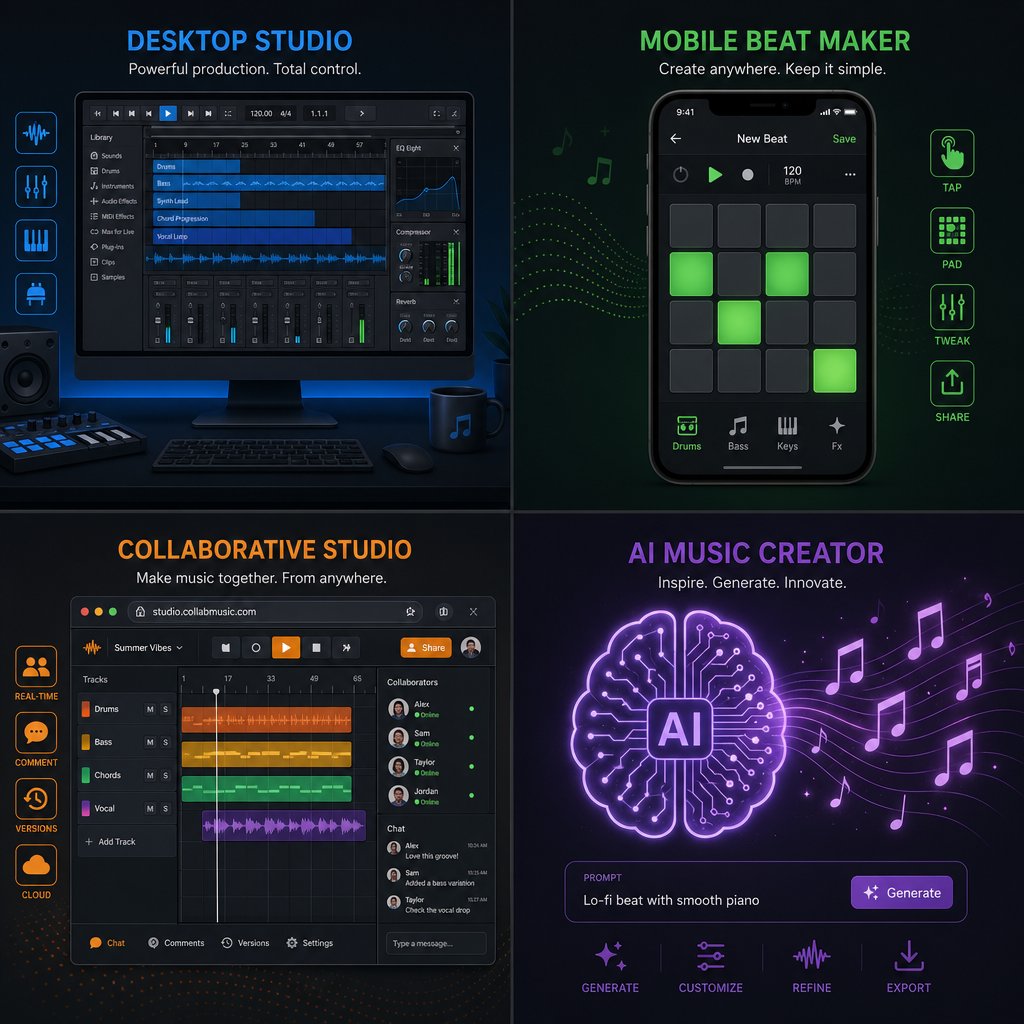
Knowing that the right tool matters is one thing. Knowing what tools actually exist is another. The landscape has split into four distinct categories, each built around a different way of working. Understanding these categories before you commit to a download saves you from outgrowing an app in a month or wrestling with features you'll never touch.
Desktop DAWs and Their Mobile Companions
Traditional digital audio workstations remain the backbone of professional production. Every commercially released record passes through a DAW at some point. FL Studio, Ableton Live, Logic Pro, and GarageBand handle recording, MIDI programming, editing, mixing, and exporting — the full production chain from blank project to finished file.
What's changed is that many of these platforms now extend beyond the desktop. An FL Studio download on your laptop pairs with FL Studio Mobile on your phone, and projects sync between the two. GarageBand on iPad transfers sessions directly into Logic Pro on Mac. The workflow looks like this: sketch a beat or melody on your phone during a commute, then open the same project on your computer for serious arranging and mixing. Desktop production and mobile sketching serve different purposes, but they're no longer separate worlds.
Whether you're crafting phonk songs with heavy 808 slides or layering orchestral arrangements, a desktop DAW gives you the deepest control over every element. Pricing ranges from free (GarageBand, Cakewalk) to several hundred dollars for premium suites, though FL Studio's lifetime free updates policy makes its one-time cost easier to justify long-term.
Browser-Based Studios and Free DAWs
Imagine opening a browser tab and having a full production environment ready — no installation, no storage space consumed, no compatibility headaches. That's exactly what platforms like Soundtrap and BandLab deliver. You sign in, and you're making music. For beginners and educators especially, this zero-friction entry point is a game changer.
Browser-based tools prioritize speed and accessibility over depth. They're built for getting ideas down fast, collaborating with others in real time, and learning production fundamentals without worrying about system requirements. They won't replace a full DAW for complex mixing or mastering, but they don't need to. Their value is removing every barrier between "I want to try making music" and actually doing it. Some users searching for spotify alternatives for creative output find that these platforms scratch a different but related itch — active creation instead of passive listening.
On the desktop side, the free DAW category has matured significantly. LMMS runs on Windows, Mac, and Linux with built-in synthesizers and a pattern-based workflow ideal for electronic music. Ardour offers professional-level multi-track recording and routing across all three operating systems. Cakewalk provides a full studio-style environment on Windows at no cost. These aren't stripped-down demos — they're capable production tools that can take you from first beat to finished track.
The comparison below maps out how these categories stack up against each other:
| Category | Typical Cost | Learning Curve | Platform Availability | Best Suited For |
|---|---|---|---|---|
| Desktop DAW | Free - $749 | Moderate to steep | Mac, Windows, some Linux | Full production, mixing, professional output |
| Mobile App | Free - $50 | Low to moderate | iOS, Android | Idea capture, beat sketching, on-the-go creation |
| Browser-Based | Free - $14/mo | Low | Any device with a browser | Beginners, collaboration, education |
| AI-Powered | Free tier - $15/mo | Very low | Web, some desktop plugins | Content creators, quick background tracks, creative assistance |
AI-Powered Music Generators
This is the category that didn't meaningfully exist three years ago. AI music tools have evolved from novelty experiments into real production utilities that handle specific tasks within a creator's workflow. Text-to-music generators like Suno and Soundraw can produce full tracks — with structure, lyrics, and even vocals — from a natural language description. Stem separation tools like Moises and LALAL.AI isolate vocals, drums, and bass from existing recordings, making remixes and sampling far more accessible. Auto-arrangement features help you turn a rough idea into a structured song without manually building every section.
Who benefits most? Content creators who need original background music for videos, podcasts, or streams get enormous value here. A YouTuber doesn't need to learn mixing to generate a royalty-free track that fits their edit. A phonk maker experimenting with drift-style edits can generate reference beats and then reshape them in a traditional DAW. Producers looking for creative sparks use AI to generate starting points they'd never have arrived at on their own.
The key distinction: AI tools are a complement, not a replacement. They speed up specific tasks — generating stems, suggesting arrangements, handling rough mastering — while the creative decisions stay with you. Producers who treat them as one layer in a broader workflow, rather than a substitute for learning production fundamentals, get the most out of them. You wouldn't monitor your mix through a pair of Beats Studio 4 headphones and call it mastered — and similarly, you wouldn't hand your entire creative process to an algorithm and call it producing.
Some tools also generate sound effects and audio clips useful beyond music production. If you've ever searched for discord soundboard sounds or custom audio for streaming, these generators can fill that gap with original content you actually own the rights to.
Each of these four categories serves a different moment in the creative process. The real question isn't which category is "best" — it's which combination fits the way you work and what you're trying to create.
How to Pick the Right App for Your Skill Level
Knowing the categories is useful, but it still leaves a practical question unanswered: which tool fits where you are right now? A beginner staring at Ableton Live's session view faces a completely different challenge than an experienced producer looking for a quick way to capture ideas on a train. Skill level shapes everything — the interface you need, the features that matter, and the pace at which you'll actually start making music instead of watching tutorials.
Complete Beginners Who Have Never Produced
If you've never laid down a beat or recorded a single note, the goal isn't technical mastery. It's creative exploration. You want an app that lets you hear results fast, because nothing kills early motivation like spending two hours configuring audio drivers before you've played a single sound.
GarageBand (iOS and Mac) is the go-to starting point for Apple users. Its loop library, preset instruments, and drag-and-drop workflow mean you can assemble a full arrangement in minutes without understanding signal routing or MIDI mapping. BandLab does the same thing in a browser — sign in, pick some loops, and you're building a track. You can even make music cloud-based without installing anything, which removes one more excuse to not start. Soundtrap rounds out this tier with a similarly approachable interface and built-in collaboration, making it popular in educational settings where students and teachers create together in real time.
At this stage, prioritize apps that offer built-in loops and samples, intuitive visual interfaces with minimal menu diving, preset instruments you can play without configuration, and simple export so you can share what you make. Don't worry about plugin ecosystems or advanced mixing. That comes later.
Intermediate Producers Ready to Level Up
You've made a few tracks. You understand basic song structure. Maybe you've started wondering how to arrange original sound tracks instead of stacking pre-made loops. This is the transition point where music music production shifts from assembling parts to composing them — and the app you use needs to support that leap.
The jump typically involves learning MIDI editing, working with virtual instruments, and understanding basic mixing concepts like EQ, panning, and compression. FL Studio is a natural fit here. Its step sequencer and piano roll are among the most intuitive in any DAW, and its plugin architecture lets you expand your sound palette as your skills grow. Curious whether FL Studio free options exist? The trial version gives you access to every feature — the only restriction is you can't reopen saved projects, which pushes you to commit to a purchase when you're ready but lets you explore everything first.
LMMS offers a similar pattern-based workflow at zero cost, with built-in synthesizers and support for third-party plugins. Cakewalk on Windows provides a full professional-style mixer, flexible MIDI editing, and unlimited track counts — all free. These tools won't hold you back. What to look for at this level: plugin support (VST/AU), detailed MIDI editing, dedicated mixer channels, and flexible export options including WAV stems.
Professionals Seeking Mobile Supplements
Experienced producers rarely need a new primary DAW. What they need is a fast, reliable way to capture ideas before they evaporate — a melodic phrase that hits during a walk, a drum pattern that surfaces in a waiting room. The best mobile apps for this purpose export stems or project files that open cleanly in a desktop DAW, so nothing gets lost in translation.
FL Studio Mobile syncs projects with the desktop version. GarageBand sessions transfer directly into Logic Pro. Steinberg's Cubasis supports high-resolution audio export and third-party plugin integration on iPad, making it a legitimate mobile production environment rather than a toy. For sample-based producers, Koala Sampler lets you record sounds on the fly, chop them, and even export sessions as Ableton Live Sets on iOS. Some professionals also use these mobile tools to download free beat ideas or rough sketches they can flesh out later in the studio.
Here's a quick summary of what matters most at each level:
- Beginners: Built-in loops, visual simplicity, preset instruments, zero-configuration setup, and easy sharing
- Intermediate: MIDI editing, plugin support (VST/AU), mixer channels, virtual instruments, and stem export flexibility
- Professional: Cross-platform project compatibility, high-resolution audio export, stem transfer to desktop DAWs, and low-latency mobile recording
Your skill level isn't permanent — it's a starting point. Pick the tier that matches where you are today, not where you hope to be in a year. You can always migrate to a more powerful tool once you've outgrown your current one. The real risk isn't choosing a "lesser" app; it's choosing one so complex that you never finish a single track.
Free Music Making Apps and DAWs Worth Downloading
Migrating to a more powerful tool is always an option — but what if the free one is already more powerful than you think? "Free" is the single most common word people attach to music production searches, and for good reason. The cost of entry has dropped to zero across every platform. The catch? Not all free daws deliver the same experience, and the differences between them matter more than most roundups bother to explain.
Top Free DAWs for Desktop Production
GarageBand ships pre-installed on every Mac and iOS device, which makes it the most accessible music making app on the planet. Beyond convenience, it's genuinely capable: thousands of royalty-free loops, a library of virtual instruments that doubles as a musical instrument soundboard, Smart Controls for shaping tone without diving into parameter lists, and support for up to 255 tracks. Apple also bundles 40 free guitar and piano lessons directly inside the app. The limitation? It's locked to the Apple ecosystem and only supports AU plugins — no VST. For anyone on Mac who wants to make your own kind of music without spending a dollar, it's the obvious first stop.
Cakewalk by BandLab is the Windows answer — and arguably the most generous free DAW available on any platform. It's built on the SONAR Platinum engine, which originally retailed for over $500. You get unlimited audio and MIDI tracks, a 64-bit mix engine, full VST plugin support, advanced MIDI editing, built-in amp simulators, and a unique VocalSync tool for aligning vocal takes. The interface feels dated compared to newer competitors, and the learning curve is steeper than GarageBand's, but the feature set rivals paid software costing several hundred dollars. It can now be installed directly without the BandLab Assistant app, which streamlines setup considerably.
LMMS runs on Windows, Mac, and Linux, making it the go-to cross-platform option. Its pattern-based workflow mirrors FL Studio's approach — step sequencer, piano roll, built-in synthesizers like ZynAddSubFX — and it supports VST2 plugins on Windows. Producers making electronic music, trap, or exploring fl loops free of charge will feel at home here. The major gap: LMMS can't record live audio. If you need to track vocals or guitar, you'll need a separate tool like Audacity for capture and then import the files. For purely MIDI-based and sample-driven production, though, it punches well above its price tag.
Ardour fills the niche that the other three leave open: professional-grade multi-track recording on Linux (plus Mac and Windows). It supports all major plugin formats, offers comprehensive audio editing and routing, and handles complex sessions with ease. The free version compiled from source code is fully functional, though a prebuilt download asks for a small optional payment. Ardour's workflow resembles Pro Tools, so producers migrating from commercial studios will find familiar ground. It's less beginner-friendly than the others, but for Linux users or anyone who needs serious recording and mixing depth at no cost, it's the strongest option available.
FL Studio deserves a mention here too. While not technically free, its trial version unlocks every feature — every plugin, every effect, every workflow. The only restriction is that you can't reopen saved projects after closing them. It's a full test drive with no time limit, which makes it a practical way to explore one of the most popular DAWs in hip-hop and electronic production before committing financially.
Here's how these free desktop options compare side by side:
| DAW | Platform | Key Features | Limitations | Best For |
|---|---|---|---|---|
| GarageBand | Mac, iOS | Massive loop library, Smart Instruments, 255 tracks, built-in lessons | Mac/iOS only, AU plugins only, limited mixing depth | Beginners, singer-songwriters, Apple users |
| Cakewalk by BandLab | Windows | Unlimited tracks, 64-bit mix engine, full VST support, VocalSync | Windows only, steeper learning curve, dated interface | Intermediate to advanced Windows producers |
| LMMS | Windows, Mac, Linux | Pattern-based workflow, built-in synths, VST2 support, lightweight | No audio recording, limited stock effects, partial VST support | Electronic and beat-driven producers |
| Ardour | Windows, Mac, Linux | Pro-level recording, all plugin formats, deep routing and editing | Steeper learning curve, nag screen on prebuilt version | Linux users, live recording, Pro Tools converts |
| FL Studio (Trial) | Windows, Mac | Full feature access, every plugin included, no time limit | Can't reopen saved projects without purchase | Beat makers exploring before buying |
Free Browser and Mobile Options
Desktop software isn't the only path. Browser-based platforms have matured into legitimate production environments that eliminate hardware barriers entirely — no downloads, no storage concerns, no compatibility issues. You open a tab and start creating.
BandLab leads this space with a fully featured browser studio that includes multitrack recording, MIDI editing, virtual instruments, loops, and effects. It's completely free with no tier restrictions on core features, and its built-in social network lets you publish tracks and collaborate with other creators directly from the platform. For educators, BandLab for Education provides a managed environment where students can produce music in a structured, safe setting — functioning as an easy music center for classroom-based learning.
Soundtrap's free tier offers a streamlined browser-based studio with loop libraries, virtual instruments, and real-time collaboration. It's slightly more limited than BandLab on the free plan, but its interface is clean and approachable, especially for younger users or anyone who wants to jump straight into arranging without visual clutter.
On mobile, the options extend well beyond basic loop playback. BandLab's mobile app mirrors its browser capabilities. FL Studio Mobile provides a portable version of its desktop workflow for both Android and iOS. Apps like Koala Sampler turn your phone into a sampling workstation. Even producers working on rap music UK styles or any beat-heavy genre can lay down credible drum patterns and basslines from a phone screen. The key is choosing a mobile app that exports in formats your desktop DAW can import — WAV or project files — so mobile sketches don't dead-end.
What Free Actually Gets You
Here's the honest picture. Free tools can absolutely produce release-quality music. Hit records have been made entirely in GarageBand. Cakewalk's mix engine is the same one that powered a $500 professional DAW. The audio fidelity of a free tool is identical to paid software — same bit depth, same sample rates, same output quality.
Where you'll eventually feel the edges: stock sound libraries in free daws typically range from 1 to 5 GB, while paid suites ship with 50 to 200 GB of content. Plugin ecosystems are narrower — GarageBand locks you into AU format, and LMMS only partially supports VST2. Advanced mixing and mastering features like spatial audio, AI-assisted processing, or Dolby Atmos support live behind paywalls. And if you're searching for the best audio editing software with deep spectral editing or batch processing, free options won't match dedicated paid tools.
None of that should stop you from starting. The free VST plugin ecosystem is enormous — synthesizers like Vital, effects like Valhalla Supermassive, and analyzers like SPAN fill gaps that stock plugins leave open. Free sample packs from sites like Cymatics and Splice's free tier supplement smaller built-in libraries. The strategy that works for most producers: start free, learn the fundamentals, identify the specific limitations that actually slow you down, and upgrade only when those limits become real bottlenecks — not theoretical ones.
Some creators never hit those limits at all. If your goal is to add a background of a music performance on AI-generated visuals, produce beats for personal projects, or simply explore whether production is something you enjoy, free tools give you everything you need without asking for a credit card. The barrier to entry isn't cost anymore. It's just deciding to open the app.
Best Apps by Genre and Creative Goal
Cost and skill level narrow the field, but they don't answer the most personal question: what kind of music do you actually want to make? A producer chasing heavy 808 patterns needs a completely different toolset than a singer-songwriter layering acoustic guitar takes. Matching the app to your creative goal — not just your budget or experience — is what separates a tool you use once from one you open every day.
Hip-Hop Beats and Trap Production
Rhythm-driven genres live and die by the step sequencer. You want grid-based drum programming, punchy 808 bass libraries, and fast pattern editing that lets you build a groove before the idea fades. FL Studio Mobile translates the desktop version's legendary step sequencer and piano roll into a portable format, and it runs on both Android and iOS — so you're not locked into one ecosystem. BandLab offers a surprisingly capable browser-based beat maker with built-in drum kits and loop packs tuned for hip-hop and trap royalty-free use.
Dedicated beat-making apps with pad-based interfaces lower the barrier even further. iMPC recreates the classic MPC workflow on iPad with 1,200 samples and a sequencer built for finger drumming, while Beatsnap is optimized specifically for smartphone screens — ideal for tapping out patterns on the go. If you're learning how to make music in beat-heavy genres, a grid interface often clicks faster than a traditional timeline.
Singer-Songwriter Demos and Acoustic Recording
When the core of your music is voice and an instrument, the app needs to do one thing exceptionally well: capture clean audio with minimal fuss. GarageBand excels here. Its built-in guitar amp simulators, piano effects, and simple multitrack layering let you record a full demo — rhythm guitar, vocals, a lead overdub — without touching a single routing menu. AmpliTube Custom Shop adds authentic amp modeling from brands like Fender and Orange for guitarists who want studio-quality tone recording directly into a laptop.
Low-latency monitoring matters more in this workflow than almost any other. Singing or playing into a phone while hearing your voice delayed by even 20 milliseconds throws off timing and pitch. Use wired headphones — not Bluetooth — and choose apps that support your device's low-latency audio driver. Apps like Songzap are built specifically for this use case, enabling multitrack demo recording with arrangement tools that let a singer-songwriter go from a rough idea to a mixed demo in under 20 minutes.
Electronic Music and Sound Design
Electronic production demands synthesis depth: oscillators, filters, modulation, automation lanes, and layered effect chains. Desktop DAWs like Ableton Live and FL Studio dominate this space, but mobile options have caught up more than most producers realize. Korg's iElectribe packs a sequencer, sampler, and synth engine into a single iPad app, functioning as both a beat maker and a sound design playground. Moog's mobile synthesizers offer analog-modeled sound sculpting that goes far beyond preset surfing.
If you enjoy modding experiences — the same impulse that drives people to create beat saber custom songs or design unique audio for games — sound design apps scratch that itch in a musical context. Look for tools with per-step parameter automation, multiple oscillator types, and the ability to export patches or stems into your main DAW for further processing.
Content Creators and Quick Background Tracks
Not everyone searching for a production tool wants to build a full album. Many creators need original background music for YouTube videos, podcast intros, or live streams — and they need it fast. Speed and simplicity matter more than deep mixing features here. BandLab's loop-stacking workflow lets you assemble a usable track in minutes. AI-powered generators like Soundraw and Suno produce full arrangements from a text prompt, giving you royalty-free output without touching a timeline.
Educators using platforms like edu BandLab also fall into this category — they need quick, accessible tools for classroom projects where the goal is creative engagement, not professional polish. The same applies to streamers who want custom audio stingers or transition sounds without licensing headaches.
Here's a quick pairing of each creative goal with a strong starting point:
- Hip-hop and trap beats — FL Studio Mobile (grid sequencer, 808 libraries, cross-platform)
- Singer-songwriter demos — GarageBand (clean audio capture, built-in effects, multitrack simplicity)
- Electronic music and sound design — Korg iElectribe (synthesis engine, sequencer, sound sculpting on iPad)
- Quick background tracks for content — BandLab (browser-based, loop-driven, zero install, free)
Genre and intent shape your workflow more than any feature comparison chart. A Beat Studio 3 headphone review won't tell you which app to pick — but knowing whether you're building trap beats or recording acoustic demos will. The sound of a card being played right is choosing the tool that speaks your creative language from the start, so the technology disappears and the music stays in focus.
Collaboration Features and Getting Your Music Out
Picking the right app for your genre gets you creating. But music rarely stays a solo activity for long — and eventually every track needs to leave the app it was born in. Two practical concerns shape your experience more than most feature lists suggest: how well you can collaborate with others inside the tool, and how smoothly you can export what you've made.
Collaboration Features That Actually Work
If you've ever tried to co-write a song by emailing project files back and forth, you know how quickly that workflow falls apart. Browser-based platforms solve this by building collaboration directly into the production environment — and it's one of the strongest reasons to choose them over a traditional desktop DAW.
Soundtrap and BandLab both support shared projects with cloud storage, but they handle the actual editing process differently. Soundtrap allows simultaneous editing — multiple people can work on the same project at the same time, adding tracks, adjusting the sound mixer settings, and layering ideas in real time. BandLab uses a sequential "pass the ball" model, where one collaborator works at a time and then hands control to the next person. Both approaches work, but simultaneous editing feels closer to being in the same room together.
Educational settings highlight why this matters. BandLab for Education gives teachers a managed "walled garden" where they can assign projects, collect student work, and provide feedback — all within the platform. Soundtrap for Education adds LMS integration with Google Classroom, Canvas, and Schoology, plus COPPA and FERPA compliance for student privacy. Whether students are learning how to make beats for the first time or building a podcast project, these platforms turn production into a collaborative classroom activity rather than an isolated homework assignment.
Desktop DAWs like Ableton Live or FL Studio — often considered the best DAW options for deep production — simply weren't designed for this kind of real-time sharing. You can export stems and send them to a collaborator, but that's a fundamentally different experience from watching someone add a guitar part to your track while you adjust the drums. If collaboration is central to how you work, browser-based free music production software deserves serious consideration.
Export Formats and Sharing Workflows
Imagine you've spent an afternoon building a track you're proud of. You hit export — and the app gives you a compressed MP3 with no option for stems. That's the kind of frustration you avoid by checking export capabilities before committing to any tool.
The format you choose affects everything downstream: how your track sounds on streaming platforms, whether another producer can remix it, and how much flexibility you retain for future edits. Here's what each common format is best suited for:
- WAV (24-bit, 44.1 kHz): Uncompressed audio that preserves every detail of your mix. Use this for final masters, sending tracks to collaborators, and uploading to distributors — platforms like Spotify re-encode your audio anyway, so starting with the highest quality source gives the best result. For video projects, switch to 48 kHz so audio syncs cleanly with footage.
- MP3 (256-320 kbps): Compressed audio that trades some fidelity for dramatically smaller file sizes. Perfect for quick previews, sending drafts for feedback, or posting teasers on social media. Think of MP3 as a postcard — great for sharing, but not the master tape.
- Stems (individual WAV tracks): Separate files for drums, bass, vocals, melody, and other elements. Essential for remixes, professional mixing, and handing a project to another producer. Always export stems as WAV to avoid compression artifacts that compound during further processing.
- MIDI: Not audio at all — it's performance data (which notes were played, how hard, how long). Export MIDI when you want to change instruments or re-record parts in a different DAW without replaying them manually.
- Project files: Native formats like .flp (FL Studio), .band (GarageBand), or .als (Ableton Live). These preserve everything — arrangement, effects, automation — but only open in the app that created them.
This is where the multi-app workflow becomes practical. A mobile sketch in FL Studio Mobile or GarageBand can be exported as stems or a project file, then opened on a desktop DAW for serious mixing and mastering. BandLab projects can be exported as WAV and imported into any professional environment. Some producers use BandLab mastering as a quick way to polish a track before sharing, then revisit the stems in a desktop DAW when they want deeper control. The path from phone to laptop to finished release is real — but only if your app supports the export formats that make each handoff clean.
Before you commit to any tool, check two things: what formats it exports, and whether those formats are compatible with wherever your music needs to go next. A track that sounds like spotify extreme quality in your headphones means nothing if you can't get it out of the app in a format that preserves that quality. Whether you're building a way maker song for your community, producing beats for a collaborator across the country, or simply saving your work for future sessions, export options are the bridge between creating music and sharing it with the world.
Your First Project From Blank Screen to Finished Track
Export formats and collaboration tools only matter once you've actually made something. And that's where most people stall. The app is downloaded, the interface is open, and the blank project stares back at you. Knowing the categories, the free options, and the genre recommendations doesn't change the fact that a first beat can feel paralyzing when you've never built one before.
It doesn't have to be. A finished track — even a rough one — is closer than you think.
Your First Beat in Under 30 Minutes
Forget perfection. The goal of your first session is a complete idea with a beginning, middle, and end. Whether you're sketching trap tunes or layering simple recorder songs over a chord progression, the workflow follows the same universal steps in virtually any music making app.
Start by choosing a tempo that matches the vibe you're after. Trap and hip-hop typically sit around 130 to 150 BPM. Lo-fi and chill beats hover between 70 and 90. Pop and house land around 120 to 130. Pick a number and commit — you can always adjust later.
Next, lay down a drum pattern. A kick on beats one and three, a snare on two and four, and a simple hi-hat pattern give you a rhythmic foundation in under five minutes. Most apps include preset drum kits, so you don't need to hunt for samples yet. Then add a bass line — match the root notes of whatever chord progression you're working with, and keep it simple. One strong bass pattern glues the whole thing together better than three complicated ones fighting for space.
Layer a melody or chord progression on top. Use a piano preset or a basic synth sound. If you're not sure what notes to play, start with a minor scale — it works across nearly every modern genre and immediately gives your track an emotional center. As Icon Collective's production guide recommends, try producing "horizontally" first: sketch the full arrangement structure — intro, verse, chorus, outro — before going deep on any single section. This prevents the common trap of perfecting an eight-bar loop and never turning it into a song.
Once your sections are roughed in, copy and paste your patterns across the timeline, add small variations between sections (drop the drums for an intro, strip back the verse, let the chorus hit with full energy), and you have a complete track structure. It won't be polished. It doesn't need to be. You just went from a blank screen to a finished idea, and that momentum matters more than any mix detail at this stage.
Speeding Up the Process With Smart Tools
That universal workflow works in any DAW — but it still assumes you're comfortable choosing tempos, building drum patterns from scratch, and writing chord progressions. What if you're not there yet, or you simply need original music faster than a manual workflow allows?
This is where a growing category of smart creation tools earns its place. Some apps accelerate the process by offering intelligent suggestions, pre-built song structures, or AI-assisted composition that handles the technical scaffolding while you steer the creative direction. Rather than replacing the production process, they compress it — turning what might take an afternoon into something you can finish in a fraction of the time.
MakeBestMusic's Music Maker fits this approach well. It's designed for creators who want to produce original songs quickly without climbing a steep learning curve — especially useful if you need royalty-free original content for videos, podcasts, or any project where licensing matters. Instead of assembling every element manually, you get a streamlined path from idea to finished track that still results in music you own. For anyone who's wondered whether the answer to "is FL Studio free" matters less than just getting a track done today, tools like this offer a practical shortcut.
The key is understanding where these tools sit in your workflow. A smart creation tool can get you from zero to a complete song in minutes, which is valuable when speed and originality are the priority. But if your goal is to develop hands-on production skills — learning sound design, mixing, arrangement — the manual workflow described above builds that foundation. Many creators use both: a quick-generation tool when they need results fast, and a traditional DAW when they want to learn by doing. Think of it less as choosing one path and more as having two doors into the same room.
Whether you're recording at studio quality on a desktop DAW or assembling your first loop on a phone, the principle stays the same. A finished track — any finished track — teaches you more than a month of watching tutorials. The tools that help you cross that finish line fastest are the ones worth keeping on your home screen.
Of course, the app is only half the equation. What you plug into it — headphones, controllers, microphones — shapes the experience just as much as the software itself.
Affordable Gear That Improves Your App Experience
You've got the software. You've built your first beat. And then you try to record a vocal take through your phone's built-in mic, and it sounds like you're singing inside a tin can. Or you tap out a melody on a glass screen and realize your fingers have no idea where the notes are. The app itself might be excellent — but the hardware surrounding it determines whether your experience feels creative or frustrating.
The good news: you don't need expensive equipment. A few affordable accessories transform how you interact with any music making app, and most of them cost less than a month of streaming subscriptions.
Budget Gear That Makes a Real Difference
Three categories of accessories deliver the biggest improvement per dollar spent. You don't need all three on day one — but knowing what each one does helps you prioritize based on how you create.
USB/MIDI controllers give you physical keys, pads, and knobs instead of a flat touchscreen. Even the best music production software feels different when you're pressing velocity-sensitive pads or playing a melody on actual keys. Budget options start under $50 — controllers like the Nektar SE25 fit in a backpack and connect via USB with zero configuration. Step up to the $100 range and you get pads, knobs, and bundled software (the Akai MPK Mini Mk3 ships with MPC Beats and a plugin suite). Most budget controllers are class-compliant USB-MIDI, meaning they work plug-and-play with GarageBand, FL Studio, Ableton, BandLab, and virtually every other DAW without installing drivers. If you log into Soundtrap or use bandlab education tools in a classroom, a simple USB controller turns a browser-based session into something that feels like playing an instrument.
Budget audio interfaces solve the recording quality problem. Your phone or laptop mic picks up room noise, handling vibrations, and fan hum — none of which belong in a track. An audio interface converts the signal from a microphone or instrument into clean digital audio your computer can work with. Entry-level interfaces like the Focusrite Scarlett series or M-Audio M-Track start around $79 and give you one or two combo inputs (XLR for microphones, quarter-inch jack for guitar or bass), plus a headphone output for monitoring. As Abbey Road's beginner studio guide notes, a basic two-in, two-out interface covers most home recording needs — vocals on one input, an instrument on the other. If you're using a free DAW like Cakewalk or exploring an fl studio free alternative like LMMS, an interface is the single hardware upgrade that makes the biggest audible difference in your recordings.
Wired headphones are the unglamorous essential that too many beginners overlook. Closed-back headphones isolate your ears from room sound and prevent audio from leaking into your microphone during recording. More importantly, they eliminate the latency problem that makes Bluetooth headphones unusable for real-time music production. A pair of closed-back studio headphones in the $50 to $100 range — Sony MDR-7506 and Beyerdynamic DT 100 are long-standing industry staples — gives you accurate monitoring that translates well to other playback systems. You'll hear your mix more honestly than through consumer earbuds tuned to flatter the bass.
Avoiding Common Setup Mistakes
Gear alone doesn't guarantee better results. How you set it up matters just as much, and a few common mistakes trip up beginners repeatedly. Most are easy to fix once you know they exist.
- Using Bluetooth headphones for recording or monitoring. Bluetooth audio latency ranges from 34 ms up to 300 ms, depending on the devices involved. That delay makes real-time monitoring impossible — you'll hear your voice or instrument noticeably behind the beat, which throws off timing and pitch. Wired headphones typically introduce only 5 to 10 ms of latency, which is imperceptible. Fix: always use a wired connection when recording or playing virtual instruments. Save Bluetooth for casual listening only.
- Recording with your phone's built-in microphone. Phone mics are designed for speech clarity on calls, not music capture. They pick up handling noise every time you shift your grip, compress dynamics aggressively, and struggle with anything louder than a speaking voice. Fix: if you're recording vocals or acoustic instruments, even a $30 clip-on lavalier mic improves clarity dramatically. For serious recording, a budget audio interface paired with a large-diaphragm condenser microphone is the standard starting setup.
- Running out of storage on mobile devices. Sample libraries, recorded audio, and project files add up fast. A single music making app with a decent sound library can consume several gigabytes, and downloading free plugins or additional sample packs accelerates the problem. Fix: offload finished projects to cloud storage or a computer regularly. Check your device's available storage before installing sample-heavy apps, and use streaming or cloud-based tools like BandLab when local storage is tight.
- Buying a MIDI controller without checking compatibility. Most modern controllers are class-compliant and work universally, but some require specific drivers or software that may not support your operating system or mobile device. Fix: before purchasing, confirm that the controller works with your specific app and platform. Check whether it needs a USB adapter for mobile use (iPads and Android tablets often require a USB-C or Lightning adapter). Read the manufacturer's compatibility list — five minutes of research prevents a return trip to the store.
- Skipping audio driver setup on Windows. Windows' default audio drivers introduce significant latency that makes real-time instrument playback sluggish. Fix: install an ASIO driver (ASIO4ALL is free and works with most hardware) and set your buffer size to 128 or 256 samples. This single adjustment makes the difference between a responsive instrument and one that feels like playing through mud.
Here's the perspective that matters most: at the beginner and intermediate level, the app matters more than the hardware. Producers have made commercially released tracks on phone speakers, laptop mics, and stock earbuds. Gear improves the experience and raises the ceiling on quality, but it's never the bottleneck that stops you from finishing a song. Start with what you have, identify the specific friction points in your workflow, and upgrade the one piece of hardware that solves your most immediate problem. Everything else can wait.
With your tools and setup dialed in, the only remaining question is the most practical one: which app should you actually open first?
Which Music Making App Should You Download Right Now
Eight chapters of categories, comparisons, and workflow advice boil down to one decision: what do you open today? The answer depends on three things you already know about yourself — your skill level, what you want to create, and what device is in front of you.
Matching Your Situation to the Right Starting Point
If you're a total beginner on Apple hardware, GarageBand is the zero-cost, zero-friction entry point. If you're on Windows or want a browser-based option that works on anything, BandLab gets you creating in minutes. Both function as a capable music editor and full production environment without asking for a credit card.
If you want free desktop power with room to grow, Cakewalk (Windows) and LMMS (cross-platform) deliver professional-depth features that rival what people once paid hundreds for — no need to hunt for free fruity loops software when these tools already include built-in synthesizers, sequencers, and plugin support. Producers chasing free beats and sample-driven workflows will find either one more than sufficient.
If you want to create original music quickly without a learning curve — especially royalty-free tracks for videos, podcasts, or streams — MakeBestMusic's Music Maker lets you produce finished songs fast while retaining full ownership of the output.
Here's your action plan:
- Pick one app from the list above that matches your situation and download or open it right now
- Follow the first-project workflow from the previous chapter — set a tempo, lay down drums, add bass and melody, arrange into sections
- Export your first track as a WAV file and listen back on different speakers or headphones
- Decide what felt limiting and use that specific friction point to guide your next tool or gear upgrade
Start Making Music Today
You could spend another hour reading comparisons, watching how to make a beat tutorials, or debating whether one app's spotify icon looks more professional than another's on your home screen. Or you could open something and make a track. The best music making app is the one you actually use — not the one with the longest feature list or the highest rating. Perfection in tool selection matters far less than pressing record, dragging in a loop, or tapping out your first drum pattern. Every producer you admire started with a blank screen and a single imperfect idea. Your turn.
