


What AI Lyrics Video Generators Actually Do and How They Work
Imagine you have a finished song and you want lyrics on screen, perfectly timed to every syllable. A few years ago, that meant hours of painstaking keyframing in After Effects or Premiere Pro. You'd manually type each line, drag it onto a timeline, nudge it frame by frame until it landed on the right beat, and repeat that process dozens of times for a single track. An AI lyrics video generator free tool changes that equation entirely.
What Is an AI Lyrics Video Generator
At its core, an AI lyrics video generator is software that accepts an audio file or song link, automatically transcribes the vocals into text, and produces a synchronized video where animated lyrics appear in time with the music. Instead of requiring you to manually input words and set timing cues, the tool handles transcription, synchronization, and visual composition in one automated pipeline.
An AI lyrics video generator is a tool that uses automatic speech recognition and beat-detection algorithms to transcribe song vocals, sync the text to the rhythm, and render a complete lyric video — replacing what traditionally required hours of manual video editing.
This is fundamentally different from a standard video editor. Traditional editors give you a blank canvas and expect you to build everything from scratch — importing audio, typing lyrics, positioning text layers, and timing every animation by hand. An AI lyric video generator flips that workflow: you feed it a song, and it delivers a draft you can refine. Think of it as the difference between writing a document from a blank page and editing a first draft that's already structured.
How Auto-Transcription and Beat-Syncing Work
Two distinct technologies power the core experience: automatic speech recognition (ASR) and beat-detection algorithms. They work in parallel, each solving a different half of the problem.
ASR models — the same class of technology behind voice assistants and meeting transcription software — analyze the vocal track and convert sung words into text. The AI lyric transcriber component isolates the vocal frequencies, segments them into phonemes and words, and outputs a timestamped transcript. However, singing and speaking are dramatically different. Research from AssemblyAI found that the vowel-to-consonant ratio in singing can be as high as 200:1, compared to roughly 5:1 in normal speech. That 40x difference in vowel emphasis, combined with wider pitch variation and background instrumentation, means ASR models typically achieve word error rates between 0.47 and 0.88 on songs — far less accurate than on spoken dialogue. Tracks with clearer vocal separation, like Drake's "Hotline Bling," transcribed with over 50% accuracy, while heavily produced tracks like Michael Jackson's "Thriller" dropped below 15%.
Beat-detection works on the instrumental side. Algorithms scan the audio waveform using techniques like onset detection (identifying sudden spikes in audio energy), tempo estimation (calculating beats per minute), and beat tracking (pinpointing the exact millisecond each beat lands). According to Beat2Cut's technical overview, modern beat-detection algorithms achieve over 90% accuracy on music with clear rhythm, processing a full track in under two seconds. Different algorithms specialize in different genres — general tempo analysis works well for pop and rock, while low-frequency-focused algorithms handle EDM and hip-hop more reliably.
The AI lyrics video generator combines these two data streams — the timestamped transcript and the beat map — to drive text animation timing. Each word or phrase gets anchored to the corresponding moment in the audio, and auto lyrics appear on screen synchronized to the vocal delivery. The beat markers influence animation rhythm, ensuring text transitions feel musical rather than mechanical. A lyrics generator caption system then layers in visual choices: font style, motion effects, background imagery, and color schemes.
Why This Technology Matters for Creators
The practical impact is significant. Creating AI lyrics videos used to demand either professional-level motion graphics skills or a budget to hire someone who had them. Capify, one of the tools in this space, estimates that outsourcing lyric videos to a freelance motion graphics artist can run over $3,000 per year for artists releasing monthly singles. Manual keyframing for a single three-minute song can take 10 or more hours.
An AI lyric video generator free tool compresses that process into minutes. Upload a track, review the AI-generated transcript, tweak any misheard words, adjust the visuals, and export. Independent musicians, podcast hosts repurposing audio clips, and TikTok creators building short-form content all benefit from this shift. The barrier to producing ai created lyrics videos has dropped from "requires specialized software and training" to "requires a browser and an audio file."
That said, the technology has real limitations — and understanding them is essential before choosing a tool. The accuracy gap between a clean vocal track and a heavily mixed production can mean the difference between a usable first draft and a transcript that needs extensive manual correction.
AI-Powered Generators vs Template-Based Lyric Video Editors
That accuracy gap between clean and heavily mixed vocals hints at a deeper question most creators never think to ask: does the tool you're considering actually listen to your song, or does it just give you a pretty canvas to type on? The answer splits every lyric video maker on the market into two fundamentally different categories — and picking the wrong one wastes hours you didn't need to spend.
AI-Powered Generators with Auto-Transcription
The first category works like a smart assistant. You upload an audio file, and the AI handles everything: transcribing the vocals, detecting the tempo, and generating a synced lyric video automatically. Tools like Capify and MakeLyricVideo use this approach. The entire workflow — from raw audio to a finished draft — can take under five minutes for a standard three-minute track.
The speed advantage is real and significant. You're not typing a single word of lyrics or manually dragging text blocks onto a timeline. The lyric video generator does the heavy lifting, and you step in only to review and refine. For independent artists releasing singles on a tight schedule, this can be the difference between publishing a lyric video on release day and scrambling to finish one a week later.
The trade-off? Accuracy depends almost entirely on your audio quality. A clean vocal with minimal reverb and a balanced instrumental mix will produce a transcript you barely need to touch. A densely layered track with backing harmonies and heavy effects processing might hand you a transcript riddled with errors — and suddenly that five-minute workflow stretches into thirty minutes of manual corrections. This is a lyric video maker online experience that rewards preparation.
Template-Based Lyric Video Editors
The second category takes a completely different approach. Platforms like Adobe Express provide pre-designed lyric video templates — polished visual layouts with placeholder text, animated transitions, and styled fonts already in place. You select a template, swap in your own lyrics by typing them manually, set the timing for each line, and customize the visuals to match your brand or aesthetic.
Creative control is the clear advantage here. Every word appears exactly where and when you place it. You can fine-tune typography, match animations to specific song sections, and achieve a level of precision that automated tools can't guarantee on the first pass. If you've ever worked with a lyric video template Premiere Pro project, you'll recognize the mindset — total control, total responsibility.
The cost is time and effort. For a four-minute song with dense lyrics, manually typing every line, setting individual timing cues, and previewing the sync repeatedly can easily consume an hour or more. You also need the lyrics on hand before you start, which means either writing them out or copying them from another source. There's no free lyric video maker in this category that eliminates the manual text entry step entirely.
When to Choose Each Approach
So how do you decide? It comes down to what you're optimizing for: speed or precision. The table below breaks down the practical differences across the dimensions that actually matter when you're choosing a lyric video creator for your next project.
| Dimension | AI-Powered (Auto-Transcription) | Template-Based (Manual Input) |
|---|---|---|
| Setup Time | 2–5 minutes from upload to first draft | 30–90 minutes depending on song length and complexity |
| Creative Control | Moderate — you refine what the AI produces | Full — every word, animation, and timing cue is your choice |
| Transcription Accuracy | Depends on audio clarity; clean vocals yield strong results, complex mixes may need extensive edits | Perfect by default — you type the correct lyrics yourself |
| Learning Curve | Low — upload and review | Medium — requires understanding of timeline editing and text animation |
| Best Use Case | Quick release-day lyric videos, social media clips, high-volume content | Official music releases, branded content, songs with unusual structure or multiple languages |
Here's a simple way to think about it. If you have a clean audio file and you need a lyric video fast — for a YouTube upload, a TikTok snippet, or a batch of social posts — an AI-powered lyric video generator will save you serious time. Upload the track, review the transcript, adjust anything the AI misheard, and export. You'll have a polished result in minutes rather than hours.
If your song has complex layering, rapid-fire delivery, or unusual pronunciation — or if you simply want pixel-perfect control over every visual detail — a template-based lyric video creator gives you that precision. You're trading speed for certainty, and for an official single release or a branded campaign, that trade-off often makes sense.
Many creators eventually use both approaches. They'll reach for an AI-powered tool when turnaround time matters and switch to lyric video templates when the project demands a higher level of polish. Understanding which category each tool falls into — before you create an account and start uploading — saves you from choosing a screwdriver when you needed a hammer.
The real question, then, isn't which approach is better. It's which specific tools within each category actually deliver on their promises when the price tag reads "free."
Best Free AI Lyrics Video Generators Compared Side by Side
Knowing the difference between AI-powered and template-based tools is useful in theory. But when you're staring at a search results page full of product landing pages — each one claiming to be the best lyric video maker — you need a neutral comparison that puts real features next to each other. Every tool below offers a free tier, and every one has trade-offs worth understanding before you commit your time.
Feature-by-Feature Comparison of Free Tools
This table captures the details that actually influence your experience: what you get without paying, whether a watermark lands on your export, and how much the AI handles on its own. If you want to make a lyric video free of unnecessary frustration, start here.
| Tool | Free Tier Highlights | Watermark on Free? | Auto-Sync / Auto-Transcription | Max Export Resolution (Free) | Platform Focus | Language Support |
|---|---|---|---|---|---|---|
| MakeBestMusic | Lyric videos, visualizers, cover-video content, music-promotion visuals | Varies by project type | Yes — AI-driven sync | Up to 1080p | YouTube, TikTok, Instagram | Multiple languages |
| LyricEdits | Auto-transcription, AI-generated visuals, vertical exports | Yes on free plan | Yes — automatic lyric transcription and timing | Varies (paid unlocks watermark-free) | TikTok, Reels, Shorts | 90+ languages |
| Adobe Express | Templates, animated text, stock library access | No | No — manual text input and timing | 1080p | YouTube, Instagram, TikTok | Multiple languages |
| Capify | AI transcription, lyric sync, font and animation customization | Varies by plan | Yes — auto-transcription and sync | Up to 1080p | YouTube, social platforms | Multiple languages |
| VEED | Auto-subtitles, animated lyrics, music visualizers | Yes on free plan | Yes — AI transcription | 720p | TikTok, Reels, Shorts, YouTube | Multiple languages |
Honest Pros and Cons for Each Tool
Feature tables tell you what a tool can do. Pros and cons tell you what it's actually like to use. Here's an honest breakdown of what lyric video creators in each camp should expect.
MakeBestMusic
- Pros: Covers multiple video formats beyond just lyrics — visualizers, cover-video content, and promotion visuals all live under one roof. Works across YouTube, TikTok, and Instagram without needing separate tools for each platform. Strong fit for musicians and music marketers who need versatile output.
- Cons: Less focused on lyric-only workflows compared to dedicated transcription-first tools. Creators who only need bare-bones text sync may find the broader feature set more than they need.
LyricEdits
- Pros: Supports over 90 languages, which is the widest language coverage in this group. Automatic transcription and timing reduce manual effort to near zero. Built specifically around short-form vertical exports for social platforms.
- Cons: Free plan includes watermarks. Centered on lyric-style output, so you'll need a separate tool for beat-synced visualizers or cinematic formats. Less useful for full-length YouTube lyric videos.
Adobe Express
- Pros: No watermark on free exports — rare and genuinely valuable. Polished template library gives videos a professional look immediately. Familiar interface for anyone who's used other Adobe products.
- Cons: Template-based, so you're typing lyrics and setting timing manually. No AI auto-transcription means more hands-on work. Less music-specialized than dedicated lyric video generators.
Capify
- Pros: Purpose-built for musicians — the entire workflow revolves around uploading a song and getting synced lyrics back. Auto-transcription handles the heavy lifting. Font, animation, and visual customization options are solid.
- Cons: More focused on lyrics than full music video workflows. Free tier limitations vary, so check current terms before starting a project.
VEED
- Pros: Combines lyric transcription with extras like music visualizers and audio cleanup in one browser-based editor. Quick and efficient for short social clips.
- Cons: Free plan caps exports at 720p and adds a watermark — both noticeable limitations for creators targeting YouTube. Less focused on music video storytelling than on caption-style output.
Which Tool Fits Which Creator
The best lyrics video generator ai free option depends entirely on what you're making and where you're publishing. Here's how to match each tool to a specific workflow:
- Independent musicians releasing singles on YouTube: MakeBestMusic handles lyric videos alongside visualizers and promotional visuals, so you get multiple content assets from one platform instead of juggling three separate tools. Capify is also a strong choice if your focus is purely on lyric sync accuracy.
- TikTok and Reels creators making short-form clips: LyricEdits is built around vertical exports and fast turnaround. Its 90+ language support is a standout if your audience spans multiple regions. For creators who also need non-lyric music content, MakeBestMusic covers short-form formats across platforms.
- Content creators repurposing audio for social media: Adobe Express works well when you want full creative control and a polished, branded look — especially if watermark-free exports matter to you. VEED is a faster ai lyric video maker free alternative when speed trumps customization.
A practical strategy many creators adopt: use a free ai lyric video maker for drafting and quick social posts, then invest in a more versatile platform when a project demands multiple video formats or higher production value. The tools aren't mutually exclusive — they're complementary pieces of a workflow you build around your actual publishing needs.
Picking the right tool, though, is only half the equation. The other half is knowing how to use it well enough that the output doesn't scream "I made this in three minutes."
How to Make a Lyric Video Step by Step
Choosing the right tool matters. But a good tool in uncertain hands still produces mediocre results. The difference between a lyric video that looks intentional and one that looks auto-generated usually comes down to what happens between the upload button and the export button — the decisions most tutorials skip entirely. If you've ever wondered how do you make a lyric video that actually holds a viewer's attention, this walkthrough covers every screen, every setting, and every common mistake worth avoiding.
Step One — Choose Your Tool and Prepare Your Project
Start by revisiting the comparison above and selecting a tool that matches your workflow. Making a lyric video for a YouTube single? Prioritize tools with 1080p exports and auto-transcription. Building a quick TikTok clip? Focus on platforms with vertical export presets and fast turnaround.
Once you've picked a tool, create your account and navigate to the lyric video creation interface. Most platforms land you on a dashboard with options like "Create New Project" or "Upload Song." Before you click anything, prepare two things locally:
- Your final audio file — not a rough mix, not a demo bounce. Use the mastered version you plan to distribute. Even small timing differences between a demo and a final master can throw off every sync point the AI generates.
- A clean lyric document — even though AI-powered tools transcribe automatically, having your lyrics on hand lets you catch errors instantly instead of guessing whether the AI got a line right. Open it in a separate window or tab so you can cross-reference during the review step.
This two-minute preparation step prevents the single most common frustration new users hit: uploading the wrong file version, getting a synced draft, realizing the timing doesn't match the release master, and starting over from scratch.
Step Two — Upload Audio and Review the AI Transcription
With your project created and your files ready, it's time to upload. Most AI-powered generators accept standard audio formats — MP3, WAV, and sometimes FLAC or M4A. File size limits typically range from 50 MB to 200 MB depending on the platform. WAV files are larger but preserve audio fidelity, which can improve transcription accuracy. If your file is a high-bitrate WAV that exceeds the limit, converting to a 320 kbps MP3 is usually a safe compromise.
After you upload, the tool processes your track. You'll typically see a progress indicator while the AI runs its transcription and beat-detection pipeline — this usually takes anywhere from 30 seconds to two minutes for a standard three- to four-minute song. When it finishes, you'll land on a transcript review screen. This is the most important screen in the entire workflow, and it's where you should spend the majority of your editing time.
Here's exactly how to put lyrics on video automatically and make sure they're correct:
- Read the full transcript against your lyric document. Scan line by line, comparing the AI output to your original lyrics. Flag every word the AI misheard — common errors include swapping homophones ("their" for "there"), dropping short words ("a," "the," "in"), and garbling syllables in fast-delivery sections.
- Correct misheard words directly in the editor. Most tools let you click on a word and retype it. Fix obvious errors first, then listen to ambiguous sections with the audio playing to confirm what was actually sung.
- Check line breaks and phrasing. The AI often splits lyrics at arbitrary points that don't match how the vocal phrases land. A line break in the middle of a phrase feels jarring on screen. Merge or re-split lines so each text block corresponds to a natural vocal phrase — the way you'd breathe if you were singing it.
- Review word-level timing on the chorus and bridge. Play back the chorus section and watch whether each word highlights or appears in sync with the vocal. If timing drifts — words appearing a half-beat early or late — most tools let you nudge individual timestamps forward or backward by small increments. The chorus is where viewers notice sync errors first, so prioritize it.
- Listen to any sections with rapid delivery or vocal effects. Verses with double-time flow, whispered lines, or heavy autotune processing are where AI transcription struggles most. Expect to make the most corrections here.
A timing analysis by Freebeat highlights that the strongest platforms aren't the ones promising perfect AI — they're the ones where corrections are fast, previews respond instantly, and you can fix the worst line in seconds. Spending five focused minutes on transcript review can make the difference between a video that feels professionally synced and one where the words drift noticeably by the second verse.
Step Three — Customize Visuals, Fonts, and Animations
Once your transcript is clean and your timing is tight, you'll move to the customization screen. This is where the video stops looking like a default output and starts looking like yours. Most tools present options in a sidebar or panel alongside a live preview of your video.
You'll typically see controls for:
- Background selection: Choose from the tool's built-in library of abstract visuals, gradients, or video loops — or upload your own image or footage. Match the background mood to the song: dark textures for moody tracks, bright gradients for upbeat pop, minimal solid colors for lyric-forward presentations. Avoid backgrounds so busy that text becomes hard to read.
- Font family and size: Sans-serif fonts (like Montserrat or Inter) read cleanly on mobile screens and work well for modern genres. Serif fonts add a touch of elegance for ballads or acoustic tracks. Display or handwritten fonts can inject personality but sacrifice readability at small sizes — always test how your font choice looks on a phone-sized preview.
- Text animation style: This is one of the most impactful choices you'll make. Common options include fade (words appear smoothly), typewriter (letters appear sequentially), and karaoke highlight (a color sweep follows the vocal in real time). Karaoke highlighting tends to feel most "synced" to viewers because it provides continuous visual feedback tied to the vocal. Word-by-word reveal works well for hip-hop and spoken-word tracks where each word carries weight.
- Color and contrast: White text on a dark background is the safest default. If your background is light or colorful, add a text shadow, a semi-transparent bar behind the text, or a subtle stroke around each letter. The goal is instant readability — if a viewer has to squint even slightly, the design isn't working.
A practical approach from the Framesurfer production guide reinforces this: keep asking one question at every visual decision point — does this help the lyric read better or worse? If the answer is "worse" or even "neutral," strip it out. Restraint almost always looks more professional than excess.
Step Four — Preview, Adjust, and Export
Before you export anything, preview the entire video from start to finish. Not just the chorus — the full track. Watch it the way a viewer would: on your screen, with audio playing, paying attention to how the words feel against the music. You're looking for four specific issues:
- Timing drift: Words that start in sync but gradually fall behind or jump ahead as the song progresses. This often happens when the AI anchors timing to the wrong beat in a section with tempo variation. Fix it by nudging the affected section's timestamps.
- Text overlap: Lines that appear before the previous line has fully exited the screen. This creates a cluttered, unreadable moment. Shorten the display duration of the outgoing line or delay the incoming line slightly.
- Low contrast sections: Moments where the background shifts to a lighter or busier visual and your text suddenly becomes hard to read. Adjust the background for that section or add a stronger text shadow.
- Dead space: Instrumental breaks or intros where the screen sits empty for too long. Some tools let you add a title card, album art, or subtle visual element during these gaps so the video doesn't feel like it stalled.
Once you're satisfied, move to export settings. You'll typically choose resolution (1080p for YouTube, 720p if the free tier caps you there), aspect ratio (16:9 for landscape, 9:16 for TikTok and Reels), and file format (MP4 is the universal standard). If your tool allows it, export multiple versions — a horizontal cut for YouTube and a vertical cut for social platforms — from the same project.
Understanding how to add lyrics to a video is only partly about the technical steps. The real skill is developing an eye for what feels wrong during the preview pass — and knowing which adjustment fixes it. That eye sharpens with every video you create, and free tools give you unlimited practice runs to build it.
Of course, even the most careful workflow produces disappointing results if the audio file itself introduces problems the AI can't overcome. The quality of what you feed into the tool shapes everything that comes out of it.
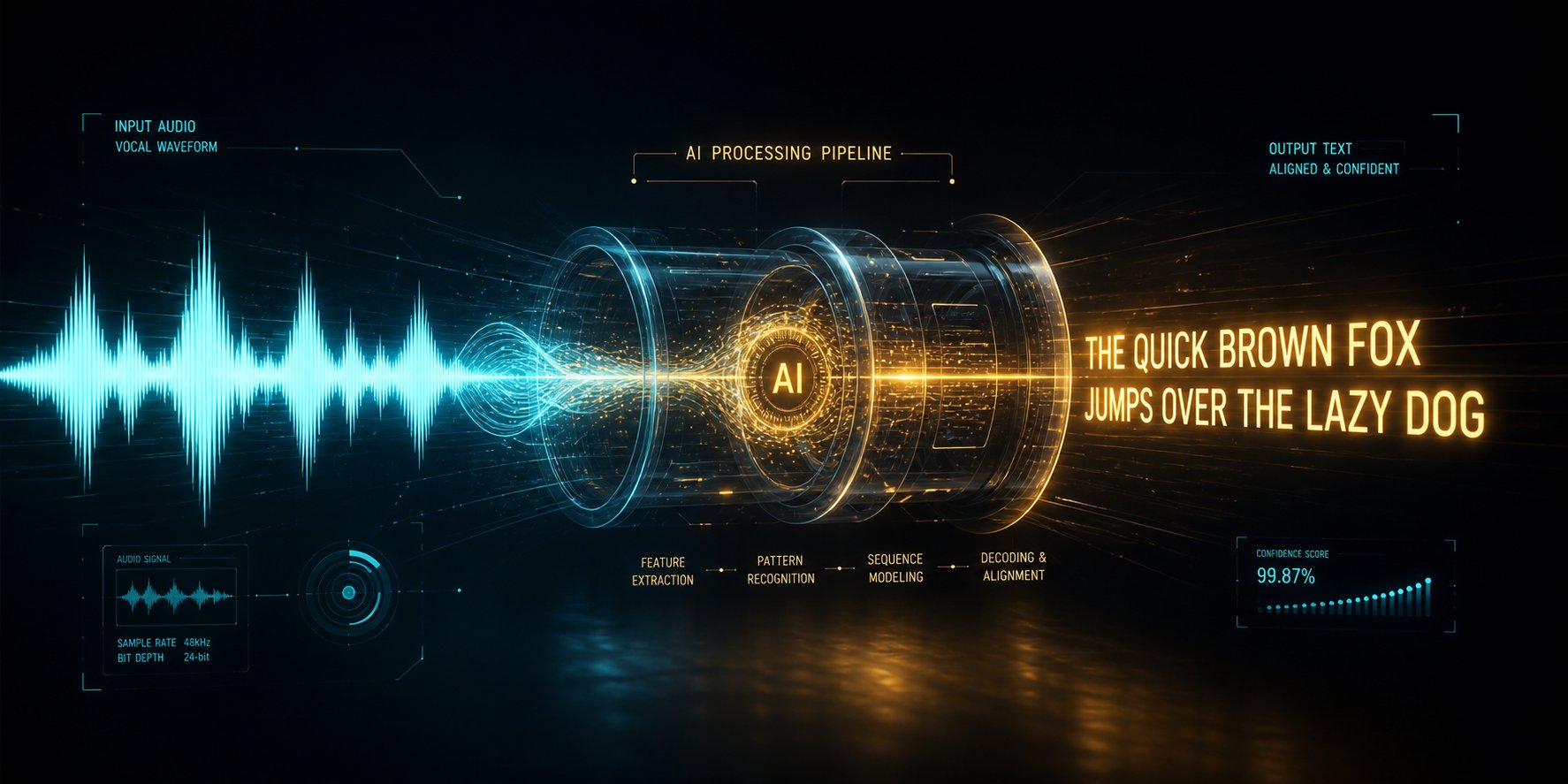
Preparing Your Audio Files for Accurate AI Transcription
You followed every step — picked the right tool, uploaded your track, reviewed the transcript, customized the visuals. And the result still looks off. Words land a beat late. The chorus transcript reads like a foreign language. Entire lines vanish from the output. Before blaming the software, look at what you fed it. The quality of your audio file is the single largest variable determining whether an AI lyrics video generator free tool delivers a usable draft or a frustrating mess.
This isn't speculation. Research from Songscription confirms that the quality of a source recording affects transcription results more than any other factor — more than the AI model, more than the tool's interface, more than how much you're willing to pay. Echo, background noise, and heavy compression all degrade the signal the model needs to accurately transcribe lyrics and sync them to the beat.
Audio File Formats and Quality Standards
Not all audio files are created equal, and the format you upload directly influences how well the AI can extract lyrics from a song. Lossy compression — the kind used by MP3 and AAC — discards audio information to shrink file size. At moderate bitrates, the difference is barely audible to human ears. But AI transcription models don't listen the way humans do. They analyze frequency patterns, harmonic overtones, and transient details that lossy compression quietly strips away. The result: degraded phoneme recognition, especially on sibilant consonants and quiet syllables that already sit at the edge of audibility.
When you have a choice of format, here's the order of preference for feeding audio into any ai lrc generator or lyric video tool:
- WAV (uncompressed) — preserves every detail of the original recording. Larger file sizes, but the best possible input for transcription accuracy. Use this whenever the tool's upload limit allows it.
- FLAC (lossless compressed) — identical audio quality to WAV at roughly 50–60% of the file size. An excellent compromise when upload limits are tight.
- MP3 at 320 kbps — workable for most transcription tasks. At this bitrate, compression artifacts are minimal enough that the AI can still parse vocals reliably.
- MP3 at 128 kbps or lower — avoid if possible. Heavy compression at these bitrates can smear vocal consonants and introduce artifacts that confuse the transcription model, particularly on high-frequency sounds like "s," "t," and "sh."
A practical rule: if your lrc file generator or lyric video tool accepts WAV or FLAC, use those formats. If you need to convert down to MP3, never go below 256 kbps. The few extra megabytes of file size buy you noticeably cleaner transcription results.
How Background Noise and Complex Mixing Affect Results
Imagine trying to hear someone speaking clearly at a concert. That's essentially what an AI model faces when you upload a densely mixed track. Heavy instrumentation, reverb tails, backing harmonies, and a low vocal-to-instrumental ratio all compete with the lead vocal for the AI's attention — and the AI loses that competition more often than you'd expect.
A study published on arXiv examining automatic lyrics transcription with the Whisper ASR model found that musical accompaniment is one of the major challenges in the field. The researchers demonstrated that using source-separated vocals — isolating the voice from the instrumental — consistently reduced Word Error Rate compared to processing the original full mix. On their MUSDB-ALT dataset, transcription accuracy improved substantially when vocal stems with no accompaniment were used instead of the full mix, with WER dropping from around 23% to roughly 14%.
What does this mean for you in practical terms? A few things you can act on immediately:
- Use vocal-isolated stems when available. If you produced the track yourself or have access to the session files, export a vocal-only bounce. This gives the AI the cleanest possible signal to transcribe lyrics from. Many DAWs let you solo and export the vocal track in seconds.
- Use a free vocal isolation tool as a preprocessing step. Services like Vocal Remover or the open-source Demucs model can separate vocals from instrumentals with surprisingly good quality. Running your track through one of these before uploading to your lyric video tool can dramatically improve results.
- Ensure the lead vocal sits clearly in the mix. If you're uploading a mastered track and can't isolate the vocal, at least make sure the vocal isn't buried. Tracks where the lead vocal is mixed prominently — sitting on top of the instrumentation rather than blending into it — transcribe far more reliably.
- Avoid tracks with excessive effects processing. Heavy autotune, extreme reverb, vocoder effects, and pitch-shifted harmonies all distort the natural characteristics the AI relies on to distinguish syllables. The more a vocal sounds "processed," the harder the AI works to decode it — and the more errors it makes.
Backing vocals introduce a specific complication worth mentioning. The same arXiv study found that Whisper systematically deletes backing vocals and non-lexical vocables ("ooh," "ah," "la") regardless of source separation quality — these deletions accounted for a high proportion of total transcription errors. If your song features prominent backing harmonies or ad-libs, expect to add those manually in the lyrics editor after the initial AI pass.
Troubleshooting Common Transcription and Sync Failures
Even with clean audio and the right file format, things go wrong. Here's what to do when your lyric editor shows a transcript that doesn't match reality — because no other guide on the internet covers this.
Timing drift across sections. The AI nails the first verse perfectly, but by the second chorus, every word lands a quarter-beat late. This usually happens when the song has subtle tempo fluctuations — a slight ritardando before the bridge, a pushed tempo on the final chorus — that the beat-detection algorithm doesn't catch. Fix it by splitting the problem section in your lyrics editor and manually nudging timestamps forward or backward. Most tools let you adjust timing at the word or line level. Focus corrections on section transitions (verse to chorus, chorus to bridge) where drift accumulates fastest.
Misheard words in rapid-delivery sections. Fast verses, double-time flows, and tongue-twisting phrases consistently trip up AI transcription. The model struggles when syllables compress below roughly 100 milliseconds each. You'll see substitutions (wrong words that sound vaguely similar), insertions (phantom words the AI hallucinated from instrumental artifacts), and deletions (words the AI simply skipped). Cross-reference against your lyric document and retype the corrections manually. There's no automated shortcut for this — it requires human ears.
Songs with unusual pronunciation or dialect. Regional accents, invented words, slang, and non-standard pronunciation create systematic errors. The AI maps what it hears against its training data, which skews heavily toward standard American and British English pronunciation. If your track features a heavy regional accent or genre-specific vocal style — think UK grime, Southern trap, or Jamaican patois — expect a higher correction load. Some tools let you paste a reference transcript before processing, which improves accuracy by giving the AI a target to align against rather than transcribing from scratch.
Partial or unsupported language coverage. If you're using an lrc generator for a song in a less commonly supported language, the AI may default to English phoneme mapping and produce gibberish. Check your tool's language support list before uploading. LyricEdits, for example, covers 90+ languages, while other tools may only reliably handle five or six. For multilingual tracks — a verse in English and a chorus in Spanish, say — you may need to process sections separately and stitch the results together in a general-purpose editor.
Cleaner audio input produces dramatically better lyric video output. Investing two minutes in preparing your audio file — choosing the right format, isolating vocals, and verifying mix clarity — prevents twenty minutes of frustrating corrections after the AI delivers its first draft.
Audio preparation is the invisible foundation beneath every polished lyric video. But even a perfectly transcribed, flawlessly synced video can fall flat if it's published in the wrong dimensions, the wrong aspect ratio, or the wrong duration for the platform your audience actually uses. Each platform has its own rules — and ignoring them wastes work you've already done.
Platform-Specific Optimization for YouTube, TikTok, and Instagram
A perfectly synced lyric video exported at the wrong aspect ratio is like printing a billboard-sized poster for a phone screen — technically finished, practically useless. Each platform enforces its own dimensions, duration sweet spots, and interface overlays that eat into your visible canvas. Exporting one version and cross-posting it everywhere almost guarantees it'll look wrong somewhere. Here's exactly what each platform expects and how to tailor your lyric video output accordingly.
YouTube Lyric Videos — Dimensions, Duration, and SEO
YouTube remains the primary home for full-length lyric videos, and it strongly favors horizontal content. If you're figuring out how to make a lyric video for YouTube, start with these specs: 16:9 aspect ratio at 1920 x 1080 pixels (1080p). YouTube supports resolutions up to 4K, but 1080p is the practical standard for lyric videos — it looks sharp on desktop and mobile without inflating file sizes unnecessarily. SocialPilot's video spec guide confirms that standard YouTube uploads accept files up to 256 GB and 12 hours in length, so duration is effectively unlimited for music content.
That freedom means you can publish a complete song as a single lyric video without trimming anything. But how do you make a lyric video on YouTube that actually gets discovered? Three SEO details matter more than most creators realize:
- Title format: Include the artist name, song title, and the phrase "Lyric Video" or "Lyrics" in the title. YouTube's search engine relies heavily on title text for music content discovery. A title like "Artist Name - Song Title (Official Lyric Video)" performs consistently.
- Description: Paste the full lyrics in the video description. This gives YouTube additional text to index and helps your video surface for searches of specific lines or phrases from the song.
- End screens and cards: Add end screens in the final 20 seconds linking to your other videos or channel. Use cards to link to streaming platforms or related content mid-video. These features increase session time — a key YouTube ranking signal.
If you want to learn how to make a song lyrics video on YouTube that competes in search results, treat the metadata with the same care you put into the video itself. A beautifully synced lyric video buried on page three of search results helps no one.
TikTok and Instagram Reels — Short-Form Lyric Clips
Short-form platforms flip every YouTube assumption. Vertical format is non-negotiable — 9:16 at 1080 x 1920 pixels. Horizontal lyric videos uploaded to TikTok or Reels display with large black bars above and below, immediately signaling "not made for this platform" and killing engagement before the first word appears on screen.
Duration strategy matters just as much as dimensions. A tiktok lyric video generator built for short-form content should help you isolate the strongest 15 to 60 seconds of your song rather than cramming in the full track. GetLyricVideo's TikTok guide breaks the strategy into tiers: 15- to 30-second hook clips for maximum discovery, 30- to 60-second verse-chorus excerpts for deeper engagement, and 60-plus-second cuts for dedicated fans. Videos under 30 seconds tend to achieve higher completion rates — and completion rate is TikTok's primary algorithm signal.
Equally critical is text placement. Both TikTok and Instagram overlay interface elements on your video — profile icons, like buttons, captions, and share controls — that cover roughly 250 pixels at the top and 340 pixels at the bottom of the frame. Any lyrics placed in those zones get partially or fully obscured. The safe area for readable text sits in the center-left region, spanning roughly 60% of the screen width. If you're using an instagram lyrics generator or any AI tool with vertical export presets, preview the output on your phone before publishing. Text that looks fine on a desktop editor frequently becomes unreadable on a 6-inch screen with UI overlays.
The growing trend of lyric snippet videos for music promotion makes this format increasingly important. A well-chosen 20-second clip with clean text sync can drive listeners to streaming platforms far more effectively than a static cover image — and any ig lyrics generator or TikTok-focused tool should give you the ability to select your clip's start and end points within the song.
Instagram Feed and Stories — Square and Vertical Formats
Instagram's feed supports multiple aspect ratios, but two perform best for lyric content. 1:1 square format at 1080 x 1080 pixels works well for feed posts — it occupies more visual space in the scroll than landscape video and displays consistently across devices. 4:5 portrait at 1080 x 1350 pixels takes up even more vertical feed space, which SocialPilot notes consistently outperforms landscape formats for engagement on mobile feeds.
Stories use the same 9:16 vertical format as Reels but cap individual clips at 60 seconds. For lyric videos, Stories work best as teasers — a single verse or chorus that drives viewers to the full video on YouTube or a streaming link in bio.
Carousel posts open up a creative option unique to Instagram: splitting a song into sequential lyric segments across multiple slides. Each slide can feature a different verse or section with its own background visual, creating a swipeable lyric experience. This format encourages longer interaction time per post, which Instagram's algorithm rewards with broader distribution. To put lyrics on a video carousel effectively, keep each segment self-contained — a viewer swiping in mid-carousel should still understand what they're seeing.
| Platform | Aspect Ratio | Recommended Resolution | Max Duration | Best Content Strategy |
|---|---|---|---|---|
| YouTube (Standard) | 16:9 | 1920 x 1080 | 12 hours (verified accounts) | Full-length lyric video with SEO-optimized title, description with full lyrics, end screens |
| YouTube Shorts | 9:16 | 1080 x 1920 | 3 minutes | Hook clip (chorus or best 30-60 seconds) linking to full video |
| TikTok | 9:16 | 1080 x 1920 | 60 minutes (uploaded); 10 minutes (recorded in-app) | 15-30 second hook clips for discovery; 30-60 seconds for verse-chorus engagement |
| Instagram Reels | 9:16 | 1080 x 1920 | 3 minutes (in-app); 15 minutes (uploaded) | 30-60 second lyric clips; trending audio integration for reach |
| Instagram Feed | 1:1 or 4:5 | 1080 x 1080 or 1080 x 1350 | 60 minutes | Square or portrait lyric clips; carousel posts with segmented verses |
| Instagram Stories | 9:16 | 1080 x 1920 | 60 seconds per card | Single-verse teasers driving to full video or streaming link |
A practical workflow that saves significant time: export your lyric video in two versions from the same project — one horizontal (16:9) for YouTube and one vertical (9:16) for TikTok, Reels, and Stories. Many free tools now support multi-format export, and creating both versions simultaneously is far more efficient than rebuilding the project from scratch for each platform. How to create a lyric video for YouTube and short-form platforms from the same session comes down to planning your text placement so it reads cleanly in both orientations — center your lyrics both horizontally and vertically, and they'll survive the crop either way.
Getting the dimensions and duration right ensures your video displays correctly. But displaying correctly and looking good are two different things — and the visual design choices you make inside that correctly sized frame determine whether viewers stick around or scroll past.
Typography and Visual Design Tips for Professional Lyric Videos
Correct dimensions keep your video from getting cropped. Good typography keeps your viewer from hitting "skip." The visual design layer — fonts, colors, contrast, animation — is where most free lyric videos reveal themselves as rushed afterthoughts. Two creators can use the same ai lyrics video generator free tool, upload the same song, and produce videos that look like they came from entirely different decades of design quality. The difference is almost always typography and visual choices.
Choosing Fonts That Enhance Readability and Mood
Font selection is the fastest way to signal whether a lyric video was made with intention or thrown together on autopilot. The right typeface enhances the song's mood before a single word is read. The wrong one creates a disconnect that viewers feel even if they can't articulate why.
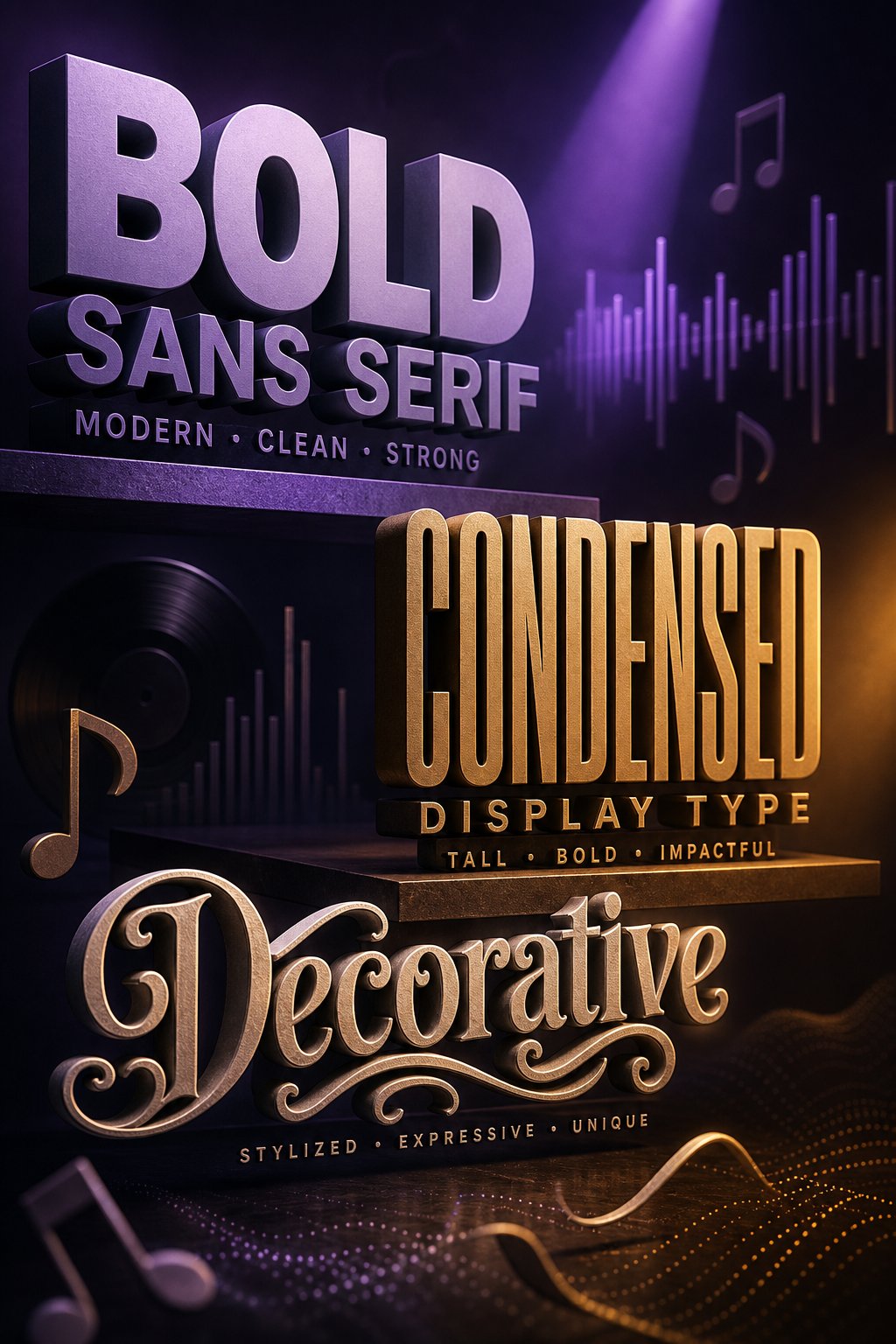
Three broad font categories cover most lyric video needs:
- Sans-serif fonts — clean, modern, and highly readable at small sizes. Families like Montserrat Bold, Poppins Bold, and DM Sans Bold work across pop, indie, R&B, and chill genres. Epitrite's typography research specifically recommends using Bold (700) or ExtraBold (800) weights for any lyric video viewed on mobile — anything below 600 weight becomes invisible against a video background at scroll speed.
- Condensed display fonts — tall, punchy, and designed to command attention. Bebas Neue and Anton fill vertical frames efficiently and pair naturally with hip-hop, rock, EDM, and high-energy tracks. Their narrow letterforms let you set larger point sizes without overflowing the line width, which is especially useful in a lyrics template designed for 9:16 vertical content.
- Stylized or retro fonts — options like Righteous add personality and visual identity. These work for funk, soul, disco, and tracks with a vintage aesthetic. Use them sparingly; personality becomes noise when every word on screen competes for attention.
One category to avoid almost entirely: script and cursive fonts. Sacramento, Pacifico, and similar handwriting-style typefaces look elegant in isolation but fail on mobile screens where connected letterforms require extra cognitive processing to decode. On a platform like TikTok, where viewers decide to keep watching in roughly half a second, that extra processing time means they scroll past before the first line registers. The only exception is using a script font for a single decorative element — a song title or section label — while keeping actual lyrics in a clean, bold typeface.
Sizing matters as much as font choice. Lyrics should be large enough to read comfortably on a phone held at arm's length. A good baseline: 60 to 85 points for standard sans-serifs, 80 to 100 points for condensed fonts. Always preview your lyric video template at the smallest likely viewing size — a 6-inch phone screen — before exporting. Text that reads perfectly on your laptop monitor can shrink into illegibility on mobile.
Color Contrast and Background Pairing
Even the perfect font disappears if it doesn't contrast sharply against whatever sits behind it. This is the most common visual failure in lyric videos: white text drifting over a bright or busy lyric video background, rendering entire lines unreadable for two or three seconds at a time.
The core principle is straightforward — high contrast between text and background ensures instant readability regardless of device, screen brightness, or viewing conditions. But "high contrast" means more than just picking white text and a dark backdrop. Backgrounds move. Colors shift. What reads clearly in one frame becomes invisible two seconds later when the visual underneath changes.
These color-contrast combinations and techniques consistently perform well across devices:
- White text with a 2-3 pixel dark shadow — the most versatile option. The shadow creates a subtle halo of contrast around each letter, ensuring readability against virtually any background. Most AI lyric video tools include a text shadow toggle; turn it on by default.
- Semi-transparent dark bar behind text — a rectangular overlay (typically 50-70% opacity black) placed behind each lyric line. This guarantees readability even over bright, high-motion footage. It's a standard technique in professional music videos and broadcasts for good reason.
- Background blur or dim overlay — instead of darkening a strip, apply a gaussian blur or brightness reduction to the background area directly behind the text. This preserves the visual atmosphere while creating a readable zone.
- Colored text on solid or gradient backgrounds — if your lyric video background is a simple gradient or solid color rather than video footage, you can use colored text that complements the palette. Yellow or cyan on dark navy, white on deep purple, pale gold on charcoal — test each combination at phone brightness and in both light and dark viewing environments.
- Outlined or stroked text — adding a contrasting stroke (usually black or dark gray, 1-2 pixels) around each letter. This works well with overlays for lyric edits where the background is unpredictable or changes frequently throughout the video.
A quick test that saves headaches: squint at your preview. If you can still read every word while squinting, your contrast is strong enough. If any line blurs into the background, viewers watching on a sun-lit phone screen will lose it entirely.
Animation Styles That Serve the Song
Lyrical animation is where a lyric video either starts to breathe alongside the music — or collapses into visual noise that distracts from it. The animation style you choose should feel like a natural extension of the song's rhythm and emotion, not a showcase of what the tool can do.
Three primary approaches dominate, and each serves a different musical context:
- Karaoke-style highlighting — a color sweep moves across each word in real time, tracking the vocal syllable by syllable. This creates the tightest perceived sync because the viewer receives continuous visual feedback tied directly to the singer's delivery. It works exceptionally well for pop, R&B, and any genre where the vocal melody carries the song. Think of it as the visual equivalent of following a bouncing ball — intuitive and engaging without requiring conscious effort. A karaoke caption guide from EchoPixa notes that word-highlight animations are among the most effective styles for keeping viewers locked to the rhythm.
- Word-by-word or line-by-line reveal — text appears incrementally, either one word at a time or one full line at a time, synchronized to the vocal phrasing. This builds anticipation and gives each word visual weight. It pairs well with hip-hop, spoken word, and tracks where the lyrics carry narrative significance. The reveal timing should match the delivery cadence — faster reveals for rapid verses, slower reveals for drawn-out phrases.
- Static text blocks — an entire lyric section appears at once and remains on screen for its full duration, then transitions to the next block. This understated approach works best for slower ballads, acoustic tracks, and ambient music where the mood is contemplative. The lack of per-word animation lets the viewer absorb the lyrics at their own reading pace rather than being pulled along by visual movement.
The most common mistake? Over-animating. When every word bounces, scales, rotates, and glows simultaneously, the text becomes a spectacle competing with the music rather than supporting it. Storykit's text overlay guide reinforces this principle: effective text overlays complement the underlying content rather than overwhelming it. A single, well-chosen animation style applied consistently throughout the video looks far more professional than cycling through five different effects across verses and choruses.
Match animation energy to song energy. A heavy, aggressive bounce effect on a soft acoustic ballad creates dissonance — viewers feel it even if they can't name the problem. A delicate fade on a hard-hitting trap beat looks weak and disconnected. When in doubt, default to karaoke highlighting for uptempo tracks and static or gentle fade transitions for slower material. Restraint reads as confidence.
A lyric card maker or lyrics card maker tool can also be useful for creating static lyric images — single-frame designs featuring one memorable line — that complement your video content on platforms like Instagram feed posts. These static assets follow the same typography and contrast principles but strip away animation entirely, focusing on one perfect typographic moment per card.
Strong design choices make a lyric video feel polished. But polish means little if the tool you're using quietly stamps a watermark across every frame, caps your resolution at 720p, or limits you to three exports per month. Understanding exactly what "free" costs you in practice is the next critical step before you commit to a workflow.
Honest Limitations of Free AI Lyric Video Generators
Polish and restraint make a lyric video look professional. But here's a question worth asking before you invest hours perfecting fonts and animations: will your finished video export with a giant watermark stamped across the chorus? Will it cap at 720p when your audience watches on 4K screens? Will the tool let you export three videos this month — and then lock you out until you pay?
Every other article ranking for "ai lyrics video generator free" is a product landing page. None of them have any incentive to spell out what "free" actually costs you. This section does.
Common Free Tier Restrictions You Should Know
Free tiers across the category follow a remarkably consistent pattern. The specific numbers vary by tool, but the types of limits repeat almost universally. Before you commit time to any free lyric video maker online, scan this table and identify which restrictions matter for your project.
| Restriction Type | What It Typically Looks Like | How Common It Is |
|---|---|---|
| Watermarks | Tool logo or brand name overlaid on the exported video, often in a corner or across the lower third | Very common — the majority of free tiers include a visible watermark on every export |
| Monthly Export Caps | 1 to 3 video exports per month; some tools limit by total minutes of rendered video rather than project count | Common — especially on tools that offer higher-quality free output |
| Resolution Limits | Free exports capped at 720p; 1080p and 4K reserved for paid plans | Common — VEED's free tier, for example, caps at 720p while paid unlocks 1080p and above |
| Restricted Style Libraries | Only a fraction of available templates, fonts, backgrounds, and animation presets accessible on the free plan | Moderate — template-based tools like Adobe Express gate premium templates behind paid tiers |
| Song Duration Limits | Free processing capped at 60 to 90 seconds of audio; full-length songs require a paid plan | Moderate — more common on AI-powered tools where longer audio means higher compute cost |
| Queue Priority | Free-tier jobs sit behind paid subscribers in the rendering queue, resulting in longer wait times during peak hours | Common on tools with server-side rendering — waits can stretch from seconds to hours during busy periods |
None of these limits are hidden traps. As Echonos's analysis of free-tier models accurately describes it, this is the standard SaaS trial mechanic: show real capability, cap real usage, convert on the gap. The mechanic itself isn't dishonest. The problem is that searching for a free lyrics video generator sets an expectation of "no-cost, complete solution" when the more accurate read is "no-cost sample of a paid solution." Knowing the difference in advance saves you from planning a release around a tool that won't deliver what you need at zero cost.
Watermarks, Export Limits, and Resolution Caps
Understanding that these restrictions exist is step one. Step two is figuring out which ones actually matter for your specific situation — because not every limitation hits every creator equally.
Watermarks are the most polarizing restriction. A branded logo in the corner of a lyric video you're posting to your personal Instagram story? Probably fine — your followers care about the song, not the production tool's logo. That same watermark on an official single release uploaded to YouTube or Spotify Canvas? Unacceptable. It signals "I didn't invest in this release" to listeners, playlist curators, and potential collaborators. If your video is going on a public-facing channel tied to your artist brand, a watermark disqualifies the export from being release-ready.
Resolution caps depend heavily on where you're publishing. A 720p export on TikTok? Barely noticeable — TikTok compresses uploaded video aggressively regardless of your source resolution, so the visual difference between 720p and 1080p shrinks substantially after platform processing. That same 720p file on YouTube? Noticeably softer, especially on desktop monitors and smart TVs where viewers can select playback quality. If YouTube is your primary platform, a 720p cap is a meaningful limitation. If you're only posting to TikTok and Reels, it matters far less.
Monthly export caps affect high-volume creators more than single-release artists. If you're making one lyric video for one song this month, a three-export cap gives you room to render, review, and re-render with corrections. If you're a content creator producing daily lyric clips for multiple tracks, that same cap runs out before the first week ends. Assess your output volume honestly before choosing a tool — a lyrics video maker free plan that covers your actual needs is more valuable than a paid plan you're subscribing to out of unnecessary caution.
Song duration limits create an invisible wall that catches many creators off guard. You upload a full four-minute track, the tool processes the first 60 seconds flawlessly, and then you discover the remaining three minutes require an upgrade. If you're creating short-form clips for social media, this might not matter — you only needed 30 seconds anyway. If you're building a full-length YouTube lyric video, a duration cap makes the free tier functionally useless for your purpose.
Strategies for Working Within Free Tier Constraints
Constraints don't have to mean compromises. With a bit of planning, you can make lyric videos free of charge and still produce content worth publishing. Here are practical strategies that experienced creators use to extract maximum value from free tiers without hitting frustrating walls mid-project.
- Use multiple tools' free tiers for different projects. Most free plans reset monthly. If Tool A gives you two watermark-free exports per month and Tool B gives you three, you effectively have five exports across two platforms. Rotate between tools based on which one's free allocation has refreshed. This isn't gaming the system — it's using each tool's trial the way it was designed.
- Draft on free tiers, finalize on paid only when it matters. Use a free lyric video maker online to test your concept — does the font work? Does the animation style match the song's energy? Does the transcript need heavy correction? Once you've confirmed the creative direction, upgrade to a paid tier only for the final export of your most important videos. This prevents spending money on experiments that don't pan out.
- Prioritize which videos justify a paid upgrade. Not every lyric video you make carries the same stakes. A promotional TikTok clip for a loosie or freestyle? The free tier is probably sufficient. An official lyric video for your debut single? That's the project worth paying to remove the watermark and export at full resolution. Rank your projects by visibility and permanence, and allocate your budget accordingly.
- Match the tool's free-tier strengths to your platform. A tool that caps at 720p but removes watermarks is perfect for TikTok content, where resolution compression happens anyway. A tool that exports at 1080p but adds a watermark is useful for internal review copies and demo reels. Play to each free tier's specific strengths instead of fighting its weaknesses.
- Check for signup credit models, not just subscription tiers. Some platforms — like Echonos with its 250 signup credits — offer a one-time allocation of full-quality output rather than an ongoing degraded free tier. You get fewer total uses, but each use produces the exact same quality a paying subscriber receives. If you only need one or two high-quality videos to evaluate a tool before committing, this model can be more useful than unlimited watermarked exports.
- Export at the highest quality the free tier allows, then upscale externally if needed. Free tools like Topaz Video AI or open-source options like Real-ESRGAN can upscale a 720p export to near-1080p quality. It's not a perfect substitute for native high-resolution rendering, but for social media uploads where platform compression softens everything anyway, the difference is often negligible.
The honest takeaway: free AI lyric video tools are genuinely useful, but they're designed to show you what's possible — not to replace a paid workflow indefinitely. Treat the free tier as a proving ground. Test your concept, validate your creative direction, and confirm the tool's transcription accuracy against your actual audio. When a project demands clean, release-ready output, that's when a strategic upgrade pays for itself.
This pragmatic approach — using free tiers intentionally rather than fighting their constraints — becomes especially important for a fast-growing group of creators who generate entire songs with AI music tools and then need visual content to share them. Their workflow introduces unique requirements that stretch free tiers in ways traditional musicians rarely encounter.
From AI-Generated Songs to Finished Lyric Videos
Creators who produce their own recordings have always needed lyric videos. But a different kind of creator is now flooding the pipeline — one who never touched a DAW, never hired a vocalist, and never wrote a melody by hand. They typed a text prompt into Suno, Udio, Stable Audio, or Riffusion, and three minutes later they had a fully produced song. The audio sounds polished. The lyrics already exist in their prompt history. The only thing missing? A way to actually share it.
Audio files don't go viral on their own. YouTube needs video. TikTok needs video. Instagram needs video. A raw MP3 sitting in a downloads folder reaches exactly zero listeners until it's wrapped in something visual — and for creators working with AI-generated music, a lyric video is the fastest, most accessible format to bridge that gap.
The Rise of AI-Generated Music and the Need for Visual Content
The AI music generation ecosystem has expanded dramatically. Suno and Udio handle pop, hip-hop, and genre-blending experiments. Stable Audio targets cinematic and ambient compositions. Riffusion specializes in audio generated from spectrograms. Smaller tools like ACE-Step, MiniMax, and ElevenLabs Music fill niches from orchestral arrangements to voice-led narrative tracks. SunoMV's platform documentation lists 12 distinct music models available across its ecosystem alone — a number that would have seemed absurd two years ago.
What all these platforms share is a critical limitation: they output audio only. You get an MP3 or WAV file and a set of lyrics you either wrote yourself or refined from the AI's suggestions. That's it. No album art. No video. No visual identity. For a creator who wants to post their AI-generated track on YouTube, promote a chorus clip on TikTok, or share a verse on Instagram Reels, the song is effectively trapped in a format none of those platforms prioritize.
This is why the intersection of AI music generation and AI lyric video creation has become one of the fastest-growing workflows in independent music. Creators who already know how to make lyrics for a song using AI prompts are now looking for equally streamlined ways to turn those lyrics and audio into publishable visual content — without learning After Effects or hiring a motion graphics freelancer.
Workflow for Turning AI Songs into Shareable Lyric Videos
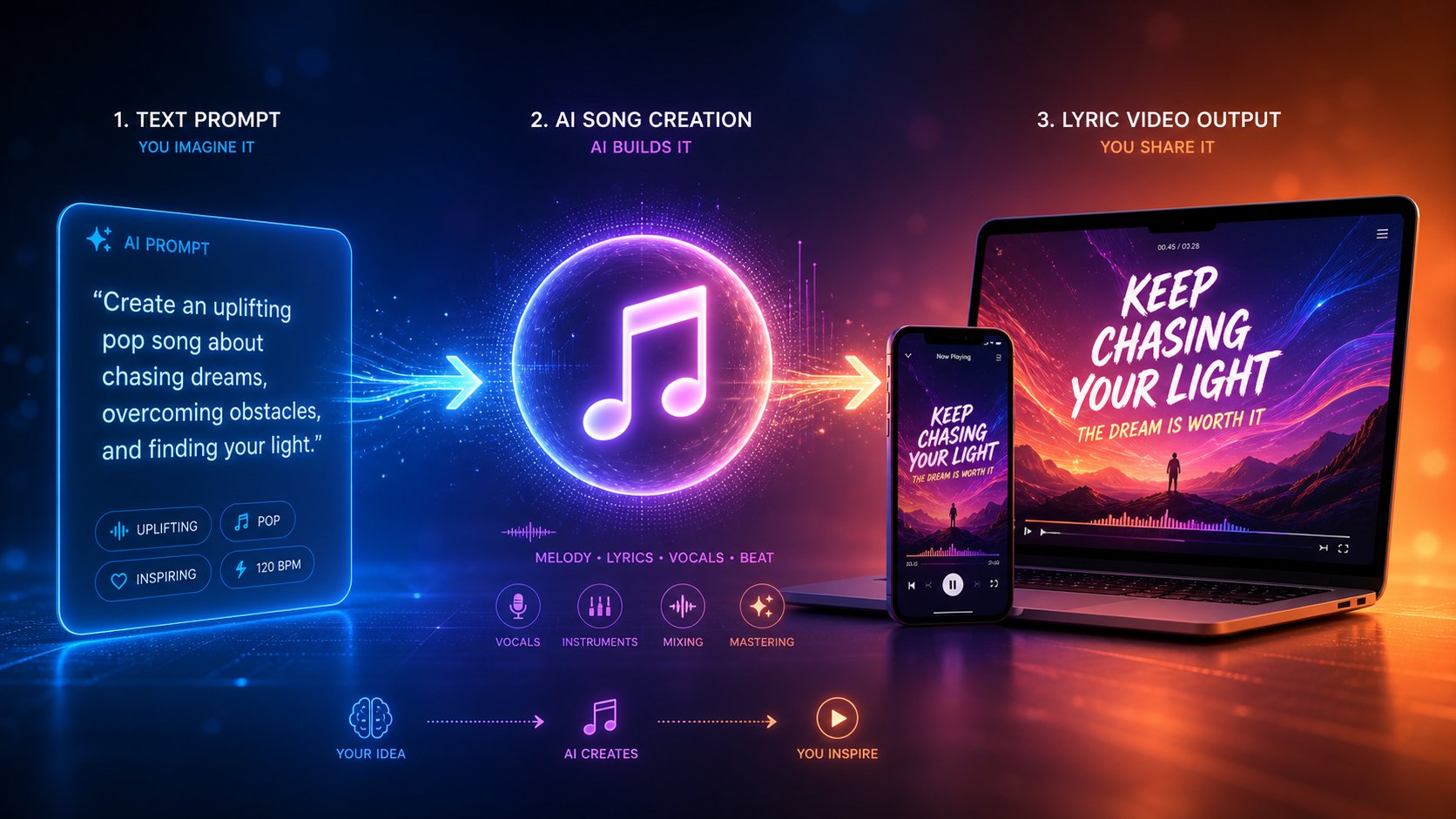
The end-to-end process is more straightforward than most creators expect, especially if you've already generated your song and have the lyrics on hand. Here's the complete workflow from idea to published content:
- Generate your song with an AI music tool. Use Suno, Udio, Stable Audio, or whichever platform fits your genre and style. Refine the output until you have a track you're genuinely satisfied with — the visual layer amplifies what's already there, so start with audio you'd be proud to share on its own.
- Export the audio file. Download the finished track in the highest quality format the platform offers. WAV is ideal; a 320 kbps MP3 works well if WAV isn't available. Avoid low-bitrate exports — as covered earlier, audio quality directly impacts transcription accuracy downstream.
- Prepare your lyrics. This is where AI-generated music creators have a built-in advantage. You already have the lyrics — they're either the exact prompt you typed or the output the AI produced. Copy them into a clean text document. Review for any discrepancies between what you wrote and what the AI actually sang, since vocal interpretation sometimes drifts from the original text. Knowing how to create song lyrics is already handled; now you're just verifying the final version.
- Feed both into an AI lyric video generator. Upload the audio file to your chosen tool. If the platform auto-transcribes, cross-reference its output against your prepared lyrics and correct any errors. If the tool accepts pasted lyrics alongside the audio — some do — paste your verified text directly to bypass transcription uncertainty entirely.
- Customize the visuals to match the song's mood. Select a background style, font, animation approach, and color scheme that complement the genre and emotion of your track. A cyberpunk visual palette for an electronic banger. Warm, soft-focus imagery for an acoustic ballad. Minimalist typography for a lo-fi chill track. The visual identity you build here becomes part of how listeners remember the song.
- Export for your target platform. Render a 16:9 version for YouTube, a 9:16 vertical cut for TikTok and Reels, and optionally a 1:1 square version for Instagram feed. Publishing the same song across multiple platforms with format-native videos maximizes reach without multiplying your workload.
The entire sequence — from exported audio file to a finished lyric video ready for upload — can take under ten minutes with a capable ai lyrics video maker. For creators who generate multiple tracks per week, that speed is the difference between a backlog of unreleased songs and a steady publishing cadence across every platform.
Choosing the Right Tool for AI-Generated Music Videos
Not every lyric video generator ai free tool handles the full range of content that AI music creators actually need. A basic text-overlay tool might sync your lyrics adequately, but what about the visualizer you want for the instrumental version? The cover-video format for a behind-the-scenes post about how you prompted the song? The promotional clip optimized for music marketing on social platforms?
Creators working with AI-generated music tend to produce more content per song than traditional musicians — multiple video formats, multiple platform cuts, multiple visual styles for A/B testing engagement. That volume demands a tool built for versatility, not just one-off lyric overlays.
MakeBestMusic's AI Music Video Generator fits this workflow particularly well. It handles lyric videos, visualizers, cover-video content, and music-promotion visuals under one platform — which means a creator who generated a track in Suno can produce a full YouTube lyric video, a TikTok-ready vertical clip, and a visualizer for an instrumental version without switching tools or re-uploading audio. For musicians and TikTok creators who are building an entire content strategy around AI-generated songs, that consolidation eliminates the friction of juggling four separate platforms for four different video types.
Other tools serve narrower but valuable roles. LyricEdits excels at story-driven lyric videos with AI-generated characters and scene creation — strong for creators who want a narrative visual layer rather than abstract backgrounds. Its 90+ language support also makes it the best ai lyric video maker for multilingual tracks, which AI music tools increasingly produce. SunoMV offers the smoothest experience for Suno-native tracks specifically — paste a Suno URL and the platform fetches both audio and perfectly timed lyric metadata directly, skipping the transcription step entirely. For creators whose entire catalog lives on Suno, that native integration removes a meaningful source of friction.
The broader pattern is worth noting: the question of how do you make lyrics for a song has already been answered by AI music platforms. The remaining gap — turning that audio-and-text output into shareable visual content — is closing fast. An ai lyric video maker that covers multiple video formats, supports multi-platform export, and handles the volume a prolific AI music creator generates is no longer a nice-to-have. For this growing segment of the creator economy, it's the missing piece that turns a private experiment into a public release.
Whether you're working with AI-generated tracks or traditional recordings, the tools covered throughout this guide share a common thread: they've collapsed a workflow that once demanded specialized skills and significant budgets into something any creator can execute in minutes. The best ai platform for song lyrics visualization isn't necessarily the most expensive one or the one with the longest feature list — it's the one that matches your actual output needs, respects the constraints of your budget, and produces results you're genuinely willing to put your name on. Start with the free tiers. Test against your real audio. And let the quality of the output — not the marketing copy — guide your decision.
