


What AI Vocal Removal and Unmixing Actually Mean
Imagine taking a fully baked cake and somehow separating it back into eggs, flour, sugar, and butter. That is essentially what an AI vocal remover unmix workflow does to a finished song. A single stereo audio file — containing every voice, guitar riff, bass line, and drum hit blended together — gets pulled apart into individual components called stems.
What Does AI Vocal Removal Mean
In a recording studio, a mixing engineer combines dozens of individual tracks into one polished stereo file. AI vocal removal reverses that process. Deep learning models analyze the mixed audio and predict which sonic elements belong to the voice, which belong to the drums, and so on — then output each as a separate file.
AI vocal removal is the process of using trained neural networks to decompose a finished audio mix into isolated stems — such as vocals, drums, bass, and other instruments — without access to the original multitrack session files.
You don't need studio access or the original recording project. You just need the final song file, and artificial intelligence handles the rest. The technology has matured rapidly, and results that sounded rough even a few years ago now rival what only professional engineers could achieve manually.
Unmix vs Vocal Removal vs Stem Separation
If you've searched for these tools, you've probably run into a confusing pile of overlapping terms. Here's the simple breakdown. To unmix a track means to pull a finished mix apart into its original pieces — it's the broadest way to describe the process, and some platforms like Unmixit use the word directly in their branding. Vocal removal is a narrower goal: you specifically want the singing voice gone, leaving a clean instrumental. Stem separation is the technical umbrella term covering the isolation of any and all instruments, not just vocals.
Source separation is yet another label you'll encounter, especially in academic research. Whether someone says "un mix this track," "isolate the vocals," or "separate the stems," they're describing the same core AI technology viewed from different angles. The distinction matters only in terms of what output you're after — a voice-free backing track, a solo drum loop, or a full set of individual instrument files.
The technology powering all of these terms didn't appear overnight, though. It evolved through decades of clever — and often frustrating — experimentation before deep learning finally cracked the problem.
From Phase Cancellation to Deep Learning
Every powerful technology has an origin story filled with imperfect early attempts. The AI-driven audio isolation tools you use today didn't emerge from thin air — they stand on decades of trial, error, and incremental breakthroughs. Understanding that journey helps you appreciate why modern results sound so clean, and why older methods left so much to be desired.
The Phase Cancellation Era
The earliest vocal eliminator software wasn't really software at all — it was a physics trick. Engineers discovered that if you took a stereo recording, inverted one channel's waveform, and summed it with the other, anything panned dead center would cancel itself out. Since lead vocals are almost always placed in the center of a stereo mix, this technique could, in theory, make the singer disappear.
In practice? The results were rough. Picture flipping a switch and watching the vocals fade — but the bass guitar, kick drum, and snare vanish right along with them. Any instrument sharing that center position got destroyed too. What remained sounded hollow, thin, and riddled with phasing artifacts that gave the audio an unnatural, "underwater" quality. The technique only worked on tracks where the vocals sat perfectly centered with no reverb or stereo effects, which ruled out most modern productions. It was a clever parlor trick, not a reliable program to remove voice from song files in any professional sense.
Spectral Processing and Early Software
The next generation took a smarter approach. Instead of relying purely on stereo positioning, frequency-based tools analyzed the audio spectrum and tried to identify where the human voice lived. Since most vocal energy sits roughly between 300 Hz and 4 kHz, early software to strip vocals from songs would target that range, attenuating those frequencies while leaving everything else relatively intact.
This gave users significantly more control. You could dial in the frequency bands to suppress, adjust the aggressiveness of the cut, and preserve more of the surrounding instrumentation. But a fundamental problem remained: instruments and voices share frequency space. An acoustic guitar's body resonance, a piano's mid-range, a saxophone's warmth — they all overlap heavily with the human voice. Cutting those frequencies to remove vocals inevitably carved chunks out of other instruments too, leaving audible gaps and a "scooped" tonal quality. Bleed was constant, and no amount of fine-tuning could fully separate sounds that occupied the same spectral territory.
The Deep Learning Breakthrough
Everything changed when researchers stopped writing rules and started training neural networks to learn patterns on their own. Here's the key difference: phase cancellation and spectral processing both relied on human-designed formulas that described where a voice might be. Deep learning models, by contrast, are trained on thousands of paired examples — isolated stems alongside their corresponding full mixes — so they learn the complex, overlapping relationships between sources at a level no hand-crafted rule could match.
Rather than simply asking "is this frequency a vocal?" a neural network learns subtle cues like how a singer's vibrato creates a distinct time-frequency texture, or how the harmonic structure of a voice differs from a distorted electric guitar even when both occupy the same pitch range. The model processes audio as a spectrogram — essentially treating sound as an image — and predicts a separation mask for each source. This approach handles reverb tails, stereo effects, and complex arrangements that would have been impossible for older methods.
Several open-source architectures pushed the field from academic curiosity to everyday tool:
- Spleeter — released by Deezer, this CNN-based model brought fast, accessible stem separation to the masses and remains popular for bulk processing thanks to its remarkable speed
- Open-Unmix — developed by the sigsep research community, it uses a BiLSTM architecture and serves as a clean, readable baseline for academic work
- Demucs — created by Meta, it combines waveform and spectrogram processing with Transformer attention to achieve some of the highest separation quality among publicly available models
- MDX-Net family — a competition-driven architecture refined through community challenges, particularly strong for vocal and instrumental splits and integrated into the popular UVR5 interface
Each architecture makes different trade-offs between speed, quality, and the number of stems it can produce. Cross-comparisons of these tools show that Demucs generally leads in overall multi-stem quality, while MDX-Net models often excel specifically at clean vocal-instrumental splits.
This leap from handcrafted rules to learned pattern recognition is exactly what makes today's AI vocal remover unmix tools so dramatically better than anything that came before. Yet knowing that these models work is only half the story — understanding how they process audio under the hood reveals why some separations sound pristine while others still leave artifacts behind.
How AI Source Separation Models Work Under the Hood
Knowing that neural networks outperform older methods is one thing. Understanding why they succeed — and where they still stumble — requires a closer look at what actually happens between the moment you upload a song and the moment clean stems appear on your screen.
Spectrogram Conversion and Neural Network Input
Raw audio is just a long sequence of amplitude values — thousands of tiny numbers per second that describe how a speaker cone moves back and forth. A neural network could process this waveform directly, and some architectures do. But most modern voice isolation models take a detour through a spectrogram first.
Think of a spectrogram as a heat map of sound. Time runs along one axis, frequency along the other, and the brightness (or color) at each point represents how much energy is present at that frequency during that moment. Converting a waveform into this visual format lets the model treat audio the way image recognition models treat photographs — scanning for spatial patterns, textures, and edges that distinguish one source from another.
Once the spectrogram is ready, the network's job is to generate what researchers call a mask for each target source. Imagine placing a transparency over the spectrogram that highlights only the regions belonging to the vocals, while dimming everything else. A separate mask does the same for drums, another for bass, and another for remaining instruments. Multiplying each mask against the original spectrogram and converting back to audio gives you isolated stems. The entire process of learning how to isolate vocals — or any other instrument — boils down to the model getting better at drawing those masks accurately.
Architectures like Demucs take this a step further by running two parallel paths: one that processes the spectrogram and another that works directly on the raw waveform. The outputs are then combined, capturing fine details that either path alone might miss. This hybrid approach is a major reason why modern instrument removal results sound dramatically cleaner than single-path methods.
Training Data and Why Model Quality Varies
A model is only as good as the data it learns from. Training a source separation network requires supervised learning: you feed it a complete mix alongside the individual stems that created that mix, and the model tries to predict each stem on its own. It then compares its prediction against the known ground truth, measures the error, and adjusts millions of internal parameters to reduce that error. Repeat this cycle across thousands of songs, and the network gradually learns the subtle differences between a human voice and a violin occupying the same pitch range.
Here is the catch: high-quality paired data — where you have both the finished mix and every isolated instrument — is extremely scarce. The widely used MusDB dataset contains only about 150 songs, a tiny pool compared to the millions of tracks the models will encounter in real-world use. Researchers stretch these small datasets using data augmentation techniques like pitch-shifting, tempo adjustment, and even splicing stems from different songs together to create artificial mixes. These tricks help the model generalize, but they can't fully replace genuine diversity.
This scarcity explains a frustration you may have experienced firsthand: a tool delivers stunning results on a pop ballad but mangles a jazz trio or a classical string quartet. Models trained predominantly on rock and pop music learn patterns specific to those genres — punchy kick drums, center-panned lead vocals, electric guitars panned wide. Feed them an orchestral piece where a soprano, flute, and oboe weave through the same frequency space, and the model's learned shortcuts fall apart. If you want to know how to isolate voice recordings from complex acoustic arrangements, the model's training diet matters as much as its architecture.
Browser-Based vs Cloud-Based Processing
Where the AI model actually runs has practical implications that extend well beyond speed. Two dominant approaches exist, and each involves real trade-offs.
Browser-based (local) processing runs the neural network directly on your device. Technologies like WebAssembly and, increasingly, WebGPU allow browsers to execute compute-heavy operations that previously required dedicated desktop software. Your audio file never leaves your machine, which eliminates privacy concerns entirely — an architectural guarantee, not just a policy promise. The downside is that separation quality and speed depend on your hardware. A laptop with an integrated GPU will process a five-minute track far more slowly than a workstation with a dedicated graphics card, and some older devices may struggle to run advanced models at all.
Cloud-based processing uploads your audio to remote servers equipped with powerful GPUs, runs the separation model there, and sends the finished stems back to you. This approach delivers consistent, high-quality results regardless of what device you're using — even a budget smartphone can produce studio-grade separations because the heavy lifting happens elsewhere. The trade-offs are latency (upload and download times, plus potential queue waits during peak usage), file size limits imposed by the service, and the fact that your audio temporarily resides on someone else's server.
| Factor | Browser-Based (Local) | Cloud-Based (Remote) |
|---|---|---|
| Privacy | Audio never leaves your device | Audio uploaded to external servers |
| Speed dependency | Your device's CPU/GPU | Server hardware (typically fast GPUs) |
| Internet required | Only for initial page/model load | For entire upload-process-download cycle |
| Result consistency | Varies by hardware | Consistent across all user devices |
| File size limits | Limited by device memory | Limited by service policy |
For most casual users wondering how to isolate vocals from a single track, cloud-based tools offer the path of least resistance. For professionals handling sensitive unreleased material or processing large batches, browser-based options provide peace of mind that no audio data touches a third-party server. Either way, the underlying AI model architecture — spectrograms, masks, encoder-decoder networks — remains the same. The difference is simply where those computations happen.
Understanding the mechanics behind the models naturally raises a practical question: when the separation finishes, what exactly do you get back? The answer depends on whether you choose a simple two-stem split or a more granular multi-stem extraction — and that choice shapes everything from output quality to creative flexibility.
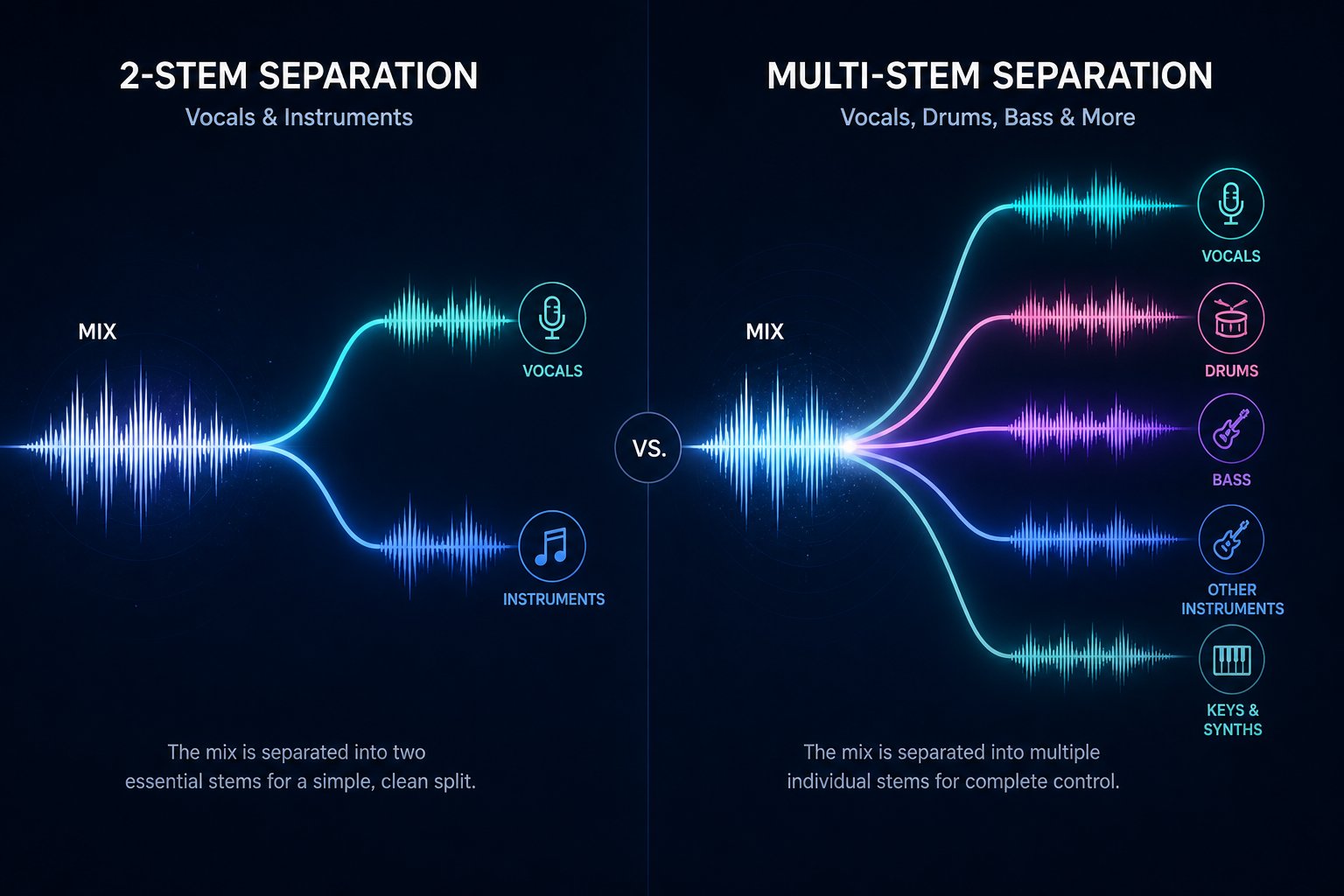
Two-Stem vs Multi-Stem Separation Explained
You've picked your tool, uploaded your track, and now a dropdown menu asks you to choose between two-stem and multi-stem separation. It sounds like a minor setting, but this single decision shapes the quality, speed, and creative flexibility of every stem you receive. Picking the wrong mode doesn't just waste processing time — it can produce noisier results than necessary for your specific goal.
Two-Stem Separation for Simple Vocal and Instrumental Splits
Two-stem mode does exactly what the name suggests: it splits your song into two files. One contains the isolated vocals. The other contains everything else — drums, bass, guitars, keyboards, and any other instrumentation — bundled together as a single instrumental track.
When is this the right call? More often than you'd expect. If you're building a karaoke backing track, you only need the voice removed. If you're a content creator grabbing a clean instrumental for a video, a single background file is all you need. Podcast editors stripping background music from a speech recording fall into this camp too — the goal is a clean voice, not four separate instrument files you'll never touch.
There's also a quality advantage that often gets overlooked. Because the model only needs to make one binary decision for each piece of audio energy — "is this vocals or not?" — it tends to draw cleaner, more confident masks. The result is less bleed, fewer artifacts, and a more natural-sounding output on both sides of the split. If your project doesn't require individual instrument access, two-stem mode delivers a cleaner separation with faster processing time.
Multi-Stem Separation for Granular Control
Multi-stem mode is where things get interesting for producers, remixers, and musicians. A standard four-stem separation outputs vocals, drums, bass, and "other" — that last category catching guitars, keyboards, synths, and anything else that doesn't fit the first three buckets. Some advanced models like HTDemucs 6s push further, splitting the "other" category into dedicated guitar and piano stems for a total of six outputs.
This granular control unlocks creative possibilities that a simple vocal-instrumental split can't touch. Wondering how to separate instruments in a song so you can rebuild the arrangement from scratch? Multi-stem is your answer. Remixers use it to extract a drum loop and layer new production underneath. Musicians learning by ear can isolate drums from song files to study rhythmic patterns, or pull out a bass line for transcription practice. Producers hunting for samples can grab a single element — a guitar riff, a piano chord progression — without dragging the entire mix along with it.
The trade-off is real, though. Every additional stem the model tries to predict introduces more opportunities for error. The AI has to draw four or six masks instead of two, and the boundaries between those masks get blurrier. You'll notice more bleed — faint drum hits ghosting into the bass stem, or guitar harmonics leaking into the vocal output. Processing time increases too, since the model is doing significantly more work per audio frame. For anyone trying to figure out how to isolate drum tracks from a song, multi-stem mode is essential, but expect to spend a few minutes on post-processing cleanup.
| Dimension | Two-Stem | Multi-Stem (4-6 Stems) |
|---|---|---|
| Output count | 2 files (vocals + instrumental) | 4-6 files (vocals, drums, bass, other, and sometimes guitar/piano) |
| Typical use cases | Karaoke tracks, content creation, podcast editing | Remixing, sampling, instrument transcription, practice |
| Processing time | Faster | Slower (scales with stem count) |
| Result quality | Cleaner overall — fewer mask conflicts | More bleed potential between closely related stems |
| Creative flexibility | Limited — vocal or instrumental only | High — individual control over each instrument group |
Choosing the Right Mode for Your Project
The decision framework is simpler than it seems. Ask yourself one question: do I need access to individual instruments, or do I just need the vocals separated from everything else?
If your goal is purely vocal-focused — removing a singer for karaoke, extracting an acapella for a mashup, or cleaning dialogue in a video — two-stem mode is faster, often cleaner, and gives you exactly what you need without extra files cluttering your project folder. You'll also find that the instrumental stem sounds more cohesive because it was never artificially carved into sub-components.
If you need to isolate drums from a song for a remix, pull out a bass line for sampling, or separate drums from song recordings so you can practice along at your own tempo, multi-stem is worth every second of additional processing time. The artifacts and bleed that come with it are manageable — a little EQ and noise gating go a long way — and the creative payoff of having individual instrument stems far outweighs the extra cleanup effort.
One practical tip: if you're unsure, start with two-stem. Listen to the results. If you realize you need deeper control, run the track again in multi-stem mode. Most AI vocal remover tools don't charge extra per run, so testing both costs nothing but a few minutes of patience.
Whichever mode you choose, the quality of your final stems depends just as much on what you feed the model as on which buttons you click. Your source file format, sample rate, and even how you trim the track before uploading all play a measurable role in how clean the output sounds.
Step-by-Step Workflow for Separating Audio Stems
You've picked your separation mode and you understand the technology running under the hood. But what does the actual process look like from start to finish? Whether you want to know how to extract vocals for a remix, how to get instrumentals of songs for a content project, or how to extract drums from a song for sampling, the workflow follows the same general pattern across virtually every AI separation tool. The difference between mediocre stems and impressive ones often comes down to preparation — the steps you take before you hit the process button.
Preparing Your Source File for Best Results
Think of your source file as the raw ingredient in a recipe. A chef can't turn stale bread into a gourmet meal, and an AI model can't extract crystal-clear stems from a heavily compressed, low-quality audio file. The neural network relies on subtle spectral details — the faint harmonic overtones of a voice, the transient snap of a snare hit, the spatial cues embedded in stereo width — to draw accurate separation masks. When lossy compression strips those details away, the model has less information to work with and produces rougher results.
Start with the highest quality version of the track you can find. Lossless formats preserve every detail the AI needs to make confident separation decisions. If lossless isn't available, a high-bitrate compressed file is an acceptable fallback, but you'll notice a quality drop compared to an uncompressed original — especially in the high frequencies and stereo imaging of the separated stems.
Here are the recommended input specs for optimal separation quality:
- Format: WAV or FLAC preferred; 320 kbps MP3 acceptable as a fallback
- Sample rate: 44.1 kHz minimum (the standard CD-quality rate most models are trained on)
- Bit depth: 16-bit minimum, 24-bit preferred for greater dynamic range
- Channel configuration: Stereo (mono files lose spatial cues the model uses for separation)
One often-overlooked tip: trim unnecessary silence, long intros, or spoken outros before uploading. Every second of audio adds processing time, and sections without musical content don't benefit from separation — they just slow things down. A quick trim in any free audio editor saves you minutes on longer tracks, especially with cloud-based tools that charge or queue by file duration.
Uploading and Selecting Separation Settings
With your source file prepared, the actual separation process is surprisingly straightforward. Most tools — browser-based or desktop — follow a nearly identical flow.
First, select or drag-and-drop your audio file into the interface. Common supported formats include MP3, WAV, FLAC, and OGG, though file size limits vary by platform. Browser-based tools typically cap uploads around 50-100 MB, which covers roughly 10-20 minutes of audio at standard quality.
Next, choose your separation mode. As covered in the previous section, two-stem gives you a vocal and instrumental split, while multi-stem breaks the track into four to six individual instrument groups. If your goal is figuring out how can i isolate vocals from a song without any drum or bass bleed, two-stem is the cleaner path. If you need to extract individual elements — say, pulling a drum break for sampling — multi-stem is the way to go.
Some tools offer an additional quality preset that trades processing speed for accuracy. A "fast" mode might run in 15 seconds but produce slightly more artifacts, while a "high quality" mode takes two to three minutes and draws sharper separation masks. For casual karaoke creation, fast mode is perfectly fine. For production work where you plan to drop stems into a DAW, the high-quality setting is worth the wait.
Hit process and let the AI do its work. A typical three-minute song takes anywhere from 30 seconds to a few minutes depending on the tool, the model complexity, and whether processing happens locally or on a remote server. You'll usually see a progress indicator — resist the urge to refresh the page or close the tab on browser-based tools, as this can interrupt the separation mid-calculation.
Exporting and Organizing Your Stems
Once processing finishes, you'll receive individual audio files for each stem — typically downloaded as WAV files or bundled into a ZIP archive. This is the moment that separates casual users from people who get consistently great results: what you do after downloading matters almost as much as the separation itself.
Start by listening to each stem individually. Play the vocal track on its own and listen for instrumental bleed — faint guitar notes or drum hits ghosting through. Then play the instrumental or individual instrument stems and check for residual vocal artifacts. This evaluation step takes two minutes and saves you from discovering problems deep into a project when it's too late to re-process.
Next, listen to all the stems together. Import them into any audio player or DAW, align them at the same start point, and hit play. They should sum back to something very close to the original mix. If one stem sounds noticeably quieter or louder than expected, the model may have over-separated or under-separated that source — a signal to try a different tool or model for that particular track.
File organization might sound mundane, but it prevents headaches down the road. Rename each stem clearly — "SongTitle_Vocals.wav," "SongTitle_Drums.wav" — rather than leaving them as generic output names. Keep every stem at the same sample rate and bit depth as your original to avoid conversion artifacts if you import them into a production session later. Store all stems from the same track in a dedicated project folder so they're easy to locate weeks or months later when you want to revisit the project.
If you're working on how to remove an instrument from a song for a very specific creative purpose — say, removing only the guitar to replace it with your own performance — run a multi-stem separation, discard the guitar stem, and recombine the remaining stems in your DAW. This "separate and recombine" approach gives you surgical control that would have been unimaginable with older phase cancellation or spectral methods.
A quick organization checklist to keep your workflow efficient:
- Rename all stems with the song title and instrument label
- Verify sample rate and bit depth match the original file
- Store stems in a dedicated folder per song or project
- Listen to stems solo and summed before committing to a project
- Note which tool and settings you used — helpful if you need to re-process later
Getting clean, well-organized stems out of the separation process is only half the creative equation. The real magic happens when those stems land in a real-world project — whether that's a karaoke night playlist, a remix session, a music lesson, or a video edit. Each use case brings its own tricks for squeezing the best results out of the separated audio.

Practical Use Cases for Musicians and Creators
A folder full of perfectly labeled stems is satisfying, but stems sitting on a hard drive don't make music, teach a student, or save a video edit. The real value of AI-powered separation shows up the moment those isolated tracks land inside a creative project. Here's how different types of creators are putting this technology to work — with practical tips that go beyond the obvious.
Karaoke and Sing-Along Track Creation
Picture this: your friend requests a karaoke version of an obscure deep cut that no karaoke catalog carries. A few years ago, you'd be out of luck. Today, you upload the original track, run a two-stem separation, and hand them a clean instrumental in under two minutes. AI vocal removal has genuinely democratized karaoke — anyone with a browser can build a backing track from virtually any song ever recorded.
A few karaoke-specific tips make the difference between a passable result and one that actually feels polished:
- Keep a whisper of vocal bleed. This sounds counterintuitive, but a faint ghost of the original voice helps singers stay on pitch and remember phrasing. If your tool offers a separation intensity slider, backing it off slightly can be a deliberate creative choice for sing-along use.
- Normalize output volume. When you're assembling a playlist of instrumentals from different songs, each track will land at a different loudness level. Running every file through a loudness normalization pass (targeting around -14 LUFS for casual playback) keeps the volume consistent so nobody scrambles for the dial between songs.
- Trim and fade. Instrumental outros that originally faded under a final vocal ad-lib can sound awkward when the voice disappears. A simple fade-out in any free editor cleans up the ending and gives the track a professional finish.
Music Production and Remix Workflows
For producers, stem separation has unlocked a creative shortcut that used to require industry connections. Sampling a drum break from a rare vinyl record? You'd traditionally need to chop around the other instruments and hope for the best. A modern drum remover AI extracts the percussion cleanly, giving you an isolated loop ready for layering, time-stretching, or processing without unwanted harmonic baggage.
The applications stretch across every production style:
- Remix creation: Extract vocals from the original and drop them over an entirely new instrumental bed — the foundation of modern remix culture.
- Mashup production: Pull the acapella from one track and the instrumental from another, then blend them in a DAW to create something neither artist imagined.
- Sample hunting: Want to extract drums from a song for a lo-fi beat? Isolate just the drum stem, chop a two-bar loop, and process it through saturation and vinyl emulation. The source material possibilities are now virtually infinite.
- Arrangement deconstruction: Curious how a hit record was built? Separating stems lets you solo each instrument group and study the arrangement decisions — panning, layering, frequency balance — that made the mix work.
As AudioShake notes, stem separation is increasingly integral to professional workflows where creative remixing and sampling demand individual instrument access without original multitrack session files.
Practice and Music Education
Students and teachers may be the most underappreciated beneficiaries of this technology. Imagine you're learning a guitar solo by ear. Playing it back in the full mix, you strain to hear every note buried under drums, bass, and keyboards. Isolate the "other" stem — which captures guitars, synths, and melodic instruments — and suddenly every bend, slide, and hammer-on becomes crystal clear.
The educational use cases run deep:
- Drum practice: Remove drums from the track entirely and play along with the remaining instruments at your own tempo. You hear the band without competing with the original drummer, making it far easier to develop your own feel and timing.
- Bass transcription: Bass lines are notoriously difficult to hear in a dense mix. Isolating the bass stem turns a guessing game into a straightforward transcription exercise.
- Vocal coaching: Teachers can isolate a student's reference vocal to analyze pitch accuracy and phrasing, then overlay it against the instrumental to demonstrate timing adjustments.
- Ensemble rehearsal: A choir director can remove the soprano part from a rehearsal recording so that section can practice their entrance independently against the other voices.
These aren't hypothetical scenarios — music educators are actively building practice libraries by running their curriculum repertoire through separation tools, creating custom minus-one tracks tailored to each instrument section.
Content Creation and Video Editing
Beyond music, creators working with video and podcasts face a surprisingly common problem: audio that was recorded with music and speech baked into a single file. A podcaster interviews a guest at a live event where background music bleeds into the microphone. A filmmaker shoots a scene where the on-set dialogue competes with a nearby street musician. A YouTuber wants to repurpose a clip but needs to swap the background track for a royalty-free alternative.
A background music remover solves each of these scenarios. By separating speech from music, creators can clean dialogue tracks, adjust the music-to-voice balance after the fact, or strip the music entirely and replace it. Figuring out how to separate audio from video is often the first step — extract the audio track from your video file using any free media tool, run the separation, then drop the cleaned stems back onto your timeline.
Practical content creation tips:
- Dialogue cleanup: Isolate the vocal stem from a noisy recording, apply gentle noise reduction, and recombine at a better speech-to-music ratio.
- Music bed swaps: Separate the original music from narration, discard it, and layer in a licensed track that matches your project's tone without re-recording the voiceover.
- Social media repurposing: Pull the instrumental from a video's soundtrack to use as background audio for a shorter clip, then overlay new commentary or text-to-speech narration.
For creators who need a fast, installation-free way to handle any of these tasks, MakeBestMusic's Vocal Remover serves as a practical starting point. It handles vocal and instrumental extraction directly in the browser, supporting musicians, remixers, karaoke creators, students, and content editors without requiring software downloads or account setup.
Every use case above produces impressive results most of the time — but not every time. Certain songs, mixes, and recording styles push even the best AI models to their limits, leaving behind artifacts that can derail a project if you don't know how to spot and fix them.
Common Artifacts and How to Fix Them
You've run the separation, downloaded the stems, and hit play — only to hear a faint, ghostly echo of the lead singer haunting your instrumental track. Or maybe the isolated vocal sounds oddly thin, as if someone draped a blanket over the microphone. These aren't signs that the technology failed. They're predictable side effects of how neural networks make decisions about overlapping sound, and nearly every user encounters them at some point. The good news? Most of these issues are fixable with straightforward post-processing techniques.
Understanding Vocal Bleed and Ghost Artifacts
Vocal bleed is the single most common complaint in AI stem separation. It shows up in two directions: faint vocal remnants lingering in the instrumental stem, and instrumental content leaking into the isolated vocal track. Solo your instrumental output and listen carefully during the chorus — you'll often hear a wispy, metallic shadow of the singer floating just beneath the surface. Flip to the vocal stem, and you might catch snare drum hits or cymbal shimmer that clearly don't belong.
Why does this happen? Because voices and instruments genuinely share frequency space. A snare drum's crack lives right around 2-4 kHz — the exact same range where vocal consonants carry their intelligibility. Cymbal shimmer occupies the 8-12 kHz zone alongside the airy breathiness of a singer's upper harmonics. When two sources overlap this heavily, the neural network is essentially flipping a coin on certain time-frequency regions, deciding whether a particular burst of energy belongs to the voice or the hi-hat. Sometimes it guesses wrong.
Dense, heavily compressed modern productions amplify the problem. Compression squashes the dynamic differences between instruments — the very differences the AI relies on to tell sources apart. A track with aggressive bus compression and layered reverb blurs the boundaries between every element, giving the model fewer spatial and dynamic cues to work with. Older recordings from the 1970s and 1980s, which tend to feature wider stereo placement and less compression, often separate far more cleanly for this exact reason.
The same bleed dynamics apply when you try to remove drums from a song. Kick drum energy in the 80-100 Hz range overlaps with bass guitar fundamentals, and snare body resonance around 200 Hz can bleed into the bass or vocal stem. If you're trying to remove drums from a track for practice purposes, expect some low-frequency drum content to show up where it shouldn't — and know that it's correctable.
Muddy Output and Loss of Stereo Imaging
Even when bleed is minimal, separated stems often sound... off. The isolated vocal might feel flat and narrow compared to how it sounded in the original mix. The instrumental could lack sparkle in the highs or feel like it collapsed from wide stereo into a claustrophobic mono image. This isn't a random glitch — it's a direct consequence of how the model handles uncertainty.
When the neural network encounters a frequency region where it can't confidently assign energy to one source, it makes a conservative choice: attenuate rather than risk assigning the wrong content. This cautious approach prevents obvious errors but strips away subtle details in the process. High-frequency "air" above 10 kHz tends to get distributed somewhat randomly across multiple stems because cymbals, vocal breath, and string harmonics all live there. The result is that each individual stem loses some of the shimmer and openness that made the original mix feel alive.
Stereo width suffers through a similar mechanism. Many separation models process the left and right channels somewhat independently, and the subtle phase relationships that create a sense of spatial width in the original mix can get disrupted during reconstruction. You'll notice this most on stems where wide panning was a key part of the sound — think hard-panned rhythm guitars or a drum overhead image that originally stretched from ear to ear. After separation, these elements can feel like they've been pushed toward the center, losing the immersive stereo field the original engineer carefully crafted.
If your separated stems sound dull or narrow and you're wondering whether the tool is broken, it almost certainly isn't. The model made safe choices to minimize bleed, and the trade-off was a loss of tonal brightness and spatial depth. Both are recoverable with the right post-processing moves.
Post-Processing Techniques to Improve Stem Quality
Knowing why artifacts occur is useful. Knowing how to fix them is what actually saves your project. The techniques below require nothing more than a basic DAW or free audio editor — no specialized plugins necessary, though dedicated tools like iZotope RX's spectral editor can handle stubborn cases with surgical precision.
EQ to notch out residual bleed. If your instrumental stem carries faint vocal ghosts, reach for a narrow parametric EQ cut in the 1-4 kHz range — the presence band where vocal intelligibility lives. Sweep the frequency slowly while listening until you find the spot where the ghosting is strongest, then cut 3-6 dB with a narrow Q. You'll hear the phantom voice fade without dramatically affecting the overall tone of the instrumental. For vocal stems contaminated by cymbal artifacts, a gentle cut around 10 kHz tames the metallic shimmer that doesn't belong to the singer's tone.
Noise gating to clean silent passages. Low-level bleed is most noticeable during pauses — the moments between vocal phrases or during a drum breakdown where faint, unwanted content becomes audible in the silence. A gate set with a threshold just above the bleed level will mute the stem during these quiet moments, creating clean silence between musical phrases. Use a fast attack and a moderate release to avoid chopping off the beginning of notes or creating unnatural cutoffs.
Stereo widening to restore spatial depth. When separated stems sound narrow, a stereo widener plugin — or even a simple mid-side EQ boosting the side channel — can recover much of the lost width. Be subtle here: over-widening introduces its own phase problems. A 10-20% increase in stereo width usually restores a natural sense of space without sounding artificially processed.
Transient shaping for percussive clarity. If you're learning how to remove drums from a song but the drum stem came back sounding soft and undefined, a transient shaper can emphasize the initial attack of each hit while pulling down sustained harmonic bleed from melodic instruments. This restores the snap and punch that the separation process dulled, making the drum stem usable for remixing or practice.
Spectral editing for surgical fixes. When a single cymbal crash or snare hit has been incorrectly assigned to the vocal stem, broad EQ won't help without affecting legitimate vocal content. Spectral editors let you visually identify the offending event — it appears as a distinct burst of energy at a specific time and frequency — and paint it out manually. It's time-consuming but unmatched for precision work on high-value material.
Here's a quick-reference troubleshooting guide pairing each common problem with its recommended fix:
- Vocal ghosts in the instrumental stem: Narrow EQ cut between 1-4 kHz; spectral editing for isolated incidents
- Cymbal bleed in the vocal stem: Gentle EQ cut around 8-12 kHz; de-esser tuned to metallic content rather than sibilance
- Low-frequency drum bleed in bass or vocal stems: High-pass filter at 80-100 Hz on the vocal stem; dynamic EQ triggered by transient detection on the bass stem
- Dull, lifeless tone across all stems: Subtle high-shelf boost above 8 kHz to restore air; avoid over-boosting, which amplifies any residual artifacts
- Collapsed stereo image: Mid-side EQ boosting the side channel or a stereo widener plugin at modest settings
- Bleed audible during silent passages: Noise gate with threshold set just above bleed level; fast attack, moderate release
- Soft, undefined drum transients: Transient shaper with increased attack emphasis and reduced sustain
One final strategy deserves its own emphasis: try multiple tools on the same track. Every AI model was trained on different data, uses a different architecture, and makes different trade-off decisions. A track that produces heavy bleed in one tool might separate cleanly in another. If you're working on how to remove drum tracks from songs for a professional remix and the first result isn't clean enough, running the same file through a second or third model often reveals dramatic differences in where the artifacts land. No single tool excels on every genre, every mix style, or every arrangement — and the best results often come from cherry-picking the cleanest stem from each tool and combining them in your DAW.
These post-processing techniques can rescue most problem stems, but they work best when you start with the right tool for the job. Different AI separation platforms handle different use cases with varying levels of quality — and understanding the landscape of available options helps you choose wisely before you ever hit the process button.

Top AI Vocal Remover and Unmix Tools Compared
The landscape of AI-powered stem separation tools has expanded rapidly, and the sheer number of options can feel overwhelming. Some run entirely in your browser. Others install on your desktop and plug directly into your DAW. A few require command-line skills and a dedicated GPU. Each category serves a different type of user, and picking the wrong one wastes time that could have been spent actually creating. Here's an honest breakdown of what's available, where each option shines, and where it falls short.
Free Browser-Based Tools
Browser-based tools are the fastest path from "I have a song" to "I have stems." No downloads, no installation wizards, no compatibility headaches — you open a webpage, upload a file, and get results. This accessibility makes them the default starting point for karaoke creators, students, content editors, and anyone who needs a quick separation without committing to software.
The trade-offs are predictable. Most browser-based services impose file size caps, typically around 50-100 MB, which limits you to roughly 10-20 minutes of audio per upload. Some queue your file behind other users during peak hours, adding wait time. Output formats may be restricted to MP3 rather than lossless WAV, and advanced configuration — model selection, processing depth, custom frequency ranges — is usually absent or simplified to a single dropdown.
Privacy architecture matters here too. Some browser tools process audio entirely on your device using WebAssembly, meaning your file never touches a remote server. Others upload your track to cloud infrastructure for processing. If you're working with unreleased material or client projects, the distinction between client-side and server-side processing is more than academic — it determines whether your audio stays private by design or by policy. Comparative testing across free tools confirms that client-side options like RemoveVocals and vocalremover.org guarantee zero server-side storage, while cloud-based services like LALAL.AI and Moises retain files on their infrastructure at least during processing.
Despite these limitations, the quality from top browser-based tools has reached a level that genuinely surprises first-time users. Clean vocal-instrumental splits are now routine, and even multi-stem separations — pulling drums, bass, and other instruments apart — produce usable results for many creative workflows. If you want to remove drums from song online free without installing anything, browser tools handle that capably for most pop, hip-hop, and rock material.
Desktop Software and DAW Plugins
When browser tools hit their ceiling — file size limits, processing depth, or output quality — desktop software and DAW-integrated plugins pick up the slack. These tools run locally on your machine, leveraging your CPU and, critically, your GPU for faster, higher-fidelity separations. The difference is audible, especially on complex arrangements where subtle bleed can make or break a remix.
The open-source community has produced two standout options. Demucs by Meta delivers some of the highest separation quality available, with its HTDemucs variant supporting up to six stems. Spleeter by Deezer trades some quality for speed, making it ideal for batch processing hundreds of tracks. Both require Python and a command-line terminal, which limits their audience to technically comfortable users. The free, open-source Ultimate Vocal Remover (UVR) wraps multiple models — including Demucs and MDX-Net — in a graphical interface that makes advanced separation accessible without typing a single terminal command.
On the commercial side, several major DAWs now include stem separation as a built-in feature. MusicRadar's comparative testing of 11 separation tools found that Apple Logic Pro's Stem Splitter currently leads the pack among DAW-integrated options, with clean recognition across six stem types and consistently low artifact levels. Steinberg's SpectraLayers Pro offers the deepest feature set, including an Unmix Drums processor that breaks a percussion stem into individual drum instruments — a dedicated drums remover within a professional spectral editor. FL Studio, Ableton Live, and Cubase also offer built-in separation, though results vary in quality and configurability.
A vocal remover plugin that operates directly within your mixing session — like LANDR Stems or third-party VST options — adds another dimension of convenience. Instead of exporting a mix, processing it externally, and reimporting the stems, you can separate audio in real time without leaving your DAW. This tight integration saves steps and lets you audition stems instantly against your existing arrangement, making it especially valuable for producers working on tight deadlines. For free AI drum removal or any multi-stem task where you need maximum control, desktop tools and plugins consistently outperform their browser-based counterparts — though they demand more setup, storage space, and sometimes a paid license.
Comparing Key Features Across Tools
Rather than declaring a single "best" tool, the honest answer is that different options suit different workflows, budgets, and technical comfort levels. The table below maps the major categories against the dimensions that matter most when choosing where to process your next track.
| Tool / Category | Processing Location | Max Stems | Typical File Limit | Cost Model | Output Quality |
|---|---|---|---|---|---|
| MakeBestMusic Vocal Remover | Browser | Vocal + instrumental | Standard web limits | Free, no signup | Clean vocal/instrumental splits; ideal for quick extraction |
| Demucs / Spleeter (open-source) | Local (Python + GPU) | Up to 6 (Demucs); up to 5 (Spleeter) | Unlimited (local storage) | Free (MIT license) | Highest ceiling; Demucs leads on multi-stem quality |
| Ultimate Vocal Remover (UVR) | Local (desktop GUI) | Varies by model (2-6) | Unlimited (local storage) | Free, open-source | Excellent vocal isolation via MDX-Net; multi-model flexibility |
| LALAL.AI | Cloud | Up to 10 | Varies by plan | Freemium ($10-15/mo for full quality) | Strong across genres; free tier limited to lower quality |
| Moises | Cloud + mobile app | Up to 5 | Varies by plan | Freemium ($4-20/mo) | Good on EDM; free tier capped at 5 separations/month |
| Logic Pro Stem Splitter | Local (macOS only) | Up to 6 | Unlimited (local storage) | Paid ($199.99 one-time) | Top-ranked DAW integration; clean recognition and extraction |
| SpectraLayers Pro | Local (desktop) | Up to 7 + Unmix Drums | Unlimited (local storage) | Paid (approx. $290) | Deepest feature set; lossless processing; spectral editing tools |
| DAW plugins (LANDR Stems, etc.) | Cloud via plugin | 4 (typical) | Varies by service | Subscription ($8-15/mo typical) | Convenient in-session workflow; quality varies by backend model |
| VocalRemover.org | Browser (client-side) | 2 (vocal + instrumental) | Standard web limits | Free, no signup | Decent on pop; limited to 2-stem only |
A few patterns jump out from this comparison. If you need a zero-friction starting point — no account, no installation, no cost — MakeBestMusic's Vocal Remover handles vocal and instrumental separation directly in the browser for musicians, remixers, karaoke creators, and content editors who want fast results without setup friction. If you're a producer seeking drum remover AI capabilities with maximum stem count and model control, open-source tools like Demucs and UVR deliver the highest quality ceiling at zero cost, provided you're comfortable with installation. If you want polished mobile access and don't mind a subscription, Moises offers a strong app-based experience. And if you're already working inside a DAW, checking whether your existing software includes built-in separation could save you from purchasing a separate tool entirely.
One practical strategy worth emphasizing: don't commit to a single tool. As covered in the artifacts section, different models produce different results on different tracks. A drum remover free option that nails a pop track might stumble on a jazz recording. Running the same song through two or three tools and cherry-picking the cleanest stems from each is a workflow trick that professionals use regularly — and it costs nothing when at least one of your options is free.
The tools keep getting better, too. Models are training on larger datasets, inference speeds are dropping, and features that required a desktop GPU just two years ago are migrating to browsers and mobile devices. That trajectory raises an obvious question: where is all of this heading, and what should you focus on right now to get the most out of the technology as it exists today?
The Future of AI Stem Separation and Your Next Steps
Every chapter of this article has described a technology that would have sounded like science fiction a decade ago. Pulling individual instruments out of a finished song — cleanly, quickly, and for free — was simply not possible before deep learning models entered the picture. Yet the current state of AI vocal remover unmix technology, as impressive as it is, still sits relatively early on its trajectory. The models are getting better, the hardware requirements are shrinking, and entirely new use cases are emerging faster than most creators realize.
Where AI Audio Separation Is Heading
Three trends are shaping the next phase of this technology, and none of them require speculation — they're already visible in current research and product development.
Larger, more diverse training datasets. The biggest bottleneck in separation quality has always been training data. Models trained primarily on Western pop and rock music struggle with genres that fall outside that narrow window. As researchers assemble broader datasets spanning jazz, classical, Afrobeat, reggaeton, and other global styles, the models will generalize better across musical traditions. You'll notice fewer artifacts on tracks that currently trip up even the best instrument remover AI tools — dense orchestral arrangements, heavily syncopated polyrhythmic percussion, and recordings with unconventional stereo placement.
Faster inference and lighter models. Processing a five-minute track through a state-of-the-art model still takes meaningful time on consumer hardware. But model compression techniques — quantization, pruning, and knowledge distillation — are steadily shrinking computational requirements without proportional quality loss. The practical result? Browser-based tools running advanced architectures on a mid-range laptop, and mobile apps delivering separation quality that currently demands a desktop GPU. An audio background music remover that once needed cloud servers could soon run entirely on your phone during a subway commute.
Real-time separation is becoming viable. DJ software like Rekordbox and Traktor already offers live stem manipulation, but the quality gap between real-time and offline processing remains significant. That gap is closing. As models get lighter and hardware gets faster, real-time AI separation is already appearing in live concert sound — engineers use it to isolate vocals from instruments on the fly, adjust individual stem levels during a performance, and even remove drums from a live feed for broadcast remixing. Expect this capability to trickle down from arena-scale productions to club DJs and livestreamers within the next few years.
Beyond these incremental improvements, a more ambitious frontier is emerging. Industry voices are pointing toward a two-step pipeline where AI first separates the stems — even imperfectly — and then a generative model reconstructs each stem with restored fidelity. Rather than simply subtracting energy from a mix, the system would understand each instrument's harmonic structure and rebuild it cleanly, preserving the original performance while eliminating the artifacts that current tools leave behind. The technical ingredients for this approach already exist in separate domains; assembling them into a single workflow is an engineering challenge, not a theoretical one.
Key Takeaways for Getting Started
You don't need to wait for tomorrow's breakthroughs to get real value from stem separation today. The tools, techniques, and workflows covered throughout this article already deliver results that are genuinely useful for music production, practice, karaoke, content creation, and remix work. Here's the essential playbook distilled into actionable steps:
- Start with the highest-quality source file you can find. WAV or FLAC formats give the AI model the most spectral detail to work with. A 128 kbps MP3 has already thrown away the subtle cues the network needs to draw clean separation masks.
- Choose the right stem count for your specific goal. Two-stem mode produces cleaner results when you only need vocals separated from instrumentals. Multi-stem mode is worth the trade-off in processing time and potential bleed only when you genuinely need individual instrument access.
- Experiment with multiple tools on the same track. No single model excels on every genre, mix style, or arrangement. Running a song through two or three different tools and cherry-picking the cleanest stem from each is how professionals consistently get the best results.
- Apply post-processing to polish your separated stems. A narrow EQ cut to remove vocal ghosts, a noise gate to clean silent passages, a stereo widener to restore spatial depth — these simple techniques bridge the gap between raw AI output and a stem that actually sounds mix-ready.
- Organize your stems consistently. Clear file naming, matched sample rates, and dedicated project folders prevent the kind of chaos that derails a creative session weeks later when you can't remember which file is which.
AI vocal removal and unmixing have transformed audio production from a specialized studio skill requiring original multitrack session files into an accessible creative tool that anyone with a browser and a song file can use today.
That shift is profound — and it's still accelerating. Whether you're a bedroom producer sampling a drum break, a guitar student learning a solo by ear, a karaoke host building a custom playlist, or a podcaster cleaning dialogue from a noisy recording, the same core technology serves all of these needs. The barrier to entry has dropped to zero. The only thing left is to upload a track, listen to what comes back, and discover how stem separation fits into your own creative process.
