

Understanding How AI Turns Sound and Ideas into Sheet Music
You have a melody stuck in your head, or maybe a recording on your phone that you need on paper. Either way, learning how to generate sheet music with AI starts with a simple question: what do you already have to work with?
Two Paths to AI Sheet Music
AI sheet music generation splits into two distinct workflows. The first is transcription — feeding an existing audio file into a tool that listens and converts what it hears into notation. The second is composition — using AI to generate new musical ideas and output them directly as readable notation or MIDI. If you have a recording, you need a transcription tool. If you have a musical concept you want developed and notated, you need a composition tool.
Is there AI that can transcribe music? Yes, but with significant caveats. AI transcription tools can detect pitches from clean solo piano recordings with up to 96% accuracy, but that number drops sharply with other instruments — around 78% for guitar, roughly 52% for vocals, and as low as 38% for dense multi-instrument mixes. And pitch detection alone doesn't produce playable sheet music.
AI sheet music tools fall into distinct categories, and choosing the right one depends on what you already have — a recording, a MIDI file, or just an idea.
What Makes AI Sheet Music Generation Possible
Modern neural networks power both paths. For transcription, models like Spotify's Basic Pitch and Google's MT3 analyze audio waveforms to identify individual note onsets, durations, and pitches. They handle pitch detection, attempt rhythm quantization (snapping detected timing to musical note values), and in some cases separate overlapping instruments into individual layers.
For composition, frameworks like MusicAIR use algorithmic approaches to construct melodies from text or lyrical input, outputting results as MusicXML — a format any notation software can read. These systems apply music theory rules to build rhythmic structures and pitch sequences that follow established conventions.
Here's where expectations matter. An ai sheet music generator can produce a useful first draft, but current tools still struggle with rhythm notation, expression markings, and voice separation. Even high-accuracy pitch detection doesn't equal a finished score. AI notation output typically requires human editing to become something a musician can actually perform from — the rhythm errors alone can make raw output unplayable.
The technology is genuinely useful as a starting point. The key is matching the right tool to your specific situation, then knowing what refinement steps come next.
Step 1 - Identify Your Starting Point and Goal
Your starting material dictates everything — the tool you pick, the workflow you follow, and how much cleanup you'll face at the end. Before searching for an mp3 to sheet music free converter or an AI composition platform, take a moment to figure out which of these four situations describes you.
Starting from an Audio Recording or MP3
You have a finished recording — maybe an MP3 from your music library, a voice memo, or a track someone sent you — and you want it converted into readable notation. This is the audio to sheet music path, and it relies on AI transcription tools that analyze waveforms and extract pitch information.
- What you need: A clean audio file, ideally featuring a solo instrument or isolated stem. WAV or high-bitrate MP3 formats work best.
- Expected output quality: Solo piano recordings transcribe well. Full mixes with multiple instruments produce significantly rougher drafts that need heavy manual correction.
- Key consideration: If your track has layered instruments, run it through a stem separator first. Trying to convert audio to sheet music online free from a dense mix will give you a cluttered, inaccurate result.
When you want to convert mp3 to sheet music online free, the recording quality is the single biggest factor in whether you'll spend five minutes cleaning up or an hour rewriting from scratch. A well-recorded solo piece can go from mp3 to music sheet in under fifteen minutes, including the review pass.
Starting from a Melody Idea or MIDI File
Maybe you've already sketched something in a DAW and exported MIDI, or you have a melody in your head but nothing recorded yet. These are composition-side workflows.
- From a MIDI file: You can import MIDI directly into notation software like MuseScore. The conversion is mostly a formatting task — quantizing timing, assigning voices, and cleaning up velocity artifacts.
- From an idea with no file: AI composition tools can generate MIDI from text prompts, chord progressions, or melodic seeds. You then export that MIDI into a notation editor. Think of it as creating a piano arrangement from audio ai free — except the "audio" is generated by AI rather than recorded.
- Expected output quality: MIDI-to-notation is more predictable than audio transcription because pitch and timing data are already discrete. The challenge is making the notation readable rather than detecting what's being played.
Starting from a Live Performance
You're playing an instrument or singing and want to capture the performance as notation in real time. This requires a song to note converter that works with live input — typically through a microphone or MIDI controller connected to your device.
- What you need: A quiet environment, a decent microphone or MIDI keyboard, and software that supports real-time input.
- Expected output quality: Real-time capture works reasonably well for single-line melodies and MIDI keyboard input. Polyphonic live capture (like playing full piano chords into a mic) remains unreliable and produces output that needs substantial editing.
- Key consideration: If accuracy matters, recording first and transcribing second almost always beats real-time capture. You get a chance to choose your best take before processing.
Each of these four paths leads to a different category of tool — and picking the wrong one wastes time before you even start. With your starting point clear, the next decision is which specific tool fits that workflow.
Step 2 - Choose the Right AI Tool for Your Workflow
Knowing your starting point narrows the field, but there are still dozens of tools within each category. The difference between a frustrating experience and a productive one often comes down to picking a tool designed for your exact input type — not the one with the flashiest marketing.
AI music sheet generators fall into three broad categories: transcription tools, composition and MIDI generation tools, and hybrid platforms that blend both. Here's how they compare at a glance:
| Tool Category | Input Type Accepted | Instruments Supported | Output Formats | Best For |
|---|---|---|---|---|
| AI Composition / MIDI Generation (e.g., MakeBestMusic AI MIDI Generator) | Text prompts, chord progressions, melodic seeds | Piano, guitar, bass, drums, strings, synths | MIDI (importable to notation software) | Composers and producers generating new ideas to convert into sheet music |
| AI Transcription (e.g., Songscription, Klangio) | Audio files (MP3, WAV, FLAC) | Piano, guitar, bass, drums, violin, flute, vocals, and more | PDF, MusicXML, MIDI, Guitar Pro | Musicians converting existing recordings into editable notation |
| Hybrid / Notation Editors with AI (e.g., MuseScore with plugins) | MIDI, MusicXML, manual input | Full orchestral range | PDF, MusicXML, MIDI, audio playback | Arrangers and educators refining AI-generated drafts into polished scores |
AI Transcription Tools for Audio-to-Notation
If you identified as someone with an audio recording in Step 1, transcription tools are your lane. Songscription AI focuses on a smaller set of instruments where model quality is highest — piano first, plus guitar, bass, drums, violin, flute, saxophone, trumpet, and vocals. It handles the full pipeline from audio to editable notation inside one web app, including isolating a single instrument from a full mix so you don't need to pre-separate stems. Exports cover PDF, MusicXML, MIDI, and Guitar Pro.
Klangio takes a broader approach with instrument-specific apps like Piano2Notes, Guitar2Tabs, and Drum2Notes, plus a unified Transcription Studio that can process several instruments from a single file. Its real advantage is integration — a DAW plugin, a public API, and mobile apps. On the instruments both tools cover, Songscription tends to produce cleaner results, particularly on piano. Klangio earns its place when you need transcription wired directly into your DAW or built into your own software.
For anyone who just wants a sheet music maker free of complex setup, Songscription's free tier offers unlimited 30-second transcriptions plus ten 3-minute transcriptions per month — enough to finish real work. Klangio's free tier limits you to 20-second previews without full export.
AI Composition and MIDI Generation Tools
Here's where things get interesting for readers who don't have an existing recording. If you're starting from a melody idea, a chord progression, or even a text description of what you want, AI composition tools act as a piano song maker that generates structured musical ideas you can then convert to notation.
MakeBestMusic's AI MIDI Generator fits this workflow directly. You feed it a creative prompt — a style, a mood, a chord structure — and it outputs MIDI files with melodic and harmonic content. From there, you import the MIDI into any notation editor like MuseScore and let the software render it as readable sheet music. It's a two-step process: generate the musical idea, then format it as notation. For producers and composers who think in terms of arrangement rather than transcription, this piano song creator approach often produces more usable results than trying to record a rough performance and transcribe it.
The key difference from transcription tools: you're not converting something that already exists. You're using AI as a compositional partner, then using standard MIDI-to-notation conversion to get it on paper. Because MIDI data is already discrete — every note has an exact pitch, start time, and duration — the notation conversion step is far more predictable than audio transcription. No guessing about pitch or rhythm.
How to Match Your Goal to the Right Tool
Imagine you're choosing between these categories. The decision framework is straightforward:
- You have a recording and want it notated: Use a transcription tool. Songscription for output quality on supported instruments; Klangio for DAW integration or instruments outside Songscription's range.
- You have an idea and want AI to develop it into notation: Use an AI MIDI generator like MakeBestMusic, then import the output into a sheet music maker AI tool or notation editor.
- You have a rough MIDI sketch and want a polished score: Import directly into MuseScore AI-enhanced workflows or Sibelius for formatting, voice assignment, and engraving.
- You want to explore and create from scratch: Start with composition tools to generate ideas, then refine in notation software — this is the ai sheet music maker workflow that gives you creative flexibility without needing recording equipment.
One common mistake: reaching for a transcription tool when you don't have a clean recording. If your source material is a hummed voice memo or a rough phone recording, you'll get better results generating the idea fresh through a composition tool than trying to transcribe a low-quality capture. The ai music sheet generator category you choose should match not just what you have, but the quality of what you have.
With your tool selected, the next factor that determines output quality isn't the AI model itself — it's how well you prepare the input before processing begins.
Step 3 - Prepare Your Input Files for Accurate Results
A mediocre input file fed into an excellent AI model still produces mediocre notation. Whether you're using an audio to sheet music free tool or importing MIDI into a notation editor, the few minutes you spend on preparation directly determine how much correction work you'll face afterward.
Preparing Audio Files for AI Transcription
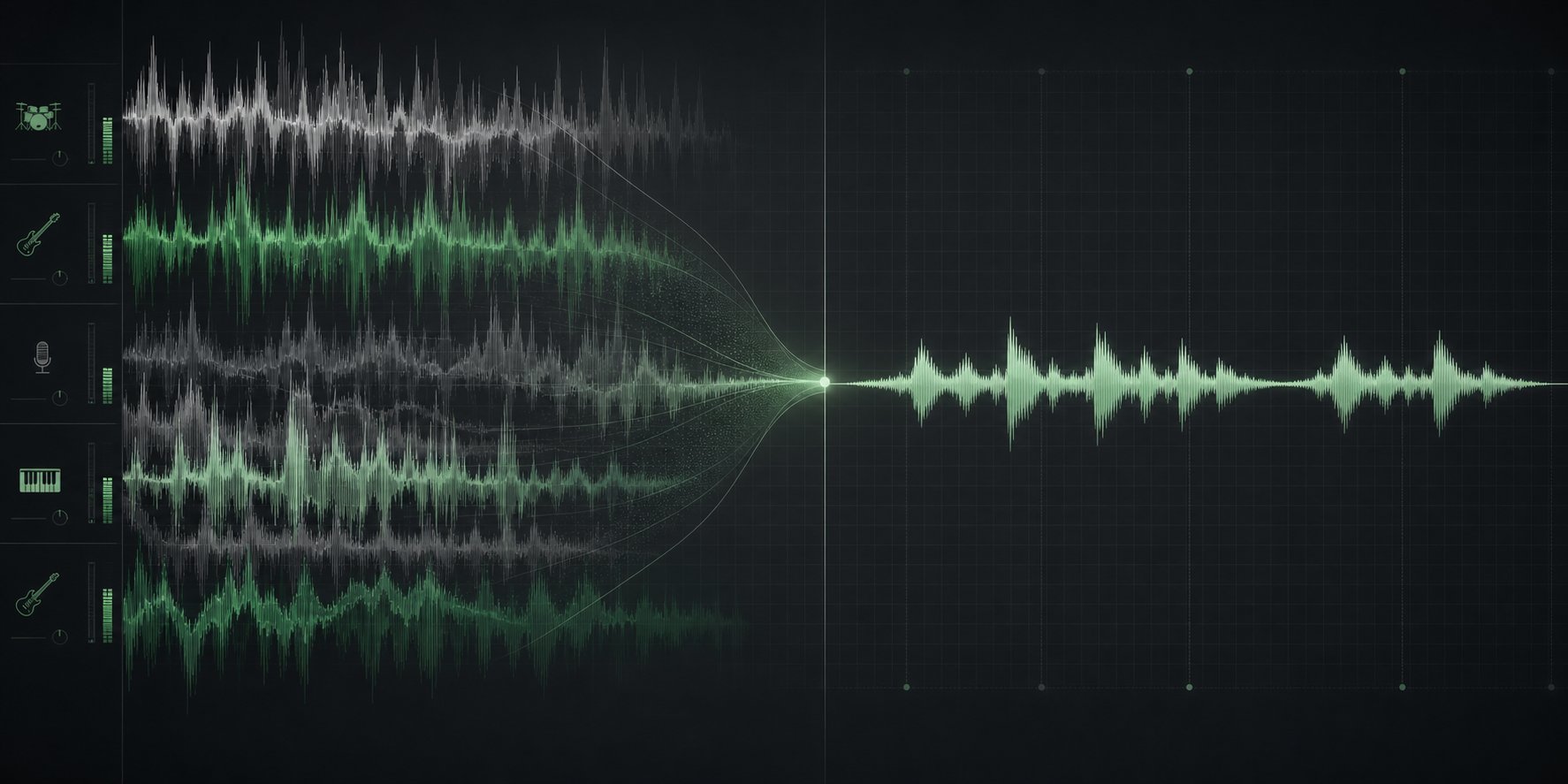
When you want to create sheet music from audio, file quality is the single largest variable in transcription accuracy. Research from the 2025 AMT Challenge confirms that polyphonic density is the primary challenge — models that achieve strong results on solo instrument recordings see F-measure scores drop by over 0.28 points when three instruments overlap. That means isolating instruments before transcription isn't optional; it's essential.
For format, use WAV or FLAC whenever possible. These lossless formats preserve all audio detail that AI models need to distinguish pitch and timing. MP3 at 128 kbps or higher is acceptable, but converting a lossy MP3 to WAV won't recover lost data — you'll just get a larger file with identical quality. Always work from the highest-quality original recording available.
One counterintuitive point: aggressive noise reduction can actually hurt transcription accuracy. Noise removal algorithms sometimes distort the signal itself or strip contextual frequency information that models use for pitch detection. If background noise isn't overpowering the instrument, leave it alone. Volume normalization, on the other hand, helps — consistent levels let the model process the entire recording uniformly.
Preparing MIDI Files for Notation Conversion
MIDI-to-notation conversion is more predictable than audio transcription because pitch and timing are already discrete data. But "discrete" doesn't mean "clean." Raw MIDI from a DAW session often contains timing imprecisions, overlapping notes, and velocity artifacts that produce cluttered, unreadable notation.
Professional music preparers follow a consistent MIDI cleanup workflow: quantize note starts and ends so rhythms snap to readable values, split polyphonic parts onto separate tracks so the notation software doesn't cram everything into layered voices, and organize tracks in score order. Work section by section rather than selecting everything and batch-quantizing — what looks correct in one passage may not apply globally.
Check that time signatures and tempos make musical sense for reading. If your composition has fast passages written at 60 BPM full of 32nd notes, doubling the tempo to 120 BPM converts those into 16th notes — far easier for performers to read. The goal is notation that a human can sight-read, not a literal transcription of MIDI timing data.
Common Preparation Mistakes That Reduce Accuracy
Every music to notation converter — whether processing audio or MIDI — performs worse when the input contains these avoidable problems:
- Mixed instruments in a single audio file: AI models hallucinate nonexistent notes and produce instrument leakage when multiple sources share similar pitch ranges. Separate stems first.
- Heavy reverb or delay effects: Reverb tails create phantom note detections. Use dry recordings or stems without bus effects when attempting to get sheet music from audio.
- Unquantized MIDI with micro-timing: Humanized feel is great for playback but produces notation littered with tied 64th notes and dotted rests. Quantize before importing.
- Format conversion as a "fix": Converting MP3 to WAV doesn't improve quality. Converting between lossy formats multiple times introduces artifacts. Start with the best source.
Before uploading to any music sheet generator from audio or importing MIDI into notation software, run through this preparation checklist:
- Isolate the target instrument using stem separation if your source contains multiple instruments.
- Verify your audio is in WAV, FLAC, or high-bitrate MP3 format — don't up-convert lossy files.
- Normalize volume levels so no section is significantly louder or quieter than the rest.
- Skip aggressive noise reduction unless background noise is genuinely overpowering the instrument.
- For MIDI files, quantize note starts and ends to the smallest rhythmic value that makes musical sense.
- Split polyphonic MIDI onto separate tracks — one voice per track wherever possible.
- Confirm time signatures and tempo markings reflect how the music should read, not just how it was recorded.
This checklist applies regardless of which audio to sheet music AI tool you're using. Clean input means the AI spends its processing power on genuine musical content rather than fighting through noise, bleed, and formatting issues — and that translates directly into notation you can actually use without rewriting half of it.
Step 4 - Generate Your Sheet Music with AI
Your files are prepped, your tool is selected, and now it's time to actually run the process. This is where settings matter more than most people realize — the difference between a usable first draft and a garbled mess often comes down to a few configuration choices you make before hitting "transcribe" or "generate."
Running AI Transcription on Your Audio File
When you use an AI tool to generate sheet music from audio, the typical workflow follows the same structure regardless of which platform you choose. Upload your file, configure the musical parameters, and let the model process. But those parameters deserve attention.
Most transcription tools present you with these settings before processing begins:
- Key signature: If you know the key of your recording, enter it. This helps the model choose correct enharmonic spellings — C# vs. Db, for example. Klangio's documentation confirms that selecting the correct key signature ensures accurate note and chord identification, making a measurable difference in output quality.
- Time signature: Tools like Klangio can detect time signatures automatically, but supplying the exact value — 4/4, 3/4, 6/8 — yields better rhythmic accuracy. If your piece changes time signatures mid-song, some tools handle this better than others.
- Tempo (BPM): Inputting the precise tempo allows the AI to quantize note durations correctly. Most tools estimate tempo from audio, but providing the exact BPM produces cleaner rhythmic notation.
- Quantization strength: This sets the rhythmic grid resolution — quarter notes, eighth notes, sixteenth notes, and so on. Smaller quantization values increase timing precision but can also overcomplicate simple passages. For pop or rock material, eighth-note quantization usually works well. For classical or jazz, you may need sixteenth-note resolution with triplet recognition enabled.
- Genre mode: Some platforms offer genre presets — pop vs. classical algorithms tuned differently for modern production versus orchestral recordings. Picking the relevant genre biases the model toward appropriate rhythmic and harmonic conventions.
Here's a practical tip: if you don't know the exact key or tempo, leave those fields on auto-detect for your first pass. Review the output, and if you spot consistent enharmonic errors or rhythm notation that looks off, re-run with the correct values specified manually. You'll often save more time with a second targeted pass than by editing hundreds of individual notes.
To ai generate sheet music from audio effectively, resist the urge to crank every setting to maximum precision. A sixteenth-note quantization grid on a simple ballad creates unnecessary complexity — dotted rests and tied notes where quarter notes would read cleanly.
Generating Notation from MIDI or AI Composition Output
The music to sheet music AI workflow from MIDI is fundamentally different. Because MIDI already contains discrete pitch and timing data, you're not asking the AI to guess what's being played — you're asking notation software to format existing data into readable sheet music.
When importing MIDI into MuseScore, the MIDI Import Panel appears at the bottom of the screen showing all tracks with note events. Key settings you'll encounter include:
- Quantization max resolution: Sets the upper limit for rhythmic grid size. MuseScore uses adaptive quantization — the actual grid reduces for shorter notes — but you control the ceiling. Quarter, eighth, 16th, 32nd, 64th, and 128th values are available.
- Max voices: Controls how many musical voices per staff the import creates. Lower values produce simpler, more readable notation.
- Is human performance: Enable this for unquantized MIDI from live playing. It activates beat-tracking algorithms that detect bar positions rather than relying on a strict grid.
- Split staff: Essential for piano — this assigns notes to left or right hand based on pitch separation, either at a fixed split point or using floating detection.
- Simplify durations: Reduces the number of rests and creates more readable note durations. Usually worth enabling unless you need exact rhythmic transcription.
Producers using AI MIDI generators like MakeBestMusic can export their generated melodies and arrangements as standard MIDI files, then import directly into MuseScore or Sibelius for sheet music rendering. Because AI-generated MIDI is typically well-quantized already — it doesn't have the timing imprecisions of human performance — the notation conversion step tends to produce cleaner results than transcribing a live recording. You generate the musical idea first, then let notation software handle the formatting.
After importing, click "Apply" in MuseScore's Import Panel to process with your chosen settings. If the result looks off, adjust parameters and reimport — the original MIDI file stays untouched.
Instrument-Specific Tips for Better Output
Not all instruments transcribe equally. The challenges vary significantly depending on what you're notating:
Piano: The best-supported instrument across all tools. An ai piano transcription produces the most accurate results when the recording is solo and clean. Enable hand separation (split staff) to get proper treble and bass clef assignment. Watch for voice layering issues in passages where both hands occupy the middle register — this is where even good ai piano sheet music generator tools need manual correction. Klangio's Piano2Notes and Songscription both handle this well, with Songscription generally producing cleaner output on complex passages.
Guitar: Guitar presents unique problems because the same pitch can be played at multiple fret positions. Tools like Guitar2Tabs offer guitar-specific settings — tuning (standard EADGBE or alternate), capo position, and picking vs. strumming style. If you're getting tab output, specify these correctly or you'll get fingerings that are technically correct but physically awkward to play.
Vocals: Melodic transcription from vocals is straightforward for the pitch content, but rhythm notation tends to be messy. Vocal phrasing doesn't align neatly with rhythmic grids — singers slide into notes, hold syllables across beat boundaries, and add ornaments the AI interprets as separate notes. Expect to simplify the rhythmic notation manually after generation.
Drums: Drum transcription is a distinct category. Klangio's Drum2Notes splits percussion into individual staves for each drum sound, which works well for reading but may need consolidation into standard drum kit notation. The challenge isn't pitch detection — drums occupy defined frequency bands — but rather distinguishing between similar-sounding hits (closed vs. open hi-hat, ghost notes vs. accented snare).
A general rule across all instruments: if your first-pass output requires corrections on more than 30-40% of the measures, don't edit — re-run with different settings. Changing the quantization grid, specifying the correct key signature, or switching genre mode often fixes systematic errors that would take longer to correct note by note.
The generation step gets you from raw input to a workable draft. What comes next — choosing the right export format — determines whether that draft flows smoothly into your editing and sharing workflow or creates compatibility headaches downstream.
Step 5 - Select and Export the Right Output Format
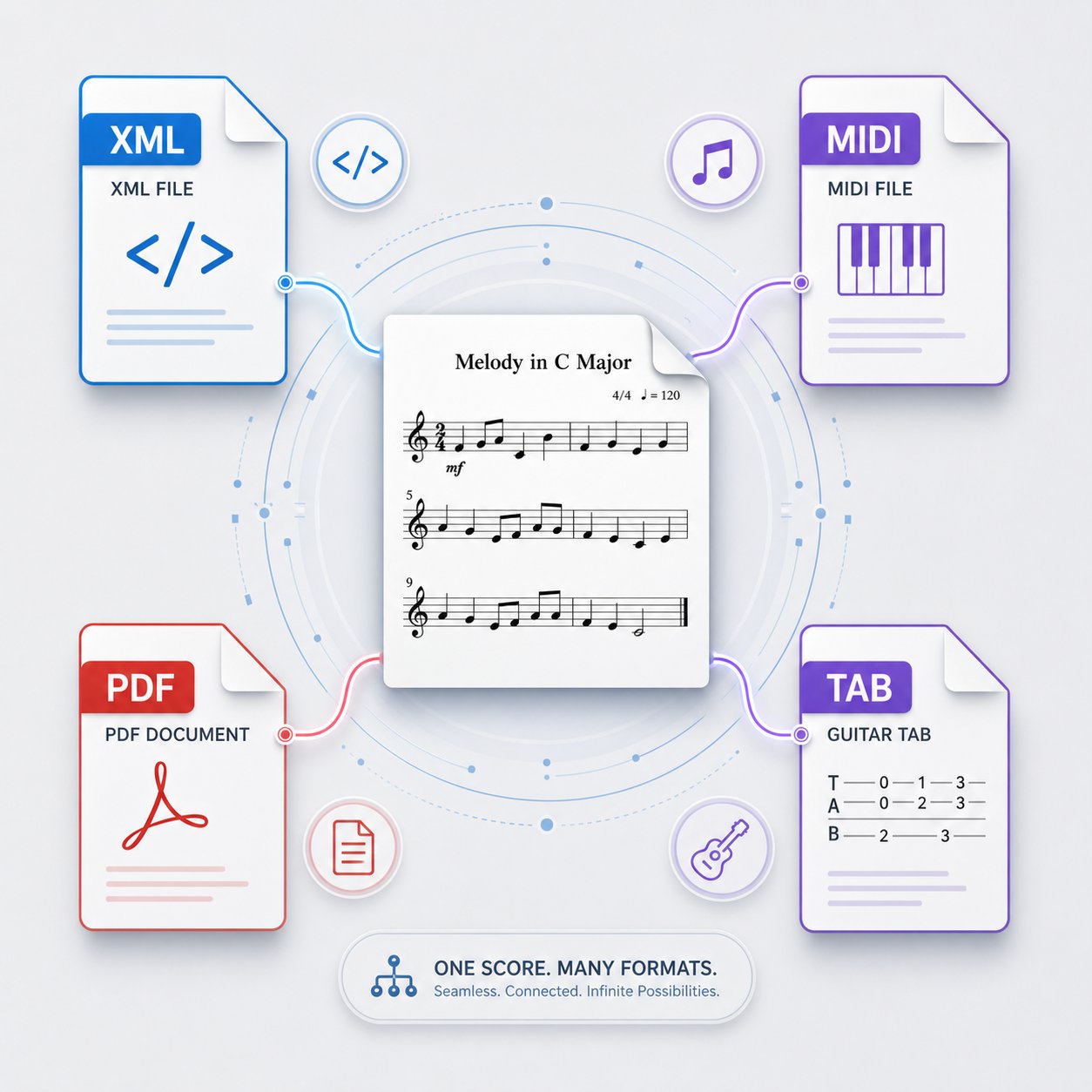
Your AI tool just finished processing, and now it's asking what format you want. This isn't a throwaway decision. The format you choose determines whether you can edit the result, who can open it, and how the score behaves when you hand it off to collaborators or performers. Most tools offer several options from a single generation — so understanding each one lets you export strategically rather than guessing.
| Format | Editable | Compatible Software | Best Use Case |
|---|---|---|---|
| MusicXML | Yes — full notation editing | MuseScore, Sibelius, Dorico, Finale | Ongoing arrangement, engraving, and part extraction |
| MIDI | Yes — note and timing data | Any DAW (Logic, Ableton, FL Studio), MuseScore, Sibelius | Production workflows, further arrangement, sound design |
| No — static visual output | Any PDF reader or browser | Print-ready scores for rehearsal and performance | |
| Guitar Pro (GP5) | Yes — tab-specific editing | Guitar Pro, TuxGuitar | Guitar and bass tablature with playback |
| LilyPond | Yes — text-based source | LilyPond engraving engine | High-quality typesetting from plain-text input |
MusicXML for Editable Professional Notation
If you plan to refine your AI-generated score in any way — fixing notes, adding dynamics, extracting individual parts — MusicXML is the format to grab first. It functions as the universal exchange standard for notation software. MuseScore has invested heavily in MusicXML import, including smart conversion systems that identify and fix common problems in imported files. Sibelius and Dorico handle MusicXML equally well.
Think of MusicXML as the "source code" of your score. It preserves note pitches, durations, staff assignments, key signatures, time signatures, and basic layout information in a format any program to write music score can interpret. The Library of Congress recommends MusicXML as a preferred preservation format for digital scores specifically because it isn't locked to any single application. If you want to create your own music score that stays editable and portable for years, this is the format to prioritize.
MIDI for Production and DAW Integration
MIDI doesn't look like sheet music — it's raw note data. But it's the right choice when your goal is further production work rather than print notation. If you generated a melody or arrangement using an AI music sheet generator and want to layer sounds, adjust instrumentation, or trigger virtual instruments in a DAW, MIDI gives you that flexibility.
One practical detail: most AI transcription tools offer both quantized and unquantized MIDI. Klangio's documentation clarifies the difference — quantized MIDI snaps notes to a rhythmic grid (better for notation conversion), while unquantized MIDI preserves the original performance timing (better for realistic playback in a DAW). Export both if you're unsure which workflow comes next.
MIDI also serves as a bridge format. You can import MIDI into MuseScore or any music score maker free of charge and convert it to readable notation there. This makes MIDI a good intermediate step when you want to make your own score from AI-generated ideas but prefer doing the engraving in dedicated software.
PDF and Print-Ready Formats
PDF is where most scores end up when it's time to hand something to a performer. It's static — no editing, no reformatting — but universally readable on any device. Export PDF only when your notation is finalized and you're confident no further corrections are needed.
A practical workflow tip: always export MusicXML first, even if you think the score is finished. You can generate a PDF from any notation editor at any time, but you can't reverse-engineer an editable score from a PDF without running it through OCR (optical music recognition), which introduces its own errors. Treat MusicXML as your working file and PDF as your distribution file.
For anyone building a library of scores — whether you're a score creator assembling a personal catalog or a teacher producing materials — keeping the MusicXML source means you can regenerate PDFs at different page sizes, transpose keys, or extract individual parts without going back to the AI tool and reprocessing from scratch.
With your format chosen and files exported, the real craft begins: importing that output into notation software and turning a functional draft into a polished, performance-ready score.
Step 6 - Edit and Refine Your AI-Generated Score
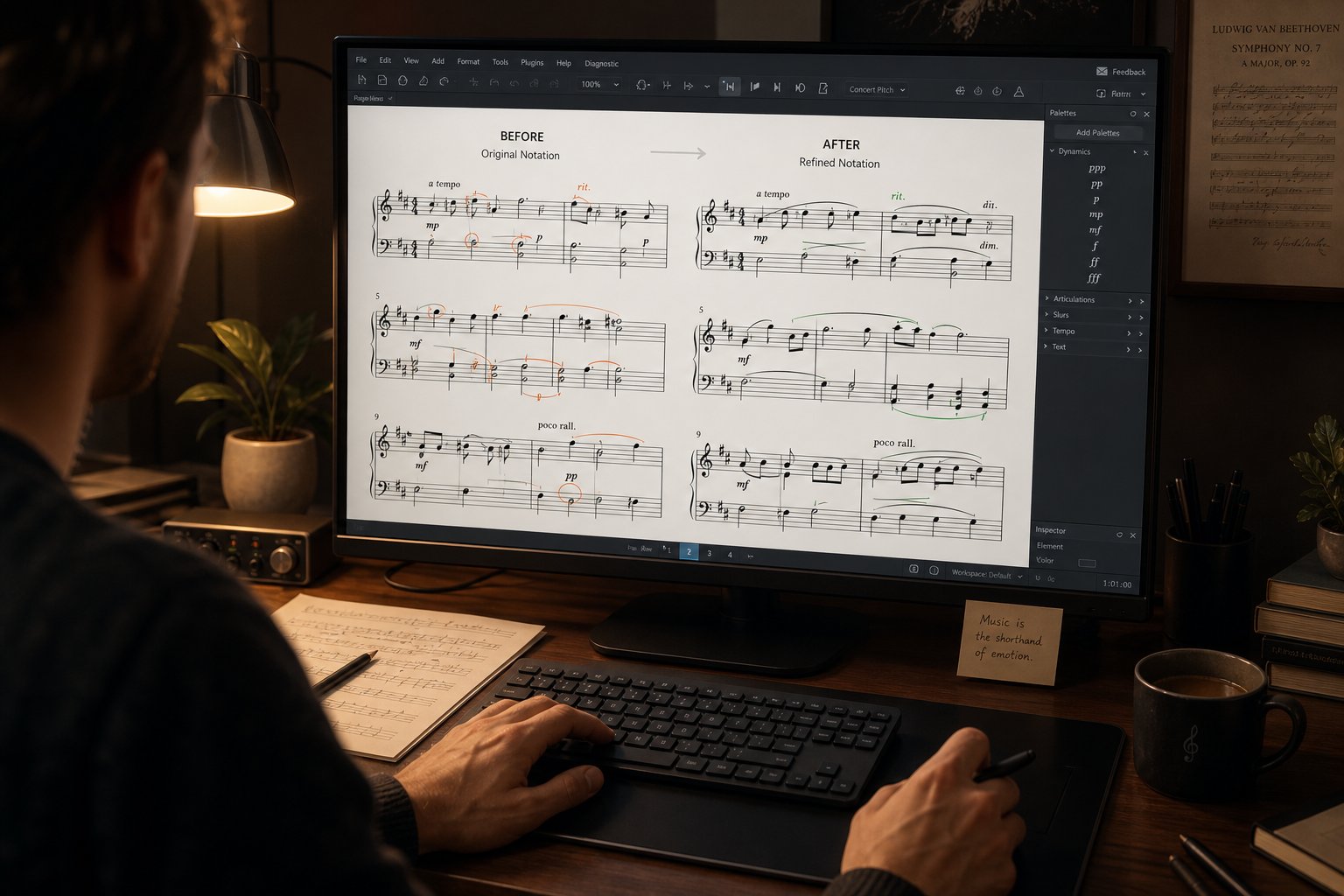
Here's the part most guides skip entirely: no AI tool produces a performance-ready score on the first pass. What you have after generation is a draft — often a solid one, but a draft nonetheless. The editing phase is where you turn that machine-generated output into something a real musician can pick up and play without stumbling. If you want to write your own sheet music that performers actually enjoy reading, this refinement step is non-negotiable.
Importing AI Output into MuseScore or Notation Software
MusicXML is your best starting point for editing. Open MuseScore, go to File > Open, and select your exported MusicXML file. When the import dialog appears, you'll encounter several options that affect how the score renders. According to MuseScore's handbook, enabling "Import layout" preserves page size, margins, and staff size from the original file, while "Import system and page breaks" carries over the structural formatting. For AI-generated files, one setting deserves special attention: "Infer text type based on content where possible." This option intelligently identifies tempo markings, fingerings, and other text elements that AI tools often encode as generic staff text — saving significant manual cleanup time.
After import, you'll likely notice formatting differences from what the AI tool previewed. This is normal. Spacing variations between software mean bar groupings may shift. If the layout looks cluttered, remove all imported breaks first: right-click any break, choose Select > Similar, and press Delete. Then let MuseScore reflow the music according to its own spacing rules before you begin note-level corrections.
For MIDI imports, MuseScore's Import Panel gives you a second chance to adjust quantization and voice settings — useful if the initial generation settings weren't optimal. The original file remains untouched, so you can experiment freely.
Common Errors to Fix in AI-Generated Scores
AI-generated notation follows predictable error patterns. Rather than scanning the entire score randomly, work through corrections systematically. Here are the most frequent issues, listed in the order you should address them:
- Incorrect note durations and rhythm groupings: The most common problem. AI often writes a dotted eighth plus a sixteenth where a simple quarter note reads more naturally, or ties notes across beats in ways that obscure the pulse. Simplify rhythmic notation so beat boundaries remain visible — this acts as a sheet music simplifier pass that makes the score dramatically easier to sight-read.
- Wrong enharmonic spellings: A transcription in Eb major shouldn't contain D# notes. Select the offending note and press J in MuseScore to toggle between enharmonic equivalents. Check this against your key signature — consistent spelling is what makes notation scannable.
- Voice assignment errors: AI frequently dumps all notes into Voice 1, creating a tangled mess of stems. Separate melodic lines into proper voices (Voice 1 stems up, Voice 2 stems down) so each musical line reads independently. For piano, verify that left-hand and right-hand parts landed on the correct staff.
- Missing or incorrect rests: AI tools sometimes omit rests in secondary voices or place them where notes should continue. Walk through each voice independently to verify rest placement.
- Beam grouping inconsistencies: Eighth notes beamed across beat 3 in 4/4 time, or triplets beamed incorrectly. Reset beaming to defaults (select the passage, then Format > Reset Beaming) and manually adjust only where needed.
- Stem direction overrides: To reset all stems to default positions after import, right-click any note, choose Select > Similar, then press Ctrl+R to reset appearance properties. This is a recommended cleanup step for any MusicXML import.
A practical approach: play back the score while following along visually. Your ear will catch wrong pitches and rhythms faster than your eyes scanning notation cold. MuseScore's built-in playback works well enough for proofreading even if the sounds aren't concert-quality.
Adding Musical Expression AI Cannot Provide
This is where knowing how to make a music sheet truly performable separates a functional transcription from a professional score. AI tools capture pitch and rhythm but almost never generate dynamics, articulations, phrasing marks, or performance directions. These elements communicate musical intent — without them, a score is technically correct but musically dead.
Start with dynamics. In MuseScore 4.4, the Dynamics palette contains all standard markings from ppp to fff, plus hairpins for crescendo and diminuendo. Select a note and click the appropriate dynamic symbol, or drag it from the palette onto the target note. MuseScore supports voice-specific dynamics, meaning you can assign different volume levels to independent melodic lines — essential for piano scores where the melody voice should project above accompaniment patterns.
Beyond dynamics, add these expression elements that AI consistently misses:
- Articulations: Staccato dots, accents, tenuto marks, and slurs. These tell the performer how to shape each note and phrase.
- Tempo and expression text: "Allegro con brio," "rit.," "a tempo" — contextual directions that guide pacing and feel.
- Chord symbols: For lead sheets or jazz charts, add chord names above the staff. MuseScore supports standard chord notation with automatic transposition.
- Lyrics: If your score is for a vocal piece, lyrics need manual entry. Type Ctrl+L to start lyric input beneath a note, then use space to advance to the next note and hyphen to split syllables.
- Rehearsal marks and repeat structures: Section labels (A, B, Chorus) and repeat signs that communicate the overall form.
Understanding how to make your own sheet music means accepting that AI handles the mechanical work — pitch detection, rhythm quantization, staff assignment — while the musical interpretation remains yours. Think of the AI output as a skeleton. Dynamics, phrasing, and articulations are the muscle and skin that make it move naturally.
If you're using an ai sheet music reader online free tool for study purposes, pay attention to how published scores handle these expression elements. Professional engravings use whitespace, consistent positioning, and logical phrasing marks that guide the eye. Apply those same principles when refining your AI-generated draft, and the final result will feel composed rather than computed.
With your notation corrected and expression markings in place, the score is ready for its final stage — export settings that produce professional-quality output and distribution choices that get your music into the right hands.
Step 7 - Finalize, Share, and Understand AI Limitations
Your score is corrected, expression markings are in place, and the notation reads the way you intended. The final steps are about getting that work off your screen and into the hands of performers, collaborators, or students — and being realistic about what the AI did and didn't contribute to the finished product.
Exporting Professional-Quality Final Scores
When you're ready to export a print-ready PDF, a few layout details make the difference between a score that looks amateur and one that looks published. Before hitting File > Export, run through these checks:
- Page size: Use Letter (8.5 x 11") for US printing or A4 for international distribution. Most notation editors default to A4, so switch explicitly if your audience prints on Letter paper.
- Margins: Default margins in MuseScore and Sibelius are generous enough for standard printing. If you've customized them, verify nothing falls outside the printable area — especially title text and bottom-of-page footnotes.
- Page turns: For performers reading from paper, place page breaks where natural rests occur. Avoid breaking mid-phrase — a player can't turn the page while their hands are busy.
- Title and credits: Easy to forget during iterative editing, but a score without a title and composer name looks unfinished the moment it's printed.
- Tempo and key confirmation: Double-check that the first measure displays both. A performer can't infer your intended tempo from notation alone.
For tablet readers using Bluetooth pedals, page turns matter less — but facing-page layouts (two pages side by side) still help with visual continuity on larger screens.
Sharing and Distributing Your Sheet Music
Once your PDF is finalized, you have several distribution paths depending on your audience. MuseScore.com lets you publish scores directly from the desktop app — choose Public visibility for open sharing, Unlisted for link-only access, or Private if you just want cloud backup. The platform automatically generates an MP3 playback file from your score, which doubles as a practice track for anyone accessing it online.
For ensemble work, export individual parts rather than the full score. MuseScore and Sibelius both support part extraction — each instrument gets its own PDF with only their notation, properly formatted with cues and rests. This saves performers from reading a cluttered conductor's score.
Version control matters for ongoing projects. Keep your MusicXML source files named with version numbers (SongTitle_v2.mscz, SongTitle_v3.mscz) so you can roll back edits without reprocessing from scratch. If you've learned how to make sheet music through an iterative AI-assisted workflow, you'll accumulate revisions quickly — a clear naming convention prevents confusion.
Can ai transpose sheet music? Most notation software handles transposition natively once you've imported the AI output. Rather than looking for a separate ai sheet music transposer, use MuseScore's Tools > Transpose function to shift keys for different instruments or vocal ranges. This is faster and more reliable than re-running the AI generation in a different key.
Understanding Current AI Limitations
Transparency about what AI can and can't do builds better workflows. Can ai transcribe music accurately enough to skip human review? Not yet — and understanding where it fails helps you plan realistic timelines.
Based on published benchmarks and independent testing, here's where current AI consistently struggles:
- Complex polyphony: Accuracy drops by 25+ F1 points when just two or three instruments overlap, according to the NeurIPS 2025 AMT Challenge results.
- Rhythm and meter: Even on clean solo piano, AI frequently misidentifies pickup bars, displaces downbeats, and writes overly complex rhythmic values that obscure the pulse.
- Expression and dynamics: No current tool reliably generates dynamic markings, articulations, or phrasing from audio. These require human musical interpretation.
- Recording variability: A 2025 study in the EURASIP Journal found accuracy drops by 20 percentage points for unfamiliar pianos and another 14 points for genre shifts — degradation reaching up to 50 points in extreme cases.
- Unusual time signatures and rubato: Swing feel, fermatas, and irregular meters remain largely unsolved problems for automated transcription.
The technology is improving steadily, and for converting a song to sheet music as a starting draft, AI saves real time. But treating the output as a finished product leads to frustration — or worse, handing a performer something unplayable.
Treat AI as a first-draft tool that accelerates the notation process rather than replacing musical knowledge — it handles the mechanical extraction so you can focus on interpretation, expression, and readability.
The full workflow to convert music into sheet music using AI follows a clear path: identify your starting point, choose the right tool, prepare your input, generate with appropriate settings, export the right format, edit thoroughly, and finalize for distribution. Each step compounds — clean input produces better drafts, better drafts need less editing, and less editing means faster turnaround from idea to printed page. The AI handles what machines do well. The musical decisions stay with you.
