


What Voicemod Text to Song Actually Does and Why It Matters
Imagine typing a silly phrase into a text box and hearing it sung back to you in a full musical arrangement — complete with AI-generated vocals, backing instrumentals, and a genre of your choice. That is exactly the experience Voicemod's text to song feature delivers, and it has quickly carved out a unique niche in the creator economy.
What Is Voicemod Text to Song
Voicemod Text to Song is a feature within the Voicemod voice-changing application that converts typed text into short musical clips using AI-generated melodies and vocal styles. Users choose a music background and an AI singer, type their lyrics, and receive a custom song in seconds.
At a high level, the process is straightforward. You open the tool, select a musical style, pick an AI vocal persona, and enter whatever words you want sung. The underlying AI engine handles lyric interpretation, melody composition, and mixing automatically. There is no need for music theory knowledge, audio plugins, or recording equipment — the entire workflow lives inside a single interface. As Voicemod's own documentation puts it, you can "generate your custom song in seconds."
Why Text to Song Has Gained Popularity
The rise of voicemod text to song ai sits at a fascinating crossroads. Meme culture rewards bite-sized, shareable audio. Live streamers constantly hunt for interactive bits that keep chat engaged. Short-form video creators need original sounds that won't trigger copyright strikes. A text-to-song tool checks all of those boxes at once.
What makes this feature distinct from full-scale AI music generators is scope. It is not designed to produce radio-ready tracks or studio-quality demos. Instead, it thrives on speed and entertainment value — letting anyone type a phrase and hear it performed in styles ranging from pop to rap to holiday jingles. That novelty factor, paired with zero learning curve, explains why streamers, TikTok creators, and casual users have embraced voicemod text to song as a go-to creative toy.
This article takes a genuinely neutral, deep-dive approach. You will find a full walkthrough of the feature, an honest catalog of every genre and voice style available, a transparent pricing breakdown, real-world use-case workflows, and a candid comparison against dedicated AI music platforms. No hype, no hard sell — just the information you need to decide whether this tool fits your creative goals.
Step-by-Step Guide to Using Voicemod Text to Song
Knowing what the feature does is one thing — actually navigating it for the first time is another. The voicemod text to song app packs several stages into what feels like a simple workflow, but each step offers choices that shape the final output. Here is a detailed walkthrough covering every screen from launch to export.
Finding the Text to Song Feature Inside Voicemod
The voicemod text to song generator lives within the AI Song Generator section of the application. When you open the Voicemod desktop app, look for this option in the main menu — it is separate from the standard Voicebox voice filters and the Soundboard. Clicking into the AI Song Generator brings you to the entry point where the entire text-to-song workflow begins.
Worth noting: Voicemod also offers a web-based version of the feature through its Tuna platform, so you can access it directly from a browser as well. However, the desktop app provides the most integrated experience, especially if you plan to route audio through Voicemod's virtual microphone for streaming or voice chat.
Inputting Text and Selecting a Voice Style
Once inside the AI Song Generator, you will typically encounter two modes for input. The first is Custom Lyrics, where you paste or type your own lyrics directly into a text box. The second is Describe Your Song, where you write a short paragraph explaining the kind of song you want — and the AI interprets that description to generate lyrics and melody on your behalf.
If you are wondering how to turn texts into a song with maximum control, the Custom Lyrics mode is your best bet. Type exactly the words you want sung, and the AI will build melody and phrasing around them. Clarity matters here — shorter, well-structured lines tend to produce cleaner vocal output than dense paragraphs.
After entering your text, you will choose a music style and genre. Options typically include Pop, EDM, Rock, Lo-fi, Jazz, and more. Your genre selection directly influences rhythm, tempo, and instrumentation, so pick the style that matches the mood you are going for. You will also select an AI singer — the vocal persona that will perform your lyrics.
Adjusting Parameters and Exporting Your Song
Before generating, the voicemod text to song official workflow includes a Configuration step. Here you can set parameters like vocal tone, mood intensity, and whether to add additional harmonies. These settings shape the sonic identity of your track. One important detail: unlike some tools that offer real-time audio previews, Voicemod generates results only after you confirm your settings — so you are committing to a configuration before hearing the output.
Once you click Generate Song, the AI engine composes the melody, arranges instrumentals, layers vocals, and mixes everything together. Processing time varies from a few seconds to a couple of minutes depending on complexity. When the track is ready, you can listen to the finished song directly within the app interface and evaluate the balance between vocals and instrumentation.
Here is the full process to convert text to song using Voicemod, condensed into a scannable sequence:
- Launch the Voicemod desktop app and navigate to the AI Song Generator from the main menu.
- Choose your input mode — select Custom Lyrics to type your own words, or Describe Your Song to let the AI interpret a written prompt.
- Enter your text in the provided text box. Keep lines concise for cleaner vocal phrasing.
- Select a music style and genre (Pop, Rock, EDM, Lo-fi, Jazz, etc.) that matches the tone you want.
- Pick an AI singer — the vocal persona that will perform the track.
- Configure generation parameters such as vocal tone, mood intensity, and harmony layers.
- Click Generate Song and wait for the AI to compose, arrange, and mix your track.
- Review the finished output by playing it back within the app.
- Export the song in your preferred audio format for use in video editors, streaming overlays, or music distribution platforms.
The export step is flexible. You can save the file locally for editing in a DAW or video timeline, or route the audio through Voicemod's virtual microphone for live playback during streams and voice calls. This dual-output capability is what makes the tool practical for both pre-produced content and real-time entertainment.
Of course, the real question most users hit after their first generation is not how to use the tool — it is how much variety the genres and voice styles actually offer, and where the creative ceiling sits.
Every Genre and Voice Style Available in Voicemod Text to Song
Variety is the entire selling point. If the feature only offered one sound, it would be a novelty you try once and forget. So how deep does the catalog actually go? Here is a full audit of the genres, AI singer options, and creative controls available inside the tool — along with an honest look at where the customization ceiling sits.
Available Genres and Musical Templates
When you reach the style selection screen, Voicemod presents a Quick Style Selection panel that groups musical templates by genre. Each genre shapes the rhythm, tempo, instrumentation, and overall mood of the generated track. The table below breaks down what you can expect from each category.
| Genre | Sound Characteristics | Typical Use Case |
|---|---|---|
| Pop | Clean vocals, upbeat tempo, polished production with catchy melodic hooks | TikTok audio, lighthearted content, singalong clips |
| Rock | Driving guitar-style instrumentation, heavier rhythm section, energetic delivery | Hype clips, gaming montages, edgy content |
| Rap / Hip-Hop | Rhythmic vocal phrasing, beat-driven backing, emphasis on lyrical flow | Comedy skits, meme content, text to rap song generator experimentation |
| EDM / Electronic | Synthesizer-heavy arrangement, pulsing basslines, high-energy drops | Stream alerts, dance-themed shorts, party clips |
| Lo-fi | Warm, mellow tones with subtle imperfections, relaxed tempo | Background audio, chill content, study-vibe videos |
| Jazz | Swing rhythms, smooth instrumentation, improvisational feel | Sophisticated intros, storytelling segments |
| Holiday / Seasonal | Festive arrangements — jingle bells, choir-style backing, cheerful melodies | Christmas greetings, seasonal memes, holiday-themed streams |
| Meme / Novelty | Exaggerated, absurd arrangements designed for comedic impact | Prank audio, viral clips, group chat humor |
Pop and Lo-fi tend to be the most commonly used categories due to their wide adaptability, but the rap and meme-style templates generate some of the most shareable text to songs on social platforms. Keep in mind that Voicemod periodically updates its genre catalog, so the live app may include additional styles not listed here.
Voice Styles and Character Options
Selecting a genre is only half the equation. The other half is choosing your AI singer — the vocal persona that actually performs your lyrics. Think of these as characters rather than instruments. Each ai singer text to song option carries a distinct tonal quality that dramatically changes how your words land.
Available voice style categories generally include:
- Natural / Standard — a balanced, human-sounding vocal tone suited to most genres
- Deep / Baritone — a rich, low-pitched voice ideal for dramatic or cinematic text to songs
- High-Pitched / Chipmunk — sped-up, cartoonish delivery perfect for comedic clips
- Robotic / Synthetic — a digitized, vocoder-style effect that pairs well with electronic genres
- Operatic / Dramatic — exaggerated vibrato and theatrical phrasing for over-the-top humor or stylistic flair
- Whisper / Soft — subdued, intimate vocal delivery for lo-fi or ASMR-adjacent content
If you are curious about how to turn texts into an emo song, pairing a deep or dramatic voice style with a rock template gets you closest to that aesthetic — though the results lean more toward parody than genuine emo production. The text to song ai singer options are entertaining, but they are designed for short-form novelty rather than nuanced vocal performance.
Customization Depth and Creative Limitations
Here is where honesty matters. Voicemod does offer a configuration step where you can adjust parameters like vocal tone, mood intensity, and harmony layers. That sounds flexible on paper, but in practice, the outputs remain largely template-driven. You are choosing from predefined sonic palettes rather than sculpting a track from scratch.
There is no independent control over tempo in BPM, no key signature selection, and no ability to edit the melody note by note. You cannot isolate individual stems, swap out instruments, or fine-tune the mix after generation. The AI handles all of those decisions for you based on your genre and configuration choices. What you hear after clicking Generate Song is essentially the final product — take it or leave it.
This is not necessarily a flaw. It is a deliberate design choice that keeps the tool fast and accessible. But it does mean that creators looking for granular production control will bump into a hard ceiling quickly. The feature excels at generating quick, fun clips — not at replacing a DAW or a dedicated music production workflow.
Understanding what the tool can and cannot do creatively raises an equally practical question: what does it actually require from your hardware, and what format does the finished audio come out in?
Technical Requirements and Output Specifications
You have picked your genre, chosen an AI singer, and typed your lyrics — but will your machine actually handle the generation process smoothly? Most guides skip this question entirely. Here is a granular breakdown of what Voicemod demands from your hardware, what platforms it supports, and what you can expect from the finished audio output.
System Requirements and Platform Compatibility
Voicemod was historically a Windows-only application, but that is no longer the full picture. The tool now supports macOS Ventura 13 and later in addition to Windows 10 and 11. That said, there are important hardware caveats on both platforms that directly affect whether AI-powered features — including the text to song engine — will function at all.
On Windows, you need a 64-bit (x64) architecture. Voicemod does not run on 32-bit systems, and it is incompatible with ARM, ARM64, or ARM-based x64 processors like Qualcomm's Snapdragon chips. For macOS users, your processor must support AVX2 — without it, the app will display a warning and refuse to load AI features. Compatible Apple devices include iMacs from 2017 onward, MacBook Pros from 2017 onward, and all Mac Studio models, according to Voicemod's official support page.
The tool is not natively available on mobile platforms — no iOS or Android app exists for the text to song feature. You will also need a stable internet connection with permissions to connect to Voicemod's servers, since the AI generation process relies on cloud-based processing.
Here is a side-by-side look at the hardware specs:
| Specification | Minimum | Recommended |
|---|---|---|
| Operating System | Windows 10 (build 1607+) or macOS Ventura 13 | Windows 11 or latest macOS |
| Processor | Quad-core 2 GHz with AVX2 support | Octa-core 3 GHz or faster (e.g., Intel i7/i9 9th Gen or AMD equivalent) |
| RAM | 8 GB | 16 GB (especially if gaming or streaming simultaneously) |
| Architecture | 64-bit (x64) — no ARM support on Windows | 64-bit (x64) or Apple Silicon compatible |
| Internet | Broadband (3G/4G/5G) | Stable wired or high-speed wireless |
| System Dependencies (Windows) | Microsoft Visual C++ 2019, .NET Framework 4.7.2 | Auto-installed during setup |
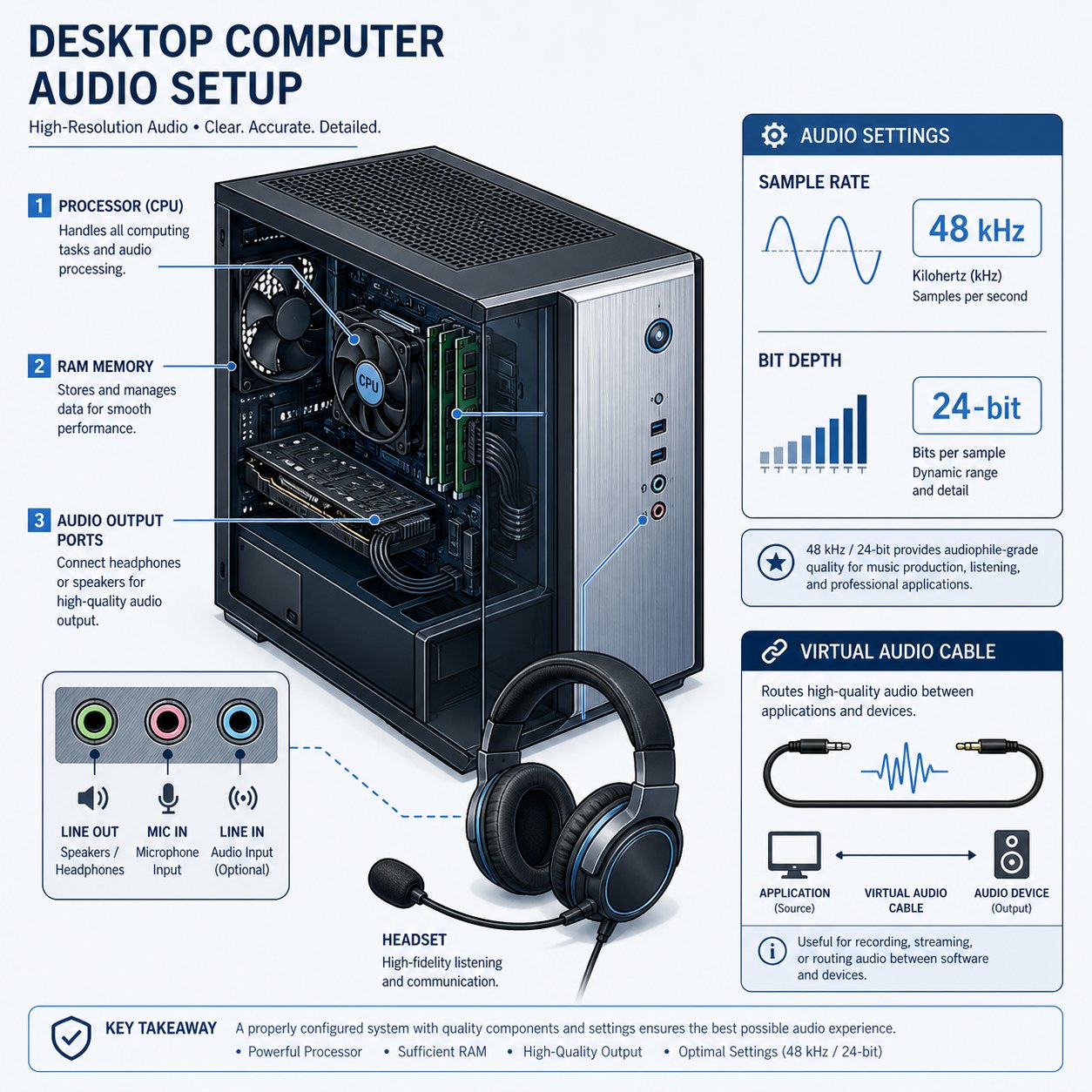
| Microphone | Any input device (8 kHz – 192 kHz range) | Wired USB or XLR (Bluetooth can introduce compatibility issues) |
A critical detail that catches many users off guard: CPUs manufactured before 2013 generally lack AVX2 support, which means AI voices and the song text to speech generation engine simply will not work on older hardware. If your processor predates that era, you are locked out of the feature regardless of your other specs.
Audio Output Formats and Quality Specifications
What does the finished song actually sound like from a technical standpoint? Voicemod's audio engine processes internally at 16-bit, 48,000 Hz, as documented in their sample rate support article. This is a standard quality level for real-time audio applications — perfectly adequate for streaming, social media content, and casual listening, though it falls short of the 24-bit / 96 kHz standard used in professional music production.
Generated songs can be exported as audio files for use in video editors, DAWs, or content pipelines. The output can also be routed live through Voicemod's virtual microphone, which is the primary delivery method for streamers who want to play generated clips directly into OBS, Streamlabs, or Discord. Many users looking for a text to speech song generator expect a simple copy-paste-and-play workflow, and the virtual microphone routing delivers exactly that level of simplicity.
However, there are notable technical limitations you should be aware of before relying on the feature for any production work:
- Maximum text input length — the tool is designed for short-form lyrics, not full-length songs. Lengthy inputs may be truncated or produce degraded output quality.
- Language support — while the Voicemod interface supports multiple client languages, the AI vocal engine is optimized primarily for English. Non-English text to speech songs may produce unnatural pronunciation or awkward phrasing.
- Audio artifacts — AI-generated vocals can exhibit robotic tonality, pitch inconsistencies, or unnatural syllable stress, particularly with complex words or unconventional phrasing.
- No stem export — you cannot download isolated vocal or instrumental tracks separately. The output is a single mixed file.
- Format specifics not fully documented — Voicemod does not publicly detail exact export bitrate or file format options (e.g., WAV vs. MP3) in its official documentation. Users should test exports to confirm compatibility with their editing workflow.
For users who want to text to speech songs copy paste style — simply dropping text in and getting usable audio out — the tool delivers on that promise within its designed scope. Just keep expectations calibrated: this is a 16-bit, 48 kHz real-time audio engine, not a mastering suite.
With the technical picture clear, the next natural question is what all of this actually costs — and whether the free tier gives you enough to work with or pushes you toward a paid subscription.
Voicemod Text to Song Free vs PRO Pricing Breakdown
Cost is where most guides get vague — offering a hand-wavy "some features require PRO" disclaimer and moving on. That is not helpful when you are trying to decide whether the voicemod text to song free experience is genuinely usable or just a teaser designed to push you toward a subscription. Here is exactly what each tier gives you.
Free Tier Features and Limitations
Voicemod Free is functional, but it operates on a rotation system. Instead of unlocking the full voice and sound library permanently, you get access to a limited daily rotation of voices that cycles new options in every day. For the Text to Song feature specifically, this means you may not always have your preferred AI singer or genre available when you want it. You are also restricted to a single soundboard slot with room for only a handful of sounds, which limits how many generated song clips you can keep loaded and ready for playback during streams or calls.
There is no indication that free-tier outputs carry audible watermarks, but the rotating content model effectively gates your creative flexibility. If you are searching for a text to song generator free no sign up solution, note that Voicemod does require account creation — even on the free plan. The web-based version through Tuna may offer a lighter entry point for users who want to test text to song free online before committing to a full desktop installation, though feature availability can differ from the app.
Voicemod PRO and What It Unlocks
Upgrading to Voicemod PRO removes the rotation lock entirely. You gain full, permanent access to the complete voice library, every genre template, and all AI singer options — no more waiting for a daily refresh. PRO also unlocks unlimited soundboards, so you can organize dozens of generated song clips across themed boards without hitting a cap. On top of that, PRO users get access to VoiceLab, Voicemod's custom voice creation engine, and all exclusive content packs and themed collections.
Voicemod's exact subscription pricing can shift over time, so it is worth checking their official pricing page for current rates. Historically, PRO has been offered as both a monthly and annual plan, with the annual option carrying a significant per-month discount.
Here is a side-by-side snapshot of how the voicemod text to song free vs paid experience breaks down:
| Feature | Free Tier | PRO Tier |
|---|---|---|
| Voice / Singer Access | Limited daily rotation | Full library unlocked permanently |
| Genre Templates | Rotating selection | All genres available anytime |
| Soundboard Slots | One board with limited slots | Unlimited boards and slots |
| Exclusive Content Packs | Some available | All PRO collections unlocked |
| VoiceLab (Custom Voice Builder) | Not available | Full access |
| Plugins and Extensions | Functional but limited to available content | Works with all PRO content and features |
| Account Required | Yes | Yes |
The honest takeaway? If you only want to experiment occasionally and do not mind which voices are available on a given day, the free text to song generator tier is a reasonable playground. But if you rely on specific genres or AI singers for consistent content — especially as a streamer or creator building a recognizable audio brand — the rotation model will frustrate you quickly. PRO eliminates that friction. For users specifically seeking a text to song ai free workflow with no restrictions, it is worth acknowledging that no tier of Voicemod offers truly unlimited, unrestricted generation at zero cost.
Pricing clarity helps set expectations, but the real value of any tool depends on how well it fits into your actual workflow. That raises a more practical question: what does it look like to use this feature in the real scenarios creators and streamers face every day?

Use Cases for Streamers and Content Creators
A feature is only as valuable as the workflows it enables. Voicemod's text to song sounds fun in theory, but what does it actually look like when embedded into a live stream, stitched into a TikTok, or fired off in a group chat for laughs? Each audience uses the tool differently — and each benefits from a distinct setup. Here are three concrete workflows tailored to the people who use this feature the most.
Voicemod Text to Song for Streamers
Picture this: a viewer donates during your Twitch stream, and instead of a generic alert sound, their custom message plays back as a fully sung pop or rap clip. That kind of interactive moment is exactly where the feature shines for live broadcasters. The key enabler is Voicemod's virtual microphone, which acts as a bridge between the generated audio and your streaming software.
Setting up the audio routing is simpler than most streamers expect. Voicemod's official support documentation details the process for OBS, Streamlabs, xSplit, and Twitch Studio — and the core step is the same across all of them: select the Voicemod Virtual Microphone as your audio input device. In OBS, for example, you navigate to your audio mixer, click the cogwheel on your Mic/Aux source, open Properties, and swap the input to the Voicemod microphone. That single change routes every voice effect and generated song clip directly into your broadcast.
Where it gets creative is in how you trigger song generation during a live session. Streamers can pre-generate clips based on viewer submissions, load them into Voicemod's soundboard, and assign hotkeys for instant playback. More advanced setups tie chatbot commands — through tools like Streamlabs Chatbot or StreamElements — to specific soundboard triggers, so viewers can request songs to text by typing a command in chat.
Here is a step-by-step workflow for getting the full streamer integration running:
- Open Voicemod and confirm your physical microphone and headphones are selected as input/output devices in Voicemod's settings.
- Navigate to the AI Song Generator and create several song clips using viewer-submitted phrases, subscriber shoutouts, or running jokes from your community.
- Export the generated clips and load them into Voicemod's Soundboard. Assign each clip to a dedicated hotkey or button.
- Open your streaming software (OBS, Streamlabs, xSplit, or Twitch Studio) and set the audio input source to Voicemod Virtual Microphone.
- Test playback by triggering a soundboard clip and confirming it plays through your stream audio — not just your local speakers.
- Optionally, configure chatbot integration so that specific chat commands or donation alerts trigger soundboard playback automatically.
- During the stream, fire off song clips in response to donations, subscriber milestones, or chat requests for maximum audience engagement.
The result is an interactive layer that feels spontaneous to viewers even though you have pre-built the content. Streamers who rotate fresh song clips regularly find that it keeps the soundboard feeling dynamic rather than stale — especially when viewers know their submitted lyrics might become the next on-stream musical moment.
Voicemod Text to Song for YouTube and TikTok Creators
Short-form video lives and dies on original audio. A catchy, unexpected sound can push a video into algorithmic favor, while reused audio blends into the scroll. That is where the tool becomes quietly powerful for YouTube Shorts and TikTok creators who need custom musical content fast.
Imagine generating a comedic sung intro for a recurring series — something like your channel name performed in an over-the-top operatic style, or a sarcastic rap summarizing the video topic. These kinds of fun song lyrics to text-based clips take seconds to produce and give your content an audio identity that stock music never will.
The production workflow for video creators differs from the streamer setup because the focus shifts from live playback to file export and timeline integration. After generating a clip in the AI Song Generator, export the audio file and drop it directly into your video editing software — Premiere Pro, DaVinci Resolve, CapCut, or whatever you use. From there, you can trim, layer, or time the clip to match your visual cuts.
A few practical approaches that creators are already using effectively:
- Custom musical intros and outros — generate a short sung tagline in a genre that matches your channel's vibe and use it consistently across videos for brand recognition.
- Comedic song reactions — type a sarcastic or absurd response to a trending topic, generate it as a sung clip, and layer it over reaction footage.
- Viral audio bait — craft weird song lyrics to text into the generator, produce something genuinely bizarre, and post it as an original sound on TikTok. Unusual audio has a higher chance of being reused by other creators, which amplifies reach.
- Explainer hooks — open an educational video with a catchy sung summary of the topic to grab attention in the first two seconds before the scroll continues.
One workflow tip worth highlighting: if you plan to reuse a generated clip across multiple videos, export it at the highest available quality and store it in a dedicated asset folder. Re-generating the same text will not produce an identical output each time — the AI introduces variation — so treat your best clips as non-reproducible assets.
Casual and Fun Use Cases
Not every user is building a content empire. A huge portion of the tool's appeal comes from pure entertainment — the kind of low-stakes fun that makes group chats erupt and party guests lose it.
Birthday messages are a perfect example. Instead of a generic card, you type a personalized happy birthday message, pick a ridiculous AI singer, and send the generated clip directly. The novelty factor is enormous because the recipient hears their name sung in a style they would never expect. The same logic applies to congratulations, inside jokes, or even passive-aggressive motivational quotes turned into power ballads.
Then there is the prank angle — and this is where the feature has built a surprisingly devoted following. Searching for songs to prank your best friend with over text leads to an entire subculture of people generating the most absurd, context-specific musical clips imaginable. The appeal of songs to text prank your friends with is straightforward: you take an inside joke, an embarrassing quote, or a deliberately cringeworthy phrase, run it through the generator in the most dramatic genre possible, and send the audio with zero context. The confusion alone is worth it.
Users regularly share funny song lyrics to text your friend as a social media trend in its own right — posting screenshots of the bewildered replies alongside the generated audio. Song lyrics to prank text threads have become their own meme format, with people competing to create the most unhinged combinations of earnest musical delivery and completely ridiculous content.
Other casual use cases that keep popping up include:
- Party gags — generating a roast song about the guest of honor and playing it on a speaker
- Meme creation — pairing weird song lyrics to text outputs with absurd video clips for social sharing
- Classroom or office humor — turning mundane announcements into dramatic musical performances
- Custom ringtones and notification sounds — short, personalized clips that replace generic alert tones
The common thread across all of these scenarios is that the tool rewards creativity over technical skill. You do not need to understand music production to get a result that makes someone laugh, and that accessibility is what keeps casual users coming back.
Whether you are routing audio through a streaming setup, editing clips into a video timeline, or just trying to make your friends question your sanity over text, the workflows are straightforward. The bigger question is how the feature stacks up when measured against tools that were built for more serious musical output — and whether Voicemod even belongs in that comparison.
How Voicemod Text to Song Compares to Full AI Music Generators
It does belong in that comparison — but only if you understand where it sits on the spectrum. Voicemod's text to song feature and a dedicated AI music generator are solving fundamentally different problems. One is a novelty engine embedded inside a voice-changing app. The other is a purpose-built creative platform designed to produce polished, release-ready tracks. Confusing the two leads to disappointment in both directions.
So how do the options actually stack up when you line them side by side? Here is a detailed breakdown comparing the most relevant tools in the text to song ai space.
Voicemod Text to Song vs Dedicated AI Music Generators
| Tool Name | Primary Purpose | Input Type | Output Length | Genre Range | Customization Depth | Price | Best For |
|---|---|---|---|---|---|---|---|
| MakeBestMusic | Turn prompts, lyrics, or text-based song ideas into full music tracks | Written prompts, lyrics, descriptions | Full-length tracks | Wide — covers multiple genres and moods | High — control over style, mood, and structure | Free tier available; paid plans for expanded features | Creators, songwriters, and beginners who want real songs from text |
| Suno AI | End-to-end AI songwriting with vocals | Text prompts, custom lyrics, voice capture | 8+ minutes | Extensive — pop, rock, jazz, electronic, and more | High — Suno Studio offers in-browser DAW editing | Free tier (non-downloadable); paid from ~$8/mo | Songwriters and content creators who want finished vocal tracks fast |
| Voicemod Text to Song | Novelty song clips inside a voice-changer app | Typed lyrics or text descriptions | Short clips (typically under 1–2 minutes) | Moderate — pop, rock, rap, EDM, lo-fi, jazz, holiday, meme | Low — template-driven with limited parameter adjustment | Free tier (rotating access); PRO ~$6.72/mo | Streamers, memers, and casual users who want quick, fun outputs |
| Melobytes | Experimental AI music from text input | Text, images, or other media | Short to medium clips | Moderate — eclectic and experimental options | Low to moderate — limited fine-tuning controls | Free with optional donations | Hobbyists and experimenters exploring weird AI-generated audio |
| Stable Audio 3 | Instrumental generation and sound design | Text prompts | Up to ~6 min 20 sec | Broad — instrumentals, textures, SFX | High — open weights, local generation, API access | Open weights free; large model via API/enterprise | Developers, sound designers, and producers who need instrumental beds |
The gap is immediately visible. A dedicated ai text to song generator like MakeBestMusic is engineered from the ground up to transform written prompts and lyrics into complete, structured music. It gives creators meaningful control over how the output sounds — not just which template to apply. Suno AI, currently one of the most recognized names in the suno ai text to song space, takes this even further with its v5.5 model, offering convincing lead vocals, harmonies, and an in-browser DAW called Suno Studio for post-generation editing. These platforms treat music creation as the core product, not a sidecar feature.
Meanwhile, the melobytes text to song approach occupies its own quirky corner — accepting not just text but images and other media as inputs, then producing deliberately experimental and unpredictable audio. It appeals to a niche audience more interested in exploration than polish.
Voicemod sits clearly on the entertainment end of this spectrum, and that positioning is not a criticism — it is a design decision.
Where Voicemod Excels and Where It Falls Short
Voicemod's strength is speed paired with zero friction. You type a phrase, pick a genre, and get a playable clip in under a minute. No learning curve, no DAW to configure, no decisions about time signatures or chord progressions. For streamers triggering live soundboard clips, for friends sending absurd musical texts, and for TikTok creators who need a throwaway audio gag in ten seconds flat, that instant gratification is the entire value proposition.
The tool also benefits from deep integration with its parent ecosystem. Because it lives inside a voice-changer app that already hooks into OBS, Discord, and every major streaming platform, the audio routing is already solved. You do not need to export, import, and re-configure — the clip plays directly through the virtual microphone into whatever application you are broadcasting through.
The shortcomings become apparent the moment your goals shift from entertainment to creation. There is no way to edit the melody after generation. You cannot adjust tempo independently, isolate vocal stems, or swap instrumentation. The 16-bit, 48 kHz output ceiling is fine for social media but falls short of professional production standards. And the template-driven generation model means two users selecting the same genre and similar lyrics will get outputs that sound closely related — limiting originality at scale.
For anyone using the suno ai music generator text to song workflow or exploring a dedicated ai music generator text to song platform, the contrast is stark. Tools like MakeBestMusic let you feed in actual lyrics or detailed text-based song ideas and receive tracks with structural depth — verses, choruses, bridges, and real dynamic range. That is a fundamentally different output than a 30-second meme clip, and it serves a fundamentally different creative intent.
The honest assessment? Voicemod Text to Song is excellent at what it was designed to do — deliver quick, shareable, laugh-out-loud musical moments with no effort. It was never built to compete with full-scale text to song generator platforms, and judging it by those standards misses the point. The real decision for you as a user is figuring out which category your needs fall into: instant entertainment or serious music creation.
If you have already decided that your needs lean beyond novelty clips, the next logical step is knowing exactly which alternatives deserve your attention — and what each one does best.
Top Alternatives and How to Pick the Right Text to Song Tool
Voicemod delivers on its promise — fast, funny, frictionless musical clips. But what happens when you need more? Maybe you want a full-length track with verses and choruses. Maybe you need polished audio for a client project. Maybe the template-driven output just is not cutting it anymore. Whatever the reason, the ai text to song generator landscape has matured significantly, and several platforms are purpose-built for the exact gap Voicemod leaves open.
Best Alternatives for Turning Text Into Music
Each tool below serves a different slice of the creative spectrum. The ranking reflects how directly each platform addresses the core use case — turning written words into actual music — rather than overall brand recognition or feature count.
- MakeBestMusic Text to Music Generator — Purpose-built for creators, songwriters, and beginners who want to turn written prompts, lyrics, or text-based song ideas into complete music. Unlike novelty generators, MakeBestMusic treats your input as a genuine creative starting point and produces structured, listenable tracks with real musical depth. If you have been using Voicemod for fun but want to graduate to actual songwriting output, this is the most direct upgrade path. A free ai text to song generator tier lets you test the workflow before committing.
- Suno AI — The largest AI music platform by user base, with over two million users and a feature set that includes Suno Studio, a browser-based multitrack DAW. Suno v5 delivers impressive vocal realism and supports full song structures up to eight minutes. Best for creators who want speed and depth — type a prompt, get a complete song in roughly 40 seconds, then refine it in the studio editor. Free tier offers 50 credits per day; Pro starts at around $10 per month.
- Udio — Built by former Google DeepMind researchers, Udio renders at 48 kHz with clean instrumental separation that holds up alongside commercially licensed music. Its inpainting feature lets you regenerate specific sections without touching the rest of the track — the closest thing to surgical editing in the AI music space. Ideal for creators who prioritize audio fidelity and are willing to invest more time in the generation process.
- Boomy — A beginner-friendly ai song maker text to song platform focused on volume and reach. Generate a track, tweak a few settings, and publish directly to streaming platforms. The creative control is limited, but the path from idea to distributed song is shorter than any other option on this list.
- Soundraw — Designed for content creators who need royalty-free background music on demand. You select mood, genre, and length, then customize energy levels and structure per section. No vocals or lyrics, but the licensing clarity and workflow speed make it a practical choice for YouTubers and podcasters.
- Stable Audio — An open-weights instrumental generator that supports text prompts for soundscapes, textures, and sound effects. Best suited for developers, sound designers, and producers who want local generation with no subscription. Not built for vocal tracks, but powerful for instrumental beds and ambient content.
For anyone searching for a text to song generator online free option, both MakeBestMusic and Suno offer usable free tiers — though each limits generation volume or feature access on unpaid plans. Udio also provides a free tier with a daily credit cap, making it possible to experiment across multiple platforms at zero cost before settling on one.
Choosing the Right Tool for Your Needs
With this many options available, the decision often feels more complicated than it needs to be. In practice, the choice comes down to a single question about intent.
Choosing between Voicemod Text to Song and a dedicated text-to-music generator depends on whether you want quick entertainment clips or polished, creative music output.
Here is a simple framework to cut through the noise:
- You want meme-ready clips in under a minute — stick with Voicemod. The integration with streaming software, the soundboard workflow, and the zero learning curve make it unbeatable for this specific scenario.
- You want to turn lyrics or prompts into real, structured songs — use a dedicated text to song ai generator like MakeBestMusic. The output quality, creative control, and musical depth operate on a completely different level from novelty generators.
- You want maximum audio fidelity for professional or client work — Udio's 48 kHz rendering and section-level editing give you the most production-ready output among current AI platforms.
- You want the fastest path from idea to published song — Suno's combination of rapid generation, vocal quality, and its integrated Studio editor covers the full pipeline from prompt to polished track.
None of these tools cancel each other out. Many creators use Voicemod for live stream entertainment and a dedicated free text to song ai generator for their actual music projects. The tools serve different creative muscles, and treating them as competitors misses the bigger picture.
The AI music landscape is expanding rapidly — new models, better vocal realism, deeper editing capabilities, and increasingly accessible pricing are reshaping what independent creators can produce without a studio or a music degree. The tools that exist today will look primitive compared to what is coming. The smartest move is not to pick one platform and commit forever, but to understand what each tool does well, match it to your current creative goal, and stay open to switching as the technology evolves. Your words deserve the right engine to bring them to life.
